

Notification Settings and Email Preferences
This guide explains how to configure notification settings and email preferences for your Sender account.
Where to Find This Setting
In the Sender dashboard, click the notification bell icon (🔔) in the top-right corner of the screen, then click the settings gear icon (⚙️) at the bottom of the notifications panel. This opens the Notifications settings page.
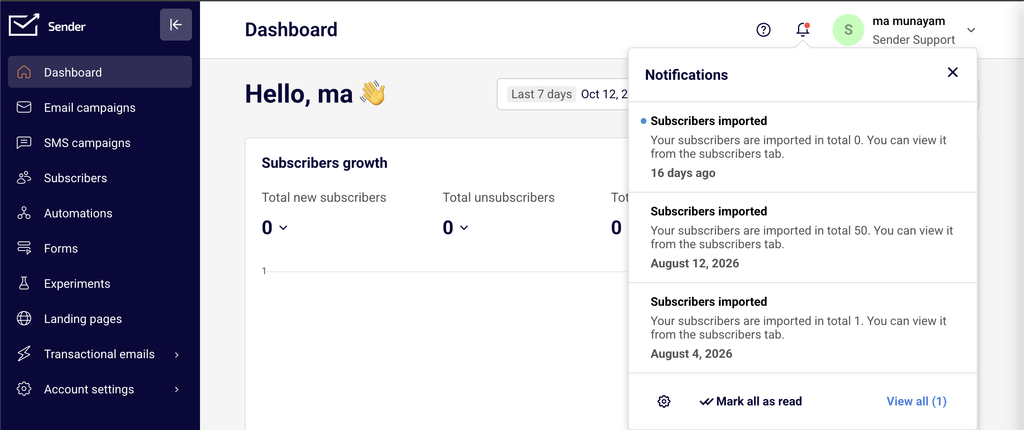
Alternatively, click your profile name in the top-right corner and select Notifications from the dropdown menu.
On this page, you will see two sections — General & account notifications and System notifications. Each notification type has two toggle columns: In-app and Email. All toggles are enabled by default. A Reset to default button appears at the bottom of the page.
Steps to Configure Notification Preferences
Step 1 — Open the Notifications Settings Page
Click the notification bell icon in the top-right corner of the dashboard. A panel appears showing your recent notifications. At the bottom-left of the panel, click the gear icon (⚙️).
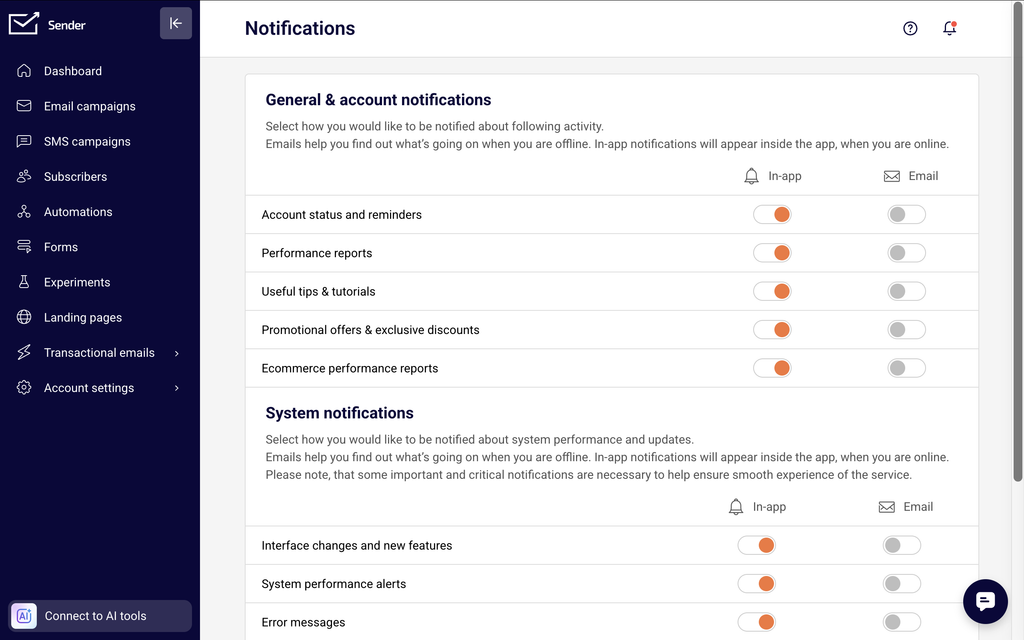
The Notifications settings page loads, displaying all available notification categories organized under General & account notifications and System notifications.
Step 2 — Adjust General & Account Notification Toggles
Under General & account notifications, locate the notification type you want to change. Each row has an In-app toggle and an Email toggle. Click a toggle to turn it off (gray) or on (orange). Changes save automatically — there is no save button. Repeat for each notification type you want to adjust.
Step 3 — Adjust System Notification Toggles
Under System notifications, review each notification type in the list. Toggle In-app or Email on or off for each type depending on your preference. Note that some important and critical system notifications may still be delivered to ensure smooth operation of the service, even if certain toggles are turned off.
Step 4 — Reset to Default (Optional)
If you want to restore all notification preferences to their original state, scroll to the bottom of the page and click the Reset to default button. This re-enables all In-app and Email toggles across both sections.
Available Settings
Account status and reminders — Controls notifications about your account status, such as usage limits, account health, and important reminders. Available as both In-app and Email.
Performance reports — Controls notifications that summarize the performance of your campaigns. Available as both In-app and Email.
Useful tips & tutorials — Controls notifications with educational content, how-to guides, and tips to help you get more out of Sender. Available as both In-app and Email.
Promotional offers & exclusive discounts — Controls notifications about special offers, deals, and promotions from Sender. Available as both In-app and Email.
Ecommerce performance reports — Controls notifications related to ecommerce tracking and revenue reporting. Available as both In-app and Email.
Interface changes and new features — Controls notifications about UI updates, new feature releases, and platform changes. Available as both In-app and Email.
System performance alerts — Controls notifications about platform performance issues, maintenance windows, or service interruptions. Available as both In-app and Email.
Error messages — Controls notifications about errors that occur during campaign sends, imports, or other operations. Available as both In-app and Email.
Warning messages — Controls notifications about potential issues that may require your attention before they become errors. Available as both In-app and Email.
Success messages — Controls notifications confirming that an action or process completed successfully. Available as both In-app and Email.
Settings Tips
Keep system alerts enabled — Leave Error messages, Warning messages, and System performance alerts toggled on for both channels so you are immediately notified of any issues that could affect your campaigns or account.
Turn off promotional notifications if not needed — If you do not want to receive marketing communications from Sender, toggle off Promotional offers & exclusive discounts under both In-app and Email to reduce notification noise.
Use email notifications for offline awareness — Enable the Email toggle for critical notification types like Account status and reminders and Error messages so you receive alerts even when you are not logged into the dashboard.
Audit preferences periodically — Review your notification toggles regularly to make sure they still match your needs, especially after onboarding new team members or changing your campaign frequency.
Use Reset to default after troubleshooting — If you are missing expected notifications, click Reset to default to restore all toggles to their original enabled state and then selectively turn off only what you do not need.
Common Issues
Not receiving email notifications → The Email toggle for that notification type is turned off. Go to the Notifications settings page, find the relevant notification type, and toggle Email back on (orange).
Too many in-app notifications → All In-app toggles may be enabled. Turn off In-app for lower-priority types like Useful tips & tutorials, Promotional offers & exclusive discounts, and Success messages to reduce clutter.
Cannot disable certain system notifications → Some critical notifications are required to ensure smooth operation of the service. These may still appear even if you toggle them off.
Notification preferences reset unexpectedly → Another user with Admin access on the account may have clicked Reset to default, which restores all toggles to their enabled state. Coordinate with your team before resetting.
FAQs
How do I access notification settings?
Click the notification bell icon (🔔) in the top-right corner of the dashboard, then click the gear icon (⚙️) at the bottom of the notifications panel. You can also click your profile name in the top-right corner and select Notifications from the dropdown menu.
Do notification changes save automatically?
Yes. When you toggle a notification setting on or off, the change is applied immediately. There is no save button on the Notifications settings page.
What is the difference between In-app and Email notifications?
In-app notifications appear inside the Sender dashboard when you are logged in and online. Email notifications are sent to your account email address and help you stay informed when you are offline or not actively using the platform.
Can I turn off all notifications at once?
There is no single toggle to disable all notifications. You need to turn off each In-app and Email toggle individually. To re-enable everything at once, click Reset to default at the bottom of the page.
Will disabling notifications affect my campaigns?
No. Notification preferences only control the alerts you receive about your account and system activity. Disabling notifications does not impact campaign delivery, automation workflows, or subscriber communications.
What does the Reset to default button do?
Clicking Reset to default restores all notification toggles across both General & account notifications and System notifications to their original enabled state. Both In-app and Email toggles for every notification type will be turned back on.