

What Happens When You Exceed Limits
This guide explains what happens when you exceed your plan’s subscriber or email sending limits in Sender and the steps you can take to resolve the issue and resume sending.
Where to Find This Setting
In the Sender dashboard, go to: Account settings → Billing
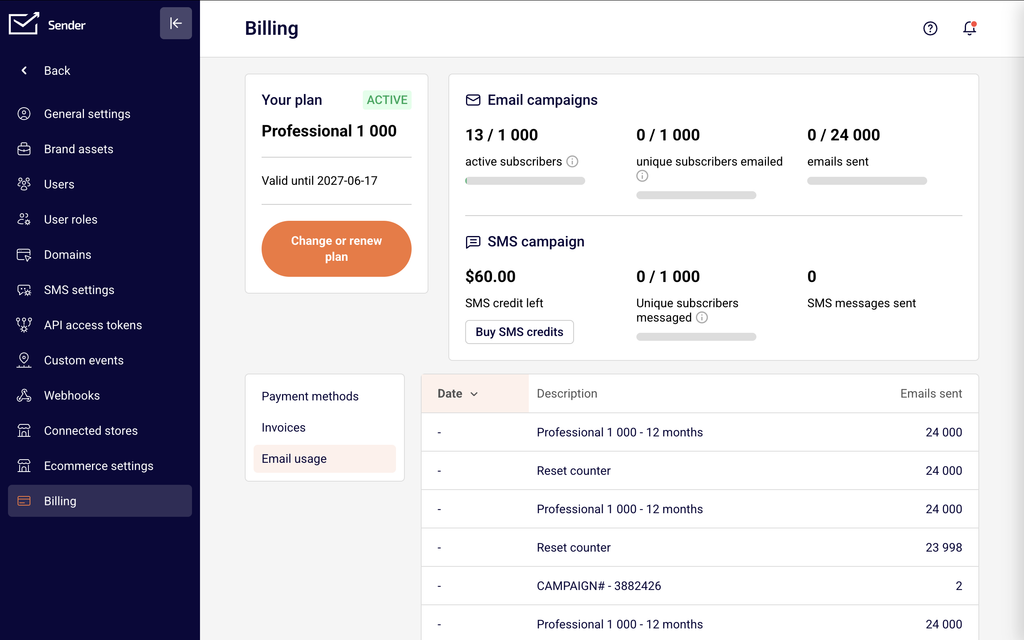
On this page you will see the Your plan section on the left, which displays your current plan name, its ACTIVE status badge, the plan expiration date, and the Change or renew plan button. To the right, the Email campaigns section shows three usage counters with progress bars: active subscribers, unique subscribers emailed, and emails sent. Each counter displays your current usage against your plan limit. Below that, the SMS campaign section shows your SMS credit left, Unique subscribers messaged, and SMS messages sent. When any counter exceeds its limit, the number and its progress bar turn red, indicating that the limit has been reached.
Steps to Resolve Exceeded Limits
Step 1 — Identify which limit you exceeded
Go to Account settings → Billing and review the Email campaigns section at the top of the page. Check the three counters: active subscribers, unique subscribers emailed, and emails sent. Any counter that has exceeded its plan limit will display in red with a filled red progress bar. Identify whether you have exceeded your active subscriber count, your unique subscriber emailed count, your email sending allowance, or a combination of these. The specific limit you exceeded determines which resolution options are available.
Step 2 — Choose a resolution path
Once you know which limit is exceeded, you have three options. To upgrade, click Change or renew plan on the Billing page. Select a larger plan tier or a higher subscriber level that accommodates your current usage, then complete the purchase. Your new limits take effect immediately. To renew your current plan, click Change or renew plan and repurchase the same plan to reset your limits for a new billing cycle. To wait, take no action and your limits will reset automatically when your next billing cycle begins.
Step 3 — Reduce your subscriber count (if applicable)
If you exceeded your active subscribers limit and prefer not to upgrade, go to Subscribers in the left sidebar. Use the Email status and Advanced filter options to identify inactive, bounced, or unengaged subscribers. Select the subscribers you want to remove and use the Actions menu to delete them.
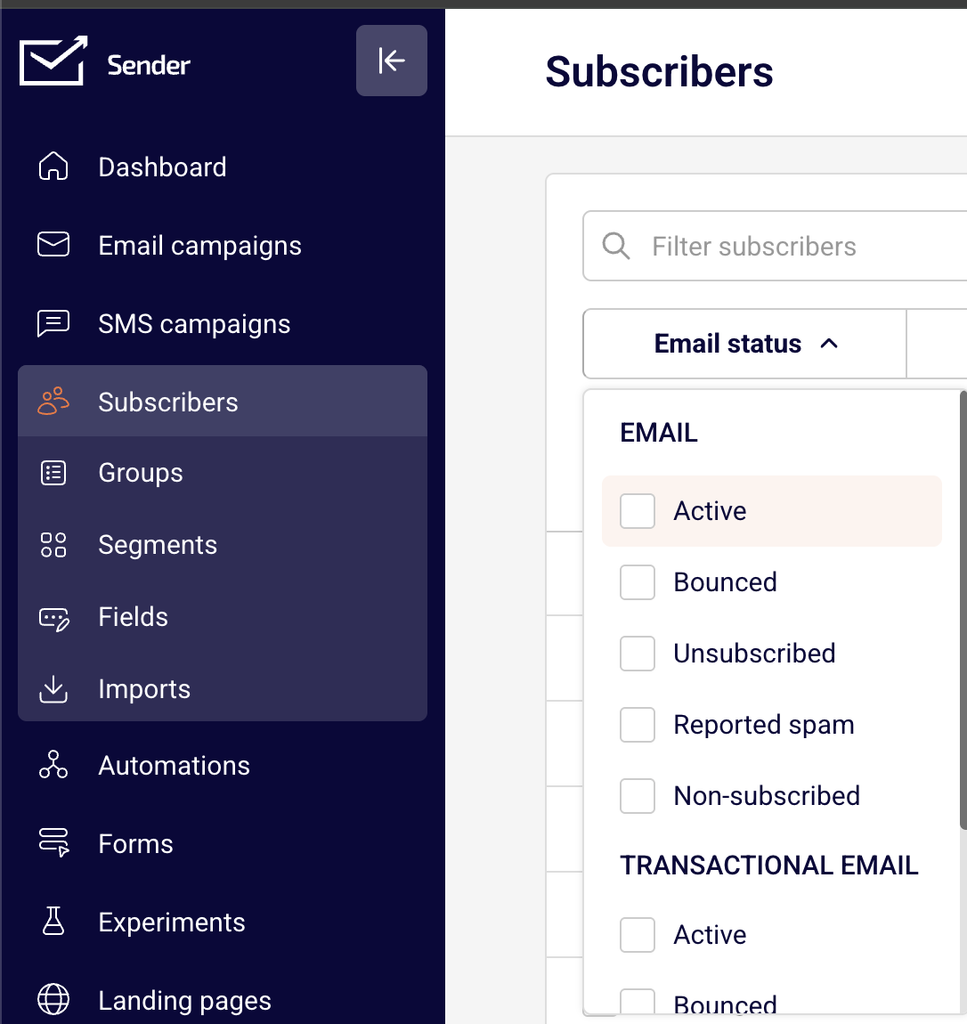
Your active subscriber count recalculates every hour, so allow time for the updated count to reflect on the Billing page before attempting to send campaigns again.
Step 4 — Verify your limits and resume sending
Return to Account settings → Billing and confirm that all three counters in the Email campaigns section are within your plan limits. Once your active subscribers, unique subscribers emailed, and emails sent are all below their respective limits, you can resume creating and sending email campaigns. Navigate to Email campaigns in the left sidebar and proceed with your next campaign as normal.
What Happens After the Change
Upgraded plan — If you purchase a higher plan, the new email credit allowance, subscriber limits, and any additional features take effect immediately. Your new plan expiration date is set based on the billing cycle you selected.
Renewed plan — If you renew your current plan, your email credits, unique subscriber counter, and emails sent counter all reset to zero for the new billing cycle. Your active subscriber count remains unchanged since it reflects your current subscriber list.
Automatic upgrade at renewal — If auto-renewal is enabled and your active subscriber count exceeds your current plan’s limit at the time of renewal, the system automatically upgrades your account to a larger plan that can accommodate all of your active subscribers. This results in a higher charge on your next billing date.
Waited for next billing cycle — When your billing cycle renews, your unique subscribers emailed and emails sent counters reset automatically. You can resume sending without taking any action, provided your active subscriber count is still within your plan limit.
Removed subscribers — After deleting subscribers, the active subscriber count recalculates within the hour. Once it falls within your plan limit, sending is restored without needing to change your plan.
Billing Tips
Monitor your usage regularly — Check the Email campaigns counters on the Billing page periodically, especially before large campaign sends, to avoid hitting limits unexpectedly.
Understand the two subscriber types — Active subscribers reflect how many recipients are currently stored in your account, while unique subscribers emailed tracks how many distinct addresses you have sent to during the current billing period. Both counts must stay within your plan limit.
Be aware of auto-upgrade behavior — If your active subscribers exceed your plan limit and auto-renewal is enabled, the system will automatically move you to a more expensive plan at renewal. Remove surplus subscribers before your renewal date if you want to stay on your current plan.
Clean your list before renewal — Remove unsubscribed, bounced, and inactive contacts from your subscriber list before your billing cycle renews to keep your active subscriber count within your plan’s allowance.
Check remaining plan value before upgrading — When you click Change or renew plan and select a new plan, the next step of the purchase flow shows a breakdown of any credit applied from your existing plan before you click to confirm payment.
Common Issues
Campaign sending is blocked but my counters look fine → Your active subscriber count recalculates hourly. If you recently removed subscribers, wait up to one hour for the updated count to appear on the Billing page, then try sending again.
Active subscriber count exceeds my limit even though I haven’t imported anyone new → Subscribers added through forms, automations, or integrations also count toward your active subscriber total. Check Subscribers in the left sidebar and sort by Date added to identify recently added contacts.
Unique subscribers emailed shows a high count after deleting and re-adding contacts → The unique subscribers emailed counter tracks every distinct email address you have sent to during the billing period, including addresses that were later deleted or unsubscribed. This counter resets only when your billing cycle renews.
I was charged more than expected at renewal → If auto-renewal is enabled and your active subscriber count exceeded your plan limit at the time of renewal, the system automatically upgraded your account to a higher plan. Review your invoice under the Invoices tab on the Billing page to see the new plan details.
I upgraded from yearly to monthly by mistake → If you purchase a monthly plan while on a yearly plan, the remaining value of your yearly plan is applied as a credit toward the monthly plan cost, but the unused portion of the yearly plan is not refunded separately. Contact Sender support if you need assistance reverting this change.
FAQs
What happens if I exceed my active subscriber limit?
The system prevents you from sending email campaigns until you either upgrade to a plan with a higher subscriber allowance or remove enough subscribers to bring your count within the current plan limit. Your active subscriber count recalculates every hour.
What happens if I exceed my unique subscribers emailed limit?
You will not be able to send additional campaigns for the remainder of your billing cycle. To resume sending, you can upgrade to a higher plan, renew your current plan to reset the counter, or wait for your next billing cycle to begin.
What happens if I run out of email credits?
The system blocks further campaign sending until your email credits are replenished. You can upgrade to a plan with more credits, renew your current plan, or wait for the next billing cycle when credits reset automatically.
Will I be automatically upgraded if I exceed my limits?
Only if auto-renewal is enabled and your active subscriber count exceeds your plan limit at the time of renewal. In that case, the system automatically upgrades you to a larger plan to accommodate your subscriber list, which results in a higher charge.
Does removing subscribers immediately restore my ability to send?
Not instantly. The active subscriber count recalculates every hour. After removing subscribers, wait up to one hour for the updated count to reflect on the Billing page before attempting to send a campaign.
Does the unique subscribers emailed counter reset when I remove subscribers?
No. The unique subscribers emailed counter tracks all distinct email addresses you have sent to during the current billing period, regardless of whether those subscribers were later removed. This counter resets only when your billing cycle renews.
Where can I check my current usage against my plan limits?
Go to Account settings → Billing. The Email campaigns section at the top of the page displays your current active subscribers, unique subscribers emailed, and emails sent alongside your plan limits.
Can I schedule a campaign if I’ve already reached my limits?
No. Scheduling a campaign requires sufficient remaining email credits and unique subscriber capacity. The system reserves those limits at the time of scheduling. If you cancel a scheduled campaign, the reserved limits are released back to your account.