

How to Change Your Sender Email Address
This guide explains how to change the sender email address that recipients see when they receive your campaigns in Sender.
Where to Find This Setting
In the Sender dashboard, go to: Email campaigns → select a campaign → Settings (first step in the campaign workflow)
On the Campaign settings page, you will see two sections. The Campaign details section contains fields for the campaign name, email subject, and preview text. Below it, the Sender details section contains the From name and Sender’s email address fields. To the right, an Inbox preview panel shows a real-time preview of how your email will appear in recipients’ inboxes, along with an Auto resend toggle.
Steps to Change Your Sender Email Address
Step 1 — Open your campaign settings
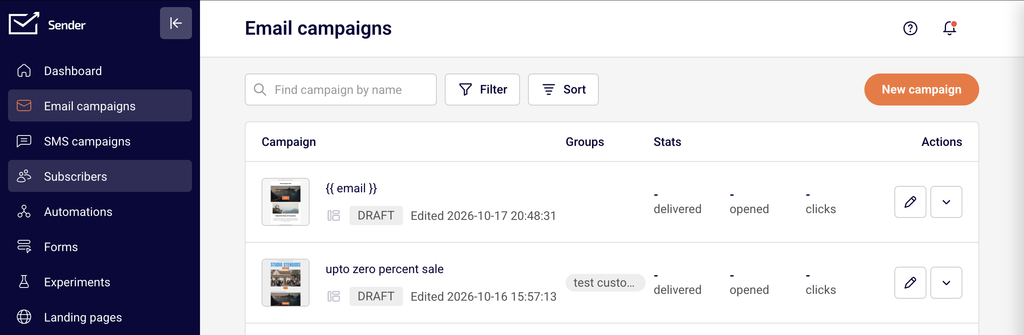
Go to Email campaigns in the left sidebar and locate the campaign you want to update. Click the edit icon (pencil) next to the campaign name.
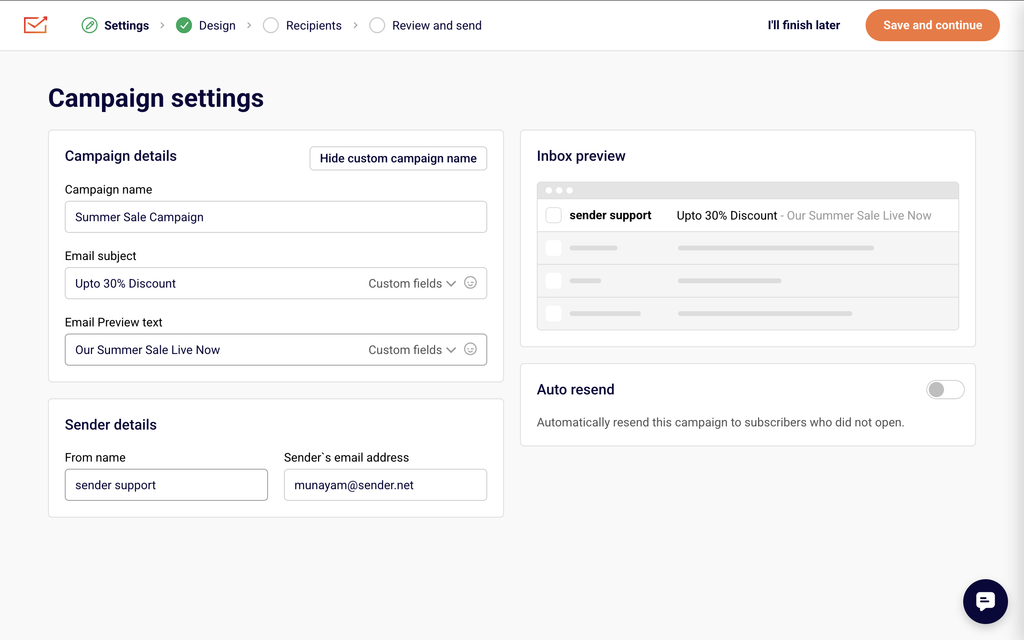
This opens the Campaign settings page, which is the first step in the campaign workflow breadcrumb: Settings → Design → Recipients → Review and send. Scroll down to the Sender details section to see the current From name and Sender’s email address.
Step 2 — Enter the new sender email address
Click the Sender’s email address field and clear the existing value. Type the new email address you want recipients to see as the sender. If you also want to update the display name, edit the From name field. The Inbox preview on the right updates in real time to reflect your changes. If the new email uses an already verified domain, the Save and continue button remains active.
Step 3 — Verify the domain if required
If the domain of your new sender email address has not been verified, a warning message appears below the Sender details section stating that the sending domain is not yet verified. The Save and continue button becomes disabled. Click the Verify [your domain] domain button to begin domain verification, or go to Account settings → Domains and click Add domain to add and verify the new domain before returning to this step.
Step 4 — Save and continue
Once your new sender email address uses a verified domain, click Save and continue to apply the change and proceed to the Design step. Alternatively, click I’ll finish later to save your settings and return to the campaign list without advancing. You can confirm your updated sender details on the Review and send step, where the From name and Sender’s email address are displayed under the Settings summary.
Available Settings
From name — The display name recipients see in their inbox. This is a free-text field and does not require verification.
Sender’s email address — The email address shown as the sender of your campaign. The email’s domain must be verified on the Domains page before you can save and send.
Inbox preview — A real-time preview panel on the right side of the page that shows how the from name, subject line, and preview text will appear in a recipient’s inbox.
Auto resend — A toggle that, when enabled, automatically resends the campaign to subscribers who did not open it.
Settings Tips
Use a verified domain before editing — Verify your new domain under Account settings → Domains before updating the sender email address in your campaign. This prevents the save button from being disabled.
Keep the from name recognizable — When changing the sender email address, also review the From name field. Recipients are more likely to open emails when the sender name is familiar and consistent.
Check the Inbox preview — After entering a new sender email address and from name, review the Inbox preview panel on the right to confirm the changes appear as expected before saving.
Update all draft campaigns — Changing the sender email address on one campaign does not update other campaigns. Review any scheduled or draft campaigns individually if you want to apply the new sender address across all sends.
Common Issues
Save and continue button is disabled → The domain of the email address you entered is not yet verified. Click the Verify [domain] domain button that appears below the sender details, or go to Account settings → Domains to add and verify the domain first.
“Domain is already in use” error → The domain you entered is registered to a different Sender account. You need to use a domain that is not claimed by another account, or contact support to resolve the domain conflict.
Sender email did not change on a sent campaign → Sender email changes only apply when you save the campaign settings before sending. Already sent campaigns retain the sender address used at the time of sending.
Inbox preview does not update → The Inbox preview reflects the From name and Email subject, not the sender email address directly. Confirm the email address by reviewing the Sender’s email address field or checking the Review and send step.
FAQs
Can I use any email address as my sender email?
You can enter any email address in the Sender’s email address field, but the email’s domain must be verified under Account settings → Domains before you can save the campaign and send. Unverified domains will trigger a warning and block saving.
Does changing the sender email address affect existing campaigns?
No. Each campaign stores its own sender email address independently. Changing the address on one campaign does not update other draft, scheduled, or sent campaigns. You must edit each campaign separately.
Do I need to verify the email address itself or just the domain?
You need to verify the domain, not the individual email address. Once a domain is verified on the Domains page, you can use any email address on that domain as your sender email address.
Where do I verify a new domain?
Go to Account settings → Domains and click Add domain. Enter your domain name and follow the verification steps. You can also click the Verify [domain] domain button that appears directly on the Campaign settings page when an unverified domain is detected.
Can I change the sender email address after a campaign is sent?
No. Once a campaign has been sent, the sender email address used at the time of sending cannot be changed for that campaign. You can only update the sender email on draft or scheduled campaigns that have not yet been sent.