

Taxes and VAT
This guide explains how to configure your VAT code, Tax ID, and company details in Sender so that your invoices display accurate tax and business information.
Where to Find This Setting
In the Sender dashboard, go to Account settings → General settings.
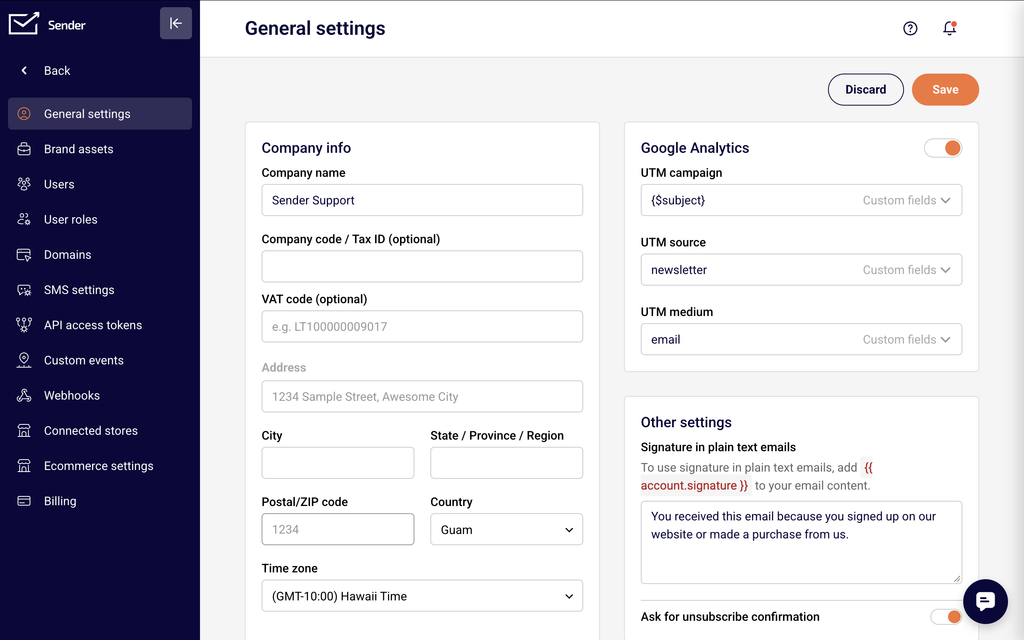
On this page, you will see the Company info section. It contains the Company name, Company code / Tax ID (optional), VAT code (optional), Address, City, State / Province / Region, Postal/ZIP code, and Country fields. These fields control the business and tax details that appear on your invoices. To view your invoices with the applied tax information, go to Account settings → Billing and select the Invoices tab.
Steps to Configure Taxes & VAT
Step 1 — Enter your VAT code and Tax ID
Go to Account settings → General settings. In the Company info section, locate the VAT code (optional) field and enter your VAT number (for example, LT100000009017). If you also have a company registration number or Tax ID, enter it in the Company code / Tax ID (optional) field. These fields are optional but recommended if your business is VAT-registered or requires tax identifiers on invoices.
Step 2 — Update your company and billing address details
In the same Company info section, verify that the Company name, Address, City, State / Province / Region, Postal/ZIP code, and Country fields are filled in correctly. These details appear on your invoices and should match your official business registration. Select the correct country from the Country dropdown, as this may affect how taxes are calculated on your charges.
Step 3 — Save your changes
Click the Save button at the bottom right of the page. Your updated VAT code, Tax ID, company name, and address details will apply to all future invoices. Previously issued invoices are not updated retroactively.
Step 4 — Verify the updated information on your next invoice
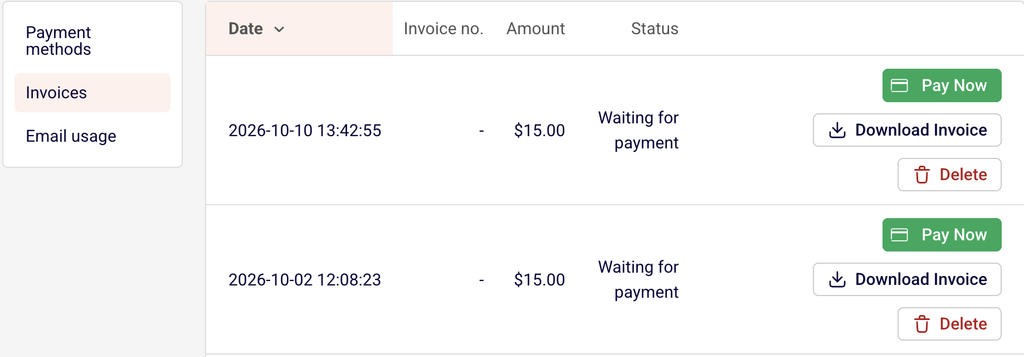
Go to Account settings → Billing and select the Invoices tab. Click Download Invoice next to any invoice issued after your changes.
Open the downloaded PDF and confirm that your VAT code, Tax ID, company name, and address appear correctly on the invoice.
Understanding Your Invoice
Date — The date and time the invoice was generated. Invoices are listed in reverse chronological order, with the most recent at the top.
Invoice no. — A unique number assigned to each finalized invoice. Invoices with a “Waiting for payment” status may not yet have an invoice number assigned.
Amount — The total amount charged for that billing period, including any applicable taxes. The currency displayed corresponds to your billing currency.
Status — Indicates the current state of the invoice. Paid means the payment was successfully processed. Waiting for payment means the charge has not yet been completed.
Download Invoice — Click this button to save a PDF copy of the invoice to your device. The PDF includes your company name, address, VAT code, Tax ID, line item charges, tax amounts, and total.
Pay Now — Appears next to invoices with a Waiting for payment status. Click this button to attempt payment immediately using your payment method on file.
Tax Configuration
VAT code (optional) — Located in the Company info section on the General settings page (Account settings → General settings). Enter your VAT registration number here. Once saved, it will appear on all future invoices. This field is intended for EU VAT numbers and similar tax registration identifiers.
Company code / Tax ID (optional) — Also located in the Company info section on General settings. Use this field for your company registration number or national Tax ID if it differs from your VAT code. This value also appears on invoices once saved.
Company name — Enter your official registered business name in this field on General settings. This is the name that will be printed on your invoices as the billing entity.
Address, City, State / Province / Region, Postal/ZIP code — These fields on General settings define your billing address. Ensure they match your business registration to keep your invoices accurate for accounting and tax filing purposes.
Country — Select your country from the dropdown on General settings. Your country selection may influence how taxes are applied to your subscription charges. Review your invoices to confirm the correct tax treatment.
Note: Sender provides tools to configure your tax identifiers and business details for invoices. For guidance on your specific VAT obligations, tax exemptions, or jurisdiction-specific requirements, consult a qualified tax professional or accountant.
Payment Tips
Keep your VAT code current — If your VAT registration number changes or you become VAT-registered, update the VAT code (optional) field on General settings immediately so that future invoices reflect the correct number.
Match your invoice details to your business records — Ensure your Company name, Address, and Country on the General settings page match the details in your official business registration. This prevents discrepancies when submitting invoices for expense reports or tax filings.
Download invoices promptly — Go to Account settings → Billing → Invoices and click Download Invoice to save PDF copies for your accounting records. Keeping local copies ensures you have access to your financial records at any time.
Review tax amounts on each invoice — After downloading an invoice, check the tax line items to confirm the correct VAT or tax rate was applied. If something appears incorrect, contact Sender support with the invoice number.
Resolve unpaid invoices quickly — If an invoice shows Waiting for payment, click Pay Now to process the charge. Unresolved invoices may affect your account status.
Common Issues
VAT code not appearing on invoices → You may have entered the VAT code but did not click Save on the General settings page. Go back to Account settings → General settings, verify the VAT code (optional) field, and click Save. The code will appear on invoices generated after saving.
Old invoices still show previous company details → Previously issued invoices are not updated retroactively when you change your company information. For corrections to already-issued invoices, contact Sender support with the invoice number and the details that need to be changed.
Country dropdown not updating tax charges as expected → Changing your Country on General settings affects future invoices only. If you believe tax is being applied incorrectly, review your most recent invoice and contact Sender support for clarification.
Invoice shows “Waiting for payment” with no invoice number → The invoice number is assigned once payment is finalized. Click Pay Now to complete the payment. Once processed, the invoice number and Paid status will appear.
FAQs
How do I add my VAT number to invoices?
Go to Account settings → General settings and locate the VAT code (optional) field in the Company info section. Enter your VAT number and click Save. It will appear on all future invoices. Previously issued invoices are not updated retroactively.
Can I add a Tax ID that is different from my VAT code?
Yes. The Company code / Tax ID (optional) field is separate from the VAT code (optional) field. Enter your company registration number or national Tax ID in the Company code / Tax ID (optional) field and your VAT number in the VAT code (optional) field. Both will appear on future invoices after you click Save.
Where do I update my billing address for invoices?
Go to Account settings → General settings. Update the Address, City, State / Province / Region, Postal/ZIP code, and Country fields in the Company info section, then click Save. Future invoices will display the updated address.
Is VAT or sales tax included in the price shown on the Billing page?
Tax handling depends on your location and business status. Some charges may have VAT or sales tax added on top of the listed price. Review your downloaded invoice for the exact tax breakdown. Consult a tax professional for guidance on your specific obligations.
Can I get a corrected invoice if my company details are wrong?
Update your Company name, Address, and VAT code on the General settings page. Future invoices will reflect the updated details. For corrections to previously issued invoices, contact Sender support with the invoice number and the details that need to be changed.
How do I download an invoice?
Go to Account settings → Billing and select the Invoices tab. Find the invoice in the list and click Download Invoice to save a PDF copy to your device.
Does changing my country affect tax on existing invoices?
No. Changing the Country field on General settings only affects invoices generated after the change. Existing invoices retain the tax calculation that was applied at the time of billing.
When does Sender charge my payment method?
Charges occur at the beginning of each billing cycle based on your subscription renewal date. You can view your renewal date on the Billing page under Your plan.