

How to Update Your Account Profile and Business Information
This guide explains how to update your company details, address, time zone, and other account-level settings in Sender.
Where to Find This Setting
In the Sender dashboard, go to: Account settings → General settings
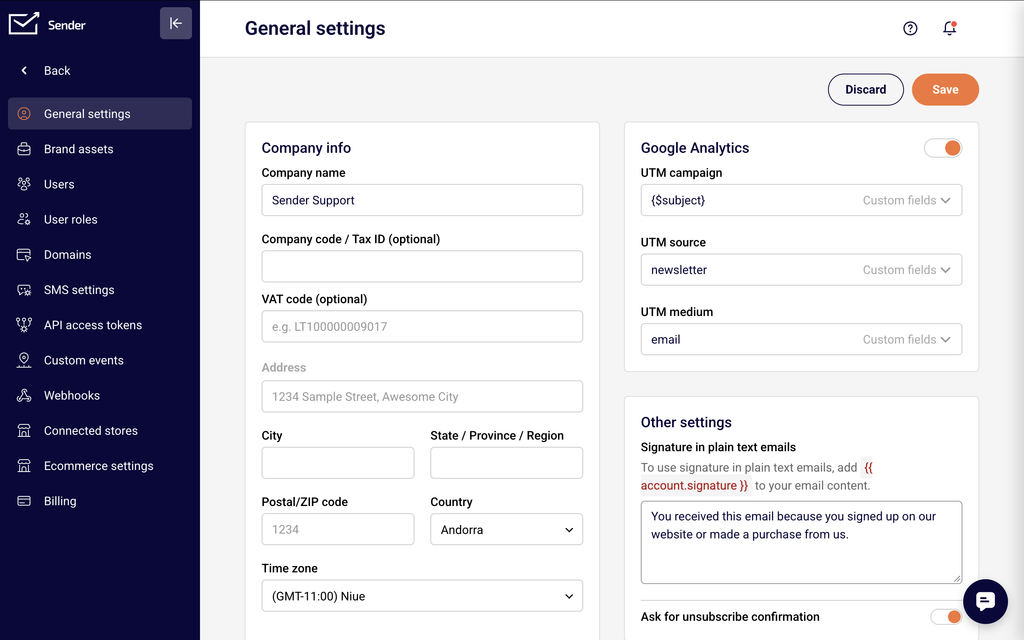
You will see the General settings page divided into three sections. On the left, the Company info section contains your business name, tax identifiers, phone number, and mailing address fields. On the right, the Google Analytics section lets you configure UTM tracking parameters for your campaigns. Below that, the Other settings section includes your plain text email signature, ecommerce report currency, and toggles for unsubscribe confirmation and ecommerce tracking. A Save button appears at both the top-right and bottom-right corners of the page.
Steps to Update Your Account Profile and Business Information
Step 1 — Open the General settings page
Click Account settings in the left sidebar of your Sender dashboard. This expands the settings submenu. Click General settings at the top of the submenu. The page loads with your current company information and account-level settings pre-filled in their respective fields.
Step 2 — Update your company and business information
In the Company info section, update any of the following fields as needed: Company name, Company code / Tax ID (optional), VAT code (optional), Address, City, State / Province / Region, Postal/ZIP code, and Country. To change your phone number, click the Edit phone button next to the Phone number field and follow the verification process. Select your Time zone from the dropdown to ensure campaign scheduling and reporting reflect the correct local time.
Step 3 — Configure additional account settings
On the right side of the page, review the Other settings section. Update the Signature in plain text emails field to change the default text that appears at the bottom of plain text emails. Select a currency from the Ecommerce report currency dropdown if you use ecommerce tracking. Toggle Ask for unsubscribe confirmation on or off depending on whether you want subscribers to confirm before being removed. Toggle Enable ecommerce tracking if you want to track revenue from your campaigns (available on PRO plans).
Step 4 — Save your changes
Click the Save button at the top-right or bottom-right corner of the page. Your updated company information and settings are applied immediately and will be reflected across your campaigns, email footers, and reports that reference account-level fields.
Available Settings
Company name — The name of your business. This value appears in your email footer and any templates that use account-level merge fields.
Company code / Tax ID (optional) — Your company registration number or tax identification number. This field is optional and used for record-keeping purposes.
VAT code (optional) — Your value-added tax registration number. This field is optional and relevant for businesses in regions that require VAT identification.
Phone number — Your business phone number. Changing this number requires verification through a code sent to the new number. Click Edit phone to begin the process.
Address, City, State / Province / Region, Postal/ZIP code, Country — Your business mailing address. These fields are used in your email footer for CAN-SPAM compliance and may appear in campaign templates that reference address merge fields.
Time zone — The time zone used for campaign scheduling, automation triggers, and report timestamps. Changing this affects how future scheduled sends are timed.
Signature in plain text emails — The default text appended to the bottom of plain text email versions. Update this to customize the message recipients see in non-HTML email clients.
Ecommerce report currency — The currency used to display revenue data in your ecommerce reports. Select the currency that matches your store’s primary currency.
Ask for unsubscribe confirmation — When enabled, subscribers who click the unsubscribe link are asked to confirm before being removed from your list. When disabled, they are unsubscribed immediately.
Enable ecommerce tracking — When enabled, Sender tracks purchases and revenue attributed to your campaigns. This feature is available on PRO plans.
Settings Tips
Keep your business address current — Your mailing address is included in email footers to meet CAN-SPAM and anti-spam compliance requirements. An outdated or incorrect address can cause deliverability issues or legal non-compliance.
Set the correct time zone before scheduling campaigns — The Time zone setting affects when scheduled campaigns and automations are sent. Verify this is accurate before setting up any time-sensitive sends.
Use a descriptive company name — The Company name field may appear in email footers and recipient-facing templates. Make sure it matches the brand name your subscribers recognize.
Update your phone number promptly — If your business phone number changes, click Edit phone to update and verify the new number right away. An outdated number can delay account verification or support requests.
Review your plain text signature — Many recipients and email clients display the plain text version of your emails. Keep the Signature in plain text emails field professional and aligned with your current brand messaging.
Common Issues
Changes are not saving → This typically happens when a required field is left empty or contains an invalid value. Ensure all required fields (such as Company name and Address) are filled in correctly, then click Save again.
Phone number won’t update → Changing your phone number requires verification. Click Edit phone, enter the new number, and submit the verification code sent to that number. If you don’t receive the code, confirm the number is correct and try again.
Time zone change didn’t affect past reports → The Time zone setting only applies to future campaign scheduling and reporting timestamps. Previously sent campaigns retain the time zone that was active when they were sent.
Address not appearing in email footer → If your updated address does not appear in sent emails, verify that your email template uses account-level address merge fields. Templates with hardcoded addresses need to be updated manually.
FAQs
How do I change my company name on the account?
Go to Account settings → General settings and update the Company name field. Click Save to apply the change. The updated name will appear in your email footer and any templates that use account-level fields.
Can I leave the Company code / Tax ID and VAT code fields empty?
Yes. Both Company code / Tax ID and VAT code are optional fields. They are not required to send campaigns or use any Sender features.
Does changing my time zone affect already-scheduled campaigns?
Scheduled campaigns that were set up before the time zone change will still send at the originally scheduled time. Only new campaigns and automations created after the change will use the updated time zone.
How do I verify a new phone number?
Click the Edit phone button next to the Phone number field on the General settings page. Enter your new phone number, then enter the 6-digit verification code sent to that number and submit it to confirm the change.
Will updating my address affect existing sent campaigns?
No. Previously sent campaigns are not affected. Only future campaigns that use account-level address merge fields will display the updated address in the email footer.
What does the Ask for unsubscribe confirmation toggle do?
When enabled, subscribers who click the unsubscribe link in your emails see a confirmation page before being removed. When disabled, clicking the unsubscribe link removes them immediately without an extra step.