

Payment methods and invoices
This guide explains how to add or update a payment method, view and download invoices, and configure tax-related company details in Sender.
Where to find this setting
In the Sender dashboard, go to Account settings → Billing.
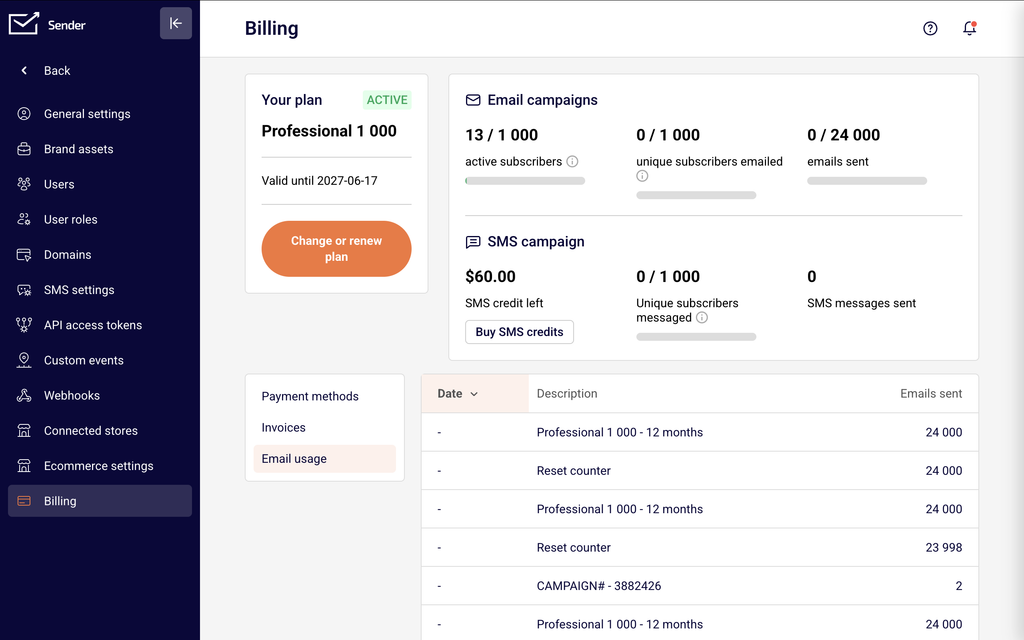
The Billing page displays your current plan name, status, and validity date at the top. Below that, three tabs organize your financial settings: Payment methods, Invoices, and Email usage. The Payment methods tab shows a table of saved cards with their type, payment details, expiration date, and status. The Invoices tab lists all invoices with their date, invoice number, amount, and payment status. Tax and company fields are located separately under Account settings → General settings in the Company info section.
Steps to manage payment methods and invoices
Step 1 — Add or update a payment card
Go to Account settings → Billing and select the Payment methods tab. Click Add payment card. In the Add payment method dialog, the New credit or debit card option is selected by default. Enter your Card number, MM/YY expiration date, and CVV, then click Add card.
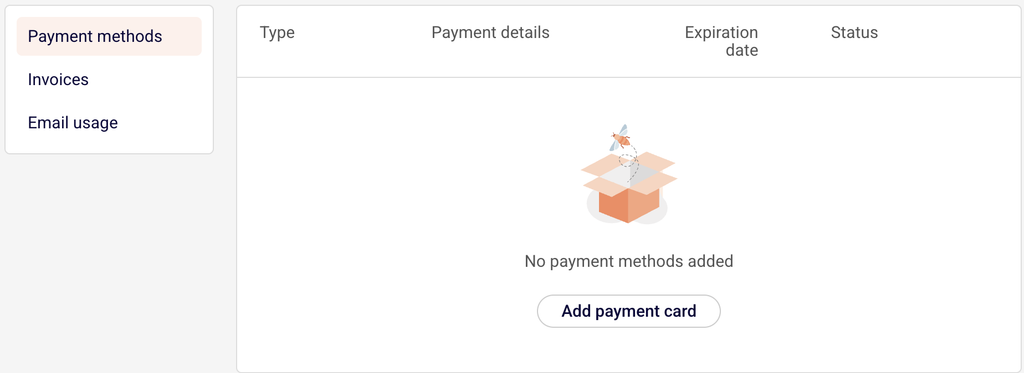
The card appears in the payment methods table with its type, masked payment details, expiration date, and status. This card will be charged for future billing cycles.
Step 2 — View and download invoices
Go to Account settings → Billing and select the Invoices tab. The table displays all invoices sorted by Date, along with the Invoice no., Amount, and Status for each entry. Invoices show either Paid or Waiting for payment as their status.
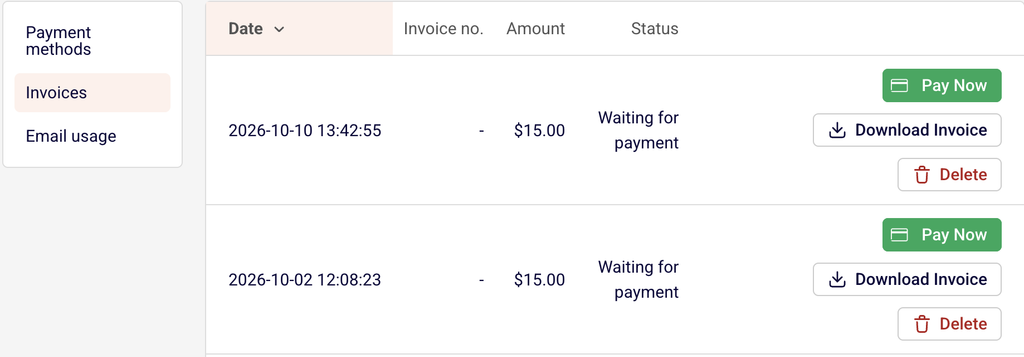
Click Download Invoice next to any invoice row to save a copy as a PDF. For unpaid invoices, a Pay Now button is also available to complete the payment immediately.
Step 3 — Pay an outstanding invoice
On the Invoices tab, locate any invoice with the status Waiting for payment. Click the green Pay Now button next to it to process the charge using your saved payment method. Once the payment completes, the invoice status updates to Paid and the Pay Now and Delete buttons are replaced with only a Download Invoice button. If no payment method is on file, add one first on the Payment methods tab.
Step 4 — Update company and tax information for invoices
Go to Account settings → General settings. In the Company info section, update the Company name, Company code / Tax ID (optional), VAT code (optional), Address, City, State / Province / Region, Postal/ZIP code, and Country fields as needed.
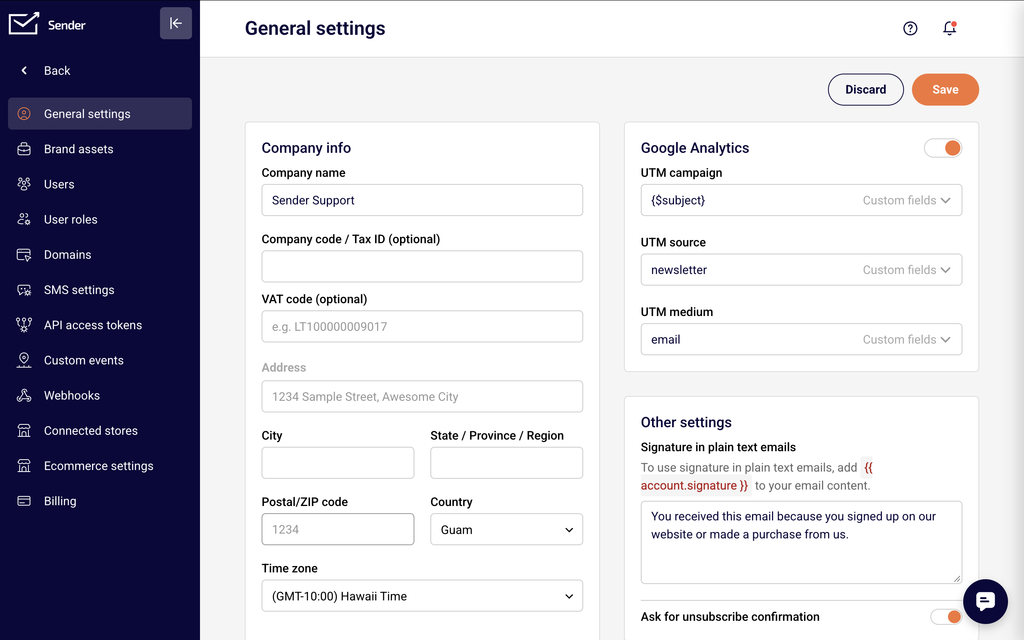
Click Save at the bottom of the page. These details are reflected on future invoices. Previously issued invoices are not updated retroactively.
Understanding your invoice
Date — The timestamp showing when the invoice was generated.
Invoice no. — A unique identifier assigned to each paid invoice. Unpaid invoices may show a dash until payment is completed.
Amount — The total charge for that invoice, displayed in the applicable currency.
Status — Indicates whether the invoice has been Paid or is Waiting for payment.
Download Invoice — Saves a PDF copy of the invoice. Available for all invoices regardless of payment status.
Pay Now — Appears only on invoices with the Waiting for payment status and processes the charge using your saved card.
Tax configuration
VAT code (optional) — Located under Account settings → General settings in the Company info section. Enter your VAT number in this field to include it on future invoices. The placeholder text shows the expected format (e.g., LT100000009017). Leave this field blank if VAT does not apply to your business.
Company code / Tax ID (optional) — Found in the same Company info section. Enter your company registration number or tax identification number here. This value appears on invoices alongside your company name and address.
Country — A dropdown in the Company info section. Selecting the correct country may affect how taxes are calculated or displayed on your invoices.
Company name and address fields — The Company name, Address, City, State / Province / Region, and Postal/ZIP code fields determine the billing details printed on your invoices. Update all relevant fields and click Save to apply.
Note: Sender provides these fields for tax configuration purposes. For guidance on your specific VAT, sales tax, or other tax obligations, consult a qualified tax professional or accountant.
Payment tips
Keep your card details current — If your card is nearing expiration, add a new payment method on the Payment methods tab before your next billing cycle to avoid a failed charge.
Download invoices promptly — Use the Download Invoice button to save PDF copies of paid invoices for your expense reports or accounting records.
Review unpaid invoices regularly — Check the Invoices tab for any entries with the Waiting for payment status and use Pay Now to clear them before they affect your subscription.
Verify company info before renewal — Update your Company name, VAT code, and Address under General settings before your next billing cycle so that the correct details appear on your next invoice.
Check the invoice currency — Invoice amounts may appear in different currencies. Review the Amount column on the Invoices tab to confirm the currency applied to each charge.
Common issues
Payment card was declined → The card may be expired, have insufficient funds, or be blocked by your bank. Verify your card details on the Payment methods tab, confirm funds are available, and contact your bank if the issue persists.
Invoice shows “Waiting for payment” after adding a card → Adding a card does not automatically pay outstanding invoices. Go to the Invoices tab and click Pay Now next to each unpaid invoice to process the charge.
VAT number is missing from a downloaded invoice → The VAT code field under Account settings → General settings may be blank. Enter your VAT number, click Save, and download the invoice again. Note that previously issued invoices may not reflect retroactive changes — contact Sender support for corrections to past invoices.
Company name or address is incorrect on an invoice → Update the Company name, Address, and related fields under Account settings → General settings and click Save. Future invoices will use the updated details. For corrections to previously issued invoices, contact Sender support with the invoice number and the details that need to be changed.
Cannot delete a paid invoice → The Delete button is only available for invoices with the Waiting for payment status. Paid invoices cannot be deleted from the Invoices tab and remain in your billing history as permanent financial records.
FAQs
How do I download an invoice?
Go to Account settings → Billing and select the Invoices tab. Click Download Invoice next to the invoice you need to save a PDF copy.
Can I add my VAT number to invoices?
Yes. Go to Account settings → General settings and enter your VAT number in the VAT code (optional) field under Company info. Click Save. The VAT number will appear on all future invoices. Previously issued invoices are not updated retroactively — contact Sender support for corrections.
What payment methods does Sender accept?
The Add payment method dialog on the Billing page supports credit and debit cards. Enter your Card number, MM/YY, and CVV to add a card. Check the Billing page for the most current list of supported payment options.
Why was my payment declined?
Common reasons include an expired card, insufficient funds, or a bank-side block on the transaction. Verify your card details on the Payment methods tab, check with your bank, and update your payment method if needed.
Is VAT or sales tax included in the price shown on the Billing page?
Tax handling depends on your location and business status. Some charges may have VAT or sales tax applied. Review the Amount on your invoice for the exact total. Consult a tax professional for guidance on your specific obligations.
Can I get a corrected invoice if my company details are wrong?
Update your Company name, Address, and VAT code under Account settings → General settings and click Save. Future invoices will reflect the updated details. For corrections to previously issued invoices, contact Sender support with the invoice number and the details that need to be changed.
How do I request a refund?
Contact Sender support with your account details and the specific invoice number. Refund availability depends on Sender’s refund policy, the reason for the request, and how much time has passed since the charge.
When does Sender charge my payment method?
Charges occur at the beginning of each billing cycle based on your subscription renewal date. You can view your plan validity date on the Billing page under the Your plan section.