

Create a win-back automation in Sender
TL;DR: A win-back automation emails inactive customers who haven’t bought for a while and gives them a reason to return. In Sender, go to Automations → Create new workflow and choose a Win-back template. It starts when an order is fulfilled, waits 3 months and then sends four emails. Set the wait time, edit the emails and click Activate.
Where to find it: Automations → Create new workflow → Cart & Revenue Recovery
Important: The Win-back template uses the An order is fulfilled trigger, which needs a connected store. See connecting with your store. No store? Use the segment method further down.
How the Win-back template works
The template counts time from a customer’s last fulfilled order in Shopify, WooCommerce or another connected store, so it reaches lapsed customers without any manual work. If the wait runs out, the customer gets a short series of emails spaced a few days apart.
| Step | What happens |
| Trigger | An order is fulfilled |
| Delay | Wait for 3 months |
| Email 1 | “We miss you” message |
| Delay | Wait for 5 days |
| Email 2 | Product suggestions |
| Delay | Wait for 7 days |
| Email 3 | Follow-up offer |
| Delay | Wait for 7 days |
| Email 4 | Last reminder |
Build the win-back workflow
Step 1: Pick the Win-back template
- Go to Automations and click Create new workflow.
- Under Category, tick Cart & Revenue Recovery.
- Find the Win-back version that fits your business, such as Win-back (Ecommerce), and click Use this template.
Sender creates a draft workflow and opens it in the builder.
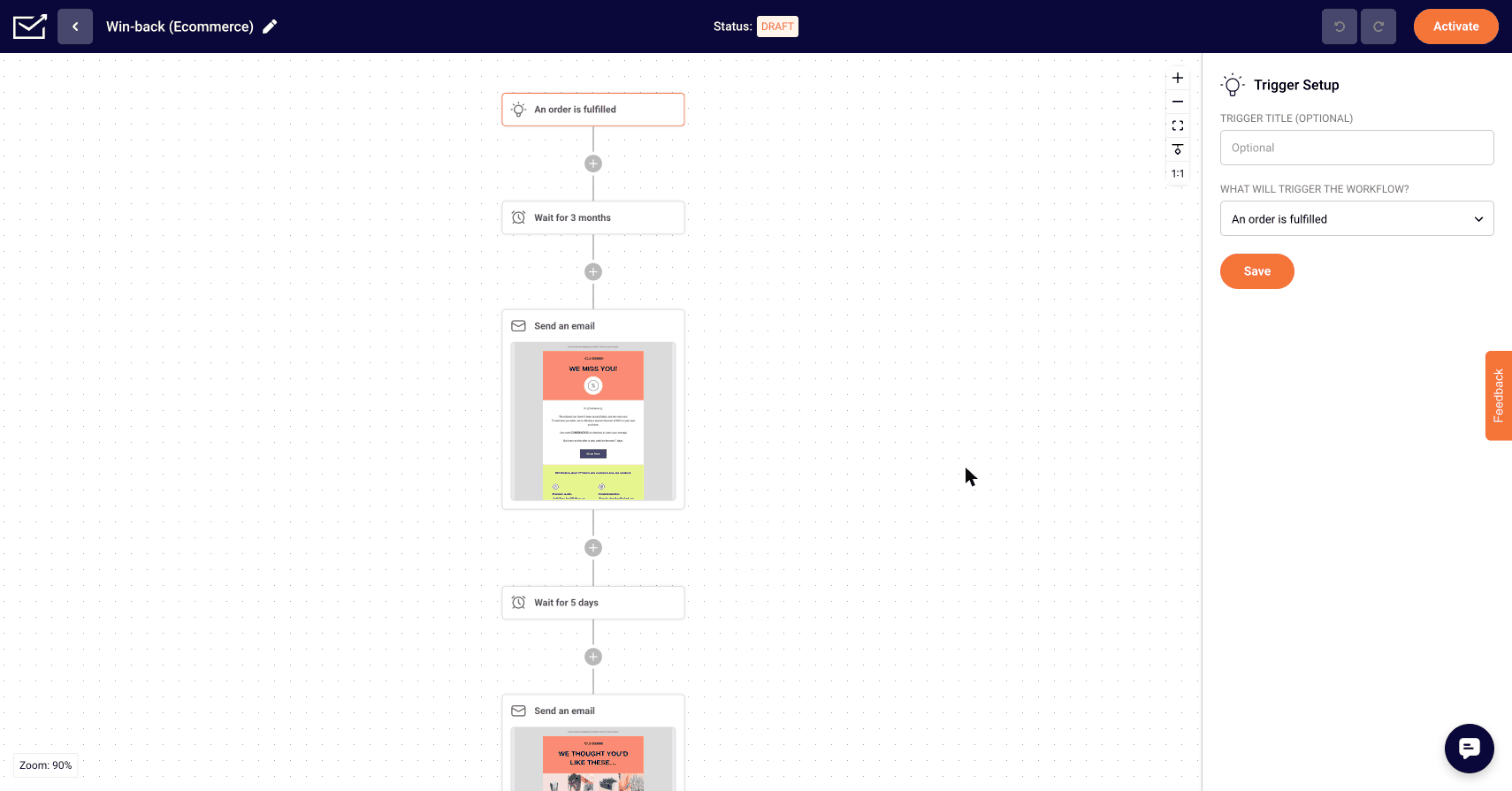
Step 2: Check the trigger
Click the first block. In Trigger Setup, keep An order is fulfilled and click Save.
Step 3: Set how long to wait
Click the Wait for 3 months block and change it to match how often your customers buy. A coffee subscription might wait 6 weeks. A furniture store might wait 12 months. See delays and timing rules.
Step 4: Edit the four emails
Click each email block and replace the placeholder content:
- Email 1: remind customers what they liked about you. Keep it friendly and short.
- Email 2: show new arrivals or best-sellers. Add items with the product block.
- Email 3: add an incentive, such as a discount code or free shipping.
- Email 4: say the offer ends soon and give one clear button.
Step 5: Activate and confirm
Click Activate. The status changes from DRAFT to ACTIVE. Customers enter the workflow from their next fulfilled order, so the first win-back emails go out after the wait you set.
To confirm it works, open the workflow after your next fulfilled order and check that a subscriber has entered it. See automation reports.
Good to know: A customer who buys again during the wait is still inside the workflow. To skip them, add a Condition block before the first email. See use conditions in a workflow.
Win back inactive subscribers without a store
If you don’t sell through a connected store, run a re-engagement campaign instead. It targets people who stopped opening your emails.
- Pick a segment of inactive subscribers. On paid plans, Sender adds the premade segment Unengaged subscribers 180 days under Subscribers → Segments. You can also build your own, such as people who were sent emails in the last 90 days and opened none in the last 60. See segment examples and premade segments.
- Start a workflow. Use a Re-engagement template from the same category, or click Create from scratch.
- Set the trigger to Subscriber enters a segment and choose your segment.
- Add two or three emails with delays between them, then activate the workflow.
What to do with customers who don’t come back
Win-back emails are a customer retention tool, but they are also list hygiene. Subscribers who ignore the whole series are unlikely to open future campaigns. Sending to them lowers your open rate and can hurt your sender reputation. Set a sunset rule: move them to a separate group with an action step, or remove them. See keep your subscriber list clean.
Win-back automation FAQs
Wait a little longer than your usual gap between orders. If most customers reorder within 2 months, start the series at 3 months.
No. Start with a reminder and product suggestions. Save the discount for the third email, so you only give it to customers who need the push.
What to set up next
For the full list of ready-made flows, see automation templates in Sender. Pair the win-back series with an abandoned cart email series and a post-purchase workflow, so customers hear from you at each stage. To see which subscribers still read your emails, identify engaged subscribers.