

Pausing and Resuming Automations
This guide explains how to deactivate and reactivate automation workflows in Sender to temporarily stop or resume subscriber processing.
Where to Find This Setting
In the Sender dashboard, go to: Automations (left sidebar) → Automations list.
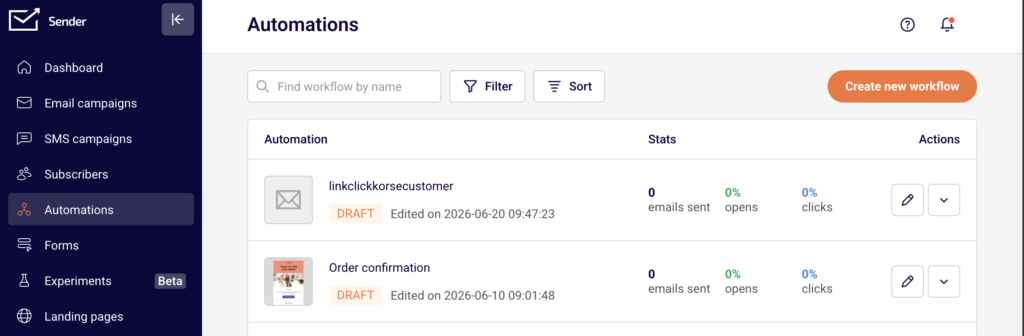
To manage a specific workflow, locate it in the list and use the Actions dropdown (▼) on the right side of the row. You can also open the automation builder by clicking the edit icon (pencil) or the stats icon (chart) to access controls from the top bar.
Steps to Deactivate (Pause) an Automation
Step 1 — Locate the Active Automation
Open the Automations page from the left sidebar. Active workflows display a green ACTIVE badge next to their name. If you have many automations, use the Filter button at the top and select Active to narrow the list.
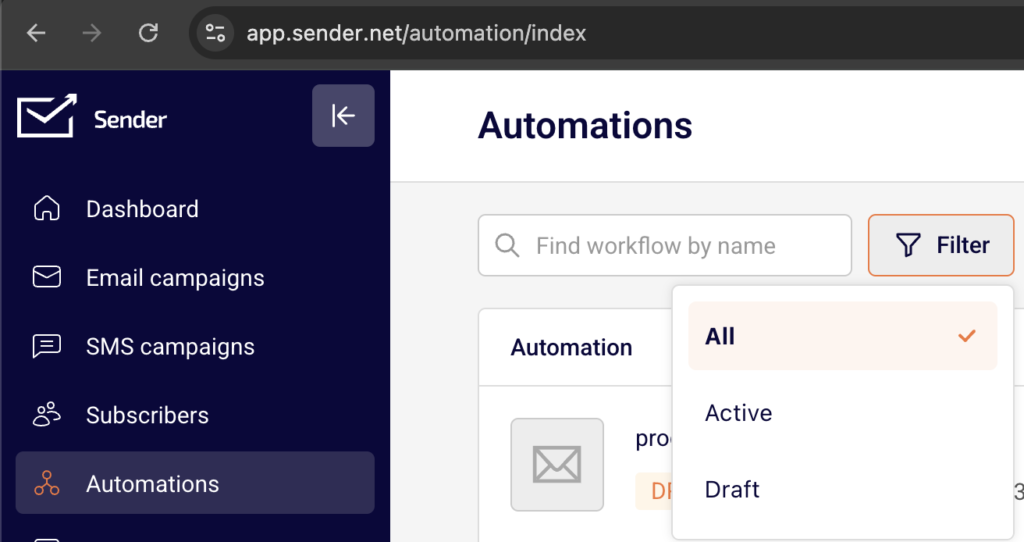
The Actions column for active automations shows a stats icon (chart) and a dropdown arrow (▼).
Step 2 — Deactivate the Workflow
You can deactivate from two locations:
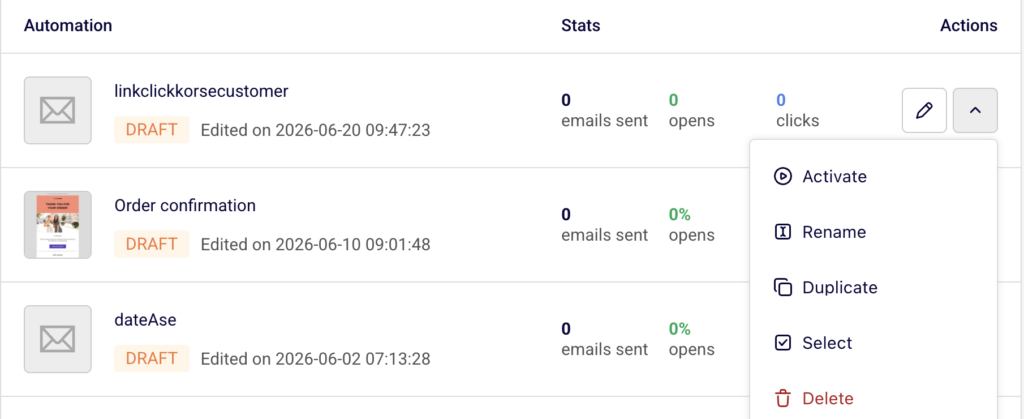
From the automations list: Click the dropdown arrow (▼) next to the automation and select Deactivate.
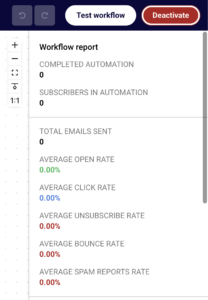
From the automation builder: Click the stats icon or Edit to open the workflow. Click the Deactivate button in the top-right corner of the builder.
The workflow status changes from Active to Draft immediately, and a confirmation toast message reading “Workflow deactivated” appears at the top of the page.
Step 3 — Verify the Status Change
After deactivating, confirm the automation now shows a DRAFT badge (orange) in the automations list. The Actions column icon reverts from the stats chart to the pencil (edit) icon. The dropdown menu now displays Activate instead of Deactivate.
Steps to Activate (Resume) an Automation
Step 1 — Locate the Draft Automation
On the Automations page, find the workflow you want to resume. It displays a DRAFT badge. Use the Filter button and select Draft if needed to narrow the list.
Step 2 — Activate the Workflow
From the automations list: Click the dropdown arrow (▼) next to the automation and select Activate.
From the automation builder: Open the workflow by clicking the pencil icon. Click the Activate button in the top-right corner.
A confirmation toast message reading “Activated” appears. The status changes to Active immediately.
Step 3 — Confirm Activation and Review Stats
After activating, the automation displays a green ACTIVE badge. The right panel in the builder switches from Trigger Setup to the Workflow report, which shows live statistics including total emails sent, average open rate, average click rate, unsubscribe rate, bounce rate, and spam reports rate. The Actions dropdown in the list now shows Deactivate and Edit instead of Activate and Rename.
What Happens After the Change
When you deactivate an automation, its status changes from Active to Draft. No new subscribers enter the workflow while it is in Draft status. The workflow stops processing any pending actions for contacts currently inside the automation.
When you reactivate the automation, it returns to Active status and begins accepting new subscribers matching the trigger conditions. The Workflow report panel becomes available again in the builder, displaying cumulative performance data.
You can review updated results at any time by clicking the stats icon (chart) in the automations list for any active workflow, or by opening the builder where the Workflow report panel appears on the right side.
Common Issues
Automation won’t activate → The workflow has incomplete steps. Check the Completion indicator in the top-right corner of the builder (e.g., “0/3”). All required steps — trigger, conditions, and actions — must be fully configured before activation is allowed.
Status still shows Draft after clicking Activate → A required field is missing, such as the subscriber group in the trigger setup. Open the builder, review the Trigger Setup panel on the right, and ensure all required fields including Select group are filled in.
Stats not visible after activation → The Workflow report panel only appears when the automation is in Active status. If you see the Trigger Setup panel instead, confirm the workflow was activated successfully by checking for the green Active badge in the top bar.
Deactivate option not available in the dropdown → The automation is already in Draft status. Only active automations display the Deactivate option. Draft automations show Activate instead.
FAQs
Does deactivating an automation delete it? No. Deactivating changes the status to Draft. The workflow, all its steps, and historical performance data are preserved. You can reactivate it at any time.
Will contacts currently inside the automation continue to receive emails after deactivation? No. Once deactivated, the automation stops processing all pending steps for contacts already in the workflow.
Can I edit an active automation without deactivating it? No. To modify workflow steps, you must first deactivate the automation. Use the dropdown menu and select Deactivate, make your changes in the builder, then click Activate to resume.
Is there a separate “Paused” status in Sender? No. Sender uses two automation statuses: Active and Draft. Deactivating an active automation returns it to Draft. There is no intermediate “Paused” state.
Can I activate an automation directly from the builder? Yes. When viewing a Draft automation in the builder, the Activate button appears in the top-right corner. Clicking it immediately sets the workflow to Active.
Where can I filter automations by status? On the Automations list page, click Filter at the top. You can filter by All, Active, or Draft.