

Automation Best Practices
This guide covers best practices to help you get better results from your automation workflows in Sender.
Where This Applies
In the Sender dashboard, go to Automations from the left sidebar.
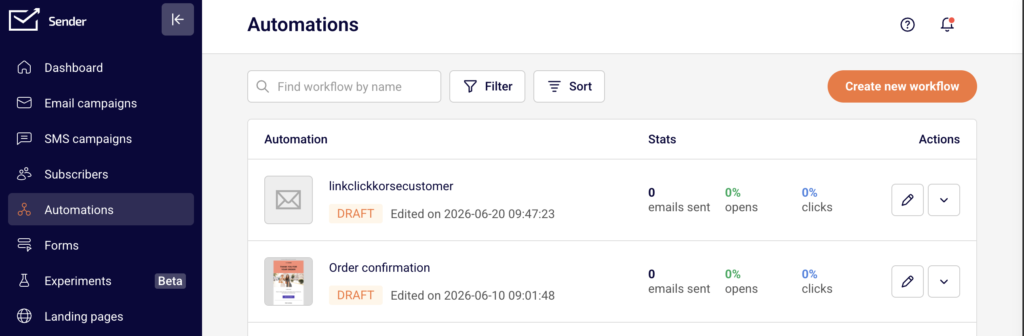
These practices apply across the entire automation workflow — from how you configure your trigger in Trigger Setup, to how you structure steps like Delay, Condition, Email, Action, and Split in the workflow builder, to how you monitor performance using the emails sent, opens, and clicks stats on the Automations list page.
Recommended Practices
Use Delay Steps to Space Out Your Emails
Avoid sending multiple emails back-to-back within the same workflow. Add a Delay step between each Email step and set it to at least 1–3 days using the Time delay option under Delay Setup. Spacing emails gives contacts time to engage with each message before receiving the next one.
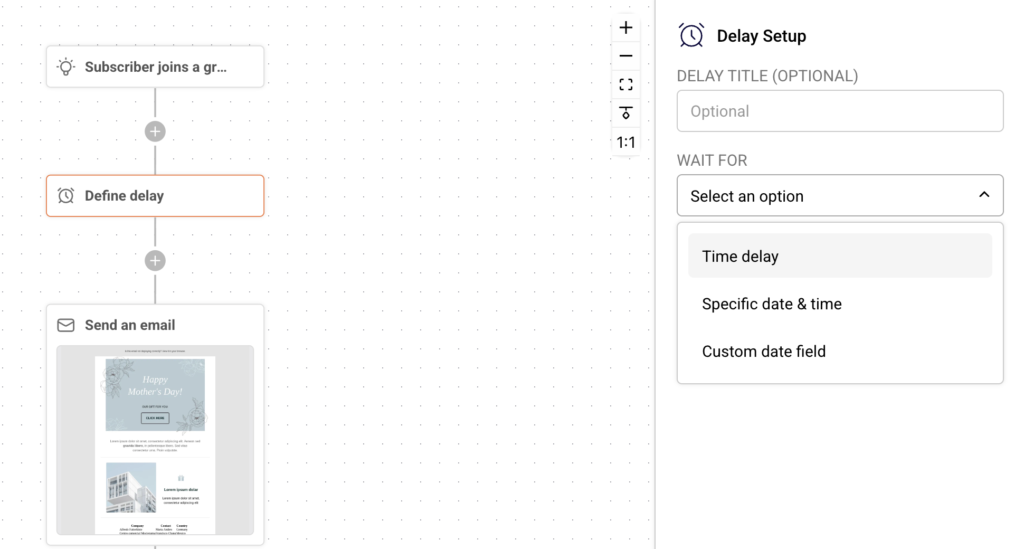
Workflows that send too frequently risk higher unsubscribe rates and lower open rates. Use the Days or Hours unit in the SELECT TIME PERIOD UNIT dropdown to control pacing precisely.
Add Conditions to Target Engaged Contacts
Insert a Condition step before follow-up emails to filter contacts based on their behavior. In Condition Setup, select Workflow email activity to check whether a contact opened or clicked a previous email in the workflow.
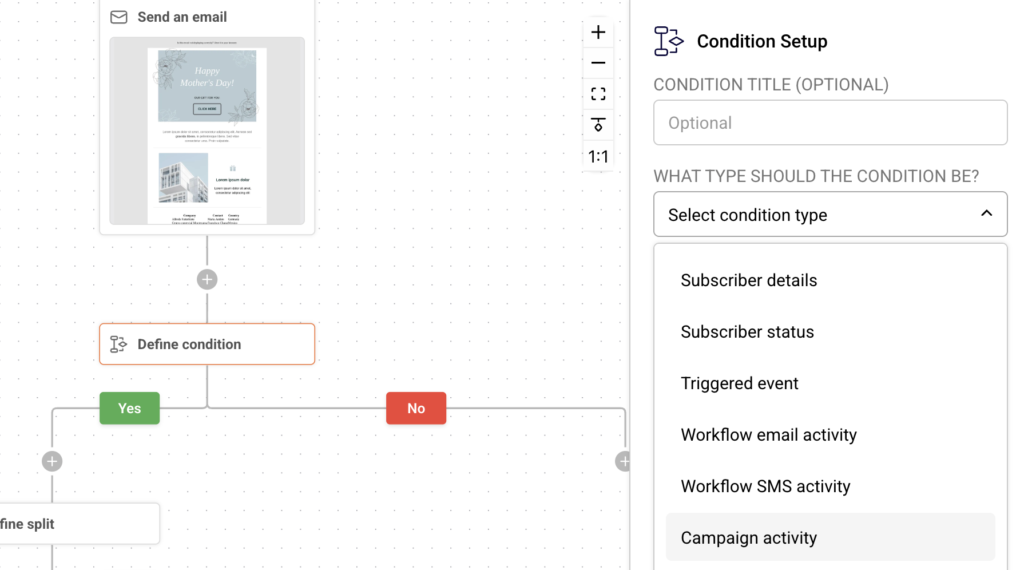
This creates Yes and No branches so you can send different content to engaged and unengaged contacts. Targeting engaged subscribers improves click rates and prevents unnecessary sends to contacts who are not interacting with your messages.
Use Clear Naming Conventions for Workflows and Steps
Give each workflow a descriptive name that includes its purpose and audience — for example, “Welcome – New Subscribers” or “Abandoned Cart – SaaS.” Use the Rename option from the actions dropdown on the Automations list, or the pencil icon next to the workflow name in the builder.
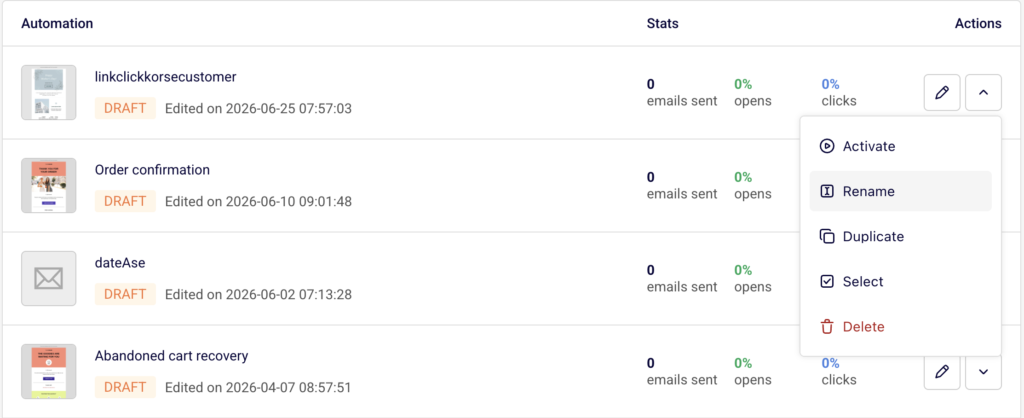
Also fill in the optional title fields on each step (TRIGGER TITLE, DELAY TITLE, CONDITION TITLE, ACTION TITLE). Clear naming helps you identify and manage workflows at scale without opening each one individually.
Keep Workflows Short and Focused
Limit each workflow to a single goal, such as onboarding, cart recovery, or re-engagement. If a workflow grows beyond 5–7 steps, consider splitting it into separate automations connected by an Action step set to Move subscriber to another group or Copy subscriber to another group, which can then trigger a new workflow. Shorter workflows are easier to troubleshoot, and isolating each sequence makes it simpler to identify which part of your funnel is underperforming.
Test Workflows in Draft Before Activating
Keep new workflows in DRAFT status while you verify every step. Click through each step in the builder to confirm that triggers, delays, conditions, and email content are configured correctly. Check the Completion indicator in the top-right corner of the builder — it shows how many steps are fully configured (e.g., “2/3”). Only click Activate once all steps show complete. Activating an incomplete workflow can result in contacts entering a sequence with missing emails or undefined conditions.
What to Avoid
- Sending the first email immediately after the trigger fires without any delay. This can overwhelm new contacts, especially if they just completed a signup or purchase. Add at least a short Delay step before the first Email step.
- Stacking multiple conditions in sequence without an email or action between them. This adds complexity without clear benefit and makes the workflow harder to debug. Place conditions only where they directly affect the next action.
- Using generic workflow names like “Test” or “Workflow 1.” This makes it difficult to identify the purpose of each automation on the Automations list, especially as you build more workflows.
- Always use descriptive names. Leaving the Repeat workflow toggle enabled without understanding its impact. When enabled in Trigger Setup, the workflow repeats every time a contact reactivates the trigger. This is useful for recurring events but can cause unwanted duplicate sends for one-time sequences like welcome emails.
- Running automations indefinitely without reviewing their performance. Workflows that were effective initially may degrade over time as audience behavior changes. Schedule regular reviews to catch declining engagement early.
How to Track Results
Emails sent, opens, and clicks — Found in the Stats column on the Automations list page. A healthy automation should show consistent open and click rates relative to the number of emails sent.
Step-by-step performance — Open the workflow builder and review how contacts move through each step. Look for drop-offs after specific Delay or Condition steps, which can indicate timing issues or poorly targeted branches.
Bounce rate, unsubscribe rate, and spam rate — Found on the main Dashboard page. A spike in any of these after activating a new automation signals a problem with targeting, frequency, or content.
Review frequency — Check performance at least once a month. For high-volume workflows like abandoned cart or welcome sequences, review weekly. Compare metrics over time to adjust delay timing, condition logic, or email content.
FAQs
How often should I review automation performance?
Review at least once a month. For high-volume workflows like cart abandonment or welcome sequences, check stats weekly to catch issues early.
Should I use one long automation or multiple short ones?
Shorter workflows are easier to manage and debug. Split complex sequences into separate automations and connect them using the Action step to move contacts between groups.
What is a good delay between emails in a workflow?
A delay of 1–3 days between emails works well for most sequences. Use shorter delays (hours) for time-sensitive flows like cart recovery, and longer delays (3–7 days) for nurture sequences.
When should I use a Condition step?
Use a Condition step when you want to branch the workflow based on subscriber behavior or attributes — for example, checking if a contact opened a previous email using the Workflow email activity condition type.
Can I edit an active workflow?
You can open and modify an active workflow in the builder, but changes may affect contacts currently in the sequence. Consider duplicating the workflow using the Duplicate option, making your changes on the copy, then swapping which one is active.