

Automation Performance and Reports
Review automation performance metrics and reports to evaluate how your workflows are performing.
Where to Find This Setting
In the Sender dashboard, go to: Automations → Automations list
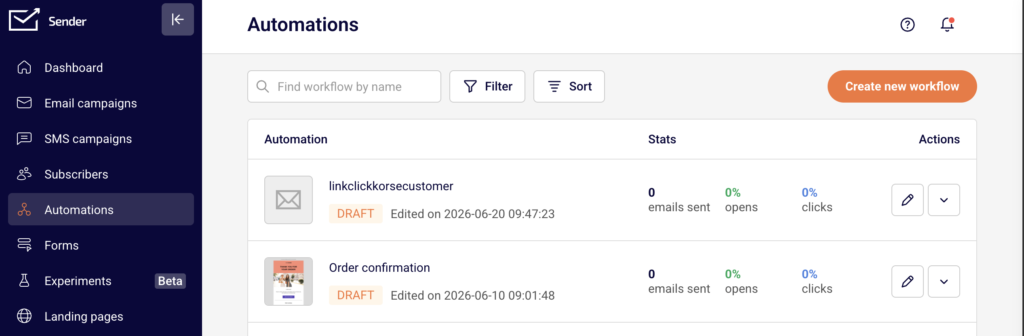
Each automation in the list displays summary performance stats. To review detailed metrics, locate the workflow you want to assess.
Steps to Review Automation Performance
Step 1 — Open the Automations List
Navigate to Automations from the left sidebar. The automations list displays all workflows with their current status (Active, Draft), last edited date, and summary stats.
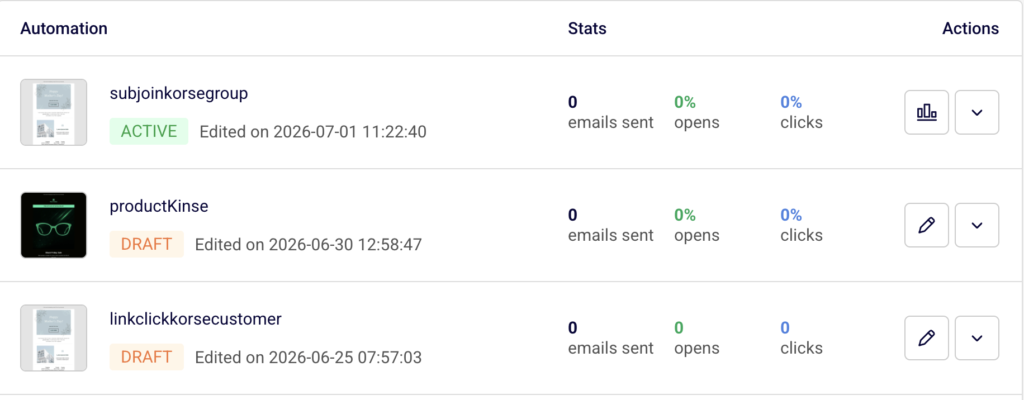
Each row shows three key metrics under the Stats column: emails sent (total count), opens (percentage), and clicks (percentage).
Step 2 — Filter and Sort Workflows
Use the Filter button to narrow the list by status. Select All, Active, or Draft to display only the workflows you want to review.
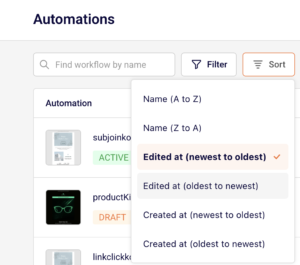
Click Sort to reorder the list by Name (A to Z), Name (Z to A), Edited at (newest to oldest), Edited at (oldest to newest), Created at (newest to oldest), or Created at (oldest to newest). You can also type a workflow name in the Find workflow by name search field to locate a specific automation.
Step 3 — Review Performance Metrics on the List
Compare emails sent, opens, and clicks across your automations directly on the list page. These stats provide an at-a-glance overview of how each workflow is performing. Workflows in Draft status will show zero values since they have not yet sent any emails.
Step 4 — Open the Workflow for Details
Click the Edit icon (pencil) or the automation name to open the workflow builder. The top bar displays the workflow name, current Status (e.g., Draft or Active), and the option to Activate or Pause the workflow.
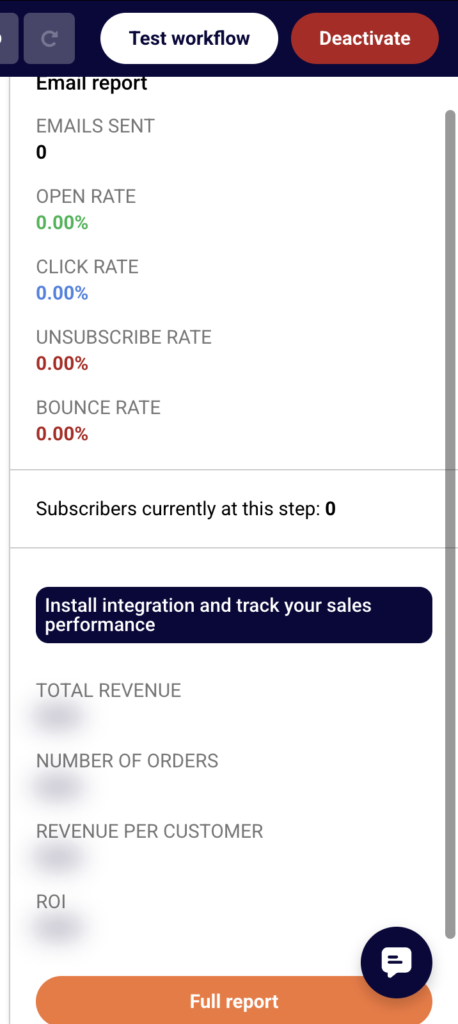
Click on individual email steps within the workflow to view each step’s configuration and setup details in the right panel.
Step 5 — Adjust List Pagination
At the bottom of the automations list, use the View dropdown to control how many workflows are displayed per page (options: 5, 10, 15, 20, 25, or 50).
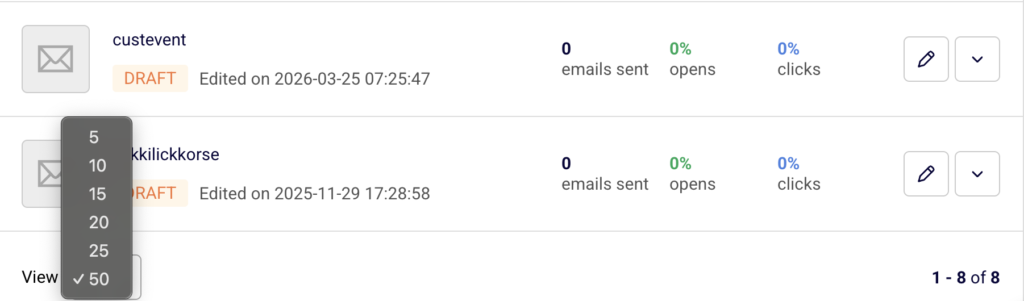
The pagination indicator (e.g., “1 – 10 of 25”) shows your current position in the list. Use the arrow buttons to navigate between pages.
What Happens After the Change
The Stats column on the automations list updates automatically as your active workflows send emails and contacts interact with them. No manual refresh is required.
Only workflows with Active status generate performance data. Workflows in Draft status display zero values for all metrics until they are activated and begin sending.
Filtering or sorting the automations list does not affect the workflows themselves — these are display preferences only and do not alter performance data or workflow status.
Common Issues
Stats show 0% for opens and clicks → The automation is in Draft status and has not sent any emails. Activate the workflow to begin collecting performance data.
Cannot find a specific automation → The list may be filtered by status. Click Filter and select All to display every workflow. You can also search by name using the Find workflow by name field.
Performance data seems outdated → Stats reflect cumulative totals across the automation’s lifetime. If the workflow was recently paused and reactivated, give it time to accumulate new engagement data.
FAQs
Can I export automation performance reports? Automation stats are displayed on the automations list page. There is no dedicated export function for automation-level reports within the automations section.
Do paused automations retain their performance data? Yes. Pausing a workflow stops new emails from being sent, but existing stats (emails sent, opens, clicks) are preserved on the automations list.
What is the difference between emails sent and opens? Emails sent is the total number of emails delivered by the automation. Opens is the percentage of recipients who opened at least one email. Clicks is the percentage who clicked a link.
Can I view stats for individual email steps within a workflow? Click the Edit icon or the automation name to open the workflow builder. Select an individual email step to view its configuration in the right-side panel.
Does filtering or sorting the list affect my automations? No. Filtering by Active or Draft and sorting by name or date are display preferences only. They do not change automation status or performance data.