

Editing Live Automations
This guide explains how to edit an automation that is currently live (active) in Sender, including how changes affect the workflow status and existing contacts.
Where to Find This Setting
In the Sender dashboard, go to: Automations (left sidebar) → select the automation you want to edit.
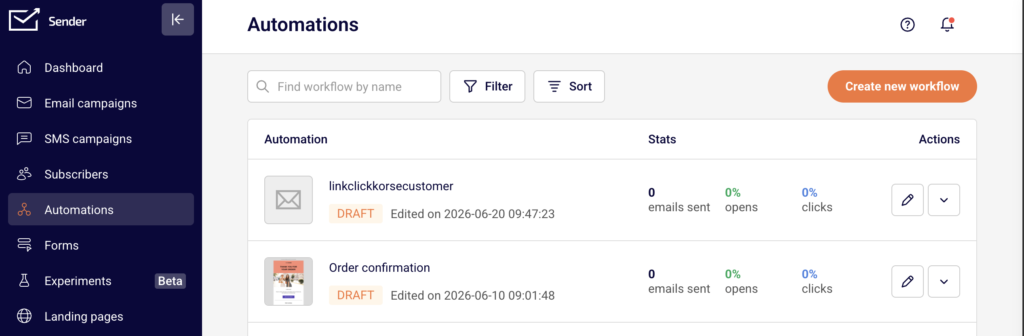
If the automation is active, its status badge displays ACTIVE in green next to the workflow name.
Steps to Edit a Live Automation
Step 1 — Open the Automation for Editing
On the Automations list page, locate the active workflow you want to modify. Click the dropdown arrow (▾) in the Actions column to the right of the automation, then select Edit.
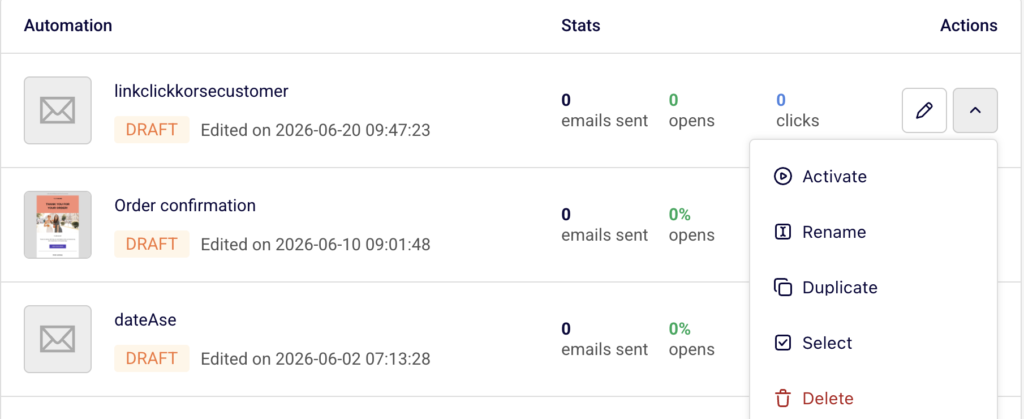
Alternatively, click the pencil icon (✏️) next to the automation row to go directly into the workflow builder. The builder opens and the automation status changes from ACTIVE to DRAFT. While in draft status, the workflow stops accepting new contacts until you reactivate it.
Step 2 — Modify the Workflow Steps
Click any step on the canvas to open its settings panel on the right side. Depending on the step type, you can adjust:
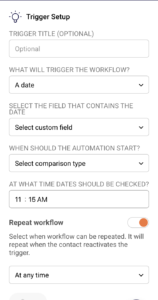
- Trigger step: Update the trigger title, change the trigger type under WHAT WILL TRIGGER THE WORKFLOW?, select a different group under SELECT GROUP, or toggle Repeat workflow on or off.
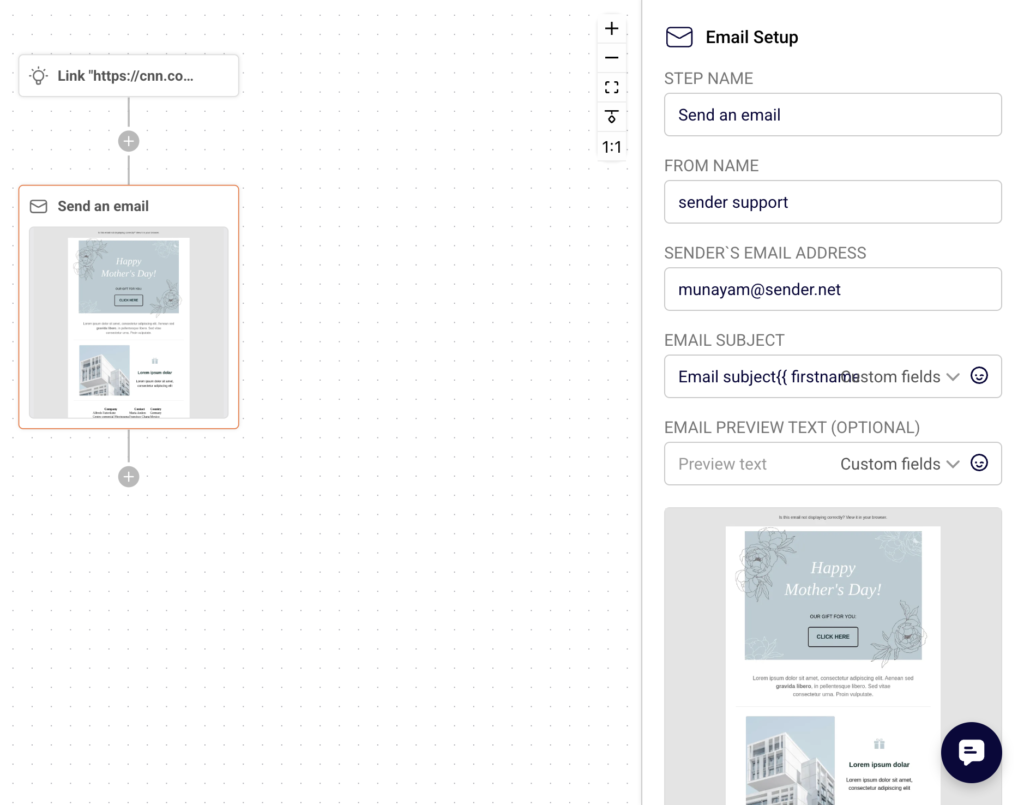
- Email step: Edit the STEP NAME, FROM NAME, EMAIL SUBJECT, or EMAIL PREVIEW TEXT (OPTIONAL). Click Edit email content to open the email designer and modify the message body. To add a new step, click the + icon between any two existing steps. The ADD A NEW STEP panel appears with options: Condition, Delay, Email, SMS, Action, and Split. Select the step type to insert it into the workflow.
Step 3 — Rename the Automation (Optional)
To change the workflow name, click the pencil icon (✏️) next to the automation title in the top navigation bar. Type the new name and confirm.
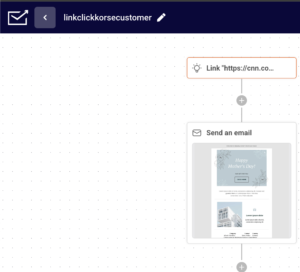
Step 4 — Save Your Changes
After making edits to any step, click Save at the bottom of the step settings panel on the right. Each step must be saved individually. Unsaved changes are lost if you navigate away from the step.
Step 5 — Reactivate the Automation
Once all edits are complete, click the Activate button in the top-right corner of the builder. The workflow status returns to ACTIVE, and the automation begins accepting new contacts again based on the updated configuration.
What Happens After the Change
When you open an active automation for editing, its status switches to DRAFT immediately. New contacts stop entering the workflow until you reactivate it. Contacts that were already inside the workflow before you made changes continue through the original steps. They are not affected by your edits. Once you click Activate, the automation resumes with the updated workflow. All new contacts entering from that point forward follow the revised steps. You can confirm the current status by checking the Status badge at the top of the builder or the status label on the Automations list page.
Common Issues
- If the automation does not reactivate → Ensure all required fields in each step are filled in and saved. Missing fields (such as an empty email subject) can prevent activation.
- If edits are not reflected in the workflow → Click Save in the step settings panel before moving to another step or leaving the builder.
- If new contacts are not entering the automation → The workflow may still be in DRAFT status. Click Activate in the top-right corner to resume.
- If the automation shows DRAFT after you opened it → This is expected. Editing an active automation automatically switches it to draft mode until you reactivate.
FAQs
Can I edit an active automation without deactivating it first?
When you open an active automation for editing, Sender automatically changes the status to DRAFT. You must click Activate after saving your changes to make it live again.
Do existing contacts in the workflow lose progress when I edit?
No. Contacts already inside the automation continue through the original steps. Edits apply only to new contacts entering after reactivation.
Can I add new steps to an existing automation?
Yes. Click the + icon between steps on the canvas and choose from Condition, Delay, Email, SMS, Action, or Split to insert a new step.
Can I rename a live automation?
Yes. Click the pencil icon next to the automation name in the top bar of the builder, enter the new name, and save.
Will pausing the automation remove contacts already inside it?
No. Deactivating or switching to draft stops new entries but does not remove contacts that are already progressing through the workflow.