

Automation Limits by Plan
Each Sender plan includes email automation, but the available features and sending volumes differ depending on your subscription tier. This guide outlines what each plan supports so you can manage your workflows accordingly.
Where to Find This Setting
In the Sender dashboard, go to Automations in the left sidebar. To review your current plan and its limits, go to Account settings → Billing. Your active plan name, subscriber count, and email volume are displayed at the top of the Billing page.
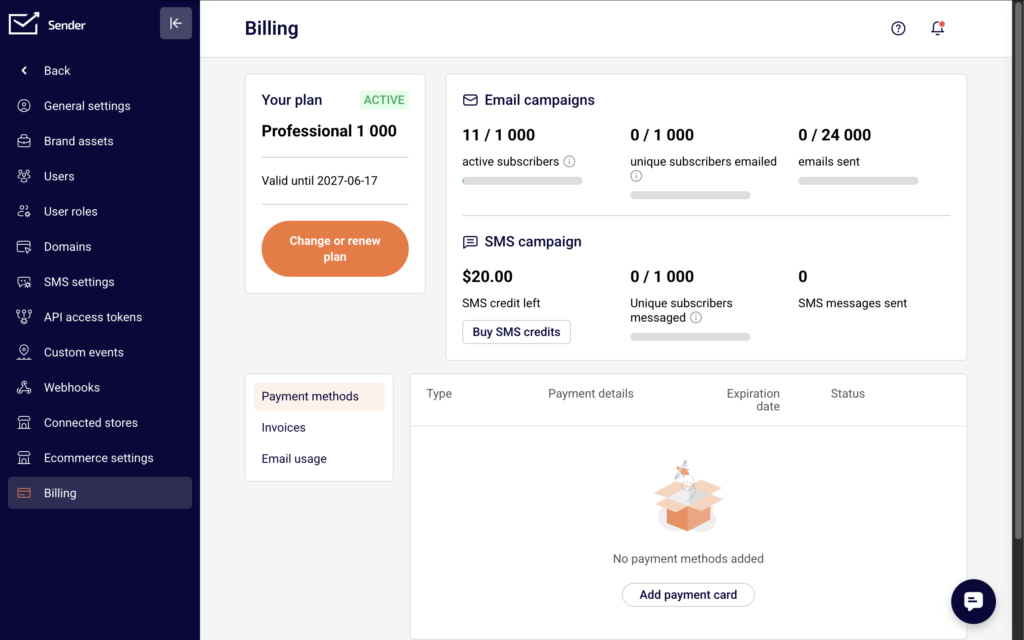
Click Change or renew plan to view the full feature comparison across all plans.
Steps to Check Your Automation Limits
Step 1 — Review Your Current Plan
Open Account settings → Billing. Your plan name appears under Your plan (for example, Professional 1 000). Below it, you can see your active subscriber count, unique subscribers emailed, and total emails sent against your plan’s monthly allowance. These volume limits apply to all emails sent through automations and campaigns combined.
Step 2 — Compare Automation Features by Plan
Click Change or renew plan, then scroll down to Compare plans and features. Expand the Marketing Automation section to see which automation capabilities are included in each tier.
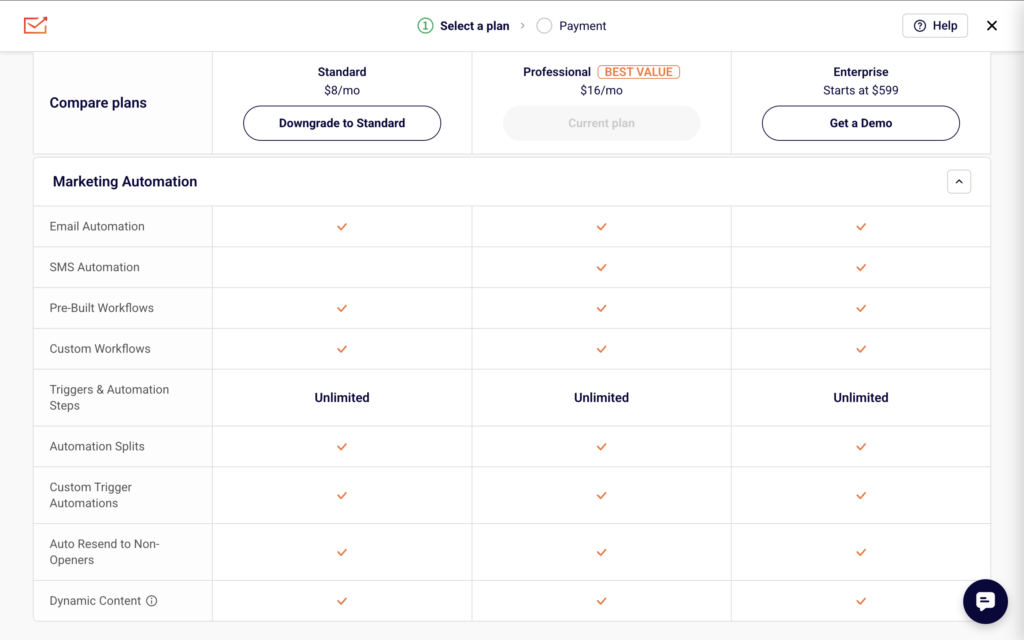
The four plans — Free, Standard, Professional, and Enterprise — share many automation features but differ in a few key areas.
Step 3 — Identify Feature Differences
All four plans include Email Automation, Pre-Built Workflows, Custom Workflows, Automation Splits, Custom Trigger Automations, Dynamic Content, and unlimited Triggers & Automation Steps. The differences are:
- SMS Automation is available on Professional and Enterprise only.
- Auto Resend to Non-Openers is available on Standard, Professional, and Enterprise (not on Free).
- Advanced automation (multichannel scenarios and other advanced workflow features) is listed as a Professional and Enterprise benefit.
Step 4 — Check Your Sending Volume
Automation emails count toward your plan’s monthly email limit. On the Billing page, the Email campaigns section shows your usage (for example, 0 / 24 000 emails sent). The monthly limits by plan are:
- Free: up to 15,000 emails/month, up to 2,500 subscribers
- Standard: up to 12x your subscriber count per month
- Professional: up to 24x your subscriber count per month
- Enterprise: unlimited emails If your automations are close to hitting these limits, emails within active workflows may be delayed or not sent until the next billing cycle.
What Happens After the Change
If you upgrade your plan, additional automation features become available immediately. Any existing workflows that use features from the new tier (such as SMS steps on Professional) will function once the plan is active. If you downgrade, features not included in the lower plan become unavailable. Workflows using those features (for example, SMS Automation steps on a Standard plan) will not execute those specific steps. The workflow itself remains in your Automations list but affected steps will not send. Your monthly email sending limit resets with each billing cycle. You can monitor current usage at any time under Account settings → Billing.
Common Issues
Automation emails are not sending → Your monthly email limit may be reached. Check your usage under Account settings → Billing in the Email campaigns section.
SMS step is not available in the workflow builder → SMS Automation requires a Professional or Enterprise plan. Verify your plan under Account settings → Billing.
Auto Resend to Non-Openers option is missing → This feature is not available on the Free plan. Upgrade to Standard or higher to access it.
Workflow shows DRAFT after adding advanced steps → Some features require a specific plan tier. If the workflow cannot be activated, check whether all steps are supported on your current plan.
FAQs
Do automation emails count toward my monthly sending limit?
Yes. All emails sent through automations count toward the same monthly email allowance shown on your Billing page.
Can I use email automation on the Free plan?
Yes. The Free plan includes email automation, pre-built workflows, custom workflows, automation splits, custom trigger automations, dynamic content, and unlimited triggers and automation steps.
What does “Advanced automation” include on the Professional plan?
It enables multichannel scenarios (combining email and SMS in one workflow) and other advanced workflow features not available on Standard or Free.
Is there a limit on the number of automation workflows I can create?
There is no stated limit on the number of workflows across any plan. The constraint is on monthly email volume and subscriber count, not on the number of automations.
What happens to active automations if I downgrade my plan?
Workflows remain in your list, but steps relying on features not available in the lower plan (such as SMS steps) will stop executing. Email-only steps continue to function within the new plan’s sending limits.