

Duplicating an Automation
Use the duplicate option to create an identical copy of an existing automation workflow, preserving all steps, triggers, and email content.
Where to Find This Setting
In the Sender dashboard, go to: Automations → Automations list
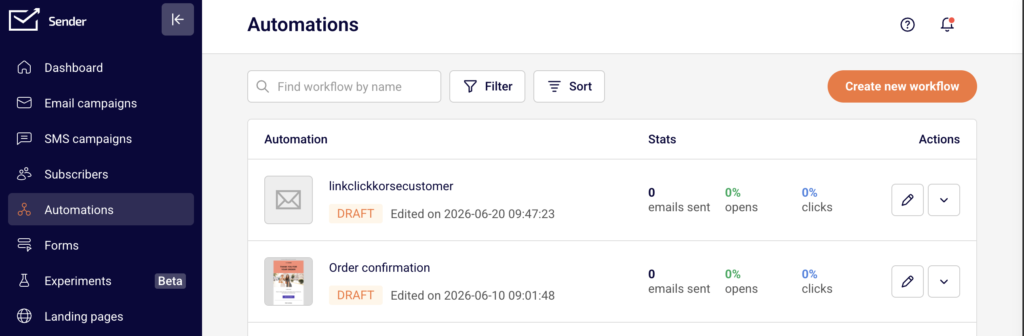
Locate the automation you want to duplicate from the list.
Steps to Duplicate an Automation
Step 1 — Locate the Automation
Open the Automations page from the left sidebar. Your existing workflows are displayed in a list with their name, status, and stats. Find the automation you want to duplicate. You can use the Find workflow by name search field or scroll through the list.
Step 2 — Open the Actions Menu
In the Actions column on the right side of the automation row, click the dropdown arrow (▼) next to the Edit (pencil) icon. A menu appears with the following options: Activate, Rename, Duplicate, Select, and Delete.
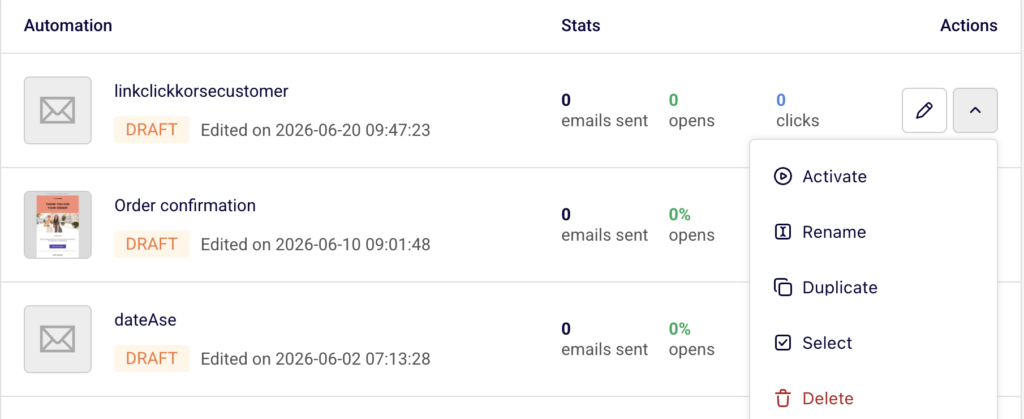
Step 3 — Select Duplicate
Click Duplicate from the dropdown menu. The duplication happens instantly — no confirmation dialog is required. A green notification banner appears at the top of the page confirming “Workflow duplicated”. The new copy is added to the top of your automations list.
Step 4 — Review and Rename the Copy
The duplicated workflow appears with the original name followed by (COPY) — for example, “Welcome (B2B)” becomes “Welcome (B2B) (COPY)”. To rename it, click the dropdown arrow (▼) on the new automation and select Rename. Enter your preferred name and click Update.
What Happens After the Change
The duplicated automation is set to Draft status. It is not active and will not trigger for any contacts until you manually activate it.
All workflow stats on the copy are reset to zero — 0 emails sent, 0% opens, and 0% clicks. The duplicate is an independent workflow. No historical data or enrolled contacts carry over from the original.
The original automation remains completely unchanged. Its status, enrolled contacts, and stats are unaffected by the duplication.
You can review both the original and the duplicate from the Automations list. Click the Edit (pencil) icon on the copy to open the workflow builder and make any modifications before activating.
Common Issues
Duplicate not appearing in the list → The copy is added to the top of the automations list. If you have sorting or filters applied, the new workflow may not be immediately visible. Clear any active filters or sort by most recent to find it.
Copy has the same name as another workflow → Sender appends (COPY) to the original name automatically. If a previous copy already exists with the same name, rename the new duplicate immediately using the Rename option to avoid confusion.
Duplicate is not sending emails → Duplicated workflows are always created in Draft status. Open the Actions dropdown on the copy and click Activate to make it live.
FAQs
Does duplicating an automation affect the original workflow? No. The original automation keeps its status, contacts, stats, and configuration. The duplicate is a fully independent copy.
Will contacts from the original automation be copied over? No. The duplicated workflow starts with no enrolled contacts and zero stats. Only the workflow structure, steps, and email content are copied.
Can I duplicate an automation that is currently active? Yes. You can duplicate an automation regardless of its current status — Active, Paused, or Draft. The duplicate will always be created in Draft status.
Is there a limit to how many times I can duplicate an automation? There is no restriction on the number of times you can duplicate a workflow. Each copy is created as a separate automation in your list.
Can I edit the duplicated automation before activating it? Yes. Click the Edit (pencil) icon on the duplicated workflow to open it in the workflow builder. Make any changes to triggers, steps, or email content, then activate it when ready.