

Managing Contacts Inside an Automation
This guide explains how to view, track, and manage contacts that are currently inside or have completed an automation workflow in Sender.
Where to Find This Setting
In the Sender dashboard, go to: Automations → Automations list
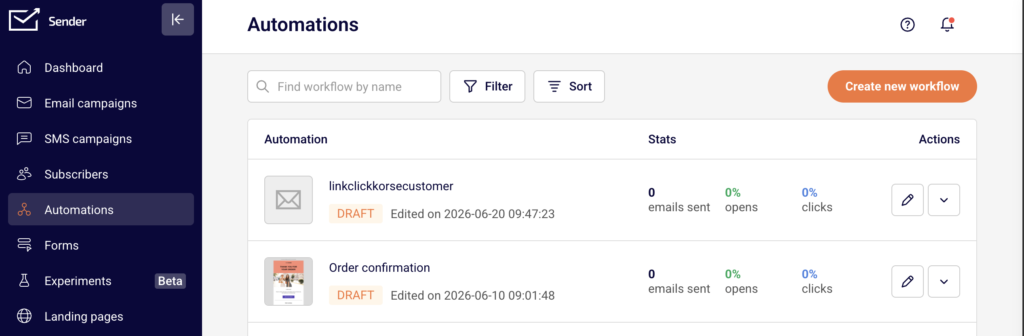
Open the automation you want to manage by clicking the edit icon (pencil) next to it. The automation must be in Active status to display contact data in the workflow report.
Steps to Manage Contacts Inside an Automation
Step 1 — Open the Workflow Report
Click the edit icon next to the automation on the Automations list page to open the workflow builder. If the automation is Active, click the trigger step (the first element in the workflow).
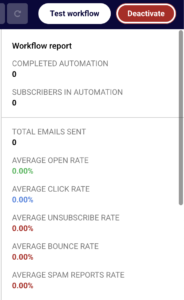
The right-side panel displays the Workflow report, which includes COMPLETED AUTOMATION, SUBSCRIBERS IN AUTOMATION, overall performance rates, and a Subscribers finished table listing contacts who have exited the workflow along with their completion date and count.
Step 2 — Check Contacts at a Specific Step
Click any Send an email or Wait step inside the workflow. The right-side panel updates to show step-level data.
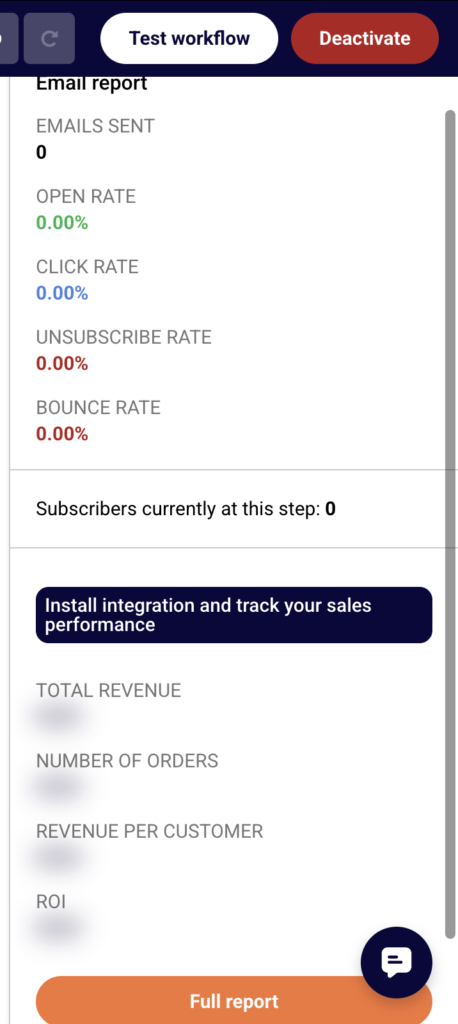
For email steps, the Email report panel displays EMAILS SENT, OPEN RATE, CLICK RATE, UNSUBSCRIBE RATE, BOUNCE RATE, and Subscribers currently at this step. For delay steps, the panel shows only the Subscribers currently at this step count. This tells you exactly how many contacts are waiting at each point in the automation.
Step 3 — View Detailed Contact Activity
From the Email report panel of any email step, click Full report. This opens the Transactional email report page in a new tab. Select the Activity tab in the left sidebar to expand its submenu.
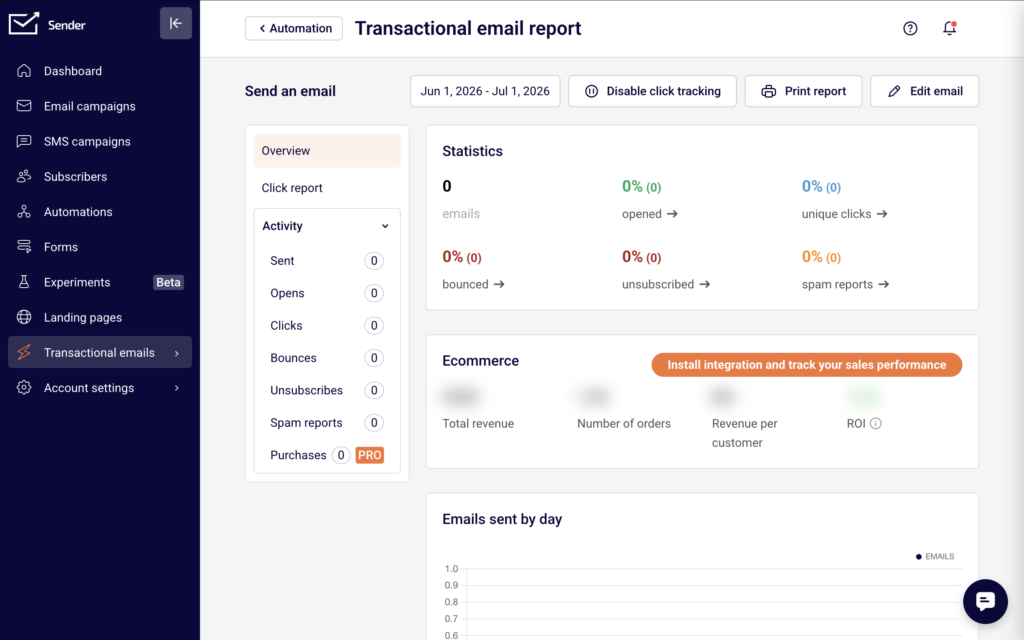
Choose a category — Sent, Opens, Clicks, Bounces, Unsubscribes, Spam reports, or Purchases — to view the specific contacts that match that activity. Use the Find subscriber by email search field at the top to locate a particular contact.
Step 4 — Export Contact Data
On the Transactional email activity page, click Export in the top-right toolbar to download the list of contacts for the selected activity category. You can also click Print to generate a printable version of the report.
Step 5 — Add a Test Contact to the Automation
With the automation in Active status, click Test workflow in the top-right corner of the builder. In the Trigger test workflow dialog, enter the email address you want to test with and click Trigger. This manually adds the contact to the automation so you can verify the workflow is functioning correctly.
What Happens After the Change
The Workflow report updates in real time as contacts move through the automation. The SUBSCRIBERS IN AUTOMATION count reflects how many contacts are currently progressing through any step.
When a contact completes all steps, they appear in the Subscribers finished table with their email address, completion date, and count. The overall count under COMPLETED AUTOMATION increases accordingly.
Clicking individual steps always shows the current number of Subscribers currently at this step, so you can identify bottlenecks or delays at any point in the workflow.
Deactivating the automation pauses all contact progression. Contacts already inside the workflow stop at their current step and do not advance until the automation is reactivated.
Common Issues
Workflow report shows no subscriber data → The automation is in Draft status. The workflow report with contact data is only visible when the automation is Active. Click Activate to enable tracking.
Subscribers currently at this step shows 0 → No contacts have reached that step yet, or all contacts have already moved past it. Check earlier steps in the workflow or verify that the trigger condition is being met.
Test workflow does not trigger → The email address entered in the Trigger test workflow dialog must belong to an existing subscriber. If the contact does not exist in your subscriber list, add them first under Subscribers before running the test.
Full report opens with no data → The selected email step has not yet sent any emails. Contacts may still be waiting at a prior delay step. Click the preceding steps to check where contacts are positioned.
FAQs
Can I remove a specific contact from an active automation?
There is no direct option to remove an individual contact from within the automation builder. To stop a contact from receiving further emails, unsubscribe them from the associated group under Subscribers, or deactivate the automation to halt all contact progression.
Does deactivating an automation remove contacts from it?
No. Deactivating pauses the workflow. Contacts remain at their current step and resume from that position once you reactivate the automation.
Can I see which step a specific contact is on?
The workflow builder shows aggregate counts per step under Subscribers currently at this step. To find a specific contact, use the Full report for each email step and search by email in the Activity tab using the Find subscriber by email field.
Does the Subscribers finished table update automatically?
Yes. As contacts complete the final step of the workflow, they are added to the Subscribers finished table in the Workflow report panel automatically.
Can I re-add a contact who already completed the automation?
Enable the Repeat workflow toggle in the Trigger Setup panel. When activated, the automation re-triggers for a contact if they meet the trigger condition again, such as rejoining the assigned group.