

Deleting an Automation
Remove an automation workflow you no longer need from your Automations list in Sender.
Where to Find This Setting
In the Sender dashboard, go to: Automations (left sidebar) → Automations list
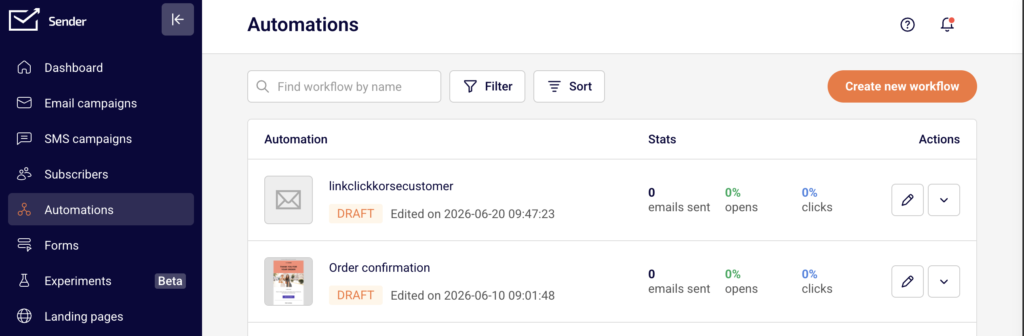
Locate the automation you want to delete.
Steps to Delete an Automation
Step 1 — Locate the Automation
Open the Automations page from the left sidebar. You’ll see a list of all your automation workflows along with their status, last edited date, and performance stats. Use the Find workflow by name search bar at the top or scroll through the list to find the workflow you want to remove.
Step 2 — Open the Actions Dropdown
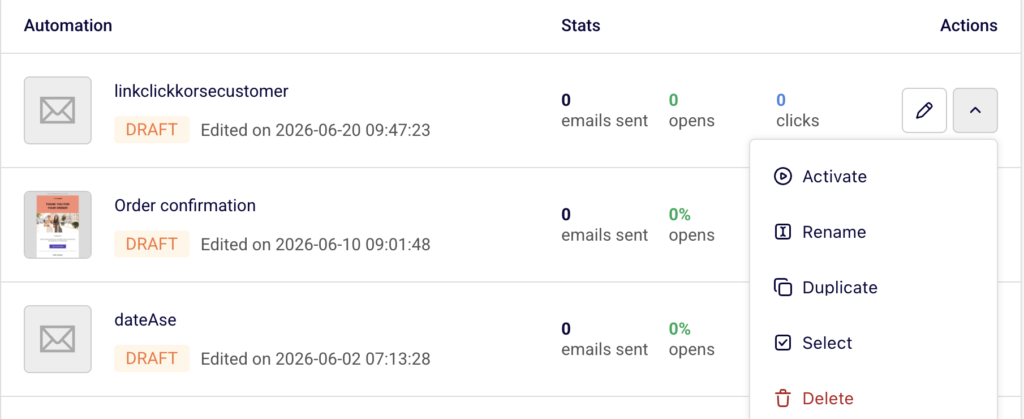
In the Actions column on the right side of the automation row, click the dropdown arrow (▼) next to the edit icon. A menu appears with the following options: Activate, Rename, Duplicate, Select, and Delete. Click Delete at the bottom of the menu.
Step 3 — Confirm Deletion
A Delete workflow confirmation dialog appears asking: “Are you sure you want to delete workflow [workflow name]?” Click Yes, I am sure to permanently delete the automation. To cancel, click No, let’s keep it and the workflow will remain unchanged.
What Happens After the Change
The automation is permanently removed from your Automations list. This action cannot be undone.
Any contacts that were actively inside the workflow will no longer receive further messages from this automation. Previously sent emails from the deleted workflow are not affected — they remain in recipient inboxes and in your campaign reporting history.
The workflow’s statistics are no longer accessible once the automation is deleted. If you need to preserve performance data, review or export the stats before deleting.
Common Issues
Delete option is not visible → The Delete option is located inside the dropdown menu (▼) in the Actions column, not the pencil icon. Click the dropdown arrow next to the edit icon to reveal it.
Accidentally deleted the wrong automation → Deletion is permanent and cannot be reversed. Consider using Duplicate to create a backup copy before deleting, or use Pause (via Activate/Pause toggle) if you only need to stop the workflow temporarily.
Active automation was deleted while contacts were mid-workflow → Contacts currently inside the workflow will stop receiving any remaining steps. Messages already sent are not recalled or removed.
FAQs
Can I recover a deleted automation? No. Once you confirm deletion by clicking Yes, I am sure, the workflow is permanently removed. There is no trash or recovery option for deleted automations.
Should I pause an automation instead of deleting it? If you might need the workflow again, pausing is a better option. Open the Actions dropdown and click Activate or Pause to change the workflow status without removing it.
Does deleting an automation unsubscribe contacts or remove them from my lists? No. Deleting an automation only removes the workflow itself. Subscribers remain in their groups and lists and are not unsubscribed or affected in any way.
Can I delete multiple automations at once? Yes. Use the Select option from the Actions dropdown to select individual workflows, then use the bulk action to delete them together.