

Triggers Explained
This guide covers how triggers work in Sender automation workflows, including how to select, configure, and update them to control when and how contacts enter your automations.
Where to Find This Setting
In the Sender dashboard, go to Automations in the left sidebar. This opens the automation list view.
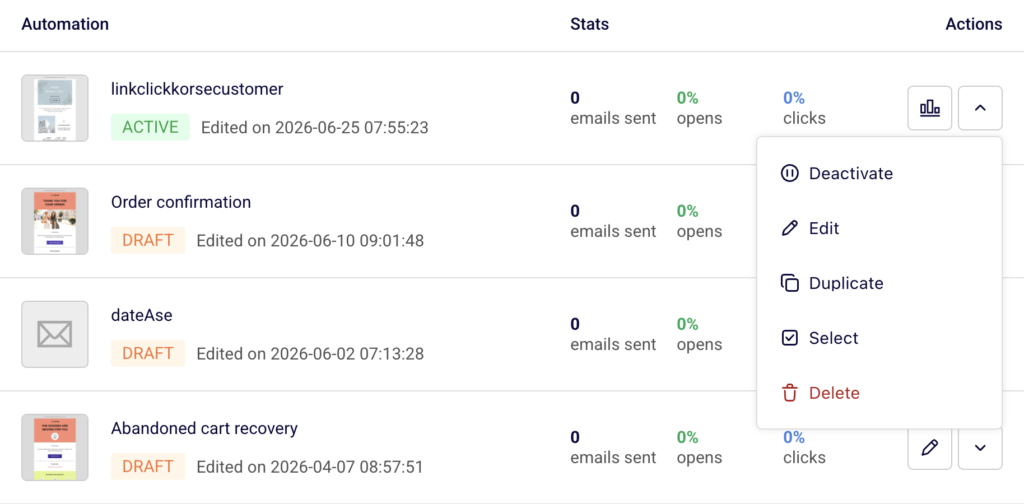
Click the edit (pencil) icon next to the workflow you want to modify, or open any existing workflow. The trigger is always the first block at the top of the workflow canvas. Click it to open the Trigger Setup panel on the right side of the screen.
How Triggers Work
A trigger defines the event that causes a contact to enter the workflow. Each automation has one trigger block, and it must be configured before the workflow can be activated.
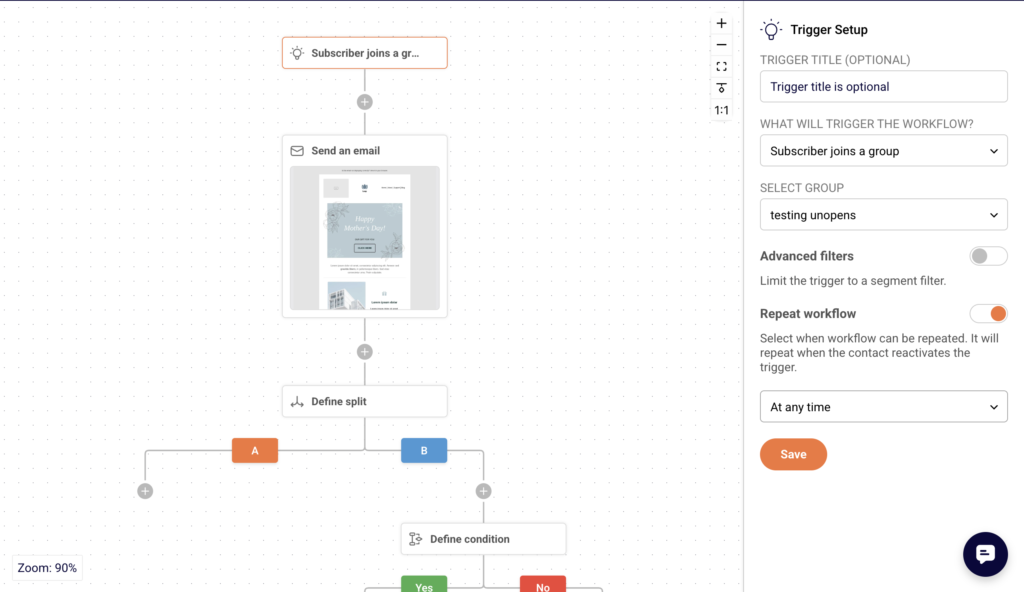
The trigger block appears at the top of the canvas and is labeled with the selected trigger type. When a contact performs the event matching your trigger, they enter the workflow and proceed through the steps in order — emails, delays, conditions, and actions.
Steps to Configure a Trigger
Step 1 — Open the Trigger Block
Click the trigger block at the top of the workflow canvas. The Trigger Setup panel opens on the right. You will see the TRIGGER TITLE (OPTIONAL) field at the top, followed by the WHAT WILL TRIGGER THE WORKFLOW? dropdown. If a trigger type is already selected, its current settings are displayed below the dropdown.
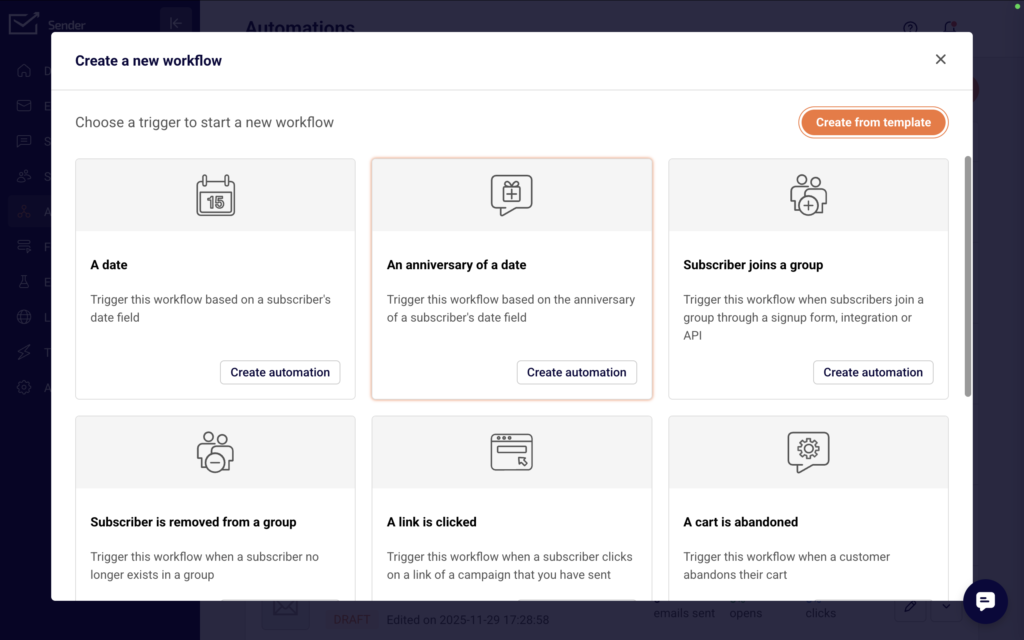
Step 2 — Select the Trigger Type
Open the WHAT WILL TRIGGER THE WORKFLOW? dropdown. The available trigger types are:
- A date — fires based on a date stored in a subscriber custom field.
- An anniversary of a date — fires on the recurring anniversary of a stored date.
- Subscriber joins a group — fires when a contact is added to a selected group.
- Subscriber is removed from a group — fires when a contact leaves a group.
- A link is clicked — fires when a contact clicks a specific link.
- A cart is abandoned — fires on an ecommerce cart abandonment event.
- A product is purchased — fires when a purchase event is recorded.
- An order is fulfilled — fires when an order fulfillment event occurs.
- Subscriber unsubscribed — fires when a contact unsubscribes.
- Subscriber field updated — fires when a subscriber custom field value changes.
- Subscriber status changed — fires when a subscriber’s status changes. Select the type that matches the event you want to use.
Step 3 — Configure Trigger-Specific Settings
Each trigger type reveals its own configuration fields once selected. For Subscriber joins a group, choose the target group from the SELECT GROUP dropdown.
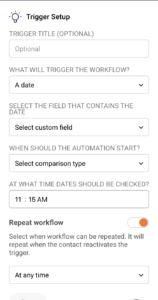
For A date, select the custom field that contains the date under SELECT THE FIELD THAT CONTAINS THE DATE, choose the comparison type under WHEN SHOULD THE AUTOMATION START?, and set the check time under AT WHAT TIME DATES SHOULD BE CHECKED?. Other triggers follow a similar pattern — select the relevant group, link, field, or event that defines the trigger condition.
Step 4 — Set the Repeat Workflow Option
Below the trigger-specific fields, the Repeat workflow toggle controls whether a contact can re-enter the workflow if they activate the trigger again.
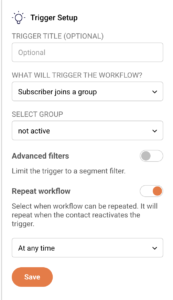
When disabled, each contact enters the workflow only once. Enable it if contacts should be able to re-enter when they re-trigger the event.
Step 5 — Save the Trigger
Click Save at the bottom of the panel. The trigger block on the canvas updates to reflect the selected type and settings. The Completion counter in the top-right corner of the builder advances when the trigger is fully configured.
What Happens After You Save
After saving, the updated trigger applies to new contacts who perform the trigger event going forward. Contacts already inside the workflow are not affected by trigger changes — they continue through the steps that were active when they entered. The workflow status remains Draft unless you manually activate it. A trigger must be fully configured (along with all other required steps) before the workflow can be set to Active.
Common Issues
Contacts are not entering the workflow — The trigger conditions may not be met. Verify the correct group, date field, or event is selected. Also confirm the workflow status is Active, not Draft.
Trigger changes are not affecting existing contacts — This is expected. Trigger updates only apply to contacts who enter the workflow after the change is saved. Existing contacts follow the logic that was active when they entered.
The Save button is grayed out — All required fields for the selected trigger type must be completed before Save becomes active. Check that every dropdown and field in the Trigger Setup panel has a value selected.
Workflow does not start after activation — Confirm the trigger event is actually occurring. For example, if the trigger is Subscriber joins a group, verify that contacts are being added to the specified group.
FAQs
Can I change a trigger type after the workflow is active?
Yes. Open the trigger block and select a new type from the WHAT WILL TRIGGER THE WORKFLOW? dropdown. Changes apply only to new contacts entering the workflow after you save.
Do existing contacts follow updated trigger settings?
No. Contacts already in the workflow continue based on the trigger configuration that was active when they entered.
Can a workflow have more than one trigger?
No. Each automation workflow has a single trigger block. To respond to multiple events, create separate workflows for each trigger type.
What does the Repeat workflow toggle do?
When enabled, contacts can re-enter the workflow each time they activate the trigger event. When disabled, each contact enters the workflow only once, regardless of how many times they trigger the event.
What trigger types are available for ecommerce?
Three ecommerce-specific triggers are available: A cart is abandoned, A product is purchased, and An order is fulfilled. These require an active ecommerce integration.