

Understand automation steps
Highly customizable automation is the key to the free-and-easy experience; therefore, various types of action steps are included.
Here are all available steps and conditions:
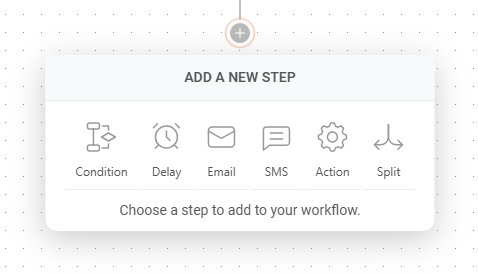
- Condition – continue the workflow in a different way depending on whether conditions are matched.
- Delay – set a delay between workflow steps.
- Email – a newsletter which will be sent to a subscriber.
- SMS – an SMS which will be sent to a subscriber.
- Action – change subscriber’s details or group membership, notify yourself or send a web-hook.
- Split – helps you fine-tune your email strategy by comparing two email variations to see which performs better.
Detailed description
Condition step is one of the most effective ways to create unique routes for different occasions. What activity can be selected?
- Subscriber details (any custom field can be chosen),
- Subscriber status
- Triggered event
- Workflow email activity
- Workflow SMS activity (Professional plan)
- Campaign activity
- Belongs to group
- Belongs to segment
- Abandoned cart
- Purchase product
- Placed an order
- Total lifetime spent
- Quantity of products per basket
- Order specific product
- Order refunded
- Order value
Delay can be set for:
- Minutes
- Hours
- Days
- Weeks
- Months
Email step is pretty basic; enter these fields:
- Email title
- From name
- Sender’s email address (the same as reply-to email address)
- Email subject
- Email preview text (optional)
Then choose how you want to design the campaign:
- Drag and drop builder
- Plain text
- Custom HTML
SMS setup is all done within the sidebar. Fill in the following information:
- Sender
- Message text
- Add Opt-out instructions
Action step is used for executing activities for specific conditions. These are possible actions:
- Move subscriber to another group
- Copy subscriber to another group
- Remove subscriber from a group
- Mark subscriber as unsubscribed
- Update subscriber’s custom field
- Remove subscriber’s custom field
- Notify me
- Send webhook
If you got stuck on a specific task or can’t find a way to execute a particular job, contact our support team via LiveChat or support@sender.net – we’re here to help 24/7.