

Creating Your First Automation
Intro
This guide explains how to create your first automation in Sender using the Email Automation feature. It shows where to find it, how the setup process works, and what happens after saving.
What Email Automation Does
Email Automation in Sender allows you to build automated email sequences that trigger based on subscriber behavior or specific events. It is typically used when you need to send timely, personalized messages to subscribers without manual effort—such as welcome emails, birthday greetings, abandoned cart reminders, or re-engagement campaigns.
Where to Find This Feature
In the Sender dashboard, go to: Automations (in the left sidebar)
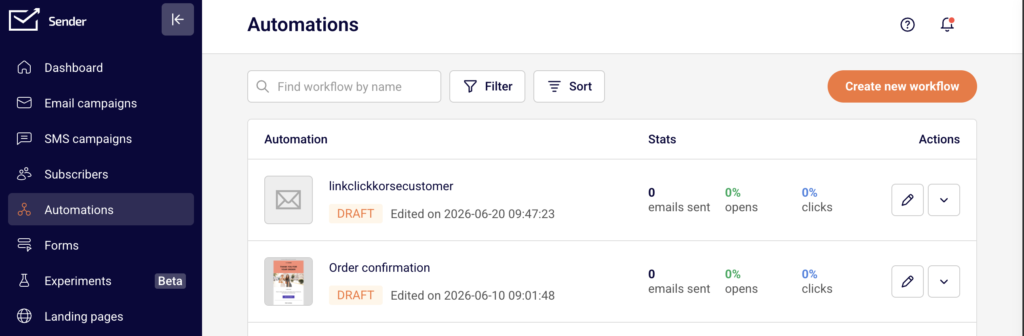
Steps to Create Your First Automation
Step 1 — Start the Workflow
From the Automations page, click Create new workflow in the top right corner.
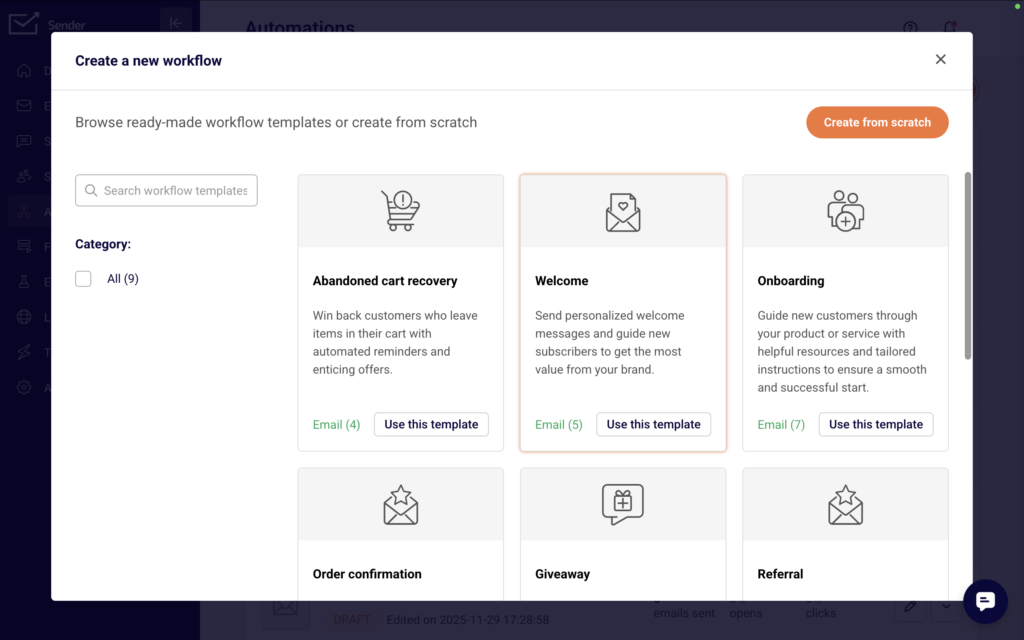
A modal appears offering two paths: browse ready-made workflow templates organized by category (Win-back customers, Onboarding, Welcome, etc.) or select Create from scratch to build a custom automation. Choose your preferred starting point to proceed.
Step 2 — Select a Trigger
If creating from scratch, the next screen displays all available trigger types. Options include subscriber joins a group, a date, anniversary of a date, link clicked, cart abandoned, product purchased, order fulfilled, and more.
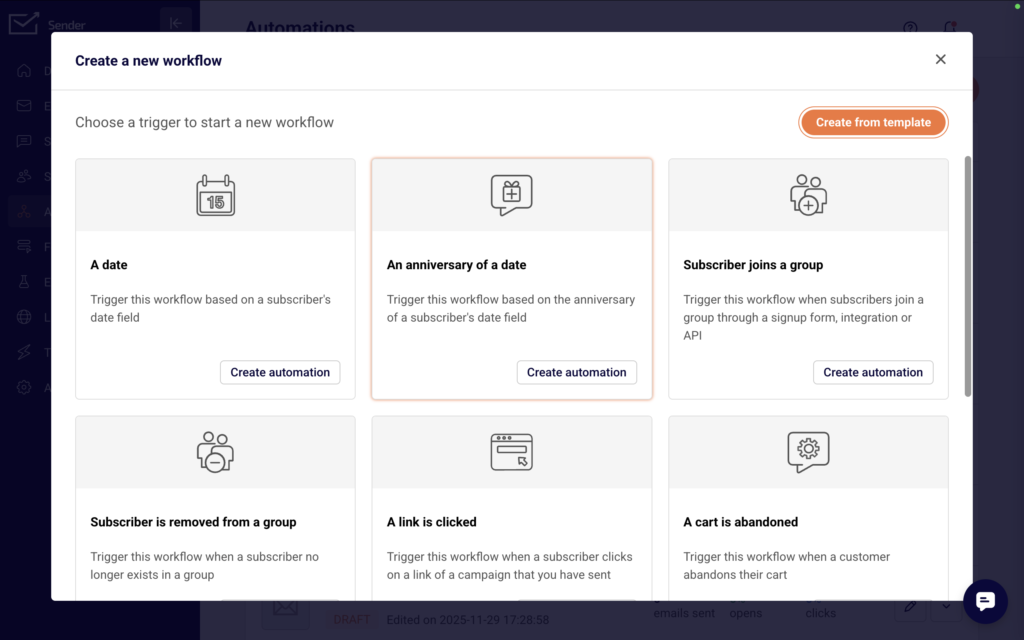
Click Create automation on your chosen trigger, then enter a name for your workflow in the popup dialog and click Create to open the visual workflow builder.
Step 3 — Configure the Trigger and Build the Workflow
The automation builder opens with a visual canvas showing your trigger block and a settings panel on the right. Configure the trigger details—such as selecting which subscriber group activates the workflow—then click Save.
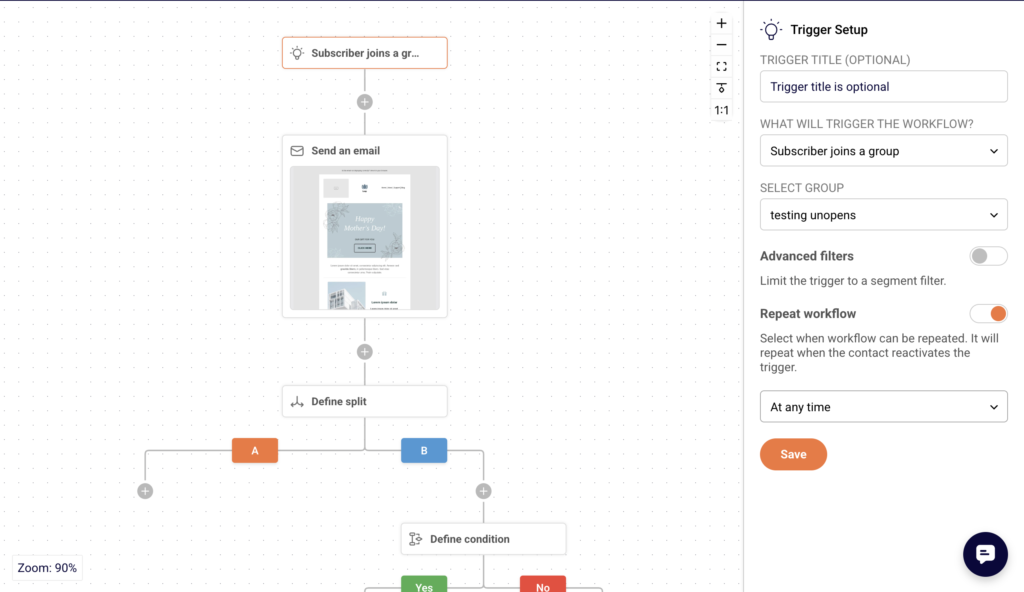
The completion indicator at the top tracks your progress. Click the + icon below the trigger to add steps: Email, SMS, Delay, Condition, Action, or Split for A/B testing.
Step 4 — Design Your Email Content
When you add an Email step, the right panel displays email settings including step name, sender details, subject line, and preview text.
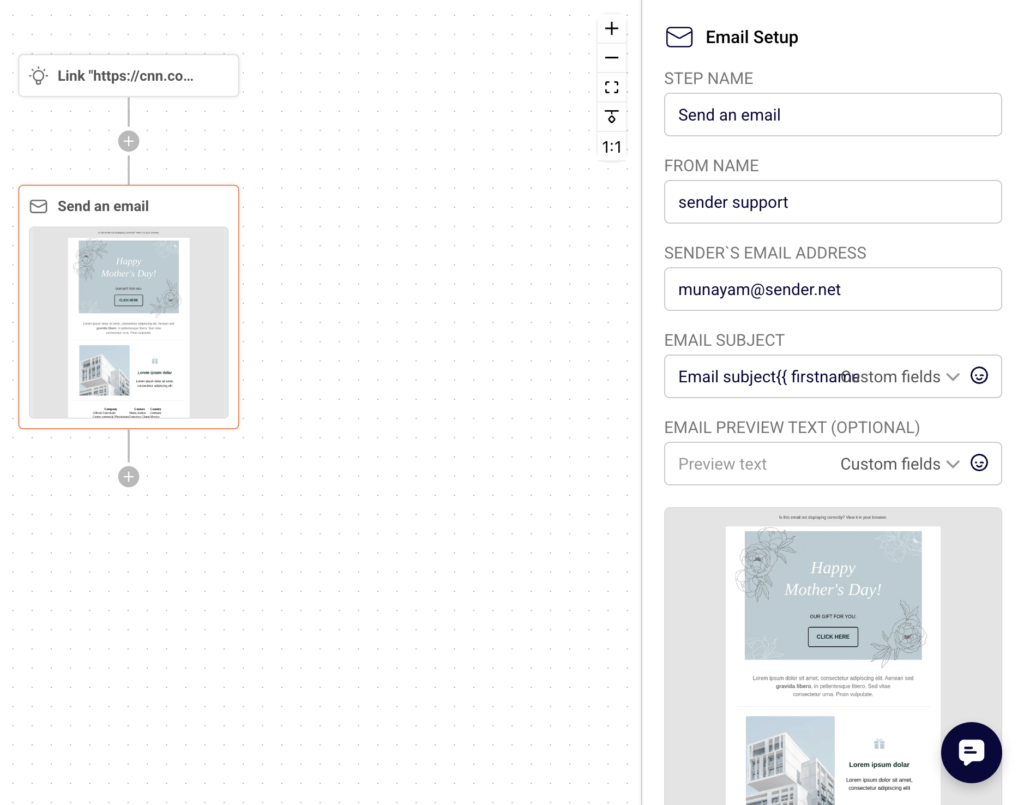
Click Create email content to open the email editor. Choose from pre-built templates or start with a blank canvas.
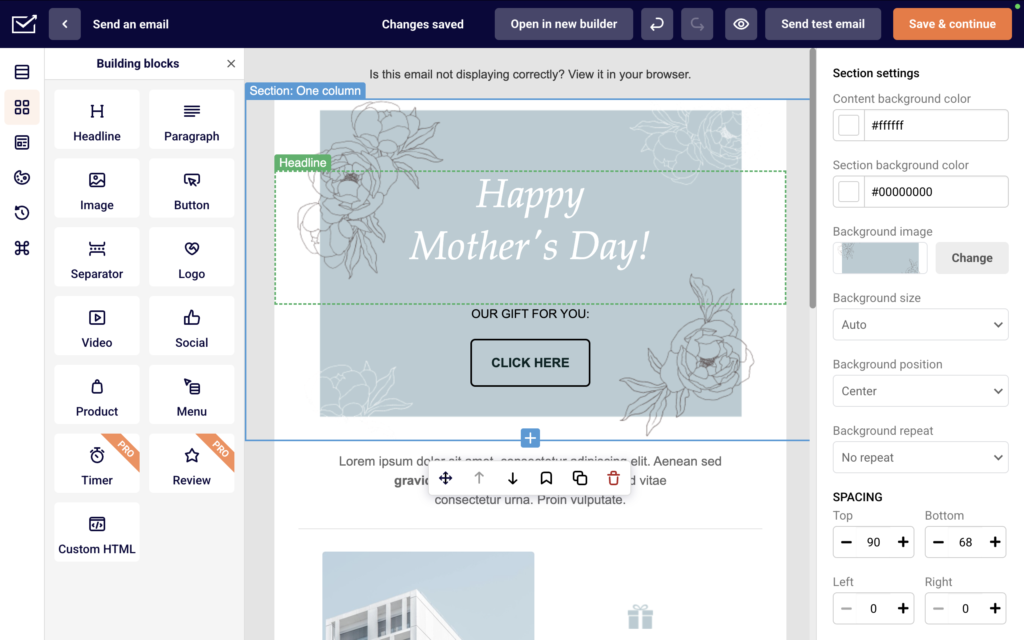
The drag-and-drop builder offers building blocks like headlines, paragraphs, images, buttons, and social icons. Click Save & continue when finished to return to the workflow builder.
Step 5 — Activate the Automation
Review your complete workflow in the visual builder. When all steps show as configured (the completion indicator displays full progress), click Activate in the top right corner. The status changes from DRAFT to ACTIVE, and the automation begins running immediately for any subscribers who match your trigger conditions.
What Happens After You Save
After activating, the automation appears in the Automations list with an ACTIVE status badge. You can continue editing the workflow or monitor performance. Statistics including emails sent, open rate, click rate, and revenue attribution become available in the Email report panel and through the Full report button after the automation starts sending.
Common Issues
Automation won’t activate → At least one complete email step with designed content is required before activation.
Trigger not firing → Verify the correct subscriber group is selected and that new subscribers are actually joining that group.
Email step shows incomplete → The email content must be created and saved using the email editor before the step registers as complete.
FAQs
Can I edit an active automation? Yes, you can modify steps and content while the automation is active. Changes apply to new subscribers entering the workflow.
How do I pause an automation? Click the Deactivate button in the top right of the workflow builder to pause the automation. Subscribers already in the workflow will complete their sequence.
Can I use templates instead of building from scratch? Yes. When creating a new workflow, select Create from template and choose from categories like Onboarding, Welcome, Win-back customers, or Order confirmation.
What triggers are available? Sender offers triggers for subscriber joins a group, date fields, anniversaries, link clicks, cart abandonment, product purchases, order fulfillment, unsubscribes, and field updates.