

What Is Email Automation in Sender
This guide shows how to get started with email automation in Sender. It covers setting up your first automation workflow and how to begin automating your email campaigns.
Where to Find This Feature
In the Sender dashboard, go to: Automations (sidebar) → Automations.
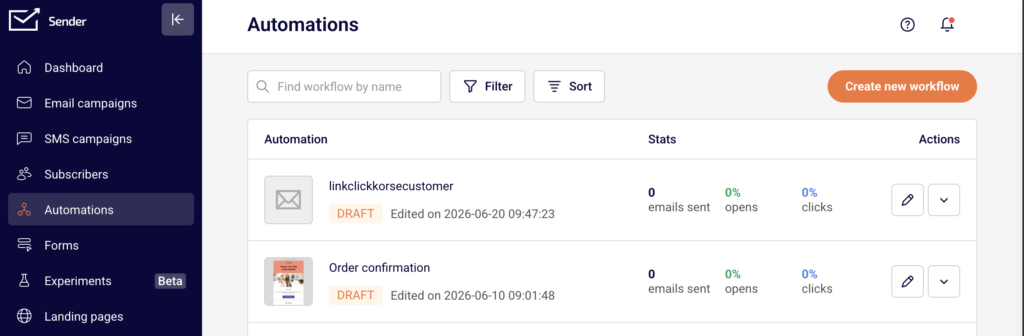
You’ll see all your existing workflows listed with their status (DRAFT or ACTIVE), stats, and available actions. Click Create new workflow to begin.
Steps to Set Up Your First Automation Workflow
Step 1 — Choose a Starting Point
Click Create new workflow in the top-right corner. A dialog opens with two options: browse ready-made workflow templates or create from scratch. Templates are grouped by use case such as Welcome, Onboarding, Win-back customers, Abandoned cart recovery, and more.
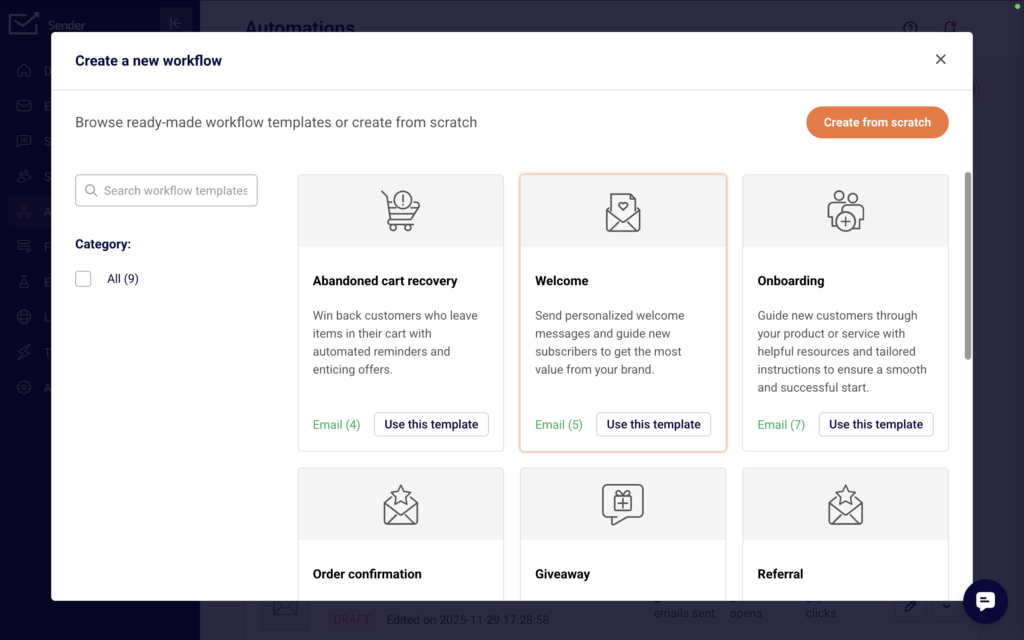
To use a template, click Use this template. To build your own, click Create from scratch.
Step 2 — Select a Trigger
If you chose to create from scratch, the next screen asks you to choose a trigger. Triggers determine what starts your automation.
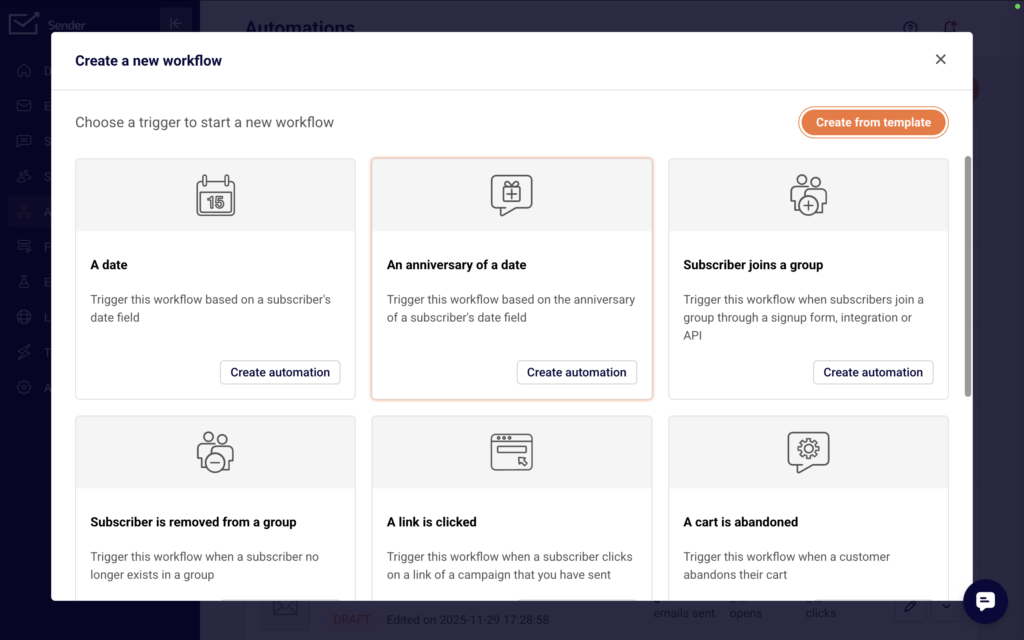
Options include Subscriber joins a group, A cart is abandoned, A link is clicked, A date, An anniversary of a date, A product is purchased, An order is fulfilled, Subscriber is removed from a group, Subscriber unsubscribed, and Subscriber field updated. Click Create automation under the trigger you want.
Step 3 — Name and Configure the Trigger
A dialog appears asking you to name your workflow. Enter a name in the Workflow name field and click Create. The workflow editor opens with your trigger on the canvas and a Trigger Setup panel on the right. Configure the trigger settings — for example, select a group under SELECT GROUP if you chose Subscriber joins a group.
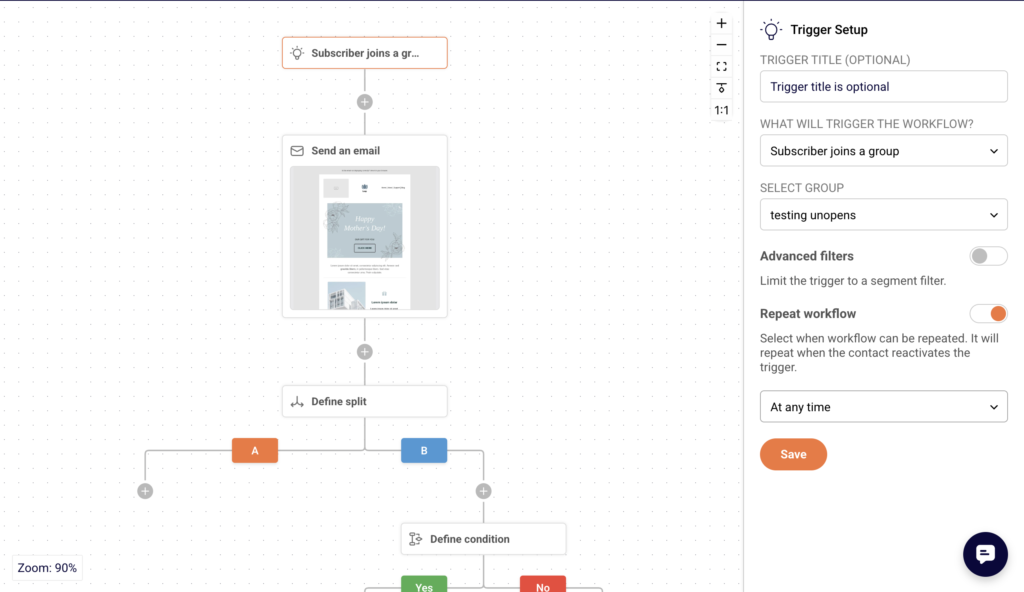
Toggle Repeat workflow if new subscribers should enter the automation. Set it to Anytime and click Save.
Step 4 — Add Workflow Steps
Click the + icon below the trigger to open the ADD A NEW STEP menu. Six step types are available:
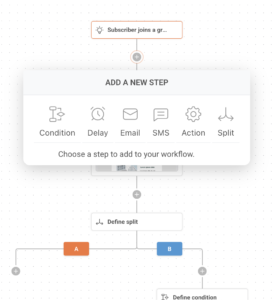
- Condition — creates a Yes/No branch based on criteria like subscriber details, workflow email activity, campaign activity, group membership, or segments.
- Delay — pauses the workflow for a set time period (minutes, hours, days, weeks, or months), until a specific date, or based on a custom date field.
- Email — sends an automated email to the subscriber.
- SMS — sends an SMS message.
- Action — performs operations such as moving or copying a subscriber to another group, updating custom fields, or sending a webhook.
- Split — divides traffic between different paths. Click on a step type to add it. Each step appears on the canvas with a setup panel on the right.
Step 5 — Configure Each Step
When you select a step on the canvas, its setup panel appears on the right. For an Email step, fill in the step name, from name, email subject, optional preview text, and choose an email design option (Drag and drop builder, Plain text, or Custom HTML).
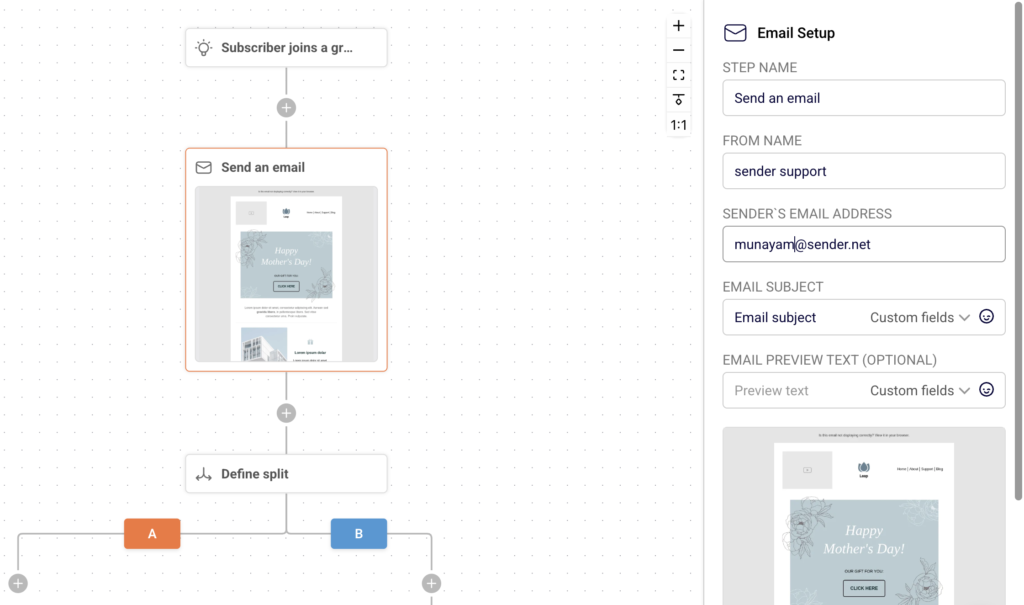
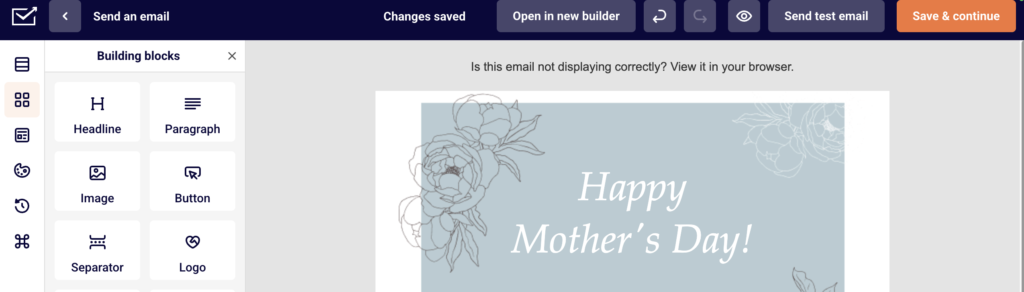
Click Create email content to design your email, then click Save.
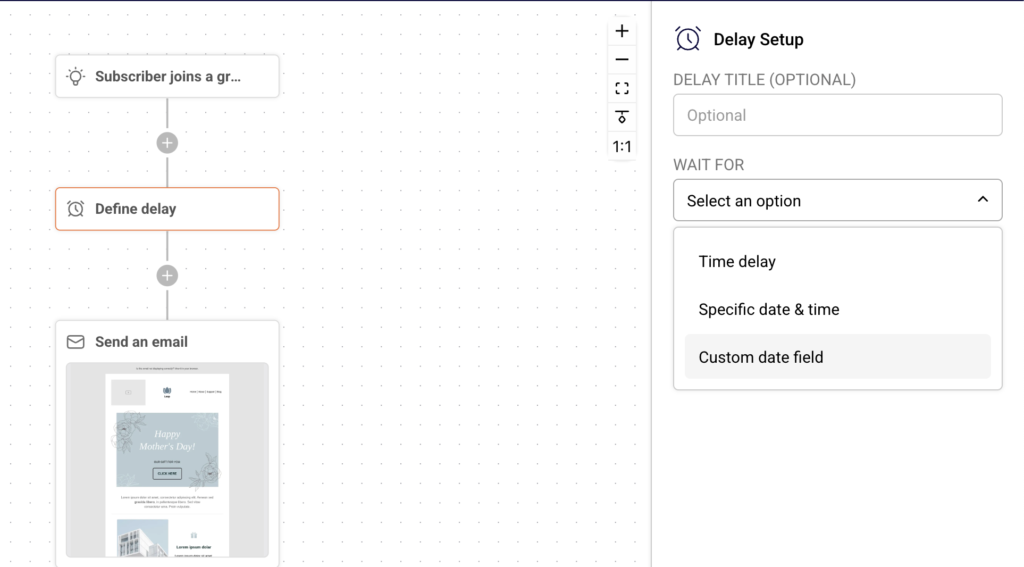
For a Delay step, select a wait type and set the duration. For a Condition, choose a condition type and define the criteria. Each step must be saved individually. The Completion indicator in the top-right corner tracks how many steps are fully configured (e.g., 1/3).
Step 6 — Build Out Your Workflow Sequence
Continue clicking the + icon after each step to add more steps. A typical workflow might follow a pattern like trigger, then email, then delay, then condition, then separate emails on the Yes and No branches. Condition steps automatically create Yes and No branches, each with its own + icon so you can add different steps to each path. Repeat until your full sequence is built.
Step 7 — Review and Activate
Once all steps show as configured and the Completion indicator reads the same number for both values (e.g., 5/5), your workflow is ready to go live.
Go back to the Automations list by clicking the back arrow.
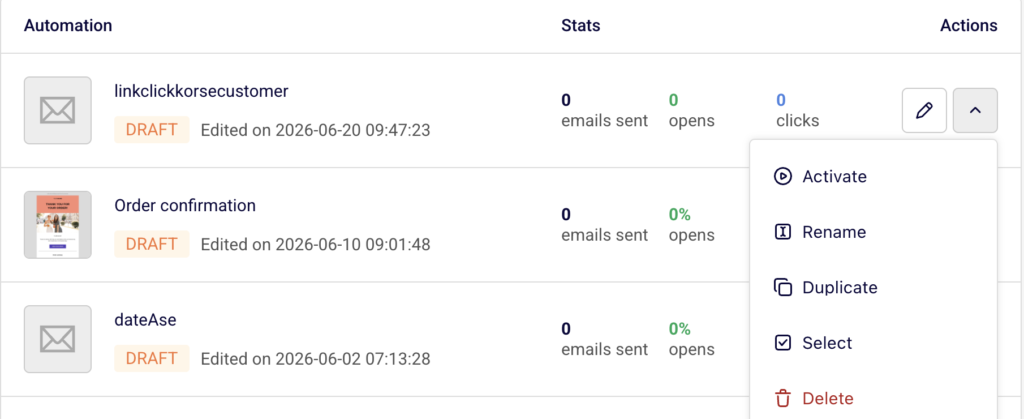
Find your workflow, click the dropdown arrow under Actions, and select Activate. The workflow status changes from DRAFT to ACTIVE.
What Happens After You Save
After saving, the automation appears in the Automations list with a status of DRAFT. You can test the workflow, make adjustments, or activate it from the actions dropdown.
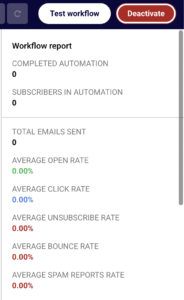
Once active, the Test workflow and Deactivate buttons appear at the top of the workflow editor. Performance and engagement can be checked in the Workflow report panel after the automation is live, which displays metrics like total emails sent, average open rate, average click rate, and subscriber completion data.
Common Issues
Completion indicator does not reach full count → One or more steps are missing required configuration. Click each unconfigured step on the canvas and complete the setup panel fields.
Cannot activate the workflow → All steps must be fully configured and saved before the Activate option becomes available.
Trigger not firing → Confirm that the selected group or event condition is correct and that subscribers are entering through the expected path (signup form, integration, or API).
Email step shows as incomplete → The email content has not been designed yet. Click the email step and use Create email content to build the email body.
FAQs
Can I edit a workflow after activation?
Yes. Open the workflow from the Automations list and make changes. Active workflows can be edited without deactivating them first, though some changes may require deactivation.
Can a subscriber go through the same workflow more than once?
Only if you enable the Repeat workflow toggle in the Trigger Setup panel.
How many steps can I add to a workflow?
There is no fixed limit. You can chain as many steps as needed using the + icon after each step.
What is the difference between a Condition and a Split?
A Condition routes subscribers down a Yes or No path based on criteria you define. A Split divides traffic between different paths.
Can I use a template and modify it?
Yes. Click Use this template, then edit any step in the workflow editor to customize it.