



You’ve done this before: a tab open to your campaign dashboard, another tab open to your automation reports, a third tab open trying to remember what your last winning subject line actually said.
That’s work that used to cost you hours, sometimes entire days. And it now takes minutes, with the assistant turning what it finds into an actual strategy instead of just a faster report: which segment to build next, which flow to fix first, which subject line pattern to repeat.
The Sender MCP (Model Context Protocol) Server makes that possible. Connect your AI assistant — Claude, ChatGPT, Cursor, or similar — directly to your Sender account, and it can read your campaigns, segments, and automations, then answer questions, spot problems, and draft content grounded in your actual data.
What that means in practice:
- No CSV exports to feed your data into an AI tool.
- Copy written from your top-performing subject lines and past campaigns, not a generic template.
- Questions answered in one message instead of clicking through five dashboard screens.
- An assistant that reads your account the way an experienced strategist would, and helps you plan the next move from there.
What Is MCP & Why It Matters to You
MCP is an open standard that lets an AI model call tools on your behalf, the same way a human team member would use an app.
Think of it as a translator between your assistant and your Sender account: instead of you copying data over manually, the assistant asks for what it needs and gets a direct answer, which is what makes the hours-to-minutes shift above possible in practice, not just in theory.
Built for Safety & Control
Connecting an AI assistant to your marketing account should feel safe, not risky. That’s why the Sender MCP server is built around three guardrails:
- Read & draft operations. Your assistant can analyze data, check flow configurations, and generate email drafts – that’s the extent of what it does on its own.
- Human-in-the-loop. It will never hit “Send” or activate a live automation without your explicit review and confirmation. Campaigns created through the connection are always drafts, and workflows go live only through a separate step you trigger yourself.
- OAuth-based access. You connect by logging into Sender in a browser and approving permissions – there’s no API key to copy, paste, or accidentally expose. You can revoke access at any time, and the connection carries your existing Sender user role, so it can’t do anything in your account that you couldn’t do yourself.
What Your Assistant Can Actually Do
Four areas cover most of what marketers ask for: reporting, flow audits, segmentation, and content drafting. Here’s what to ask, with real prompts you can copy and adjust for your own account.
Performance Analysis & Reporting
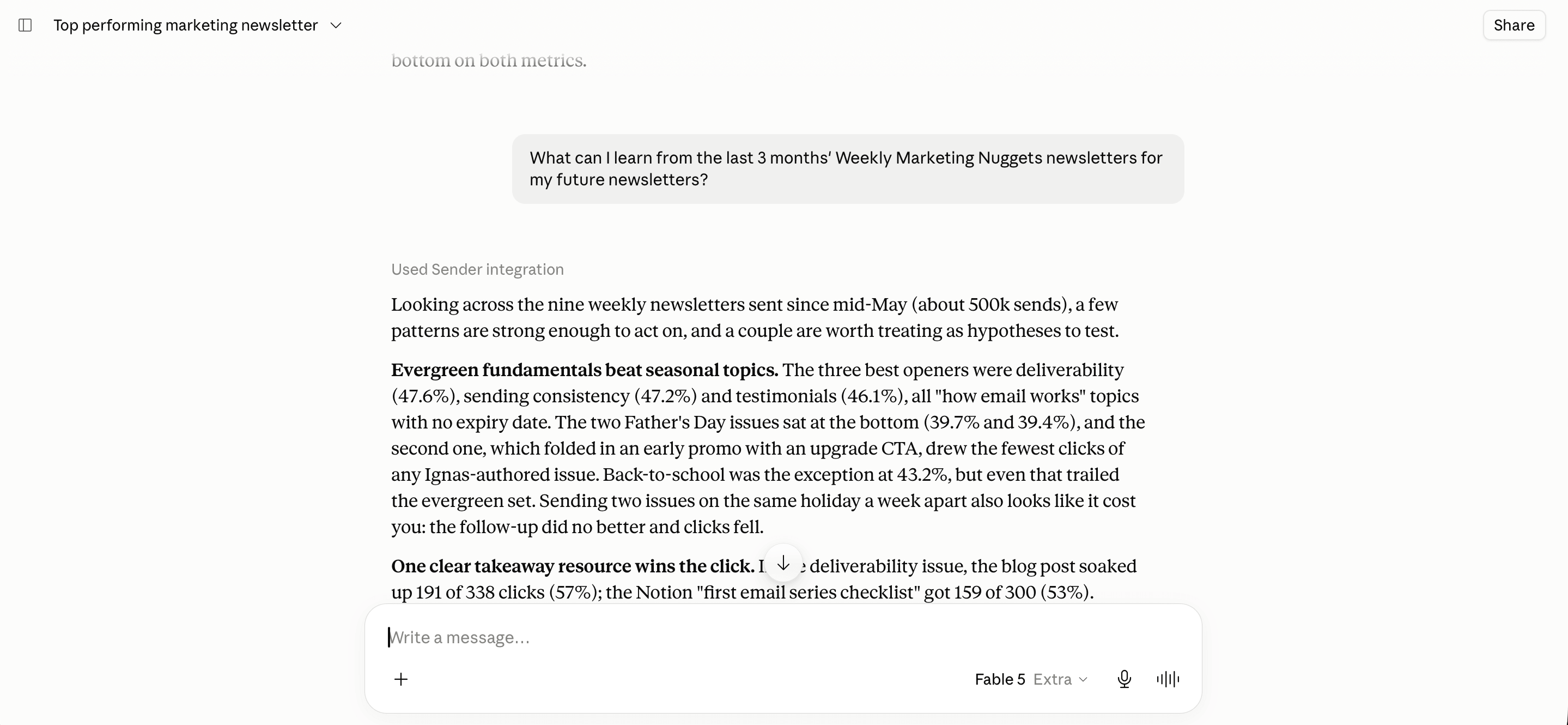
Get visibility into sales, campaign ROI, and subject line performance without opening a single report screen. You only need to ask, and the assistant pulls the numbers directly from your account.
That covers the reports marketers pull most often: a revenue and open-rate summary for a date range, a side-by-side comparison of specific campaigns, or a check on which subject lines drove opens.
For example, instead of manually comparing three campaign exports in a spreadsheet to find your best performer, you can ask “which of these three campaigns had the best revenue per email sent” and get the answer with the reasoning behind it.
Ask a follow-up – “why did that one convert better” – and it can dig into audience, send time, or content differences instead of leaving you to work it out yourself.
Prompts to try:
- “Show me the performance of my email campaigns from the last 30 days.”
- “Which of my recent campaigns drove the highest total revenue and unique click rate?”
- “Give me a 30-second summary of my account’s revenue, open rates, and subscriber growth over the past month.”
- “Compare my last three campaigns side by side – opens, clicks, unsubscribes, and revenue.”
- “How many new subscribers did I gain last month, and which signup source performed best?”
- “Pull the performance report for my last big sale campaign and tell me what worked.”
- “How does this quarter’s total campaign revenue compare to last quarter?”
- “Which campaign had the highest unsubscribe rate in the past 60 days, and what might explain it?”
- “Summarize my SMS campaign performance for the last two weeks.”
- “Rank my last 10 campaigns by revenue per email sent.”
Automation Flow Audits & Optimization
Find revenue leaks and drop-off points inside your welcome, abandoned cart, post-purchase, and other sequences – including the overlaps that are nearly impossible to spot from the dashboard alone. Instead of opening each automation one at a time and manually tracing what happens step by step, you ask the assistant to lay out the whole picture in one pass.
That matters most where flows quietly interact. Two automations sharing the same trigger event means every new subscriber enters both – something you’d only catch by reading each flow’s trigger individually.
Prompts to try:
- “Audit my Welcome Series flow: check delay settings and open rates for each step, and tell me where drop-off is highest.”
- “Compare performance between my abandoned cart flow and my browse abandonment flow.”
- “Identify any active flows with below-average engagement over the past 14 days and recommend fixes.”
- “Which of my automations share the same trigger event, and what does a new subscriber actually receive across both?”
- “Check the emails in my onboarding flow for broken links, missing preheaders, and wrong image alt text.”
- “Lay out everything a new signup receives in their first two weeks, across every active workflow.”
- “Find any workflow step that’s currently blocking activation and explain why.”
- “Are there any steps in my post-purchase flow that no subscriber can actually reach?”
- “Draft a short win-back sequence for subscribers inactive 90+ days and build it as a draft workflow.”
- “Validate my referral automation and list everything stopping it from going live.”
Segmentation & Targeting
Build audiences based on real behavior, without touching a rule builder. You describe who you want to reach in plain language, and your AI assistant translates that into Sender’s actual condition logic and creates the segment for you.
This is also where it catches problems a name alone would hide. A segment called “30-day most engaged” built with a fixed date two years ago quietly means “opened anything in the last two years” today – and if it holds a third of your list, whoever reaches for it next expects a tight audience and mails the wrong group instead.
The assistant reads every condition, not just the label, so it surfaces that kind of drift, plus duplicate segments and lists still holding unsubscribed contacts.
For example, instead of manually opening each segment to check its rules, you can ask it to review your segments and flag anything broken, duplicated, or misleadingly named – then describe the replacement in plain language and have it built and read back to you before you use it.
Prompts to try:
- “Create a segment for subscribers who opened an email in the last 90 days but didn’t click anything.”
- “Create a group named ‘VIP Customers’ and add subscribers with revenue attribution over $100.”
- “Look at our unengaged segment – no opens in 60 days – and suggest a targeted re-engagement strategy based on past buying behavior.”
- “Review my segments and tell me which ones are broken, duplicated, or misnamed.”
- “Check whether my ‘30-day most engaged’ segment is still using a fixed date instead of a rolling window.”
- “Build a segment for subscribers who signed up over 12 months ago with zero opens and zero clicks in the last 365 days.”
- “Which of my segments currently include unsubscribed contacts?”
- “Give me a plain-English readback of the conditions in my ‘high-value customers’ segment before I use it.”
- “Find any segment names that don’t match what their conditions actually filter for.”
- “Create a segment of subscribers who’ve purchased more than twice in the last 6 months, for a loyalty campaign.”
Content & Campaign Drafting
Turn your own sales history and past winners into new drafts and creative angles. Instead of starting a promo email from a blank page, you point the assistant at what already worked and ask it to build on that pattern.
Because it’s reading your actual campaign history, the draft it hands back reflects your brand voice and your best-performing structure, not a generic template.
For example, you can ask it to pull your three highest-revenue campaigns from the past year and draft a new promo using the same structure, or analyze your top five subject lines by open rate and write five new ones in that pattern for an upcoming launch.
It also checks its own work before you send it – scanning for old-style personalization tags that would show up as literal text to subscribers, and flagging placeholder or mismatched image alt text – so what lands in your draft folder is closer to send-ready.
Prompts to try:
- “Look at my 3 highest-revenue campaigns from the past year and write a new promo draft using that same structure.”
- “Rewrite my flash sale subject line three different ways: urgency, curiosity, and a straight offer.”
- “Review our historical sales data and top promo emails, then give me 3 holiday campaign concepts built around urgency and our bestsellers.”
- “Check my draft campaign for old-style personalization tags that won’t render correctly.”
- “Scan this campaign’s images for placeholder or mismatched alt text before I send it.”
- “Write a draft campaign announcing our new arrivals, matching the voice from our last three newsletters.”
- “Look at the CTA copy from my highest-converting campaign this year and draft three new button variations in that same style for my flash sale.”
- “Turn my top-performing abandoned cart email into a version for browse abandonment.”
- “Pull my subscribers inactive 90+ days, check what they last purchased, and draft a re-engagement campaign built around it.”
- “Compare the subject lines from my last two flash sale campaigns and write three new ones building on whichever performed better.”
A Quick Setup Guide (Takes 2 Minutes)
There’s nothing to enable inside Sender – you connect from your AI assistant’s side.
Connecting to Claude
1. Go to Customize → Connectors.
2. Click +, then Add custom connector.
3. Enter “Sender” as the name and https://mcp.sender.net/mcp as the URL, then click Add.
4. Select the Sender connector and click Connect. Log in to Sender and approve the permissions.
5. Test it: ask “List my segments.”
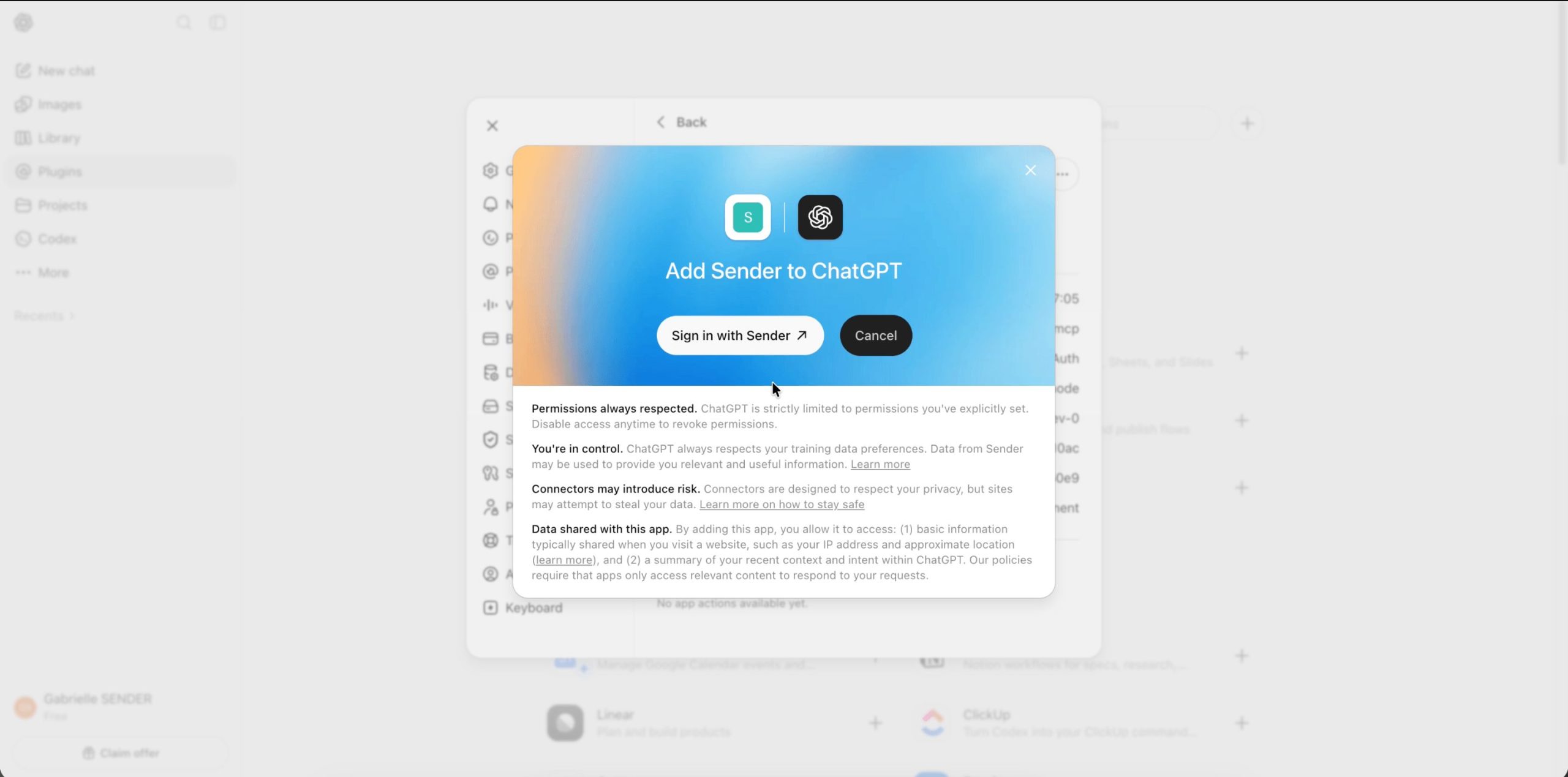
Connecting to ChatGPT
1. Open Settings → Plugins and turn on Developer mode.
2. Go back to Plugins, click Browse plugins, then the “+” sign.
3. Enter “Sender” as the name, https://mcp.sender.net/mcp as the URL, and set authentication to OAuth.
4. Complete the OAuth flow – log in to Sender and approve access.
5. Select the Sender app in the composer before asking your first question.
Connecting to Cursor
1. Open Cursor Settings → MCP → New MCP Server, or edit your MCP config file directly.
2. Add a server entry pointing to https://mcp.sender.net/mcp.
3. Save and complete the OAuth flow when prompted.
4. Start a chat and confirm the Sender tools appear.
Next Steps
Connect the Sender MCP Server today and test your first prompt. Start with something low-stakes – a segment review or last month’s campaign report – then work up to a flow audit or a draft campaign.
Read the full Sender MCP Server developer and help documentation for the complete tool reference and setup steps for Claude, ChatGPT, and Cursor:
Found a prompt that works well for your account? Share it with the Sender community.