

Email marketing will always come with a few challenges. Some are part of the job, like working out what to say and when to say it. Others are the kind you’d happily never think about again.
This month, two of those come off your list. Your first campaign no longer starts from nothing, and your headlines no longer depend on which inbox opens them.
Here’s what shipped in October:
- AI-written first campaign: new signups get a first email written in their brand, ready to edit and send.
- Render as image for headlines: your headlines keep their look in every inbox.
Your First Campaign, Written Before You Open the Editor
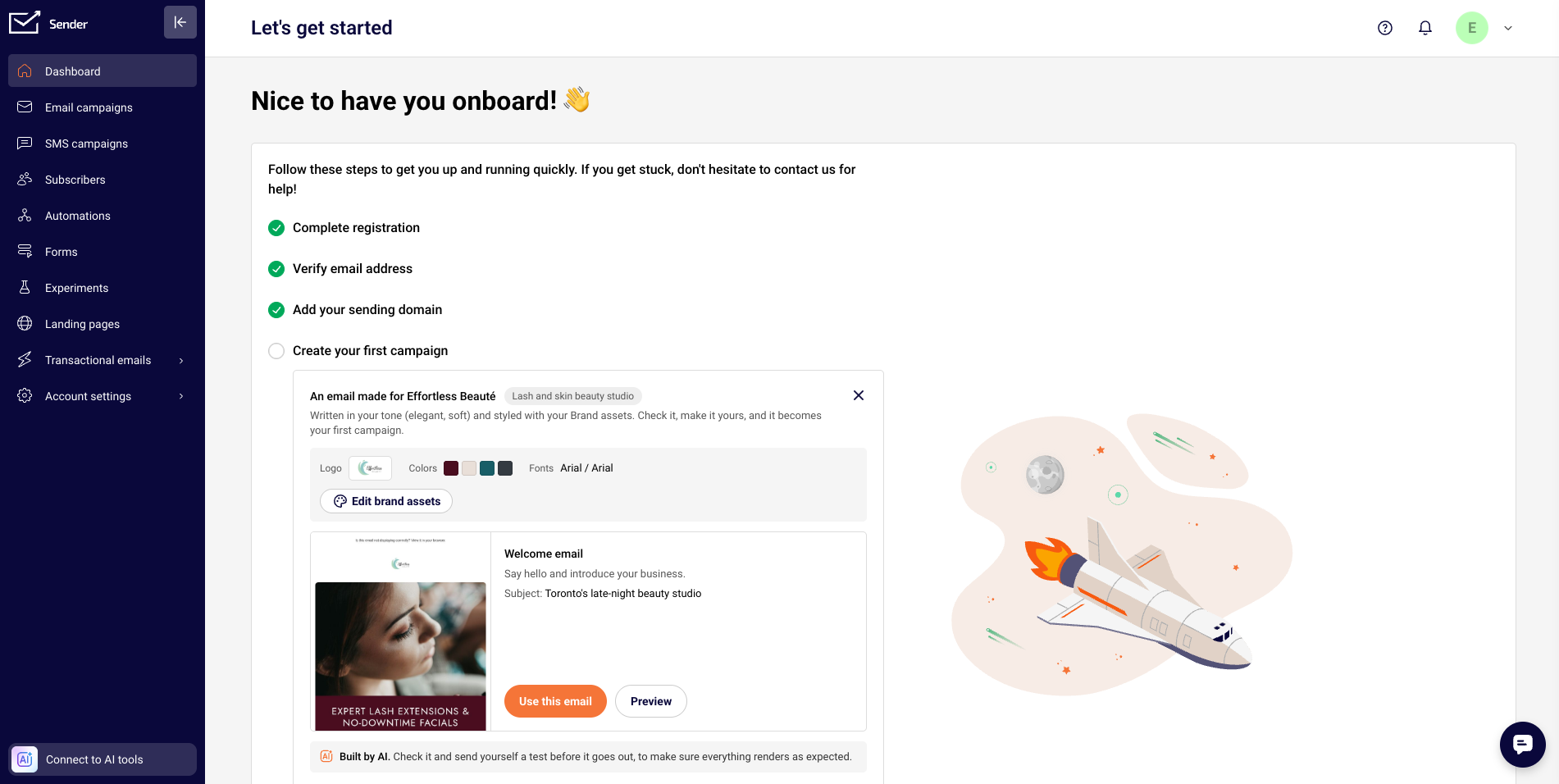
The “Create your first campaign” onboarding step used to start with an empty page. Now, if you’re a new signup with a verified domain, that step shows a finished email built from your brand, with a Use this email button next to it. One click opens it in the editor, ready to review and send.
What the AI Reads Before It Writes
The AI builds your email from three sources:
- Your website: company name, business category, tone of voice, logo, brand colors, and heading and body fonts.
- Your own site images: the AI describes them and picks the ones that fit. It also checks the color your logo sits on, so the logo displays correctly in the email.
- Your signup answers: what you told us when you created the account.
Didn’t add a website during signup? Sender works it out from your domain.
What Lands in Your Account
Each AI-written first campaign comes with:
- A campaign type picked to fit your business (nine types, listed below)
- A subject line and preview text
- The email itself, with images filled from your website first, then your image library, then Unsplash stock photos
- Sender details already set: the from name is your business name, and the from address is your own address on your domain (or a colleague’s, or hello@yourdomain)
The email is saved as both an AI template and a draft campaign, so you can edit the draft now and keep the template as a starting point for later.
Nine Email Types, Matched to Your Business
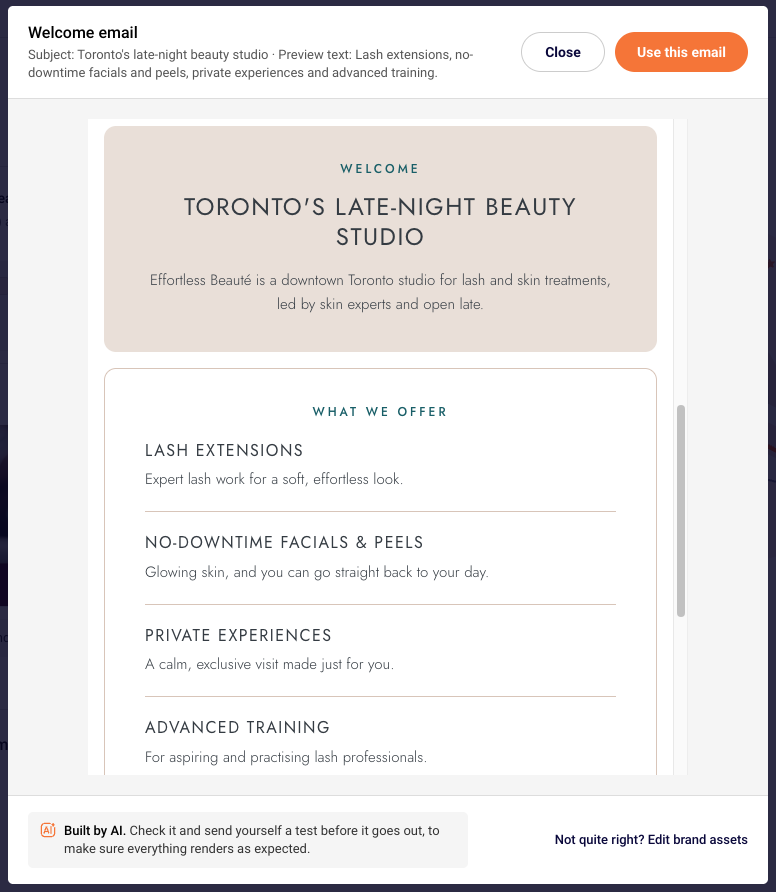
The AI chooses one of nine campaign types based on what your business does:
- Welcome email
- New arrivals
- Promotion
- Newsletter
- Event invitation
- Seasonal campaign
- Announcement
- Tips and guides
- We miss you
If the AI can’t pick one, the email is labeled “Your first email”.
Pro tip: The type is where the draft starts, not where it has to end. If you’d rather open with a welcome email than the promotion the AI chose, rewrite the copy in the editor. Your logo, colors, and fonts stay in place while you do.
Who Gets an AI-Written First Campaign
The feature is built for accounts that are just getting started:
- New signups only: accounts created in the last 30 days;
- A verified domain: you can only send from a verified domain.
If there’s no email to offer, the onboarding step looks exactly like it did before. Nothing else in onboarding has changed.
From Draft to Your First Send
Use this email opens the campaign straight in the editor. From there it’s a regular draft: change the copy, swap images, adjust the layout, and choose your recipients. The AI note in the editor reminds you to “send yourself a test before it goes out”, and we’d second that.
The onboarding check mark only ticks once you use the email (or create any other campaign). The AI draft sitting in your account doesn’t count on its own.
Headlines That Look the Same in Every Inbox
You pick a display font for a headline, set the size and line height, and it looks right in the builder. Then it reaches a reader whose inbox doesn’t load that font. The headline falls back to a system font with different letter widths, the line breaks move, and a two-line headline turns into three.
Render as image takes the font out of the inbox provider’s hands.
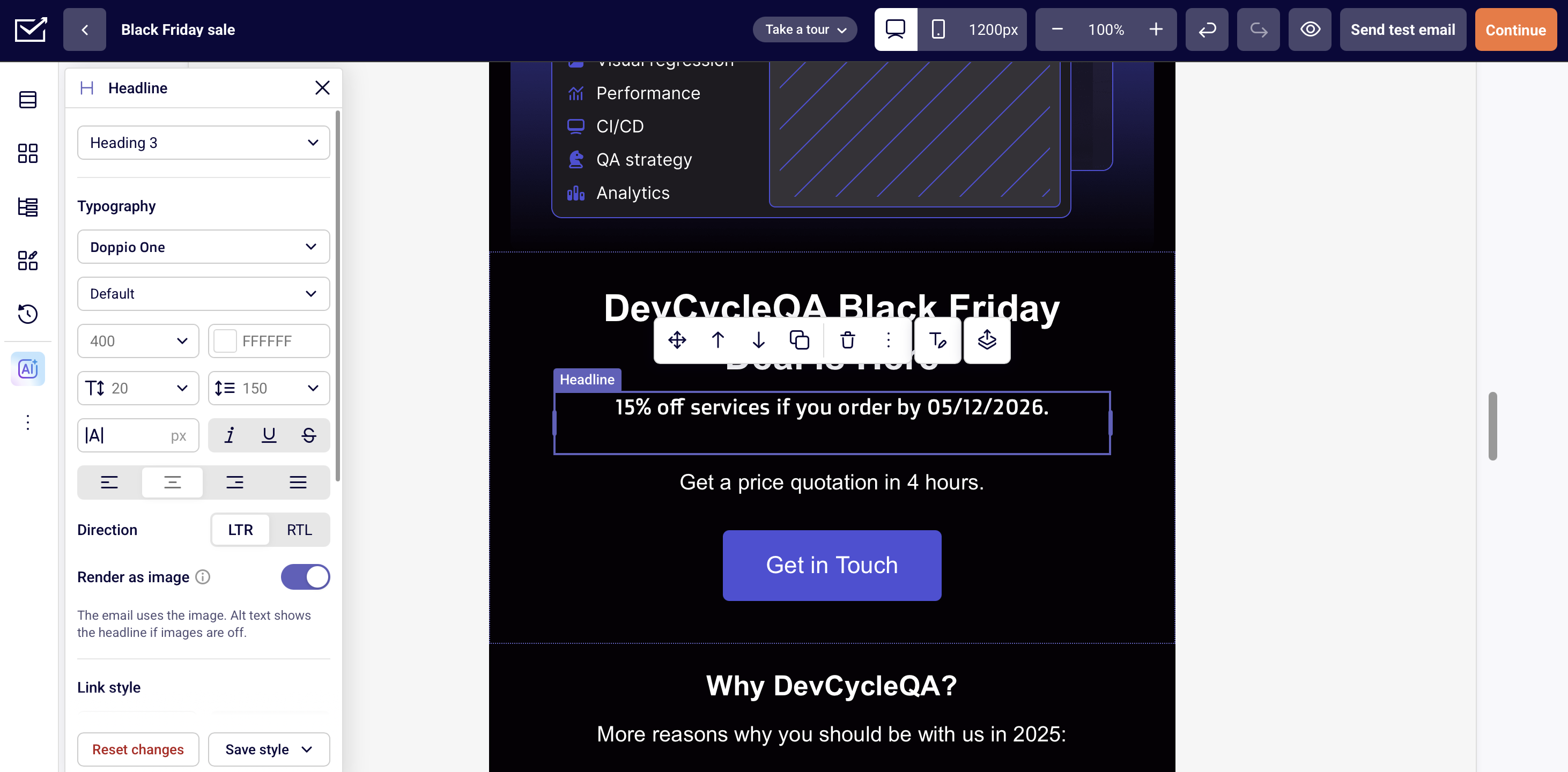
From then on, the conversion to an image always happens automatically. There’s nothing to export or upload.
Because inbox providers show an image as it is instead of swapping its font, the headline appears with the same typeface, spacing, and line breaks whether the reader opens it in Gmail, Outlook, or Apple Mail.
When to Turn It On
Render as image fits best when:
- You’re using a custom or display font that many inboxes won’t load, like the headline in Aboreto font in the example above.
- The exact look carries the campaign, such as a Black Friday or product launch headline set in your brand typeface.
- Line breaks matter, for example, a headline written to split over two balanced lines.
When to Keep It as Live Text
An image headline is still an image, so a few things work differently:
- Some inboxes hold images until the reader allows them. Put the essential details (a discount, a deadline, a code) in a text block below the headline.
- Readers can’t select or copy text inside an image. If you want people to copy a promo code, keep it in live text.