

Imagine going from a rough idea in your head to a fully designed, ready-to-send email in seconds—without dragging a single block or agonizing over the blank canvas.
Starting today, you can. Meet the new AI Assistant built right into Sender’s email builder.
Whether you’re launching a weekend flash sale or welcoming new subscribers, you no longer have to burn 20 minutes just wrestling with layouts and placeholder copy to see if an idea works. Just type what you want in plain English – like a creative director briefing a designer—and watch your email assemble itself live on the canvas.
Even better? It doesn’t spit out rigid HTML or flat images. Every headline, button, and layout is built using native Sender email blocks – meaning you can tweak any detail by hand, or simply ask the AI to remix it until it’s spot-on.
And this is just the beginning. The AI Assistant is the first step in a whole new wave of smart, AI-powered tools coming to Sender to make your marketing faster, sharper, and effortless.
Read on to see what you can do with the AI Assistant today.
Meet Your New Email Design Partner
The AI Assistant opens from the builder’s left sidebar rail. Type a request, press Enter, and the changes appear on the canvas as the AI makes them. That’s the AI email builder in practice: drag in blocks yourself, or describe the change and let the AI make it.
Here’s what you can do with the AI Assistant:
- Build from a prompt. Get a complete, on-brand draft from one line.
- Edit by asking. Restyle, rewrite, shorten, translate, or change the tone.
- Point at exactly what to change. Type @ to pick a block, or use “Edit with AI” on one section.
- Choose how closely it follows your brand. Pick one of three style modes.
- Experiment without risk. You can undo every change, and the builder checks each result.
Not every message changes the email: ask “what would make this email better?” and you get an answer in the chat instead.
From Blank Canvas to Complete Draft in Seconds
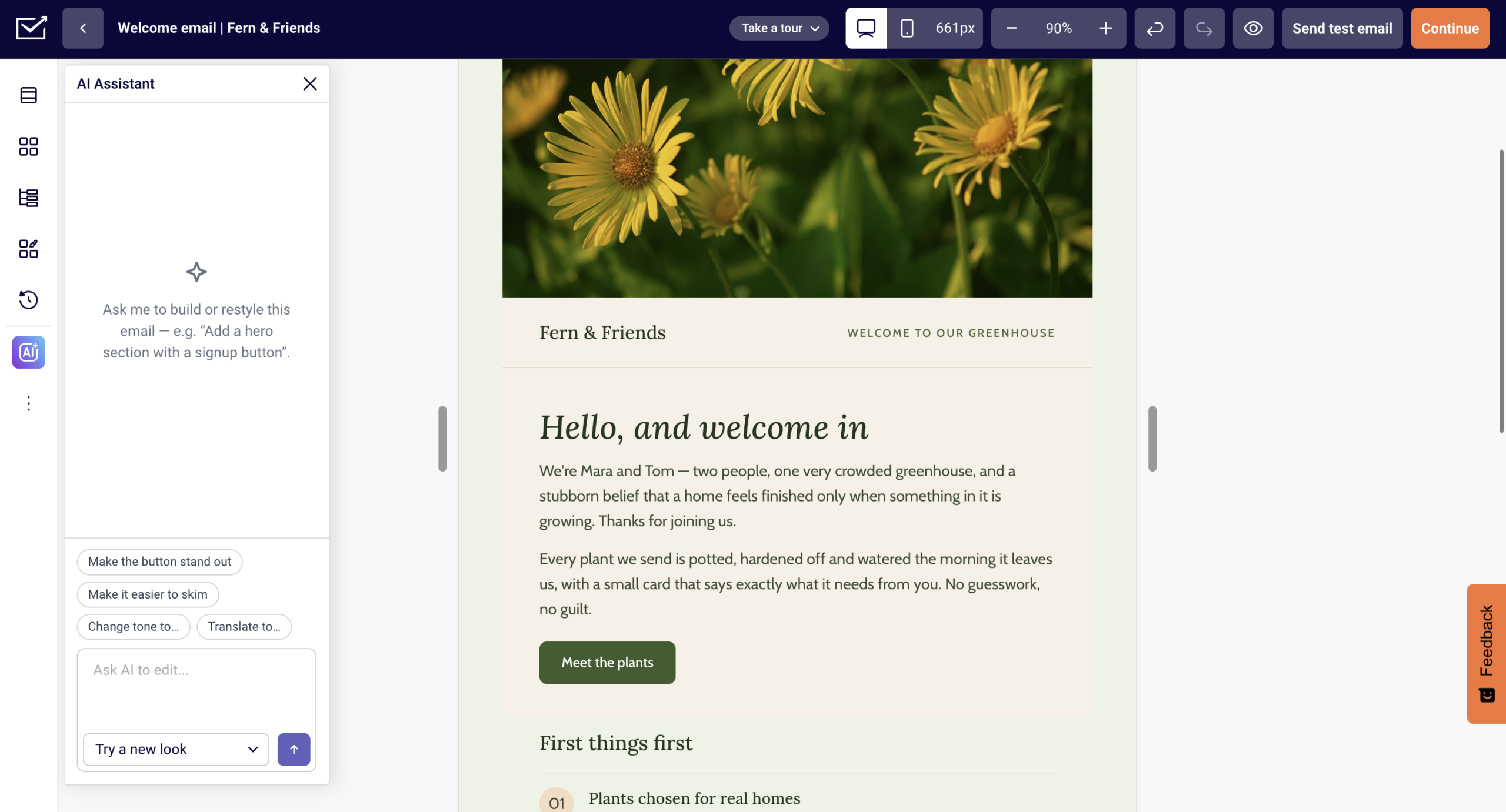
Open a new email, click the “AI assistant” button, and describe what you’re sending. On first open, the panel shows suggested prompts and the message box (“Ask AI to edit…”).
Type “Welcome email for new members of our yoga studio” into an empty email, and the AI builds a complete draft with the colors, fonts, logo, and company name from your Brand settings (the default “Use my brand” mode).
On an empty email, the AI Assistant generates an email; once there’s content on the canvas, the same chat edits it.
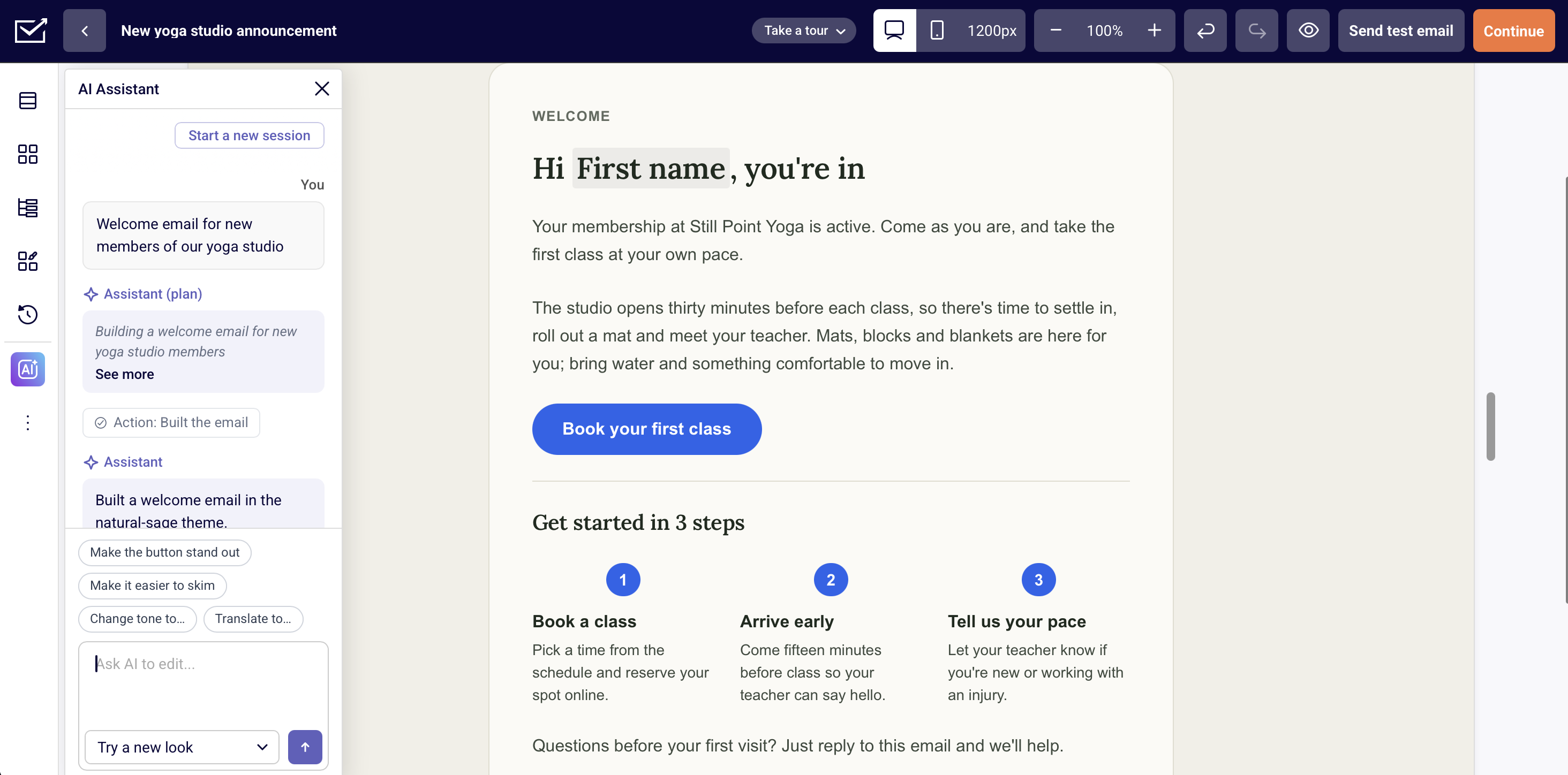
Pro tip: Brief the AI the way you’d brief a colleague: who the email is for, what you’re offering, and what readers should click. Leave it open-ended, and the AI may ask a couple of quick questions first.
Already brief an AI tool outside the builder? Connect Claude, ChatGPT, or Cursor through Sender’s MCP server, and a newsletter or promo you ask for there arrives as a draft campaign. Both routes bring email marketing AI into your Sender account.
Why Editable Blocks Change Everything
Everything the AI makes lands on the canvas as ordinary builder blocks: text, images, buttons, and sections. You can retype a headline, swap an image, reorder or delete sections, or send the same blocks back through the chat for another pass.
With editable AI email blocks, the AI writes the first draft, and you keep the final say on every block. For a refresher on how blocks and the Block Tree panel fit together, see our new email builder walkthrough.
Two Entry Points: How to Access the AI
You can reach the AI Assistant two ways, depending on how much of the email you want to change. Requests from both show up in the same chat, so you can see every request in one place.
The Full AI Assistant Panel
The panel is where most of the work happens: building whole emails, asking for multi-step changes, switching style modes, and mentioning blocks with @. Open it from the “AI assistant” button on the left sidebar rail.
Suggested Prompts for Instant Inspiration
Not sure how to phrase the first request? Four suggestion pills sit above the message box, and they change with how far along the email is.
| Email state | Pills shown |
| Empty email | · Newsletter about… · Sale or discount for… · Welcome email for… · Product launch:… |
| Draft with 1 or 2 sections | · Finish this email · Add a headline and image · Add a call-to-action button · Add a footer with social links |
| 3 or more sections | · Make the button stand out · Make it easier to skim · Change tone to… · Translate to… |
Clicking a pill puts its text in the message box; nothing is sent until you press Enter. Pills ending in “…” wait for you to finish the sentence, for example, “Translate to German.”
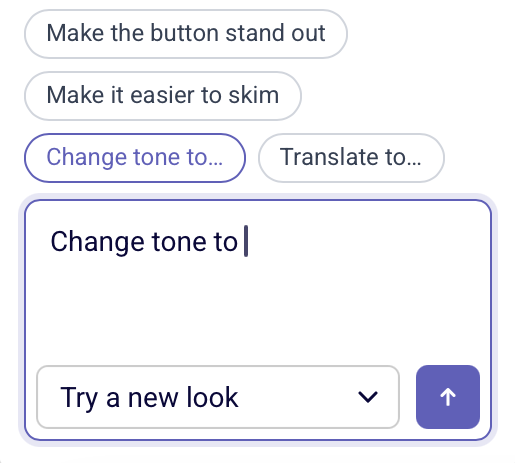
Note: Pills are hidden while the AI is waiting for your answers to its questions.
Conversational Memory and Context
The panel keeps one running conversation, so you can build on earlier requests. Ask for a newsletter, then follow up with “now make it shorter” or “use the second option,” and the AI works from what came before.
- Start a new session. The “Start a new session” button at the top of the chat clears the conversation and the AI’s memory of it. The email itself doesn’t change.
- Conversations don’t carry over. Reloading the page or reopening the email starts a fresh conversation, but the email keeps every change the AI made.
Pro tip: If a long chat starts missing something you said earlier, repeat that detail in your next message or start a new session. Your email stays as it is either way.
Canvas-Level Shortcut: “Edit with AI”
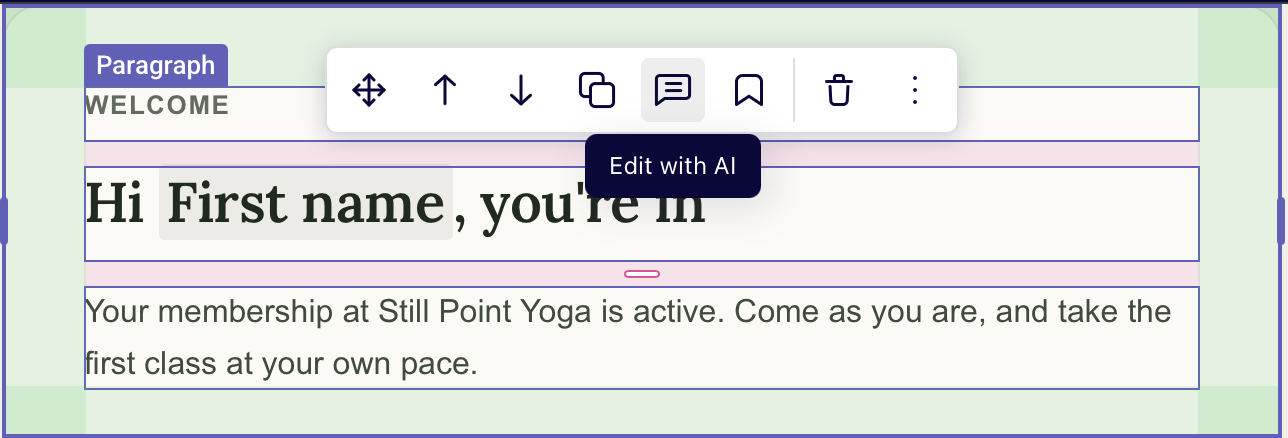
Sometimes you only want to fix one part of the email. Every section’s toolbar has “Edit with AI”: a quick prompt box that reads “Ask for a change to this section only.” The answer streams into the AI Assistant panel, marked “This section only.”
Localized Focus on Single Sections
The AI treats that section as its focus, but it can still change other parts of the email if your request needs it. While it works, the section glows, and its toolbar is hidden.
Each section’s box also keeps its own memory: a follow-up there doesn’t know what you asked in the panel, and the panel doesn’t know what you asked there.
Pro tip: Use Edit with AI for contained fixes, like shorter copy in one section. Switch to the panel when a request builds on earlier ones.
Take Control of the Look: 3 Style Modes
A menu in the message box sets the look up front, so no surprise color scheme turns up halfway through a campaign.
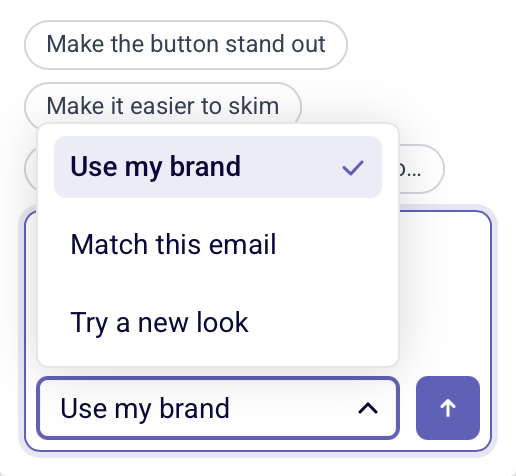
“Use my brand” is the default, and the builder remembers your last choice in that browser. You can switch modes between messages, but not while the AI is working.
If you design emails with AI for different kinds of campaigns, expect to switch: “Use my brand” for the regular newsletter, “Try a new look” for a one-off promo.
| Mode | What the AI does | Best for |
| Use my brand | Uses the colors, fonts, logo, and company name from your account’s Brand settings | Everyday campaigns that should look like your company |
| Match this email | Copies the look of the email on the canvas: background, card color, heading and body fonts and colors, button color | Adding or changing sections in an email that already has its own design |
| Try a new look | Keeps your logo and company name, but picks its own colors and fonts | Exploring ideas, seasonal or one-off campaigns |
Precision Edits with @ Block Mentions
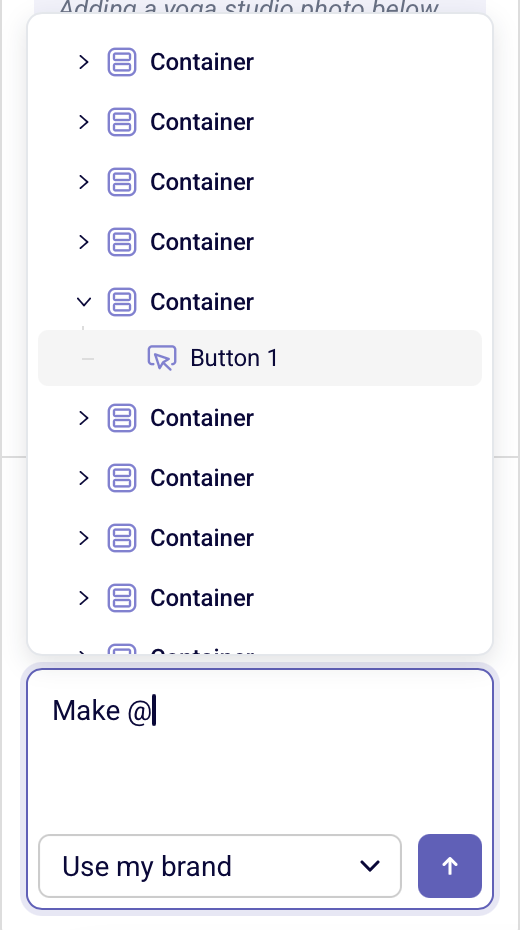
“Make the button bigger” is a clear request until your email has four buttons. Type @ in the message box to open the email’s block tree and pick the ‘Shop now’ button. It becomes a chip showing the block type and first few words, so the AI knows which button you mean.
Pinpoint Elements via the Block Tree
The picker mirrors the Block Tree panel in the sidebar:
- Same names and icons. Sections expand to show the blocks inside them.
- Search as you type. Typing after @ filters the tree to matching blocks, keeping their parent sections open.
- More than one. A single message can mention several blocks, such as a heading and the button below it.
Real-Time Visual Highlights on the Canvas
You see what you’re selecting before you commit. Hovering a row in the picker outlines that block on the canvas, and picking one scrolls it into view and briefly highlights it. Hover a chip in your message later, and the block is outlined again.
Safe, Predictable, and 100% Reversible
The usual worry with AI in a design tool is losing work or breaking a layout. Here, you can follow every step and undo every change.
Clarifying Questions and Live Progress
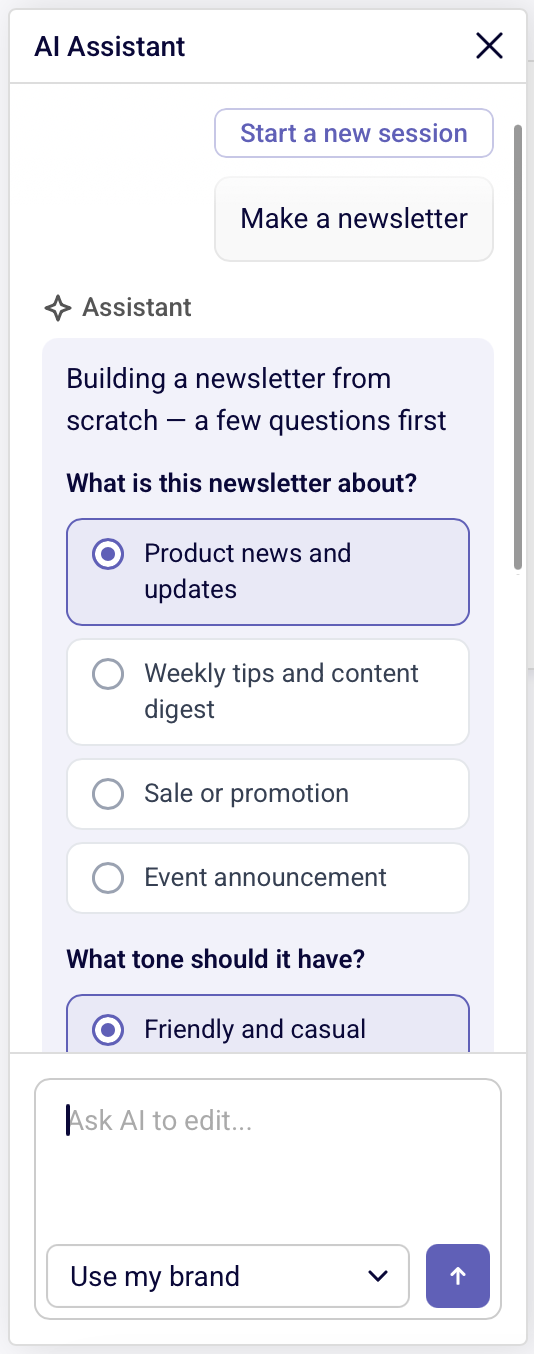
Open-ended requests get a quick check-in instead of a guess. Ask something broad like “make a newsletter,” and the AI may offer a few quick choices first. Press Continue with your picks, or Let AI decide.
From there, the chat shows each stage:
- The plan. A short plan line (“Assistant (plan)”) says what the AI is about to change.
- Live progress. A status line shows the current step, such as “Planning the change…” or “Applying the changes…”, with a seconds counter after 3 seconds.
- On the canvas. A placeholder marks where new sections will land, and sections being rewritten glow.
- Done. Each completed action gets a check mark in the chat, like “Action: Built the email,” plus a short reply from the AI.
Built-In Quality Checks and One-Click Undo
After a change, the builder automatically checks the result. If it finds a problem, the AI fixes it, and the chat shows “Fixed: …”. Each change and each fix is its own undo step, so you can step back through them in order.
Version history covers AI edits too. Emails built or changed with the AI Assistant keep their version history like any other email. Undo steps back one change at a time; version history returns you to an earlier saved version.
Try the AI Assistant in Your Next Campaign
The AI Assistant writes the first draft and handles repetitive edits, while every block stays yours to change.
Note: AI use runs on monthly AI credits. The Free plan includes 100, and paid plans get more as your plan or subscriber count grows. Unused credits don’t roll over, so if you run out, move up a plan or a subscriber tier.
Ready to build faster? Open the builder, pick a style mode, and ask for your first draft.