


MCP email marketing means connecting an AI assistant such as Claude or ChatGPT to your email platform through a Model Context Protocol (MCP) server, so the assistant can read your campaign reports, subscriber segments, and automations, and create drafts inside your account, instead of working from numbers you paste into a chat.
The assistant reads live data and proposes actions. Sending still happens in your dashboard, by you.
Below you’ll learn what an MCP server does, what it refuses to do, whether giving an AI access to your list is safe, and how to connect Sender’s server in about five minutes.
What Is an MCP Server for Email Marketing?
An MCP server for email marketing, or email MCP server, is a hosted endpoint published by an email marketing platform that exposes the platform’s data and actions (subscribers, segments, campaign reports, email marketing automation workflows) as named MCP tools an AI assistant can call.
Model Context Protocol (MCP) is the open standard for connecting an AI model to external tools and data; it defines how those tools are described, discovered, and called: Anthropic released it in November 2024, it carries JSON-RPC 2.0 messages, and Claude, ChatGPT, Cursor, and other AI clients implement it.
The AI client (the app you type into, acting as the MCP client) fetches the tool list, picks the tool that matches your request, calls it, and reads the result back into the conversation.
Two deployment models exist. A remote MCP server runs on the vendor’s infrastructure over HTTPS using the Streamable HTTP transport, the only kind web-based clients such as claude.ai and ChatGPT can use.
A local MCP server is a process installed on your own machine, run over stdio, configured with an API key in a JSON file, and usable from desktop clients such as Claude Desktop only. Sender’s remote server is at https://mcp.sender.net/mcp, and other popular platforms publish official MCP servers too: the Klaviyo MCP server at mcp.klaviyo.com/mcp, and the MailerLite MCP server at mcp.mailerlite.com.
The Brevo MCP server is token-based, with one token covering the full marketing platform, and a Mailchimp MCP integration was announced in February 2026 through Intuit’s partnership with Anthropic; check each vendor’s tool list before assuming parity.
Authentication for remote servers is OAuth: the client opens a browser window, you log in to the email platform, and approve access. No API access token is copied anywhere, the token is bound to your user role, and removing the connector revokes it.
MCP vs API vs Zapier — What’s Actually Different
A REST API, an MCP server, and Zapier sit at three different layers. The API is what software calls: a developer writes code against the email service provider’s documented endpoints and authenticates with an API access token.
MCP is how an assistant reaches that same functionality without code: the server wraps a subset of the API as tools with plain-language descriptions, and the assistant chooses tools by reading those descriptions.
Zapier (and Make) is scheduled or event-driven automation: a trigger fires (a form submission, a CRM update), a fixed sequence of actions runs, and no reasoning happens between steps.
The practical split: the API for a product integration, Zapier for a repeatable “when X happens, do Y,” and MCP for conversational analysis and drafting, where you ask a question and want an answer built from live data.
What You Can Do With an Email Marketing MCP Server
An email marketing MCP server lets you pull a campaign performance report, find subject line patterns, propose purchase-based segments, locate drop-off in an automation, and draft a re-engagement campaign, all from one chat.
Every use case below has the same shape: you type a request, the assistant calls one or more read tools, and it returns an answer built from your account data, sometimes with a draft marketing email it created, and ends with a prompt you can paste verbatim.
All five map to tools Sender’s MCP email server exposes today (get_email_campaign_report, list_email_campaigns, create_segment, get_workflow, create_email_campaign); if another platform’s server lacks one, that use case won’t work there.
The actionable insights come from cross-referencing, and so does the time you save. Pulling 30 campaign reports and comparing them against the email marketing metrics you track takes an assistant two minutes and takes you an afternoon of tab-switching.
Get a Campaign Performance Report Without Opening the Dashboard
What you ask: ask the assistant for the numbers on one email campaign, or a comparison across your last N sends. The assistant calls list_email_campaigns to find the campaign IDs, then get_email_campaign_report for each.
What comes back: total sent, opens, clicks, unsubscribes, spam complaints, soft and hard bounces, rates against the correct denominator (delivered for engagement, total sent for bounces), a top_links table of clicked URLs with counts, and purchase_count when your plan includes revenue reporting. Sort by click-through rate.
When it’s worth it: weekly reporting, or performance data for ten campaigns side by side. For a single send, the campaign reports page in the dashboard is faster.
Example prompt: “Pull the reports for my last 10 sent campaigns and rank them by click rate. Flag any with a hard bounce rate above 2% or a spam complaint rate above 0.1%.”
Find the Subject Line Patterns That Work on Your List
What you ask: ask the assistant which subject lines earned the most clicks over a period. The assistant reads each past campaign’s subject line and engagement from get_email_campaign and groups them by trait: length, numbers, questions, personalization, urgency, emoji.
What comes back: subject lines with open and click-through rates, plus the traits recurring in your top and bottom quartiles, measured on your list rather than on industry email marketing statistics.
When it’s worth it: at 20 or more sent campaigns; below that, the differences are noise. Judge on clicks, not opens, because Apple Mail Privacy Protection has inflated open rates since 2021. Confirm any pattern with A/B testing before standardizing on it.
Example prompt: “List the subject lines of every campaign I sent in the last 6 months with click rates. Which three traits do the top five share and the bottom five lack?”
Get Segment Ideas From Your Own Purchase Data
What you ask: ask the assistant which purchase-based subscriber segments are worth creating. This needs a connected store (Shopify, WooCommerce, or another integration): the assistant checks list_stores, reads existing segments, and proposes new ones from conditions such as total_spend, order_count, purchased_product, or checkout_started with no order.
What comes back: proposed segments in plain language (“ordered 2+ times, nothing in 120 days, lifetime spend over $150”) and, if you approve, the created segment with conditions_for_humans, an English readback of its logic. A new segment shows 0 subscribers until counts_pending clears.
When it’s worth it: stores with roughly 500 or more orders, where repeat buyers hold most of the email marketing ROI. Under that, three hand-built segments cover the list.
Example prompt: “Read my existing segments, then propose five purchase-based segments I don’t have yet, using order count, total spend, and last order date. Don’t create anything until I confirm.”
See Where Subscribers Drop Out of Your Automations
What you ask: ask the assistant where a welcome series or abandoned cart automation loses people. The assistant calls get_workflow for the step graph and per-email engagement, and get_workflow_report for subscribers_in_workflow, completed_count, and average rates.
What comes back: opens and clicks per email in sequence (email 3 at 41% opens, email 4 at 19%), plus subscribers still inside versus finished. Limitation: this is engagement per email, not an exit log, so in complex automations with branches, “dropped out” means stopped opening, not left the workflow. An unsubscribe spike on one email is the hard signal, usually a delay too short for that stage of the customer journey.
When it’s worth it: any automation older than 90 days you haven’t reviewed, and whenever two workflows share a trigger, the usual cause of falling email engagement no single report shows.
Example prompt: “Show the open, click, and unsubscribe rate for each email in my welcome series, in order. Which is the first email where engagement halves, and what delay precedes it?”
Draft a Re-Engagement Campaign From Your Own Data
What you ask: ask the assistant to draft a re-engagement campaign for subscribers who stopped opening. The assistant creates a segment (active, signed up over 180 days ago, no opened_campaign in 180 days), then calls create_email_campaign with subject, preheader, a from_email on a verified domain, that segment as audience, and a Liquid-syntax body ({{ firstname }}, {{ unsubscribe_link }}).
What comes back: a draft email campaign in your Campaigns list, never a sent one; there is no send tool. You open the draft, finish creating the email in the normal editor, test, and send it yourself.
When it’s worth it: when a third of your list has no opens in six months, common on lists older than two years; inactive subscribers drag down inbox placement for everyone.
Example prompt: “Create a segment of active subscribers who joined over 6 months ago and haven’t opened anything in 180 days. Draft a two-paragraph win-back email to it with the subject ‘Still want these?’ Don’t send it.”
How to Connect Sender’s MCP Server to Claude or ChatGPT
Connecting Sender’s MCP server takes one URL, https://mcp.sender.net/mcp, and an OAuth login; nothing is enabled inside the Sender dashboard. You need an AI client that supports remote MCP servers (Claude on web, desktop, and mobile; Claude Code; ChatGPT with developer mode; Cursor) and a Sender user whose role has the permissions the assistant should have.
Drafts that will eventually send also need a verified sending domain: campaign drafts and workflow email steps require a from_email on a domain passing SPF, DKIM, and DMARC.
Claude email MCP setup (web, desktop, mobile):
- In Claude (web, desktop, or mobile), open Customize → Connectors.
- In the Connectors screen, click +, then Add custom connector.
- Enter Sender as the name and https://mcp.sender.net/mcp as the URL, click Add.
- Select the Sender connector, click Connect, log in to Sender in the browser window, and approve.
- In a new Claude chat, test the Sender connector with “List my segments.” On Claude Team and Enterprise, an organization Owner adds the connector first.
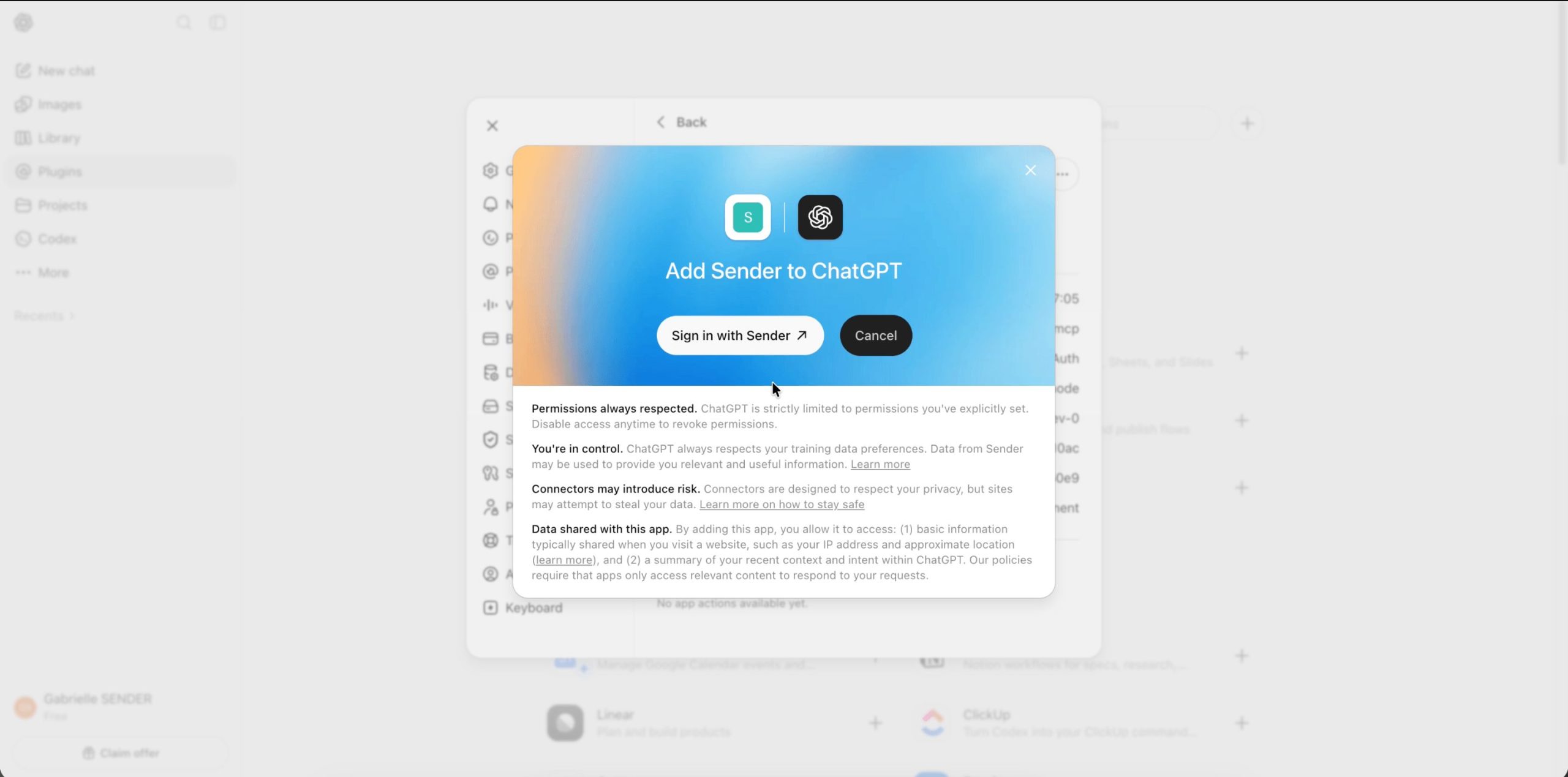
ChatGPT setup:
- In ChatGPT Settings, switch on Developer mode (under Plugins or Apps & connectors, depending on version).
- In ChatGPT’s Plugins (or Apps & connectors) list, click +.
- Enter Sender as the name, https://mcp.sender.net/mcp as the server URL, and set authentication to OAuth.
- Complete the Sender OAuth login in the browser window that ChatGPT opens.
- In a new ChatGPT chat, select the Sender app in the composer; it is not attached automatically.
For several Sender accounts, add one connector per account with distinct names (sender-brand-a, sender-brand-b) and enable only the one you are working in, so the assistant cannot read one account and write to another. The most common failure afterwards is a permission error on a write tool: the connection carries your Sender role, so whatever you cannot do in the dashboard, the assistant cannot either.
The tool reference is in the Sender MCP server guide.
What an MCP Server Can’t Do
An email marketing MCP server cannot send a campaign, cannot act without a connected client and a logged-in user, and cannot see data your user role cannot see. The limits below are Sender’s; most vendors draw similar lines, but read the tool list before assuming.
It doesn’t send emails. create_email_campaign produces a draft; there is no send tool, and transactional email stays on the REST API and SMTP side. Workflows are created inactive, and activate_workflow is a separate call that runs the same pre-flight checklist as the dashboard (verified from_email, complete email bodies, plan limits) and refuses if anything fails. An assistant cannot push a bulk email out on its own.
It doesn’t run on a schedule. MCP is conversational: nothing happens until you type. “Every Monday, send me last week’s report” needs Zapier, a cron job, or a scheduled-task feature inside the AI client, not the MCP server.
It doesn’t edit live automations. An active workflow must be deactivated first. Subscribers keep their place and resume when you reactivate; editing in place would change the customer experience of someone mid-sequence.
It doesn’t overwrite designs quietly. Email content built in the drag-and-drop builder is read-only through MCP unless you pass an explicit overwrite flag, which permanently discards the design. Deleting a step with subscribers waiting on it also requires an explicit flag.
It doesn’t fix deliverability. The assistant can read your domain’s SPF, DKIM, and DMARC status through list_domains, but it cannot warm a domain, get you off a blocklist, or make a purchased list behave like an opted-in one. If your cold email lands in spam, it still lands in spam with an AI drafting it.
It doesn’t know your strategy. It reasons over data it can fetch, not your promo calendar, margins, or what a competitor mailed yesterday, so “why did revenue drop in May” gets whatever correlation is in the reports. Check its conclusions, as with any AI-generated content, against the email marketing best practices you already trust.
Two rate limits on Sender’s MCP server backstop a runaway AI agent loop: 50 workflow creations and 50 drag-and-drop designs per account per day.
Is It Safe to Give an AI Access to Your Subscriber List?
Giving an AI assistant MCP access to your subscriber list is as safe as the user account you connect with, because the connection inherits that user’s role and nothing more. Four controls decide the rest.
Scope by role. Every tool checks a permission individually. Connect with a user limited to what the assistant should do; one who can view reports but not manage campaigns gives it a read-mostly view, set up under user roles and permissions.
OAuth, not a pasted key. The client holds a token issued through OAuth, the secure bridge between the assistant and your account; no API access token sits in a config file or chat transcript, and removing the connector invalidates it immediately. Local MCP servers, by contrast, usually keep a full-access API key in a JSON file on a laptop.
Approval prompts. Claude and ChatGPT show an approval prompt before running a tool that writes data (one that creates campaigns, segments, or workflows): you see the tool name and its arguments, and allow or deny. Read them. The write you would most regret is a segment update, because update_segment replaces every condition rather than merging.
Data leaves the platform. Whatever the assistant reads goes to the AI vendor as conversation context. Subscriber data such as emails, names, and purchase history carry GDPR and CAN-SPAM obligations that travel with the data, so check your AI vendor’s retention and training terms (business tiers of Claude and ChatGPT exclude conversations from training by default; consumer plans vary) and prefer aggregate questions to “list every subscriber’s email address.”
Three MCP setups are not safe: connecting an owner account “to get everything working,” leaving two account connectors enabled in one conversation, or exporting a mailing list into the chat.
Should You Use MCP for Email Marketing Yet?
Yes for reporting and segment work today, not yet as the primary way you build campaigns. MCP for marketing is the most concrete of the AI email marketing trends of the last two years because, unlike AI tools that only see what you paste, it works on your data, and the answer differs by which kind of email marketer you are.
Solo founder: yes, now, for reporting. “What worked last month” replaces a dashboard session you were skipping and adds nothing to your email marketing costs beyond the AI subscription you already pay. The learning curve is in judging its output, so hold off on write tools until you have read a few of its drafts.
SMB marketer with a 5,000 to 50,000 list: yes for the marketing team’s monthly review and segment audits, where the condition readback catches stale date filters that quietly widened a segment. Keep campaign creation and design in the builder: MCP is an analysis layer in your email marketing strategy, not an email generation pipeline.
Agency: yes for multi-account reporting, the most repetitive part of agency email operations, one connector per client, enabled one at a time. Not yet for client automation builds without human review, even though the tools support workflows end to end, and never through a shared owner login: the read-first rule practitioners in our email marketing tips from experts roundup apply to any integration.
For where MCP fits beside list building, deliverability, and automation, our complete email marketing guide covers the fundamentals.
FAQ
Yes. ChatGPT’s MCP support runs through developer mode on its paid plans: enable developer mode in Settings, add https://mcp.sender.net/mcp with OAuth authentication, then select the Sender app in the composer for each chat that needs account data. Connectors are not available in ChatGPT’s Advanced Voice mode, and plan availability changes, so check OpenAI’s current documentation if the option is missing.
No. An MCP marketing setup needs no code: a remote MCP server is added with a URL and a browser login, and you make requests in natural language; the assistant handles tool names, record IDs, and condition syntax. What you do need is enough grounding in what email marketing is to judge the output. Code only matters for local MCP servers, which need a config file, or scheduled runs, which need a script or an automation tool instead.
Access stops immediately. Remove the connector in Claude or ChatGPT and the OAuth token is no longer accepted, so no further tool calls reach your account. Drafts, segments, and workflows created before you disconnected stay in your account unchanged; nothing is deleted. Reconnecting later means adding the connector again and repeating the OAuth login.