

Personalization Basics
This guide shows how to add personalization to your email campaigns in Sender. It walks you through inserting custom fields into your subject line and email body so each subscriber receives content tailored to them.
Where to Find This Feature
In the Sender dashboard, go to: Email campaigns → click the edit icon on any draft campaign (or click New campaign) → navigate to Settings.
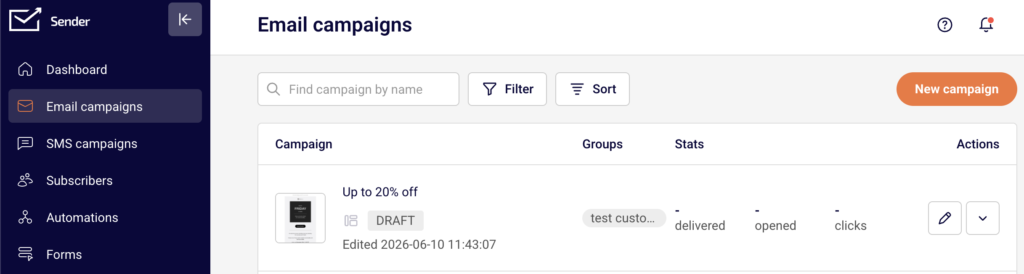
Personalization is available in two places: the Email subject and Email Preview text fields on the Settings step, and inside any text block in the drag-and-drop editor on the Design step.
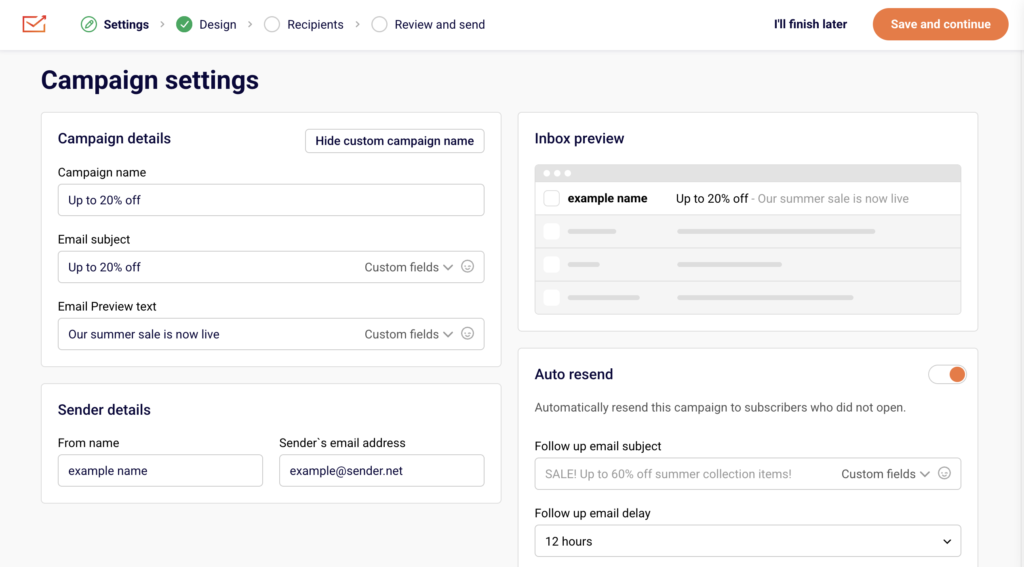
Steps to Add Personalization
Step 1 — Insert Custom Fields in the Subject Line
On the Settings step, locate the Email subject field. Click the Custom fields dropdown on the right side of the field. A searchable list appears with options like First name, Last name, Email, Phone number, and Birthday.
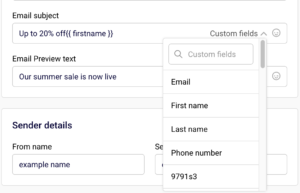
Select a field to insert it at your cursor position. You can do the same in the Email Preview text field directly below it.
Step 2 — Open the Email Design Editor
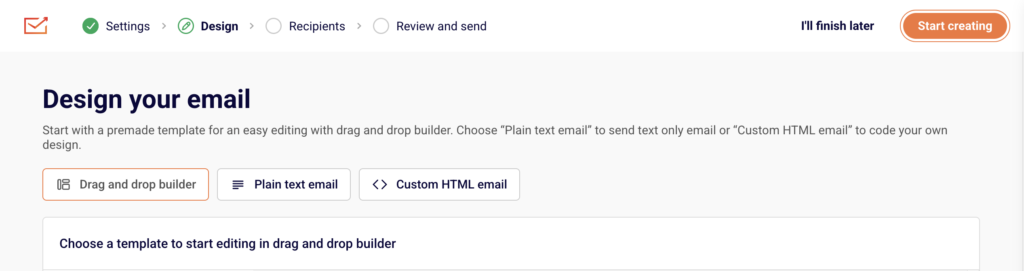
Click Design in the top navigation bar, then click Edit design to open the drag-and-drop builder.
If you need a text block, drag a Headline or Paragraph block from the Building blocks panel on the left into the canvas area.
Step 3 — Add Custom Fields in the Email Body
Double-click on any text block to enter editing mode. An inline toolbar appears above the block. Click the Custom fields icon in the toolbar — it opens a dropdown with subscriber fields such as firstname, lastname, email, phone, and birthday, as well as account-level fields like account.title, account.address, account.city, account.country, and account.signature.
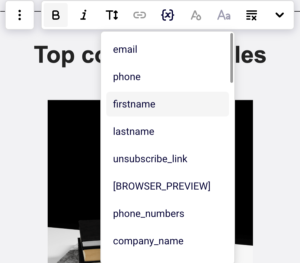
Select a field to insert it at the cursor position. Each field is rendered as a merge tag in the format {{ fieldname }}.
Step 4 — Preview Your Personalization
Click the Preview icon (eye icon) in the top-right toolbar of the editor. A side-by-side desktop and mobile preview appears, showing how the email will look. Merge tags display as {{ fieldname }} in the preview — they are replaced with actual subscriber data when the email is sent.

Use this view to confirm your custom fields are placed correctly and look good across screen sizes.
What Happens After You Save
After clicking Save & continue, your design is saved and you move to the next step. You can return to the Design step at any time to edit personalization. On the Review and send step, the email preview also displays your merge tags so you can double-check placement before sending.
Common Issues
Custom field shows as blank when sent — The subscriber’s profile does not have a value stored for that field. Ensure your subscriber list includes data for the fields you use.
Merge tag appears as raw text in the inbox — The tag was likely typed manually with incorrect formatting. Always insert custom fields using the Custom fields dropdown rather than typing the tags by hand.
Custom fields dropdown is not visible — You need to be in text editing mode. Double-click the text block to activate the inline toolbar where the Custom fields button appears.
FAQs
Where can I use custom fields?
In the Email subject, Email Preview text, and inside any text block (Headline or Paragraph) in the drag-and-drop editor.
What subscriber fields are available?
The default fields include firstname, lastname, email, phone, birthday, and unsubscribe_link. Account-level fields like account.title, account.address, account.city, account.zip_code, account.state, account.country, and account.signature are also available in the email body editor.
Can I search for a specific custom field?
Yes. The Custom fields dropdown on the Settings step includes a search bar. Type a field name to filter the list.
What format do merge tags use?
Merge tags follow the format {{ fieldname }} with double curly braces. They are inserted automatically when you select a field from the dropdown.
What happens if a subscriber has no data for a custom field?
The merge tag is replaced with an empty value. Consider placing custom fields within a sentence so the email still reads naturally if a value is missing.