

Suppression and unsubscribe status in campaign sending
This guide shows how to identify, filter, and manage suppressed and unsubscribed subscribers in Sender. It covers how these statuses affect email campaign delivery and how to use segments and exclusions to control who receives your campaigns.
Where to Find This Feature
In the Sender dashboard, go to:
Subscribers → Subscribers (to view and filter by status)
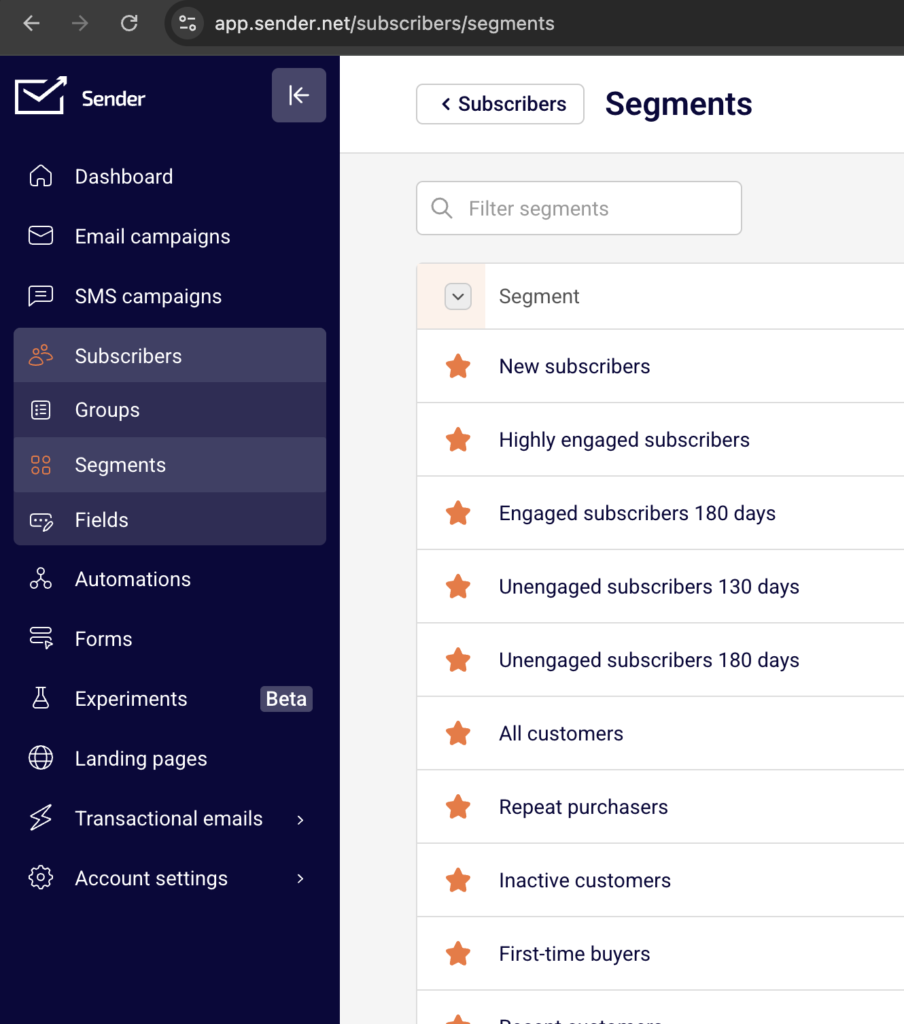
Subscribers → Segments (to create segments based on subscription status)
Email campaigns → select a campaign → Recipients (to include or exclude groups and segments at send time)
Steps to Manage Suppression and Unsubscribe Status
Step 1 — Identify Subscriber Statuses
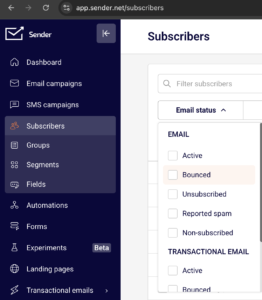
Go to Subscribers in the left sidebar. Each subscriber displays a Status column with color-coded icons. Click Email status at the top of the list to filter subscribers by their current state.
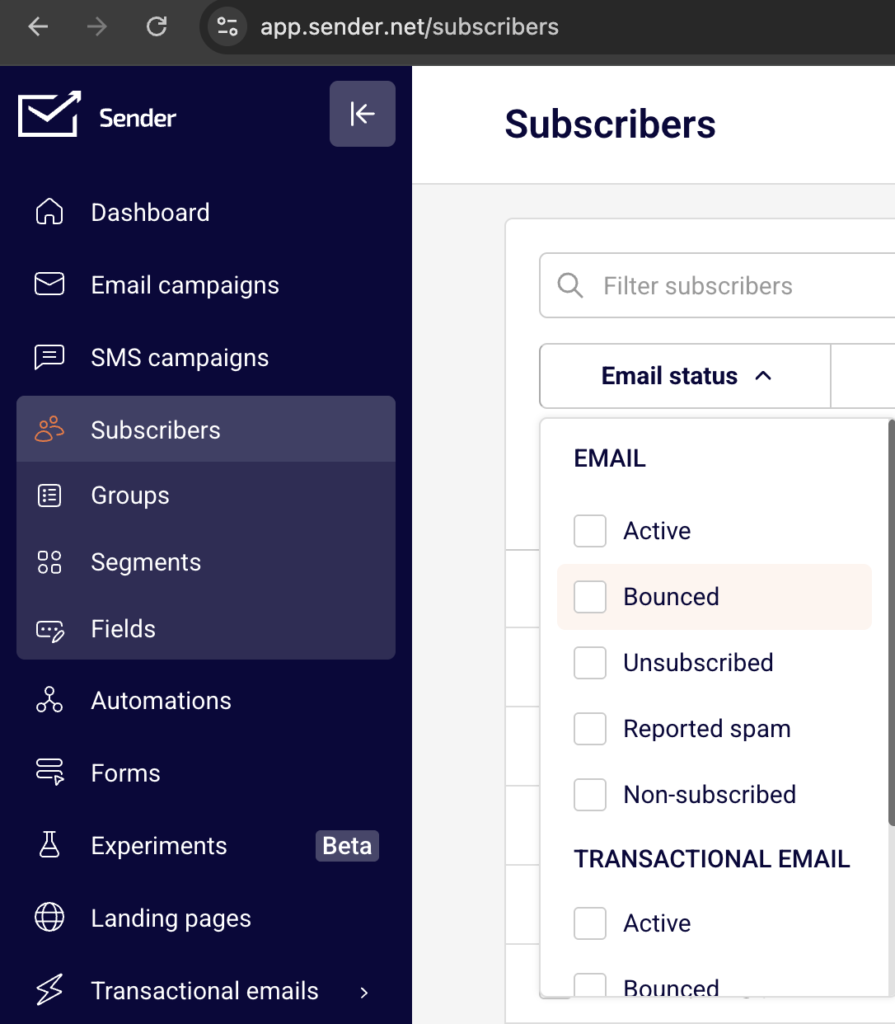
The available statuses are Active, Bounced, Unsubscribed, Reported spam, and Non-subscribed. Select any status to narrow the list. Only subscribers with an Active status receive email campaigns.
Step 2 — Create a Segment Based on Subscription Status
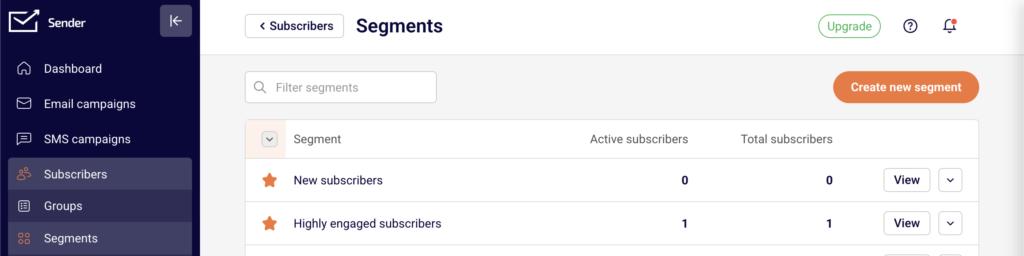
Go to Subscribers → Segments and click Create new segment. Enter a name in the Segment name field and click Save.
The Advanced filter panel opens. Click the first dropdown and select Email under SUBSCRIPTION STATUS. Set the operator to Is, then choose a status such as Unsubscribed or Bounced.
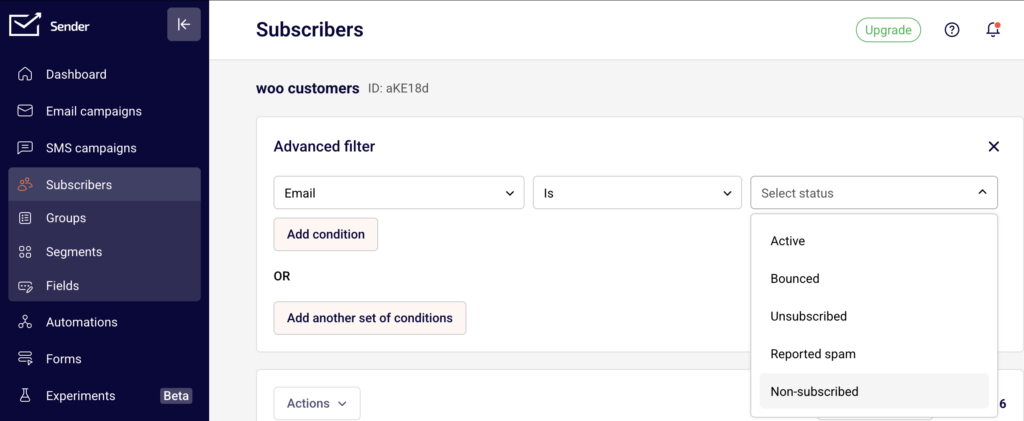
Click Add condition or Add another set of conditions to combine multiple rules with AND/OR logic.
Step 3 — Exclude Suppressed Subscribers During Campaign Sending
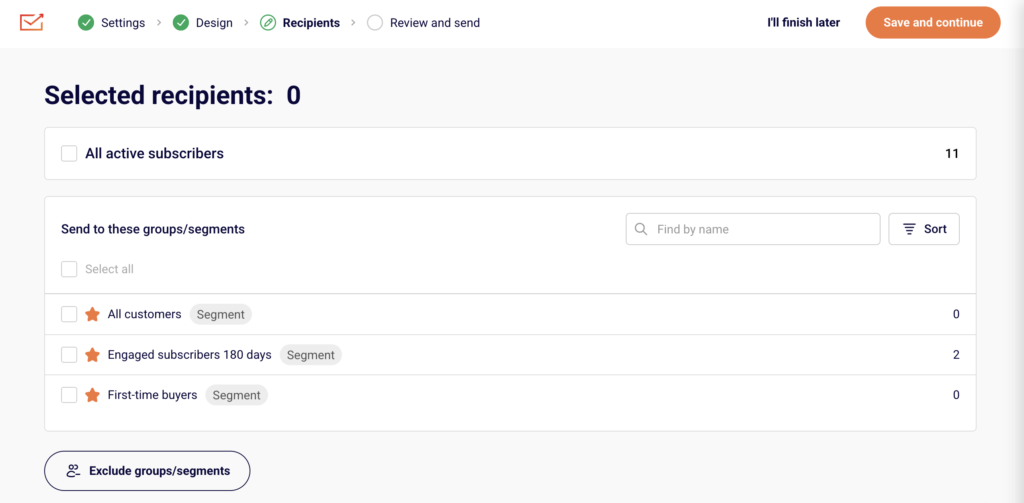
Open your campaign and go to the Recipients step. Select the groups or segments you want to send to under Send to these groups/segments. Then click Exclude groups/segments at the bottom.
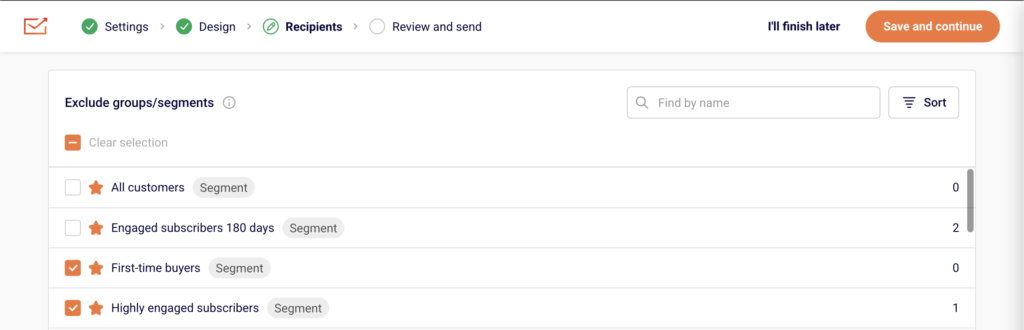
Check any segment or group you want to suppress. Subscribers in excluded selections will not receive the campaign, even if they belong to a selected sending group.
Step 4 — Manually Unsubscribe or Resubscribe Subscribers
To change a subscriber’s status, select one or more subscribers on the Subscribers page using the checkboxes.
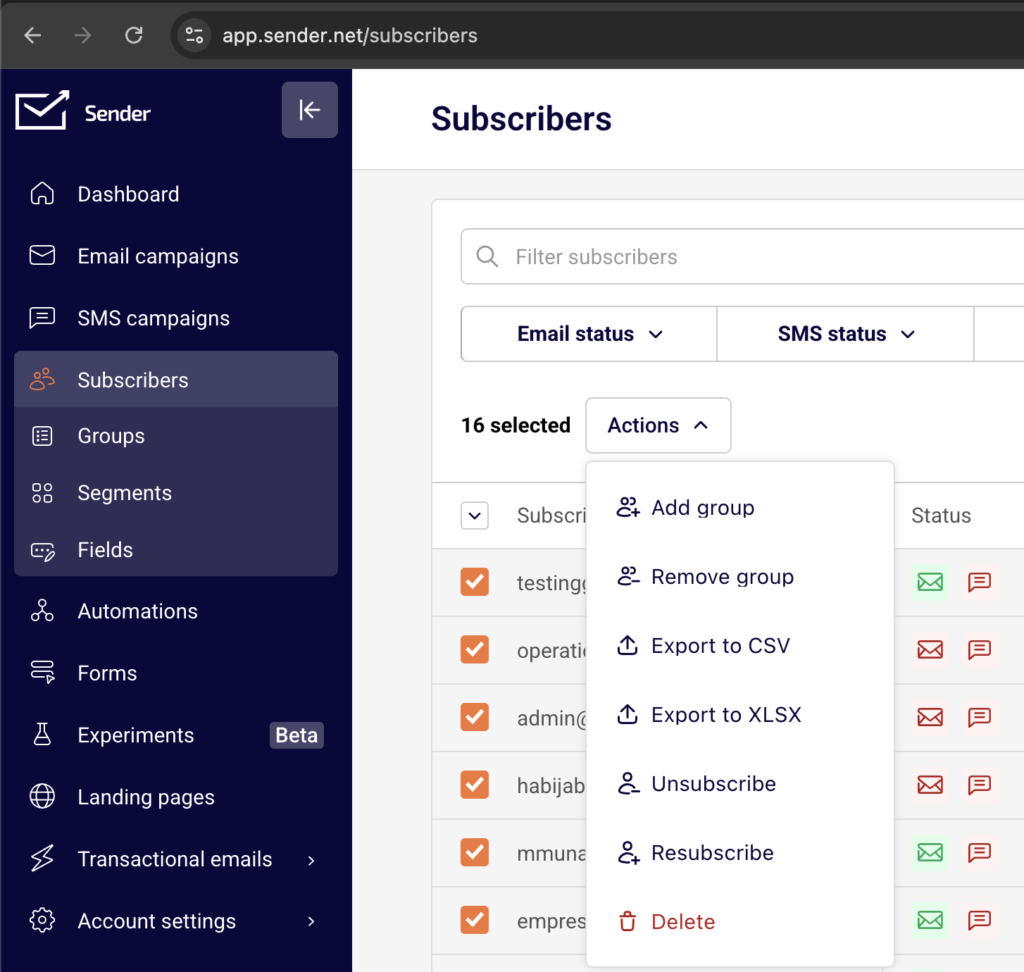
Click Actions and choose Unsubscribe or Resubscribe. You can also open an individual subscriber’s profile, click Actions in the top right, and select Unsubscribe. Status changes take effect immediately for future sends.
Step 5 — Review Unsubscribe and Suppression Data After Sending
Go to Email campaigns, find your sent campaign, and click the report icon.
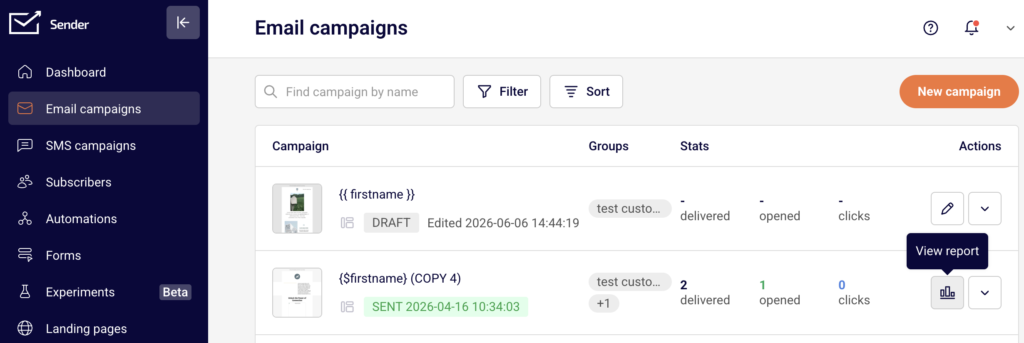
On the Campaign overview page, the Statistics section shows counts for unsubscribed and spam reports.
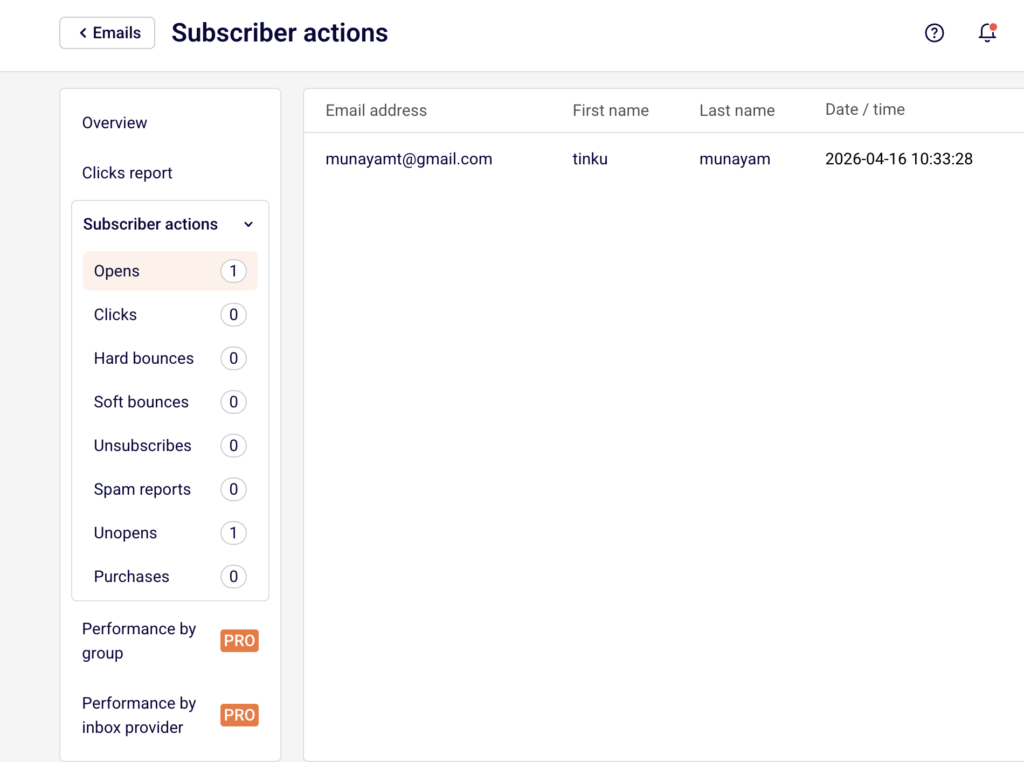
Expand Subscriber actions in the left sidebar to view detailed lists under Unsubscribes, Spam reports, Hard bounces, and Soft bounces.
What Happens After You Save
After saving a segment based on subscription status, it appears on the Subscribers → Segments page with columns for Active subscribers and Total subscribers. You can apply this segment when selecting recipients for any campaign. Segment counts update dynamically as subscriber statuses change. You can also view group-level status breakdowns on the Subscribers → Groups page, which shows Active, Unsubscribed, and Bounced counts per group.
Common Issues
Campaign sent to fewer recipients than expected — Subscribers with a status of Unsubscribed, Bounced, Reported spam, or Non-subscribed are automatically excluded from campaign sends. Only Active subscribers receive emails.
Excluded segment not reducing recipient count — The exclusion only applies to subscribers who overlap between the sending and excluded selections. If no overlap exists, the count stays the same.
Subscriber status not updating after unsubscribe action — Status changes from the Actions menu apply to email campaign status. Check that you are viewing the correct status type under Email status, not Transactional Email or SMS status.
FAQs
Can I send campaigns to unsubscribed subscribers?
No. Sender automatically prevents delivery to subscribers with any non-active email status, including Unsubscribed, Bounced, and Reported spam.
What is the difference between Active subscribers and Total subscribers on the Segments page?
Active subscribers counts only those with an Active email status. Total subscribers includes all subscribers matching the segment conditions regardless of status.
Can I resubscribe a subscriber who previously unsubscribed?
Yes. Select the subscriber on the Subscribers page, click Actions, and choose Resubscribe. Their status returns to Active.
What does the Non-subscribed status mean?
Non-subscribed indicates a subscriber who exists in your account but has not opted in to receive email campaigns.
How do I exclude a specific group from receiving a campaign?
On the Recipients step of campaign creation, click Exclude groups/segments and check the group or segment you want to suppress.