

A/B testing campaigns
This guide shows how to preview, verify, and validate your A/B test experiment before sending in Sender.
Where to Find This Feature
In the Sender dashboard, go to:
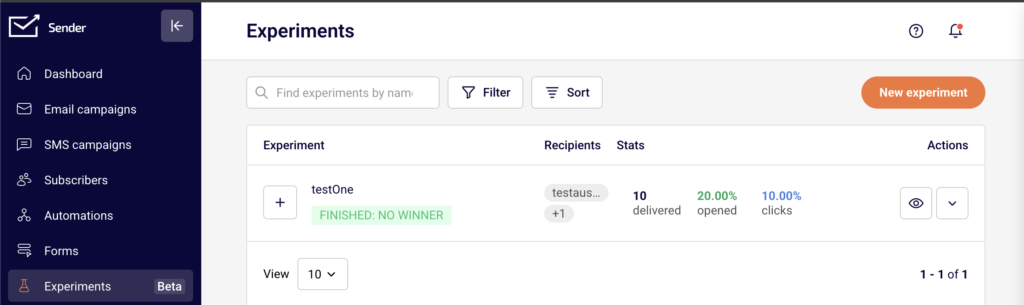
Experiments (sidebar) → New experiment
What to Check Before Sending Your Experiment
Your experiment follows a four-stage workflow: Settings → Content variations → Select recipients → Review and send. Each stage must show a green checkmark before you can proceed. Below is what to verify at every stage.
Step 1 — Verify Experiment Settings
Open your experiment and confirm the Settings stage. Check that your Experiment name clearly identifies what you are testing. Make sure the Winning metric is set correctly — choose Opens when testing subject lines, sender names, or sending times, and choose Clicks when testing email content. Verify the Duration of the experiment value and unit. The minimum is 4 hours for clicks and opens.
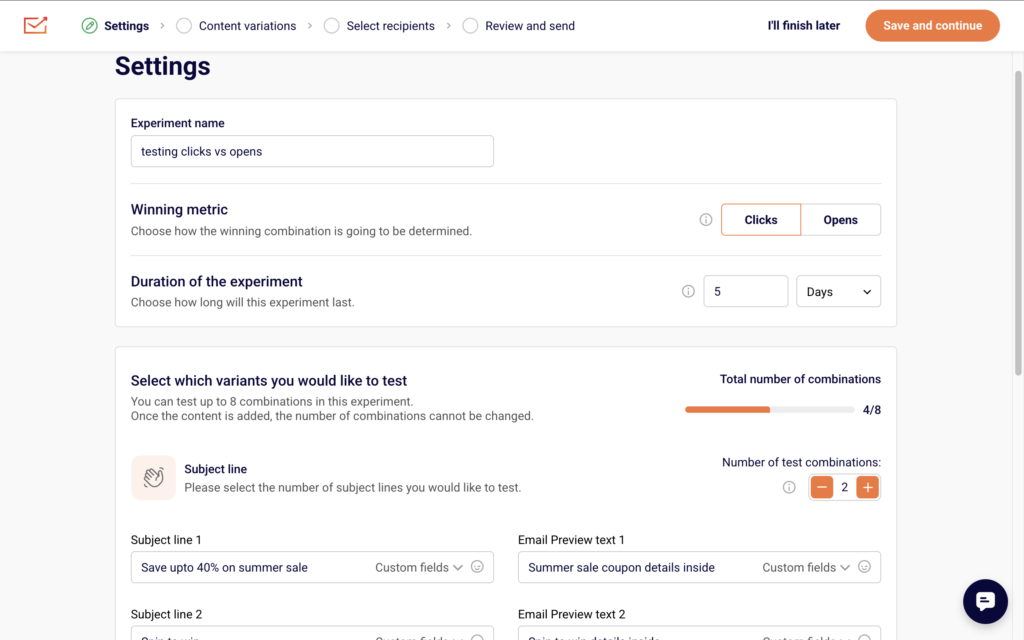
Under Select which variants you would like to test, confirm the Total number of combinations counter (up to 8). Check that only the intended variant types have more than 1 combination — Subject line, Sender name, Sending time, or Content. Use the + and − controls next to Number of test combinations to adjust. Make sure each Subject line and Email Preview text field is filled in correctly for every variation.
Step 2 — Preview Content Variations
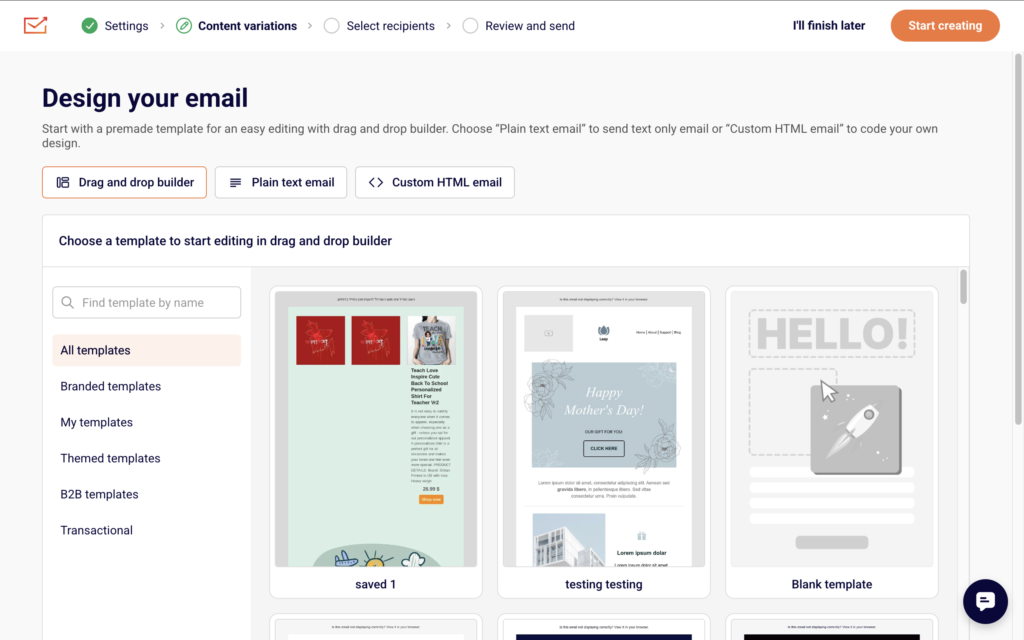
On the Content variations stage, you design or edit email content for each combination. After building your email in the Drag and drop builder, Plain text email, or Custom HTML email editor, use the preview and test tools in the top toolbar.
Click the eye icon to open the preview panel. This shows your email in both desktop and mobile views side by side. Toggle Dark mode preview to check rendering in dark mode. The panel also displays Email size so you can confirm it stays within deliverability limits.

Click Send test email to deliver a live test to your inbox. Verify that subject lines, preview text, images, links, and buttons all render as expected across both views before clicking Save & continue.
Step 3 — Confirm Recipients and Group Sizes
On the Select recipients stage, check that the correct audience is selected. You can choose All active subscribers or pick specific entries under Send to these groups/segments. Use Exclude groups/segments to remove any audiences that should not receive the test. The Total recipients count at the bottom of the page must be at least 1,000 for an automatic winner to be selected.
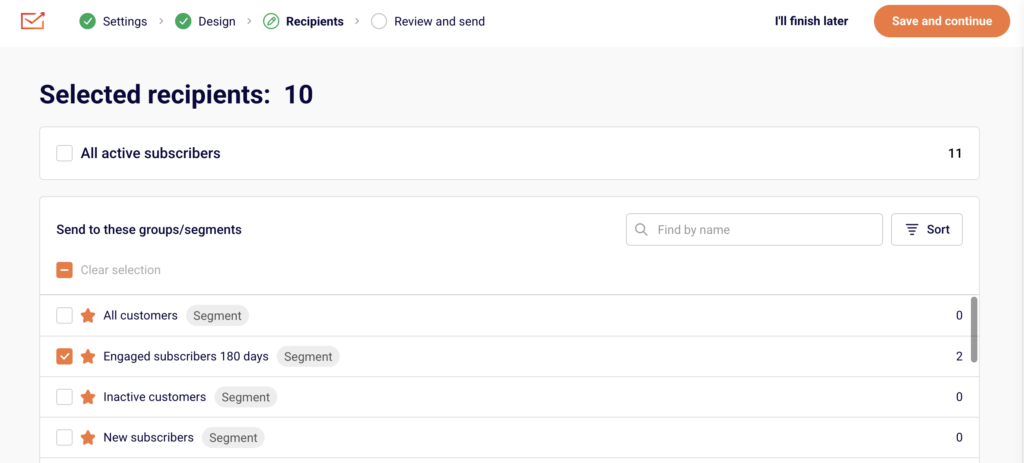
When you have 1,000 or more recipients, you will be prompted to set the Test Group Size and Winning Group Size percentages. Make sure the test group is large enough to produce meaningful results and that the winning group percentage accounts for the rest of your audience.
Step 4 — Review and Send
On the Review and send stage, you see a summary of all your experiment settings: subject lines, sender names, content variations, recipient groups, test/winner group split, and duration.
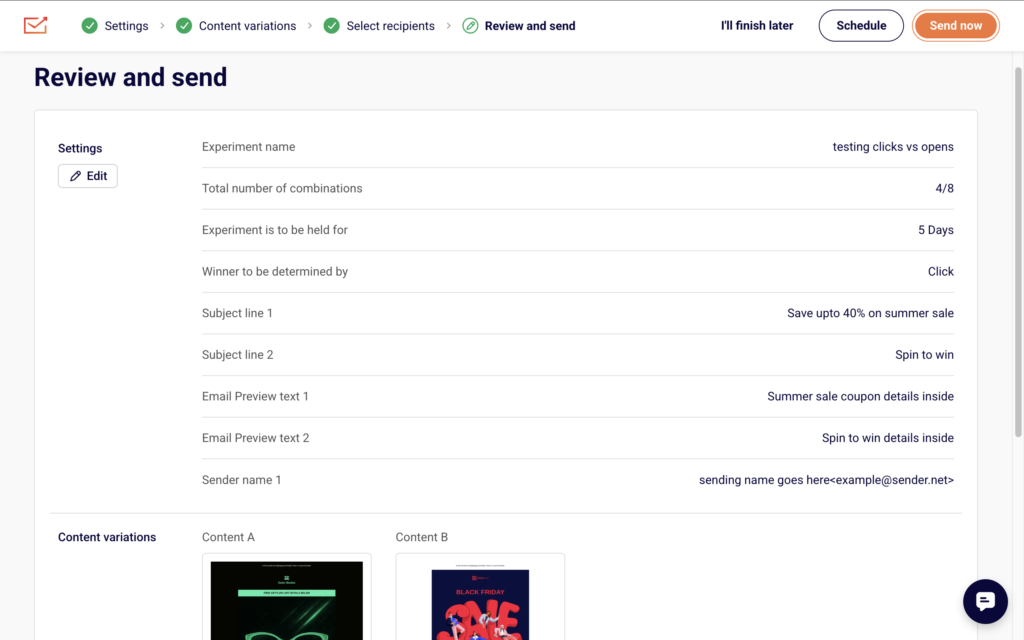
Check that every detail matches your intent. You can either send immediately or schedule the experiment for a specific date and time. If you are testing Sending time variations, this is where the different send times are configured.
What Happens After You Save
After sending or scheduling, the experiment appears in the Experiments list with a status reflecting its current state (such as DRAFT before sending). Performance stats — delivered, opened, and clicks — become available in the Experiments list once the test begins. After the duration ends, Sender automatically selects the winning variation and sends it to the winning group.
Common Issues
“Save and continue” button is greyed out on Select recipients — You have 0 recipients selected. Select at least one group, segment, or All active subscribers.
No winner is selected after the experiment ends — Your recipient count was below 1,000. Make sure to select at least 1,000 recipients for automatic winner selection.
Combination count not updating — Content has already been added. The number of combinations cannot be changed after content is saved in the Content variations stage.
Preview looks different from the actual send — Toggle Dark mode preview and check both desktop and mobile views in the preview panel. Also use Send test email to verify rendering in real email clients.
FAQs
How many combinations can I test?
Up to 8 total combinations across all variant types.
Which winning metric should I choose?
Use Opens for subject line, sender name, preview text, and sending time tests. Use Clicks for content and layout tests.
How long should the experiment run?
The minimum is 4 hours. For audiences up to 5,000, run up to 24 hours. For 5,000–20,000, aim for around 12 hours. For 20,000+, 4–8 hours is typically sufficient.
Can I test more than one variable at a time?
You can combine variants, but testing one variable at a time is recommended for clear, actionable results.
Where do I find results after the experiment finishes?
Go to Experiments in the sidebar. Stats appear in the delivered, opened, and clicks columns next to each experiment.