

Common Campaign Errors
This guide explains common errors you may encounter when creating email campaigns in Sender using the Email campaign feature. It covers validation messages, warnings, and troubleshooting steps to help you resolve issues quickly.
Learn more: https://www.sender.net/email-marketing/
What Email Campaign Does
Email campaign in Sender allows you to create, design, and send marketing emails to your subscriber lists. It is typically used when you need to reach your audience with newsletters, promotional content, announcements, or any bulk email communication.
Where to Find This Feature
In the Sender dashboard, go to:
Email campaigns (in the left sidebar)
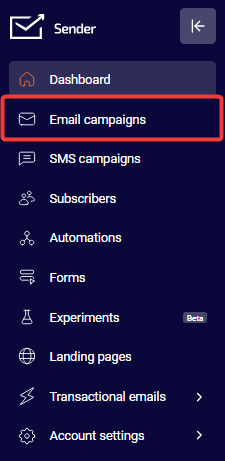
Steps to Create a Campaign and Avoid Common Errors
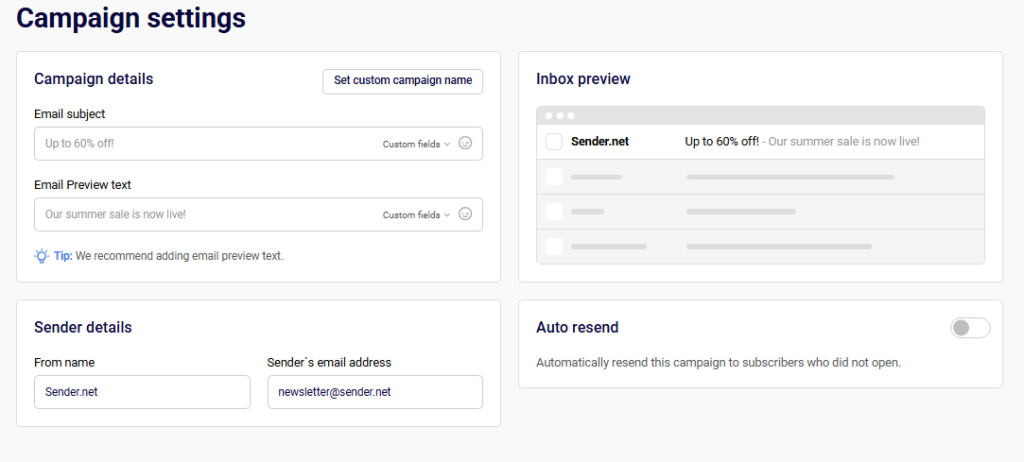
Step 1 — Settings
The campaign begins on the Campaign settings page where you configure basic details. Enter your Email subject, From name, and verify the Sender’s email address. The system validates these fields in real-time and displays errors if required information is missing or incorrectly formatted. You cannot proceed until all required fields contain valid data.
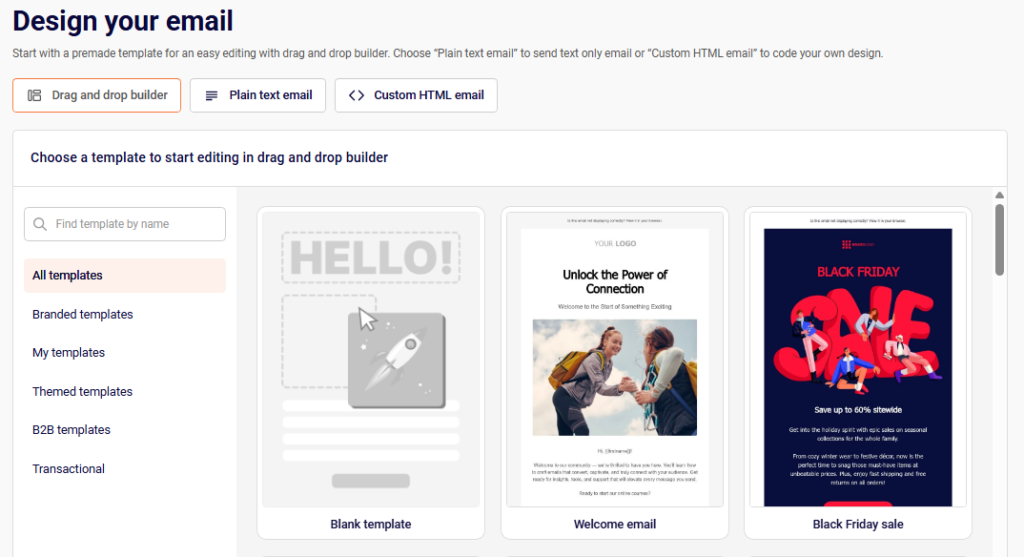
Step 2 — Design
On this step, choose your email format from Drag and drop builder, Plain text email, or Custom HTML email. If using the drag-and-drop option, select a template before proceeding. For Custom HTML, you must include actual content—the editor will reject empty submissions. Click Save and continue once your design is complete.
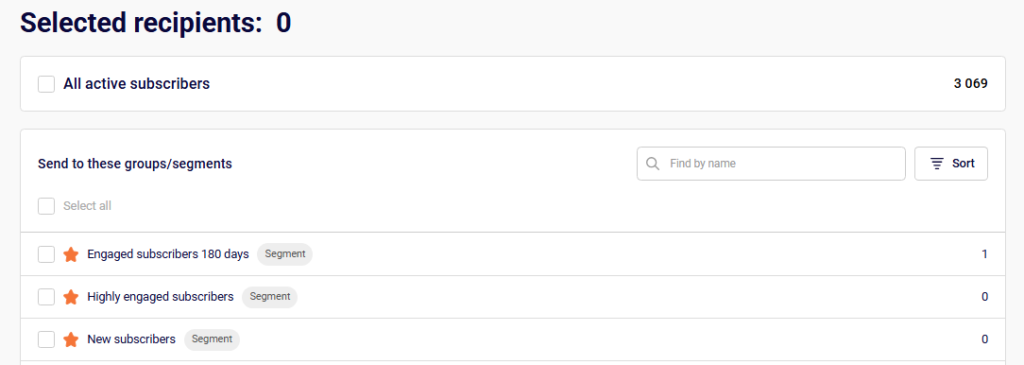
Step 3 — Recipients
Select your target audience by checking groups or segments from the list. The counter at the top shows how many recipients you’ve selected. If the count shows zero, you cannot proceed to the next step. Use the Exclude groups/segments option to filter out specific audiences if needed.
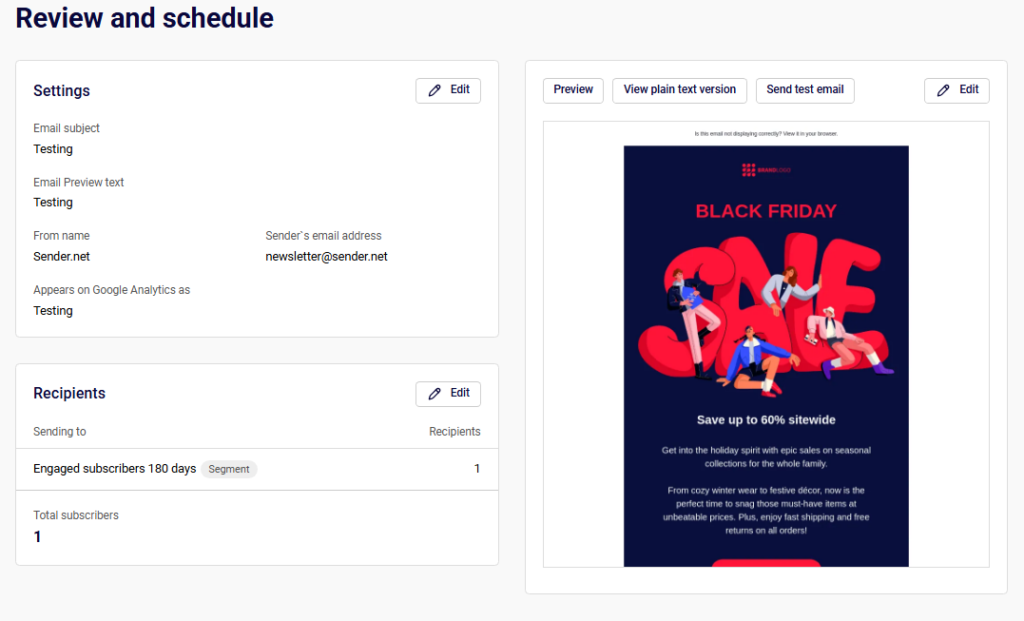
Step 4 — Review and Send
The final step displays a summary of your campaign with a Tips & Suggestions panel highlighting any issues. Review the settings, preview your email design, and resolve any warnings before sending. Click Send now for immediate delivery or Schedule to set a future send time.
What Happens After You Save
After completing all steps, your campaign appears in the Email campaigns list. Draft campaigns show a DRAFT status until sent. Sent campaigns display delivery statistics including open rates, click rates, and bounce information. You can view detailed performance reports by clicking the analytics icon next to any sent campaign.
Common Issues
“Email subject is required” → The subject line field is empty. Enter a descriptive subject for your campaign.
“From name is required” → The sender name field is blank. Add a recognizable name recipients will see.
“Sender’s email address must be a valid email address” → The email format is incorrect. Enter a properly formatted email address.
“Content can’t be empty!” → The email body has no content. Add text, images, or HTML before saving.
Recipients showing 0 → No groups or segments are selected. Check at least one audience to enable sending.
“Add email preview text” → This is a recommendation, not an error. Preview text improves open rates by showing additional context in recipients’ inboxes.
100% hard bounces warning → All emails bounced because recipient addresses are invalid or don’t exist. Verify your subscriber list contains active, valid email addresses.
“The email account that you tried to reach does not exist” → The recipient’s email address doesn’t exist on the mail server. Remove invalid addresses from your list or contact subscribers to confirm their current email.
FAQs
Why can’t I click “Save and continue”? The button remains disabled until all required fields are completed. Check for red error messages below any fields and resolve them.
What’s the difference between hard and soft bounces? Hard bounces indicate permanent delivery failures (invalid addresses), while soft bounces are temporary issues (full inbox, server problems). Hard-bounced addresses should be removed from your list.
Can I edit a campaign after sending? No, sent campaigns cannot be modified. You can create a copy using the Create a copy button and make changes to the new version.
Why does my campaign show 0 delivered but was sent? This usually indicates all recipients had hard bounces due to invalid email addresses. Check the campaign report under Subscriber actions → Hard bounces for details.