

Troubleshooting Non-Working Links in Email Campaigns
This guide explains how to troubleshoot and fix non-working links in Sender using the Email Campaign feature. It covers how to locate and verify links in your campaign design, what to check when links fail to work, and how to confirm everything is functioning before you send.
Where to Find This Feature
In the Sender dashboard, go to: Email campaigns → select a campaign → click the edit (pencil) icon.

Steps to Troubleshoot Non-Working Links
Step 1 — Open Campaign Settings
From the Email campaigns list, click the pencil icon next to the campaign you want to fix. This opens the campaign editor, starting at the Settings step. A progress bar at the top shows your position across the four stages: Settings, Design, Recipients, and Review and send. Click Save and continue or select the Design step in the progress bar to proceed.
Step 2 — Review Your Email Design
On the Email campaign design page, you can see a preview of your email content. The label next to the heading indicates whether the campaign uses the Drag and drop builder or Custom HTML. Click Edit design to open the full editor and inspect the elements that contain links, such as buttons, images, text hyperlinks, and social icons.
Step 3 — Verify Link URLs in the Editor
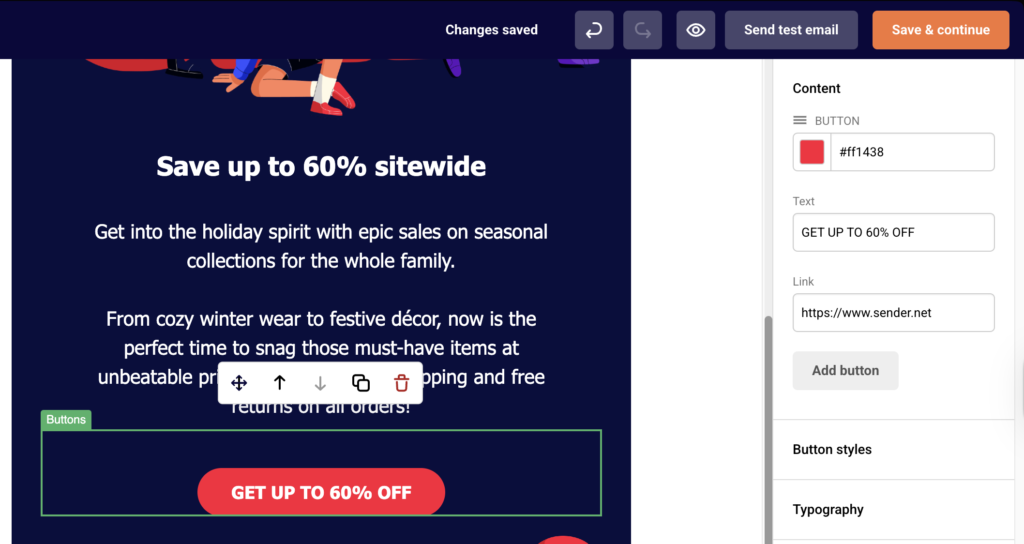
Inside the drag-and-drop editor, click on any element that should contain a link. For a Button block, the right-side Content panel displays a Link field where the destination URL is set. Confirm each URL starts with https:// and points to a valid, live page. For text hyperlinks in Paragraph blocks, select the linked text to inspect or update the URL. For Image blocks, check the link setting in the content panel.
Step 4 — Test Links Before Sending
Return to the Design step and click Send test email. Enter your email address in the dialog and click Send. Open the test email in your inbox and click every link to verify it leads to the correct destination. You can also click View plain text version to see all URLs rendered as visible text, making it easy to spot malformed or missing links.

Step 5 — Check the Clicks Report After Sending
After the campaign has been sent, return to the Email campaigns list and click the report icon (bar chart) next to the sent campaign. On the Campaign overview page, select Clicks report from the left sidebar. This displays a rendered version of your email and shows click data for each link, helping you confirm whether links are being tracked and clicked.
What Happens After You Save
After saving, the campaign appears in the Email campaigns list with a status of DRAFT. You can continue editing or proceed through the remaining steps. Once the campaign is sent, performance data — including delivered, opened, and unique clicks — becomes available in the Campaign overview report.
Common Issues
Link shows as “https://www.sender.net” (default placeholder) → The button or element was added but the default URL in the Link field was never updated. Open the editor, click the element, and replace the placeholder with your actual destination URL.
Link works in the editor but not in the received email → The URL may be missing the protocol prefix. Ensure the link starts with https:// or http://. Links without a protocol may not resolve correctly in email clients.
Unsubscribe link not working → The unsubscribe link uses the {{ unsubscribe_link }} template tag in custom HTML campaigns. Make sure the tag is spelled correctly and wrapped in an <a href=""> tag. In the drag-and-drop builder, this link is generated automatically in the footer.
Links redirect through an unfamiliar domain → Sender uses a tracking domain (such as campaign-statistics.com) to measure clicks. This is expected behavior. If subscribers report the link looks suspicious, consider informing them in the email body that links are tracked.
Social media icons not linking anywhere → When using the Social block in the drag-and-drop editor, each icon requires a URL to be manually set. Click the social block and fill in the profile URLs for each platform in the content panel.
Links broken only in certain email clients → Some email clients strip or rewrite links. Use Send test email to check rendering across different inboxes (Gmail, Outlook, Apple Mail) before sending the campaign to your full list.
FAQs
**Can I edit links in a campaign that has already been sent?
**No. Once a campaign is sent, its content is locked. You can click Create a copy from the campaign overview to duplicate the campaign, fix the links, and resend to your audience.
How do I add a hyperlink to text in the drag-and-drop builder?
Open the editor, click on a Paragraph block, highlight the text you want to link, and use the link icon in the text toolbar to enter the destination URL.
Why does the plain text version show different URLs?
The View plain text version displays the raw tracking URLs generated by Sender. These redirect to your original destination and are how Sender measures clicks. The recipient sees your display text, not these tracking URLs, in HTML email clients.
Can I test links without sending a full campaign?
Yes. On the Design step, click Send test email, enter your email address, and click Send. This delivers a complete version of the email to your inbox so you can click and verify every link.
What should I do if my link returns a 404 error?
Confirm that the destination page exists and is publicly accessible. If the page requires authentication or has been moved, update the URL in the Link field of the relevant block in the editor.