

Differences Between Test Emails and Live Campaign Sends
This guide explains what to check when comparing a test email to a live campaign send, and what behaves differently between the two in Sender.
Where to Find This Feature
In the Sender dashboard, go to: Email campaigns → select a campaign → Design
The Send test email button appears at the top of the Design step. You can also access it during the final Review and send step of campaign creation.
What to Check in a Test Email vs. a Live Send
Step 1 — Send a Test Email from the Design Step
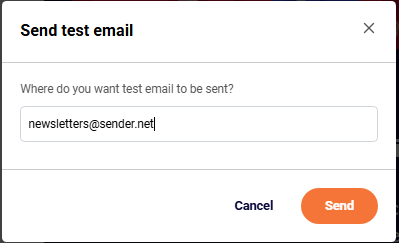
On the Design page, click Send test email in the top-right toolbar. A modal appears asking “Where do you want test email to be sent?” Enter your email address and click Send. The test email is delivered to that single address only. It does not go to any subscriber groups or lists.
Step 2 — Check What the Test Email Includes
The test email contains your current email design, subject line, and sender details exactly as configured on the Settings and Design pages. Check that the From name, Email subject, and Email Preview text display correctly in your inbox. Use the Inbox preview panel on the Settings page to compare what you see in your actual inbox against the expected layout.
Step 3 — Understand What the Test Email Does Not Include
Test emails do not resolve subscriber-specific Custom fields (such as first name or other personalized tags). They also do not trigger tracking for opens, clicks, bounces, or unsubscribes. Make sure you understand that any custom field merge tags will appear as placeholder text or remain unresolved in a test send.
Step 4 — Compare Against a Live Campaign Send
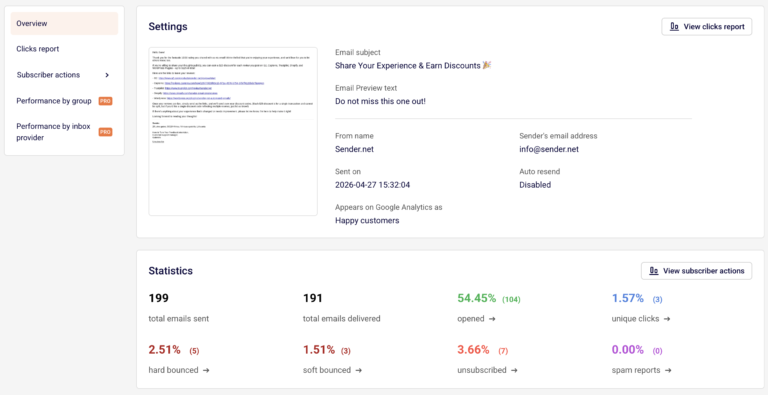
A live campaign send goes through the full workflow: Settings → Design → Recipients → Review and send. The campaign is delivered to all selected subscriber groups. After sending, the campaign moves from DRAFT to SENT status in the Email campaigns list, and full statistics become available on the Campaign overview page — including total emails sent, total emails delivered, opened, unique clicks, hard bounced, soft bounced, unsubscribed, and spam reports.
Step 5 — Verify Preview and Plain Text Versions
Before sending live, also check the View plain text version button on the Design page to confirm your email is readable without HTML. Use the Preview option from the campaign list dropdown (click the arrow icon next to any campaign) to view a full rendered preview of your email in a modal window.

What Happens After You Save
After sending a live campaign, the campaign appears in the Email campaigns list with a SENT status badge and a timestamp. Performance data becomes available on the Campaign overview page, accessible by clicking the bar chart icon next to the sent campaign. Test emails do not appear as separate campaigns and do not generate any report data.
Common Issues
Custom fields show raw tags in test emails → Test emails do not resolve subscriber-specific custom fields. This is expected. Custom fields populate correctly only in live sends.
Test email not arriving → You can send up to 10 test emails per hour. If you exceed this limit, wait before trying again.
Stats show dashes for a draft campaign → Delivered, opened, and clicks columns remain empty until the campaign is actually sent to subscribers.
Test email counts toward my plan limit → Test emails are not counted toward your total sent emails. Testing your campaign will not cause you to exceed your email limit.
FAQs
Where can I send a test email?
On the Design step of the campaign editor, click Send test email and enter any email address.
Do test emails count toward my sending limit?
No. Test emails are excluded from your total sent email count.
How many test emails can I send?
Up to 10 test emails per hour.
Will custom fields work in a test email?
No. Custom fields only resolve with actual subscriber data during a live campaign send.
Can I see open or click stats from a test email?
No. Test emails do not generate tracking data. Only live campaign sends produce statistics on the Campaign overview page.
What is the difference between Preview and Send test email?
Preview opens a rendered view of your email inside the Sender dashboard. Send test email delivers the actual email to an inbox so you can check how it renders in a real email client.