

Bounce data in campaign reports
This guide shows how to find and review bounce data in your email campaign reports in Sender. It walks through locating bounce statistics, viewing individual bounce details, and exporting the data.
Where to Find This Feature
In the Sender dashboard, go to:
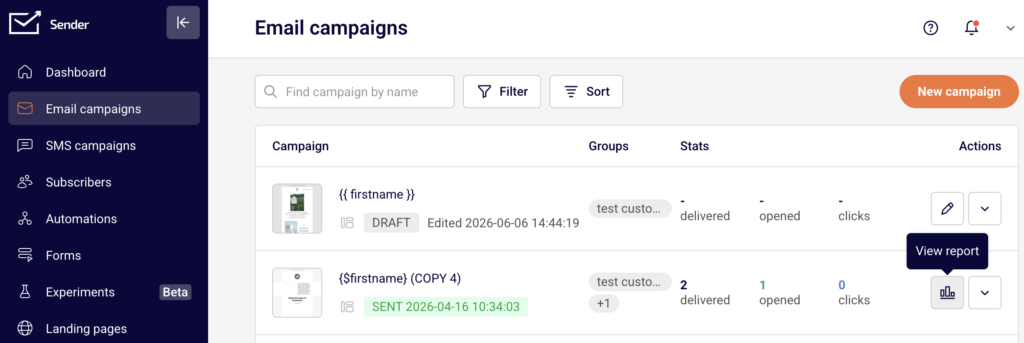
Email campaigns → select a sent campaign → View report (bar chart icon)
Steps to Review Bounce Data
Step 1 — Open the Campaign Report
Go to Email campaigns in the left sidebar. Find the sent campaign you want to review. Sent campaigns display a SENT badge with the send date. Click the View report icon (bar chart) in the Actions column to open the Campaign overview page.
Step 2 — Check Bounce Statistics on the Overview
On the Campaign overview page, scroll to the Statistics section. You’ll see a summary of all delivery metrics, including hard bounced and soft bounced.
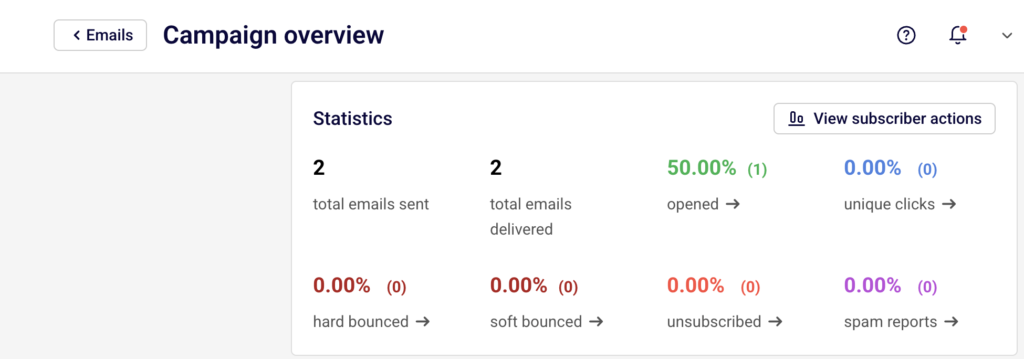
Each shows a percentage and a count in parentheses. Click the arrow next to hard bounced or soft bounced to jump directly to the detailed bounce list.
Step 3 — View Bounce Details in Subscriber Actions
You land on the Subscriber actions page with the selected bounce tab active.
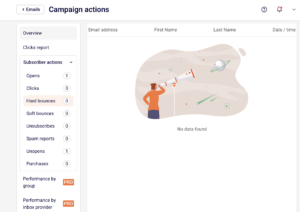
The left sidebar lists all action categories: Opens, Clicks, Hard bounces, Soft bounces, Unsubscribes, Spam reports, Unopens, and Purchases, each with a count. Switch between Hard bounces and Soft bounces to view either type.
Step 4 — Review Individual Bounce Records
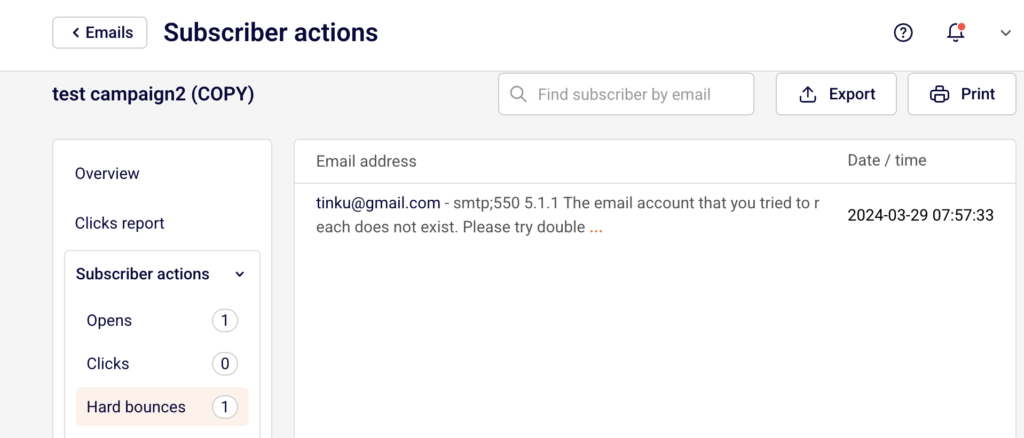
The bounce list displays the Email address, the bounce reason message, and the Date / time the bounce occurred. For hard bounces, the reason typically indicates a permanent delivery failure (e.g., the email account does not exist). For soft bounces, additional columns include First Name and Last Name. Use the Find subscriber by email search field at the top to locate a specific address.
Step 5 — Export or Print Bounce Data
Click Export in the top-right corner to download the bounce list for the selected tab. Click Print to generate a printable version.
You can also return to the Overview tab and click Print report to get a full campaign report that includes bounce statistics.
What Happens After You Save
Bounce data is not something you save — it is recorded automatically after a campaign is sent. The statistics appear on the Campaign overview page under Statistics, and individual bounce records populate under Subscriber actions → Hard bounces or Soft bounces. This data remains available for as long as the campaign exists in your account.
Common Issues
Bounce percentage shows 0% but emails were not delivered — The campaign may still be processing. Allow time for delivery attempts to complete and for bounce data to update.
Cannot find the report icon for a campaign — Only sent campaigns show the View report (bar chart) icon. Draft campaigns display an edit (pencil) icon instead.
Bounce reason message is truncated — The full bounce reason may be cut off in the list view. Hover over or click the entry to reveal the complete message.
FAQs
What is the difference between a hard bounce and a soft bounce?
A hard bounce is a permanent delivery failure, such as an invalid or nonexistent email address. A soft bounce is a temporary issue, such as a full mailbox or a server that is temporarily unavailable.
Can I export only hard bounces or only soft bounces?
Yes. Select the Hard bounces or Soft bounces tab under Subscriber actions, then click Export. The export includes only the data from the active tab.
Are bounced subscribers automatically removed from my list?
Hard-bounced addresses are typically flagged or deactivated to prevent future sends. Check your subscriber list for updated statuses after a campaign with bounces.
Can I view bounce data for campaigns sent in the past?
Yes. Navigate to Email campaigns, locate the sent campaign, and click the View report icon. Bounce data is retained for all sent campaigns.