

Changes in email campaign metrics over time
This guide shows how to track and interpret email campaign metrics over time in Sender. It walks through locating your campaign report, reading performance statistics, and using time-based charts to spot trends.
Where to Find This Feature
In the Sender dashboard, go to:
Email campaigns → select a sent campaign → click the report icon (bar chart) in the Actions column.
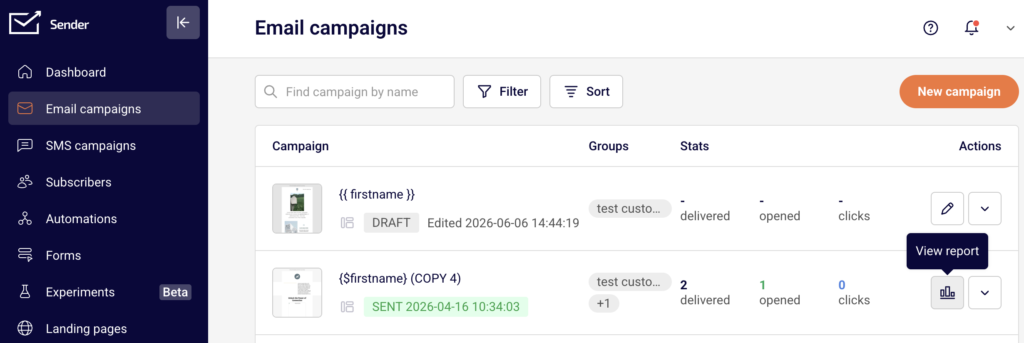
This opens the Campaign overview page where all metrics are displayed.
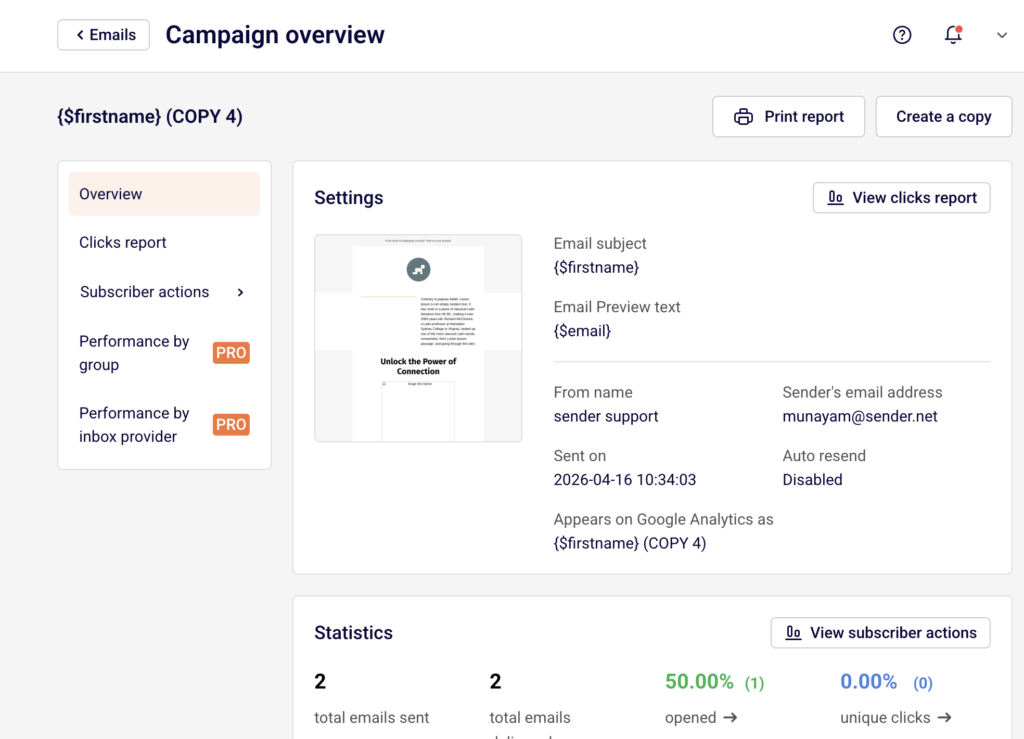
Steps to Track Campaign Metrics Over Time
Step 1 — Open the Campaign Report
Go to Email campaigns from the left sidebar. Find the sent campaign you want to review. Sent campaigns display inline stats for delivered, opened, and clicks directly in the list. Click the report icon in the Actions column to open the full Campaign overview page.
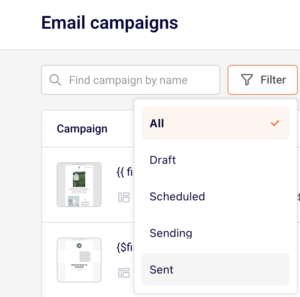
You can also use Filter to select Sent and narrow down the list.
Step 2 — Review the Statistics Section
On the Campaign overview page, scroll to the Statistics section. This displays eight metrics: total emails sent, total emails delivered, opened, unique clicks, hard bounced, soft bounced, unsubscribed, and spam reports.
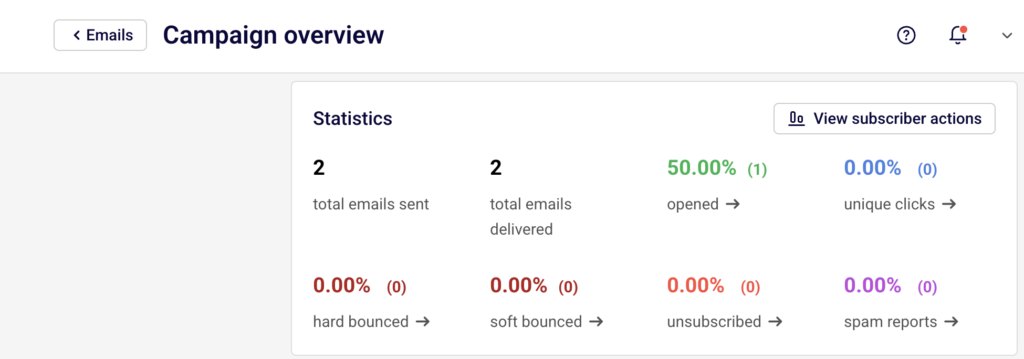
Each metric shows a percentage and a count in parentheses. Click the arrow next to any metric to jump to the Subscriber actions page filtered to that specific action.
Step 3 — Analyze the Time-Based Charts
Below the Ecommerce section, two charts track engagement over time. Opens and clicks by day plots daily opens and clicks across a date range starting from the send date.
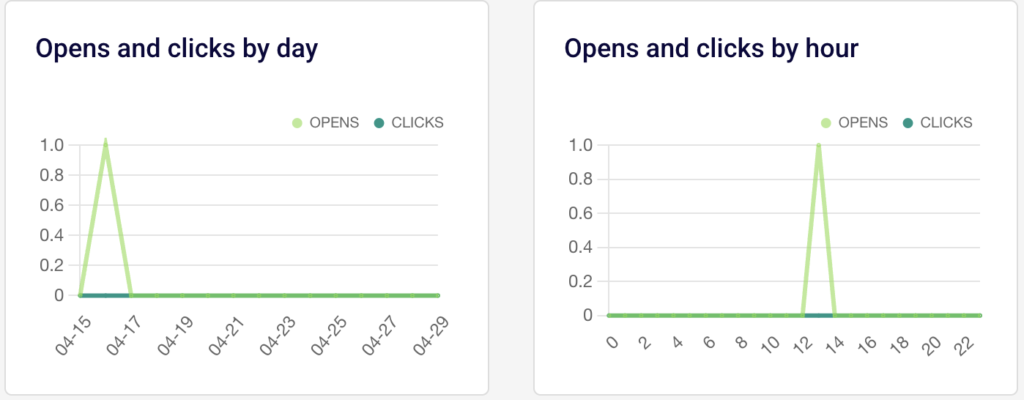
Opens and clicks by hour breaks down engagement by hour of the day (0–22). Both charts use separate lines for OPENS and CLICKS, making it easy to compare the two over time.
Step 4 — Drill Into Subscriber Actions
Click View subscriber actions in the Statistics section, or expand Subscriber actions in the left sidebar. This reveals individual tabs: Opens, Clicks, Hard bounces, Soft bounces, Unsubscribes, Spam reports, Unopens, and Purchases.
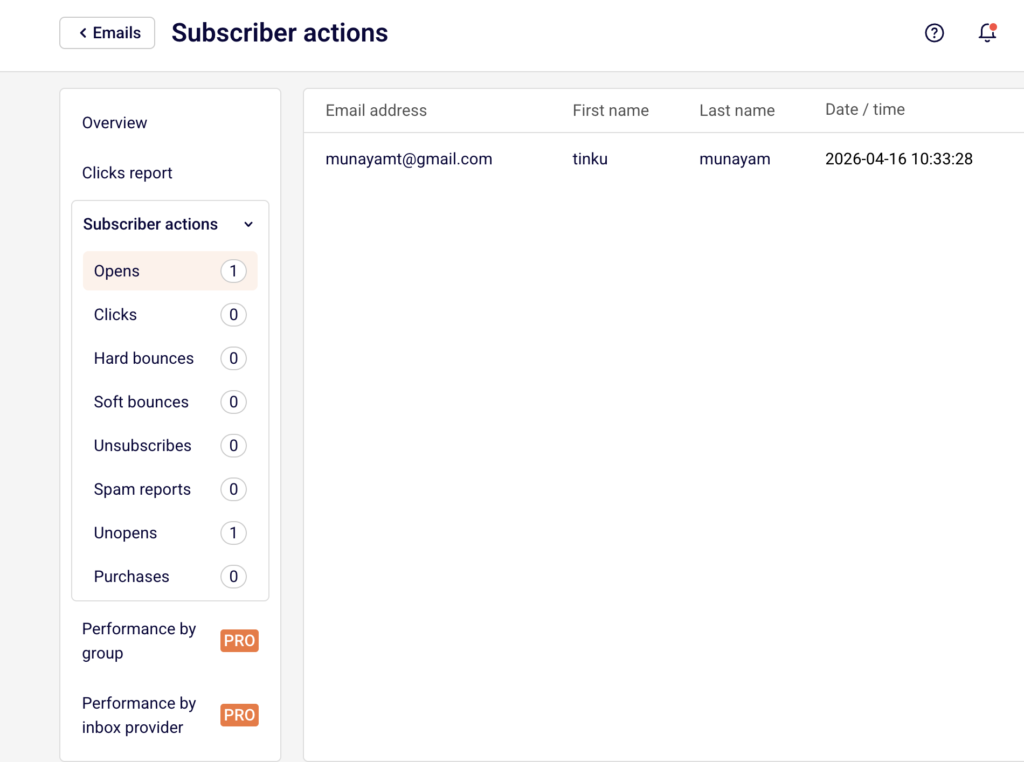
Each tab lists subscribers with their Email address, First Name, Last Name, and Date / time of the action. Use the Find subscriber by email search field to locate specific subscribers.
Step 5 — Export or Share the Report
Click Print report at the top of the Campaign overview page to generate a printable version of all metrics. To share the campaign design or reuse it, click Create a copy. From the campaign list, the dropdown menu also offers Share, Preview, and Save as PDF options for additional export methods.
What Happens After You Send
After sending, the campaign appears in the Email campaigns list with a SENT status and the send timestamp. Metrics begin populating in the Campaign overview as subscribers interact with the email. The Opens and clicks by day and Opens and clicks by hour charts update to reflect engagement trends over the days and hours following delivery.
Common Issues
Metrics show 0.00% for all values — The campaign may have just been sent. Allow time for recipients to open and interact with the email.
“No data found” on a Subscriber actions tab — No subscribers have performed that specific action yet. This is expected for newly sent campaigns.
Ecommerce section shows no data — An ecommerce integration is not connected. Click Install integration and track your sales performance to set one up.
Performance by group and Performance by inbox provider are locked — These reports require a PRO plan.
FAQs
Can I see which links were clicked in the campaign?
Yes. Click Clicks report or View clicks report in the left sidebar to see a visual heatmap of clicked links within the email design.
How do I filter the campaign list to show only sent campaigns?
Click Filter above the campaign list and select Sent.
Can I compare metrics across multiple campaigns?
The report is per-campaign. Open each campaign’s report individually to compare metrics side by side.
What is the difference between “opened” and “unique clicks”?
Opened tracks how many recipients opened the email. Unique clicks tracks how many recipients clicked at least one link inside it.
Can I export the full campaign report?
Yes. Use Print report on the overview page, or select Save as PDF from the campaign’s dropdown menu in the list.