

Email Rendering Differences Across Inbox Providers
Different inbox providers interpret and display email HTML in their own way. This guide walks you through the tools available in Sender to preview, test, and adjust your email campaign design so it renders consistently across providers like Gmail, Outlook, Apple Mail, and Yahoo.
Where to Find This Feature
In the Sender dashboard, go to:
Email campaigns → select a campaign → Design
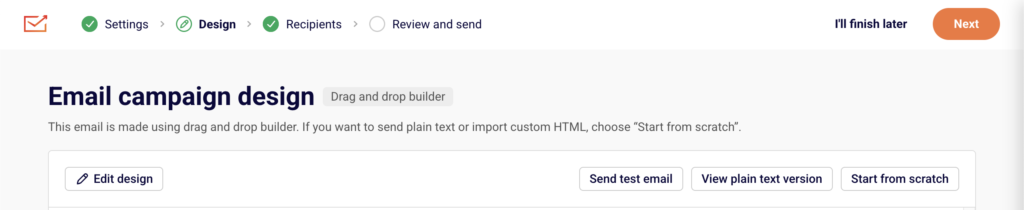
From the Design step, click Edit design to open the drag-and-drop builder or the custom HTML editor, where all preview and testing tools are accessible.
Steps to Handle Email Rendering Differences
Step 1 — Preview Desktop and Mobile Rendering
Inside the email editor, click the Preview icon (eye icon) in the top toolbar. Sender displays your email in both a desktop and a mobile view side by side.

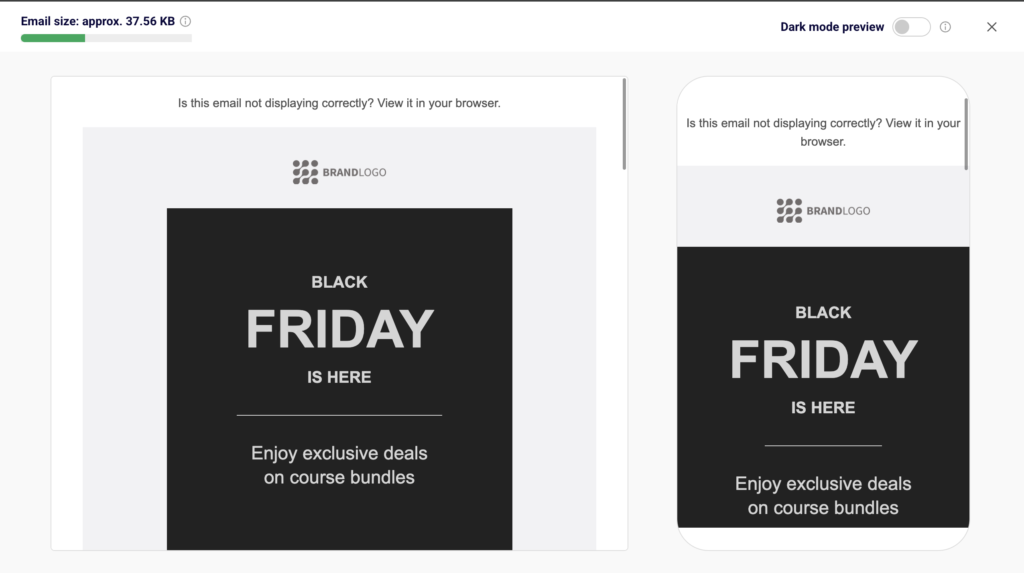
Check that your layout, images, and text scale properly at each width. The preview also shows the Email size indicator — keeping emails under 102 KB helps avoid clipping in Gmail.
Step 2 — Check Dark Mode Appearance
On the preview screen, toggle Dark mode preview in the upper-right corner. Many inbox providers such as Outlook, Apple Mail, and Gmail offer dark mode, which can invert background colors and alter text contrast. Review whether your content background, text colors, and images remain legible. Return to the editor to adjust Background color and Content background color under Template settings if needed.
Step 3 — Review and Edit the Plain Text Version
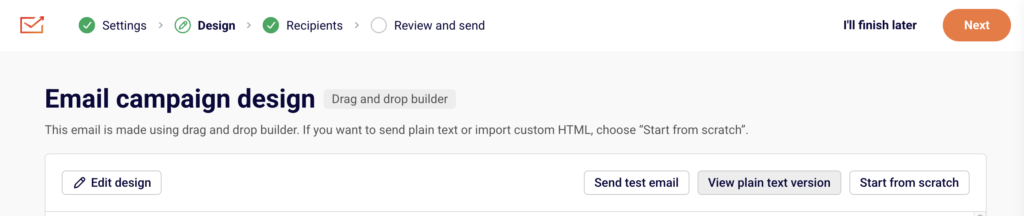
Back on the Design step, click View plain text version. Some inbox providers or subscriber settings fall back to plain text when HTML cannot be rendered.
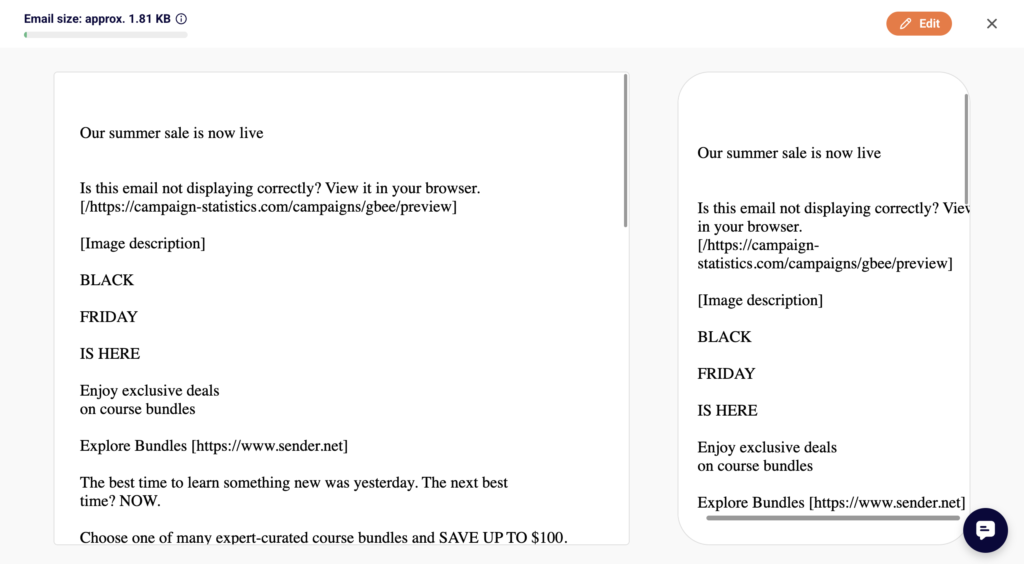
Verify that the plain text version includes all essential content and links in a readable format. This ensures subscribers who receive plain text still get a complete message.
Step 4 — Send a Test Email to Multiple Providers
Click Send test email from the editor toolbar or the Design step.

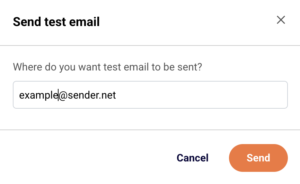
Enter an email address in the dialog and click Send. Repeat this for addresses on different providers — such as a Gmail address, an Outlook address, and a Yahoo address — to see exactly how each provider renders your design. Check for image loading behavior, font substitutions, button alignment, and spacing.
Step 5 — Adjust Design for Consistency
Return to the editor and make adjustments based on your test results. Use Template settings to modify global styles like Headlines, Paragraph, Buttons, and Section settings. Stick to web-safe fonts, use inline-friendly layout blocks from the Building blocks panel, and set explicit widths on images. If you use custom HTML, switch to the Custom HTML editor and toggle between the desktop and mobile preview icons in the top toolbar to verify changes at both sizes.
What Happens After You Save
After saving, your email is stored as a draft under Email campaigns. You can reopen it at any time to continue editing or run additional test sends. Before moving to the Review and send step, use the Preview and Send test email tools one more time to confirm the design looks correct across providers.
Common Issues
Images not displaying — Some providers block images by default. Add descriptive alt text to every image block so recipients understand the content before loading images.
Layout breaks in Outlook — Outlook uses a different rendering engine that does not support certain CSS properties. Avoid CSS floats and flexbox; rely on table-based layouts or the drag-and-drop builder’s structured blocks instead.
Email is clipped in Gmail — Gmail clips messages larger than 102 KB. Check the Email size indicator in the preview screen and reduce content or image weight if the size is close to or exceeds that limit.
Dark mode inverts colors unexpectedly — Inbox providers may override light backgrounds with dark ones. Use the Dark mode preview toggle to identify issues, then set explicit background colors on content sections in Template settings to maintain contrast.
Fonts look different across clients — Not all providers support custom or Google Fonts. Define fallback web-safe fonts (e.g., Arial, Helvetica) in your Template settings under Paragraph and Headlines to ensure readable typography everywhere.
FAQs
Can I preview my email in a specific inbox provider inside Sender?
Sender offers desktop, mobile, and dark mode previews. To see how a specific provider renders your email, use Send test email to send it to an actual inbox on that provider.
Does the drag-and-drop builder produce inbox-compatible HTML?
Yes. The Drag and drop builder generates table-based HTML designed for broad compatibility. Custom HTML campaigns give you full control but require you to manage compatibility yourself.
Should I always include a plain text version?
Sender automatically generates a plain text version. Review it by clicking View plain text version on the Design step to ensure it reads well for recipients whose inbox providers default to plain text.
How do I fix rendering issues in a specific provider?
Send a test email to that provider, identify the problem, then adjust your design in the editor. Common fixes include using web-safe fonts, adding alt text to images, and simplifying layout structures. Re-send the test after each change to confirm the fix.
What is the recommended maximum email size?
Keep your email under 102 KB to avoid clipping in Gmail. The Email size indicator on the preview screen shows your current size in real time.