

Dark Mode Impact on Email Design
This guide shows how to design dark mode–friendly email campaigns in Sender. It walks you through customizing the content and design of your email campaign so it remains readable and visually consistent when subscribers view it with dark mode enabled.
Where to Find This Feature
In the Sender dashboard, go to:
Email campaigns → click the edit (pencil) icon on any draft campaign → Design → Edit design.
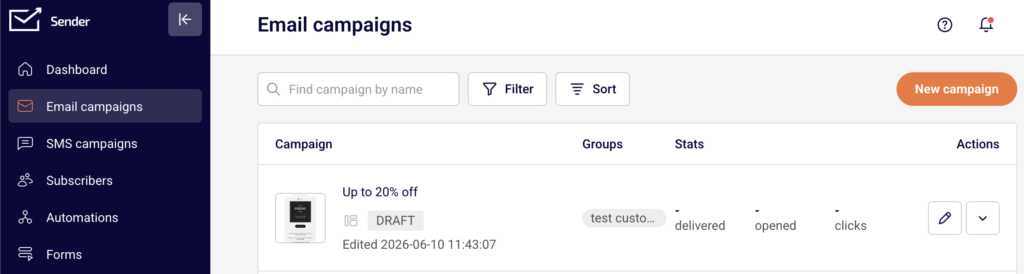
This opens the drag-and-drop builder where you adjust colors, backgrounds, images, and text for dark mode compatibility.
Steps to Design for Dark Mode
Step 1 — Review Your Color Choices in Template Settings
In the drag-and-drop builder, click the Template settings icon (globe) in the left sidebar. Under General settings, check your Background color and Content background color. Avoid pure white (#ffffff) backgrounds and pure black (#000000) text, as these create harsh contrast inversions in dark mode.
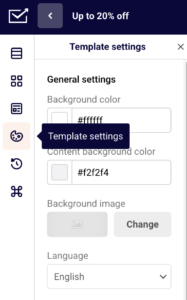
Use slightly off-white backgrounds (e.g., #f6f6f6) and dark gray text (e.g., #333333) instead. These softer values produce smoother transitions when email clients apply dark mode color shifts.
Step 2 — Adjust Text and Button Colors for Contrast
Expand the Headlines, Paragraph, and Buttons sections in Template settings to review global typography and color settings.
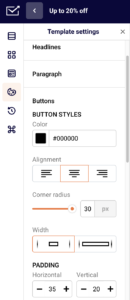
Set Text color and Font color values that maintain readability on both light and dark backgrounds. For buttons, check the Color under BUTTON STYLES and the button Font color — ensure the button fill and label text have enough contrast to remain legible when the surrounding background inverts. Avoid using background colors that match your text, as dark mode may invert only one of them.
Step 3 — Prepare Images and Logos
Click any Image or Logo block in the email to open its settings panel. Add descriptive Alternative text so content remains accessible if images are hidden or fail to load.
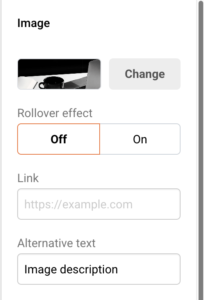
For logos and icons, use images with solid (non-transparent) backgrounds, or add padding around transparent PNGs — dark mode can expose transparent areas against a dark canvas, making light-colored logos invisible. You can swap images using the Change button in the block settings panel.
Step 4 — Preview in Dark Mode
Click the preview icon (eye) in the top toolbar. The preview screen shows your email in both desktop and mobile views side by side.

Toggle Dark mode preview in the upper-right corner to see an approximation of how your email renders with inverted colors. Review text legibility, button visibility, image appearance, and overall layout. Note that this preview is an approximation — actual rendering varies across email clients, browsers, and devices.
Step 5 — Send a Test Email
Click Send test email in the top toolbar (available in both the builder and the Design page).
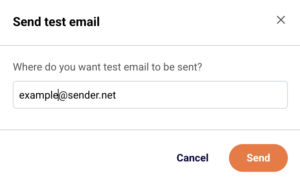
Enter your email address and click Send. Open the test email on a device or client with dark mode enabled to verify real-world rendering. Check the email in multiple clients if possible, since Gmail, Apple Mail, and Outlook each handle dark mode differently.
What Happens After You Save
After saving, your email design is stored as a draft under Email campaigns. You can reopen the builder anytime by clicking the edit icon on the campaign and selecting Edit design. Continue refining colors, images, and text until the dark mode preview and test emails look correct. When ready, move forward through the Recipients and Review and send steps.
Common Issues
Text disappears in dark mode preview — The text color is too close to the inverted background. Adjust Text color in Template settings or in the individual block’s Headline settings / Paragraph settings to a value that contrasts well on both light and dark surfaces.
Logo becomes invisible on a dark background — The logo uses a transparent PNG with light-colored artwork. Replace it with a version that includes a solid background, or add padding and a background fill via the Block settings on the Logo element.
Button blends into the background — The button Color is too similar to the dark mode background. Choose a brighter or more saturated button color under Buttons in Template settings and verify the Font color inside the button remains readable.
Dark mode preview looks different from actual email clients — The in-app preview is an approximation. Use Send test email to verify rendering in actual email clients with dark mode enabled.
FAQs
Does Sender let me set separate designs for light and dark mode?
No. Sender does not provide separate light-mode and dark-mode templates. You design one version and use the Dark mode preview toggle to check how email clients will alter it.
Which email clients apply dark mode changes?
Most major clients — including Apple Mail, Gmail (mobile), and Outlook — apply their own dark mode transformations. Each handles color inversion differently, which is why testing with Send test email across multiple clients is recommended.
Will my images be altered by dark mode?
Email clients generally do not modify image pixels. However, transparent areas in PNGs will show the dark background underneath, which can hide light-colored logos or icons. Use opaque backgrounds on critical images.
Where is the Dark mode preview toggle?
Click the preview icon (eye) in the builder’s top toolbar. The Dark mode preview toggle appears in the upper-right corner of the preview screen.