

Choosing campaign types
This guide shows how to choose a campaign type for your email campaign in Sender. It walks through the initial setup and configuration process, so you can select the right design approach before building your email.
Where to Find This Feature
In the Sender dashboard, go to: Email campaigns → New campaign

Steps to Choose a Campaign Type
Step 1 — Configure Campaign Settings
After clicking New campaign, the Campaign settings page opens. Enter your Email subject and optionally add Email Preview text. You can click Set custom campaign name to give the campaign an internal name. Under Sender details, confirm or update the From name and Sender’s email address. Toggle
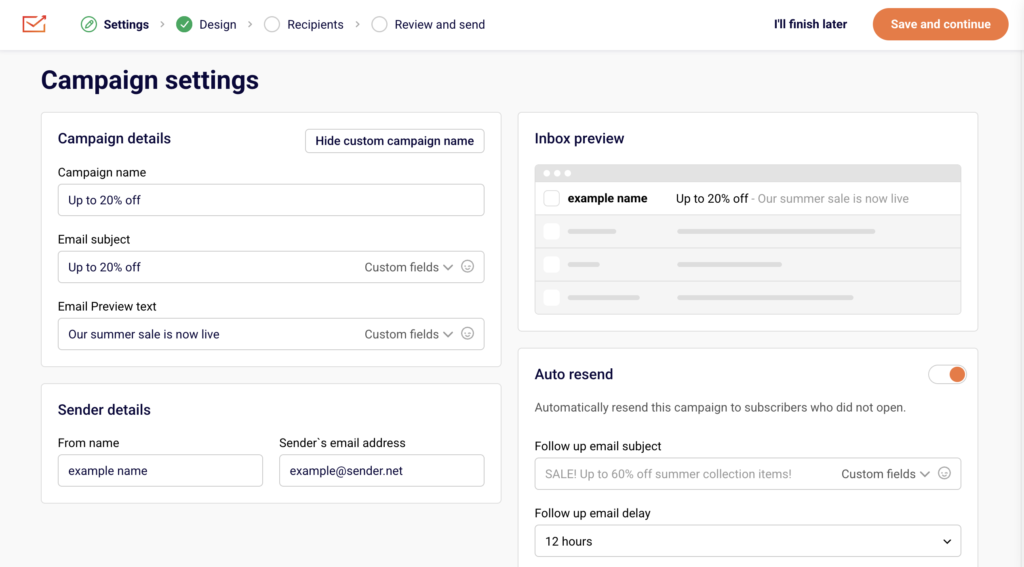
Auto resend if you want to automatically resend to subscribers who did not open. Click Save and continue to proceed.
Step 2 — Select a Campaign Type
The Design your email page presents three campaign type tabs at the top:
- Drag and drop builder — Select a premade template or a Blank template from the template library. Filter templates by category using the sidebar: All templates, Branded templates, My templates, Themed templates, or B2B templates. You can also search by name. After selecting a template, click Start creating to open the visual editor.
- Plain text email — Opens a rich text editor where you type your content directly. Use the right-side panel to adjust Text settings, Heading settings, and Preview & Unsubscribe language. Formatting options like headers, images, and lists are available inline.
- Custom HTML email — Opens a code editor where you write or paste your own HTML. The editor includes syntax highlighting and line numbers. A rendered preview of your HTML appears on the right side.
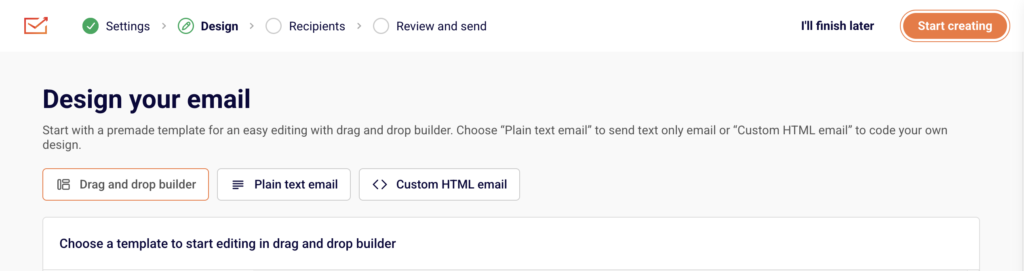
Click your preferred tab, configure the design, then click Save and continue or Save & continue.
Step 3 — Choose Recipients
The Recipients page displays your subscriber groups and segments. Select All active subscribers or check individual groups and segments from the list. Use Find by name to search, or click Sort to reorder.
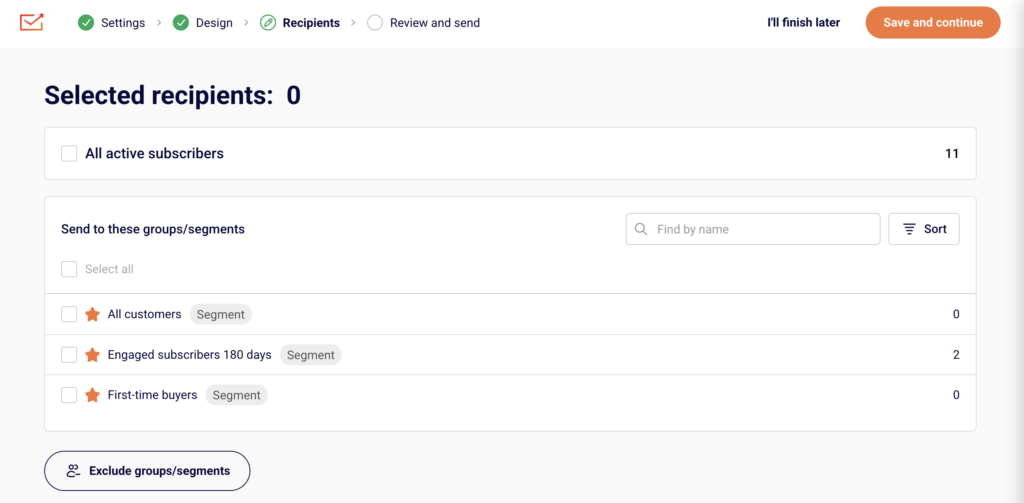
To exclude specific audiences, click Exclude groups/segments at the bottom. The Selected recipients count updates as you make selections. Click Save and continue to proceed.
Step 4 — Review and Send
The Review and schedule page summarizes your campaign. It shows Tips & Suggestions for any issues to resolve, your Settings (subject, sender details), and Recipients (selected groups with subscriber counts).
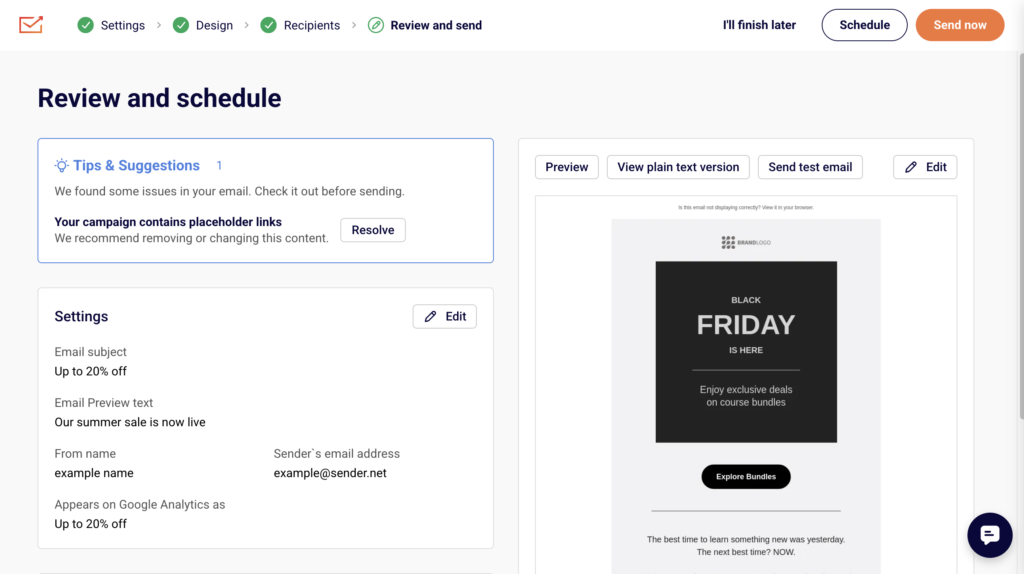
A design preview appears on the right with options to Preview, View plain text version, or Send test email. Click Edit on any section to make changes. When ready, click Send now to send immediately or Schedule to set a future send time.
What Happens After You Save
After saving at any stage, the campaign appears in the Email campaigns list with a status of DRAFT. You can return to editing by clicking the pencil icon in the Actions column. Once sent, the status changes to SENT and performance stats (delivered, opened, clicks) become available directly in the campaign list.
Common Issues
“Start creating” button is grayed out — No template is selected. Click a template thumbnail from the library before proceeding.
Cannot switch campaign types after designing — Click Start from scratch on the Email campaign design page. This resets your current design and returns you to the type selection screen. A confirmation dialog warns that all existing design and copy will be lost.
Preview text not showing in inbox preview — The Email Preview text field on the Settings page is optional but recommended. Return to Settings and add it, or click Resolve on the Review page.
FAQs
Can I change the campaign type after I start designing?
Yes. On the Email campaign design page, click Start from scratch. Confirm the reset, and you’ll return to the type selection screen. Your previous design will be removed.
What is the difference between the three campaign types?
Drag and drop builder uses a visual editor with pre-built blocks and templates. Plain text email provides a rich text editor for simple content. Custom HTML email lets you write or paste raw HTML code.
Can I preview my email before sending?
Yes. Each editor includes a Send test email button. On the Review and schedule page, you can also click Preview or View plain text version.
Do I have to pick recipients before reviewing?
Yes. The workflow requires completing Settings, Design, and Recipients before reaching Review and send.