

Audience changes and their impact on scheduled campaigns
This guide explains how changes to your subscriber lists, groups, and segments affect email campaigns that have already been scheduled in Sender. It covers what to expect when your audience shifts between the time you schedule a campaign and when it actually sends.
Where to Find This Feature
In the Sender dashboard, go to:
Email campaigns → select a campaign → Recipients (step 3 in the campaign workflow)

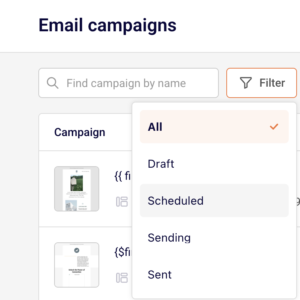
To view or manage scheduled campaigns, go to Email campaigns and use the Filter dropdown to select Scheduled.
Steps to Understand and Manage Audience Changes
Step 1 — Review How Recipients Are Selected
On the Recipients step of the campaign workflow, you choose who receives the campaign. You can select All active subscribers, or pick specific entries under Send to these groups/segments. Each group is labeled with a Group or Segment badge and shows a subscriber count.
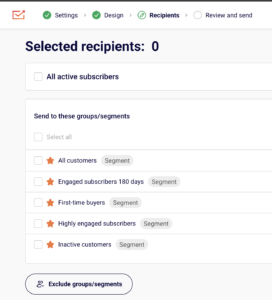
You can also click Exclude groups/segments to prevent specific audiences from receiving the campaign. Once configured, click Save and continue to proceed to Review and send.
Step 2 — Schedule the Campaign
On the Review and schedule page, click Schedule in the top-right corner. A Schedule campaign dialog opens with a calendar, a date field, and a time dropdown. Select your preferred date and time, then click Schedule.

A confirmation message appears showing the scheduled date and time in your account’s local time. The campaign status on the Email campaigns list changes to SCHEDULED ON [date and time].
Step 3 — Understand How Audience Changes Apply
Sender resolves the final recipient list at the moment the campaign is sent, not when it is scheduled. If you selected All active subscribers, any subscribers added or removed between scheduling and send time will be reflected. If you selected specific groups or segments, the membership of those groups and segments at send time determines who receives the email. Subscribers who unsubscribe, bounce, or are deleted before the send time, will not receive the campaign.
Step 4 — Adjust the Schedule or Cancel If Needed
On the Email campaigns list, a scheduled campaign displays two action buttons: Edit schedule and Cancel schedule. Click Edit schedule to open the scheduling dialog and change the date or time, then click Schedule to confirm.

Click Cancel schedule to revert the campaign to DRAFT status — a confirmation dialog asks “Are you sure you want to cancel schedule?” with No and Yes, I am sure options. Once cancelled, the campaign returns to draft and can be edited normally through all four workflow steps.
What Happens After You Save
After scheduling, the campaign appears in the Email campaigns list with a status of SCHEDULED ON [date and time]. You cannot edit the campaign content or recipients while it is scheduled. To make changes, click Cancel schedule first to return the campaign to DRAFT, make your edits, then reschedule. Performance data becomes available in the campaign’s stats columns after the campaign sends.
Common Issues
Campaign sent to more or fewer recipients than expected → The audience was evaluated at send time. Subscribers added to or removed from the selected group or segment between scheduling and sending caused the count to differ from what was shown during setup.
Unsubscribed contacts still appear in the recipient count at scheduling → The count shown on the Recipients step reflects the audience at that moment. Contacts who unsubscribe before the scheduled send time are automatically excluded when the campaign sends.
Scheduled campaign cannot be edited → A campaign in Scheduled status cannot be modified directly. Click Cancel schedule on the campaigns list to revert it to DRAFT, then edit and reschedule.
FAQs
Does Sender send to the audience snapshot from when I scheduled, or the current audience at send time?
Sender uses the audience at send time. Any changes to the selected groups, segments, or active subscriber list between scheduling and sending are reflected automatically.
What happens if I delete a group that is assigned to a scheduled campaign?
The campaign will send only to recipients who still belong to a valid, selected group or segment at send time. If no valid recipients remain, the campaign may send to zero subscribers.
Can I change the recipients of a scheduled campaign without cancelling it?
No. You must click Cancel schedule to return the campaign to DRAFT, update the recipients on the Recipients step, then reschedule.
Where is the time zone for scheduled campaigns set?
The schedule uses your account’s time zone, configured in Account settings → General settings → Time zone. The scheduling confirmation displays the time as “local time” based on this setting.
What status does a campaign return to after cancelling the schedule?
It returns to DRAFT. All previously configured settings, design, and recipient selections are preserved.