

Sender name and email address configuration
This guide explains how to configure the sender name and email address for an email campaign in Sender. These settings control how your campaign appears in the recipient’s inbox.
Where to Find This Feature
In the Sender dashboard, go to: Email campaigns → New campaign → Settings
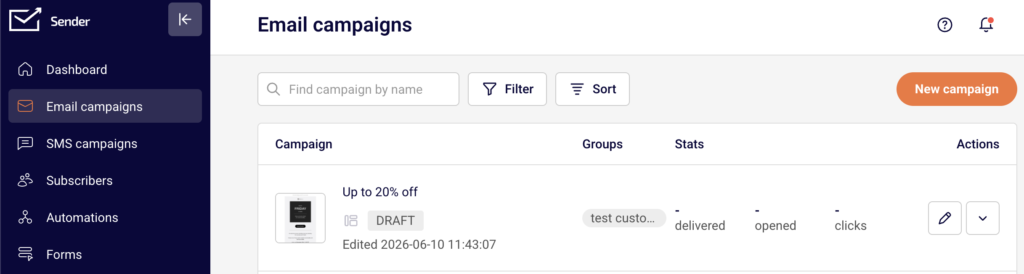
Click Email campaigns in the left sidebar to open the campaign list. Click the New campaign button in the top-right corner. The Campaign settings page opens on the Settings stage — the first stage of the campaign creation workflow (Settings → Design → Subscribers → Review and send). The Sender details section is located below the Campaign details section on this page.
Steps to Configure the Sender Name and Email Address
Step 1 — Open the Campaign Settings page
Go to Email campaigns in the left sidebar. Click New campaign in the top-right corner.
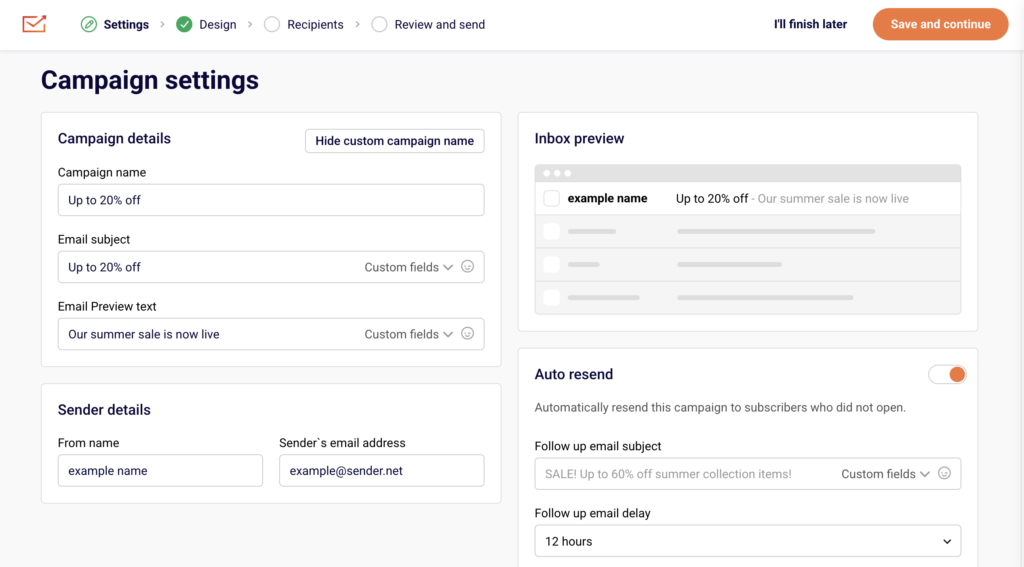
The Campaign settings page opens. You will see two sections: Campaign details at the top and Sender details below it. An Inbox preview panel on the right side shows how the sender name, subject line, and preview text will appear in the recipient’s inbox.
Step 2 — Enter the From name
In the Sender details section, locate the From name field. Type the name you want recipients to see in their inbox.
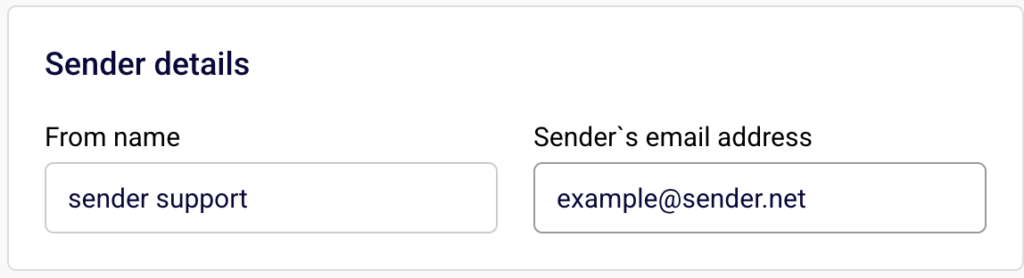
This could be your company name, brand name, or a person’s name. The Inbox preview panel updates in real time to reflect the name you enter.
Step 3 — Enter the Sender’s email address
In the Sender details section, locate the Sender’s email address field. Type the email address you want to send the campaign from. This address must use a domain that has been verified in your account. If you have not verified your domain, go to Account settings → Domains to add and verify it before continuing.
Step 4 — Review the Inbox preview and save
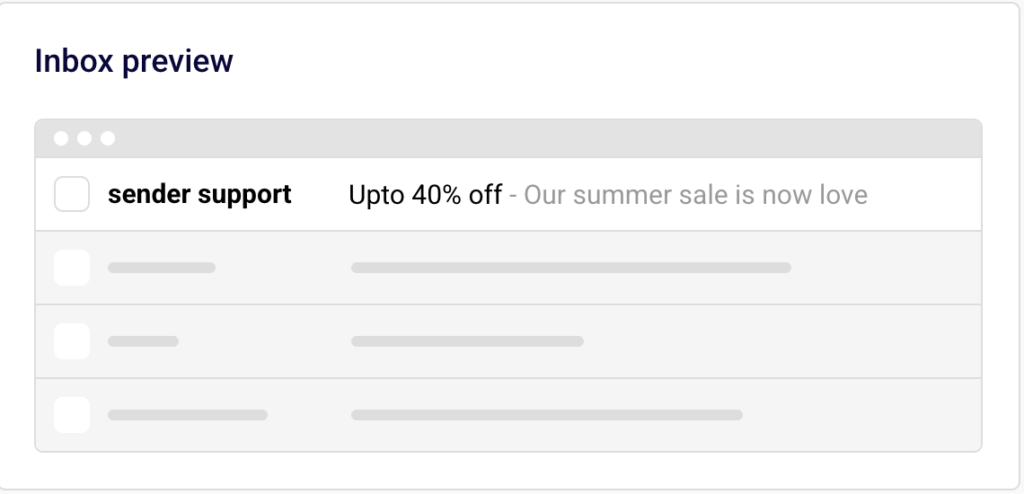
Check the Inbox preview panel on the right side of the page to confirm the From name displays correctly alongside the subject line and preview text.
When you are satisfied with the sender details, click Save and continue to proceed to the Design stage. To save your progress and return later, click I’ll finish later — the campaign is saved as a draft.
Available Settings
From name — The name displayed in the recipient’s inbox as the sender of the email. This is a free-text field and accepts any value, such as a company name or a person’s name.
Sender’s email address — The email address the campaign is sent from. This must use a domain that has been verified under Account settings → Domains.
Set custom campaign name — Opens an additional Campaign name field above the Email subject field. The campaign name is used for internal reference only and is not visible to recipients. Click Hide custom campaign name to collapse this field.
Email subject — The subject line recipients see in their inbox. Supports personalization through the Custom fields dropdown and emoji insertion through the emoji picker icon.
Email Preview text — The short text displayed next to or below the subject line in the recipient’s inbox. Also supports Custom fields and emoji insertion.
Auto resend — A toggle that, when enabled, automatically resends the campaign to subscribers who did not open it.

Inbox preview — A live preview panel that reflects the From name, Email subject, and Email Preview text as they would appear in a recipient’s inbox.
Setup Tips
Use a recognizable sender name — Choose a From name that recipients will immediately recognize, such as your brand name or a familiar contact name. This increases open rates and reduces the likelihood of being marked as spam.
Match your domain to your brand — The Sender’s email address should use your verified business domain rather than a generic or free email provider. Verify your domain under Account settings → Domains before creating the campaign.
Preview before proceeding — Always check the Inbox preview panel after entering the From name, Email subject, and Email Preview text. This shows exactly how the campaign will look in the inbox.
Keep the From name consistent — Use the same From name across campaigns so subscribers learn to recognize your emails. Frequent changes can confuse recipients and lower engagement.
Set a custom campaign name for internal tracking — Click Set custom campaign name to add an internal label that helps you identify the campaign in the Email campaigns list. This name is not visible to recipients.
Common Issues
Sender’s email address is rejected → The email address uses a domain that has not been verified. Go to Account settings → Domains, add your domain, and complete the verification process before returning to the campaign settings.
From name appears differently in certain email clients → Some email clients truncate long sender names. Keep the From name concise — ideally under 25 characters — to ensure it displays fully across all inboxes.
Inbox preview does not update → The Inbox preview panel updates in real time as you type. If it does not reflect your changes, refresh the page and re-enter the values. Your draft is saved automatically.
Campaign cannot proceed past the Settings stage → Required fields such as Email subject and Sender’s email address must be completed before clicking Save and continue. Fill in all required fields to move to the Design stage.
FAQs
What is the From name used for? The From name is the sender name recipients see in their inbox. It helps them identify who the email is from before opening it. You can set it to your company name, brand name, or a person’s name.
Can I use any email address as the Sender’s email address? The Sender’s email address must use a domain that has been verified in your Sender account. Go to Account settings → Domains to verify your sending domain before configuring the campaign.
Does the From name affect email deliverability? The From name itself does not directly affect deliverability, but using a consistent and recognizable name helps build trust with recipients and reduces the chance of your emails being marked as spam.
Can I change the sender details after creating the campaign? Yes. As long as the campaign has not been sent, you can return to the Settings stage from the Email campaigns list, click the edit icon on the draft campaign, and update the From name or Sender’s email address.
What is the difference between the campaign name and the From name? The Campaign name is an internal label visible only in your Email campaigns list. The From name is the sender name displayed to recipients in their inbox. They serve different purposes and can be set independently.
Where do I verify my sending domain? Go to Account settings → Domains in the left sidebar. Click Add domain, enter your domain, and follow the verification steps. Once the domain shows a confirmed status, you can use it in the Sender’s email address field.