

Reasons Subscribers May Not Receive a Campaign
When a campaign is sent but some subscribers do not receive it, the cause is usually tied to their subscriber status, group or segment assignment, or how the audience was selected. This guide covers how to identify and resolve the most common reasons subscribers are excluded from a campaign in Sender.
Where to Find This Feature
In the Sender dashboard, go to:
Subscribers → Subscribers (to check individual subscriber statuses)
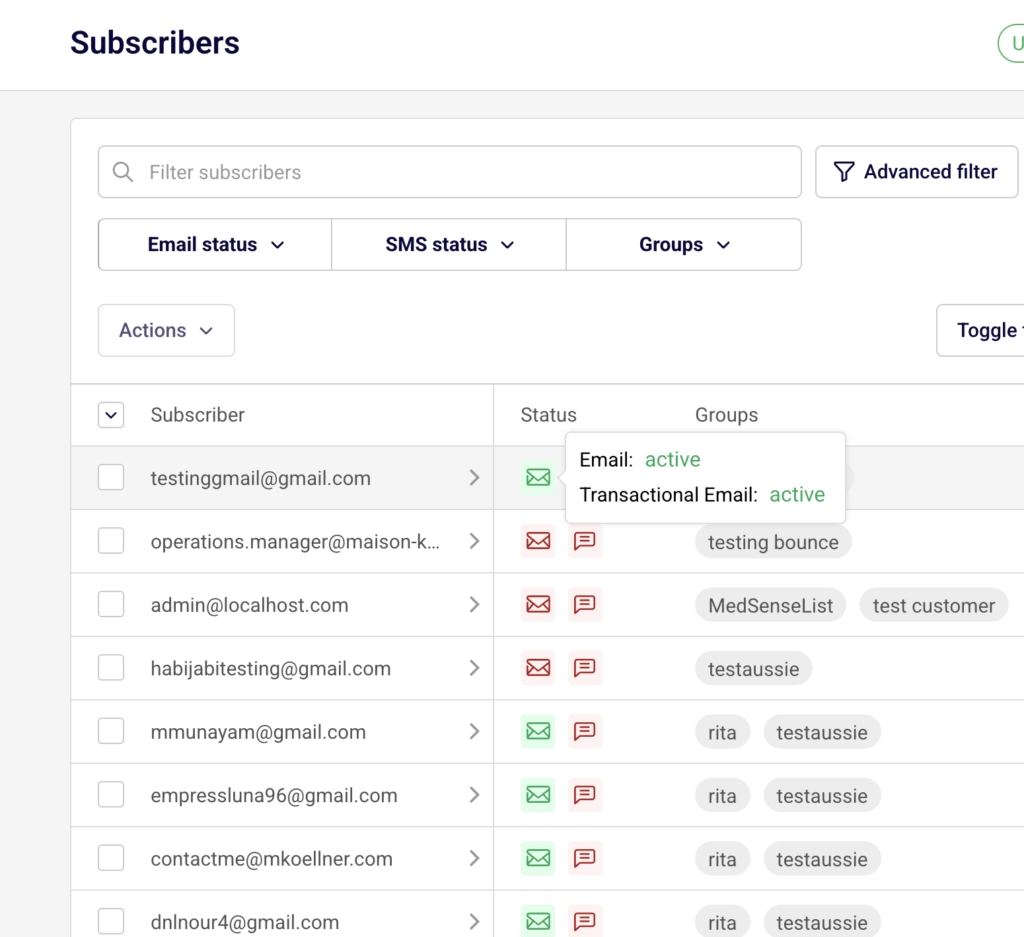
Email campaigns → select a sent campaign → Campaign overview (to review delivery statistics)
Steps to Identify Why Subscribers Did Not Receive a Campaign
Step 1 — Check the Subscriber’s Email Status
Go to Subscribers in the left sidebar. The subscriber list displays a Status column with icons for each contact. Use the Email status dropdown filter at the top to filter by status. Sender assigns one of five email statuses to each subscriber: Active, Bounced, Unsubscribed, Reported spam, and Non-subscribed.
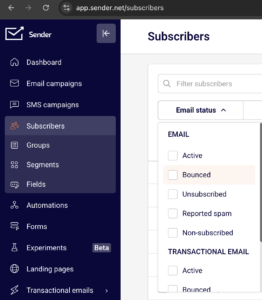
Only subscribers with an Active status are eligible to receive campaigns. Any other status automatically excludes them from sending.
Step 2 — Verify the Subscriber’s Group and Segment Membership
On the Recipients step of the campaign workflow, Sender shows the section Send to these groups/segments.
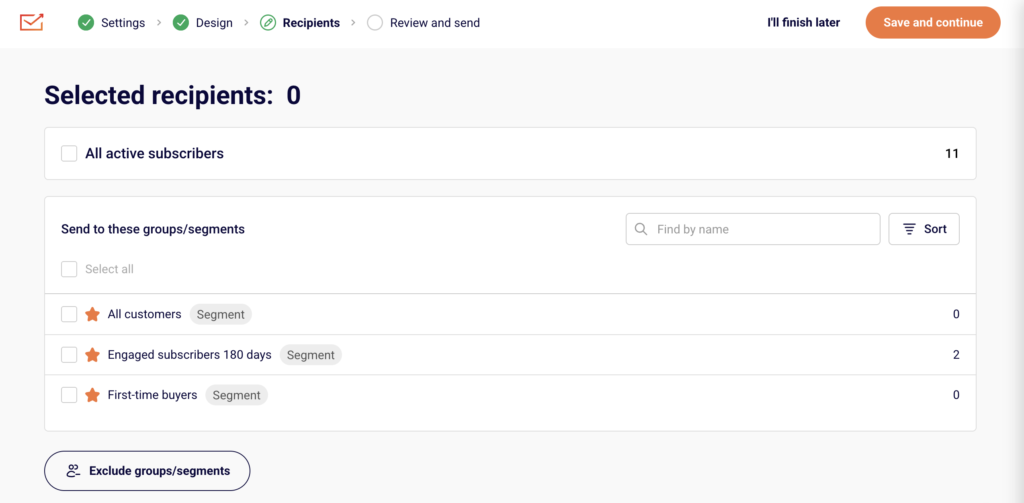
Each entry is labeled either Segment or Group with a subscriber count. If a subscriber is not a member of any selected group or segment, they will not receive the campaign.
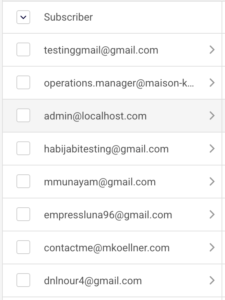
Open the subscriber’s profile by clicking the arrow next to their email to confirm their Groups assignment and status.
Step 3 — Review the Campaign’s Recipient Selection
Open the campaign and navigate to the Recipients step (third step in the Settings → Design → Recipients → Review and send workflow). Check which groups or segments were selected. Also check whether the Exclude groups/segments option was used at the bottom of the page. Any subscriber belonging to an excluded group or segment will be skipped, even if they are also in a selected group.
Step 4 — Check the Campaign Report for Delivery Failures
After a campaign is sent, go to Email campaigns, find the sent campaign, and click the report icon.
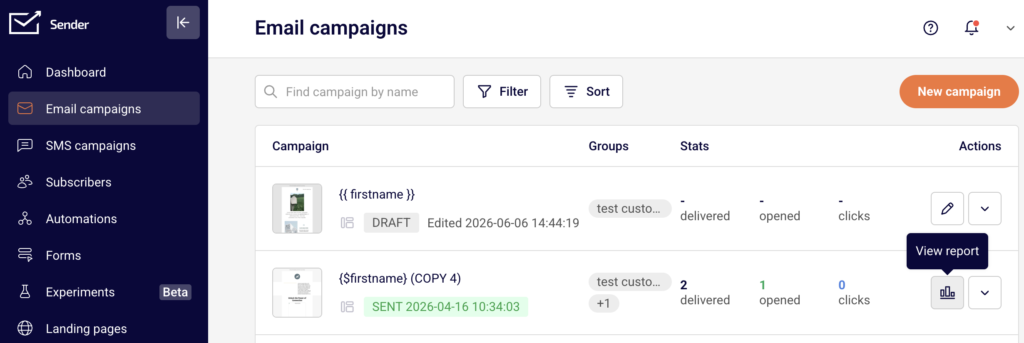
The Campaign overview page displays Statistics including total emails sent, total emails delivered, hard bounced, soft bounced, unsubscribed, and spam reports.
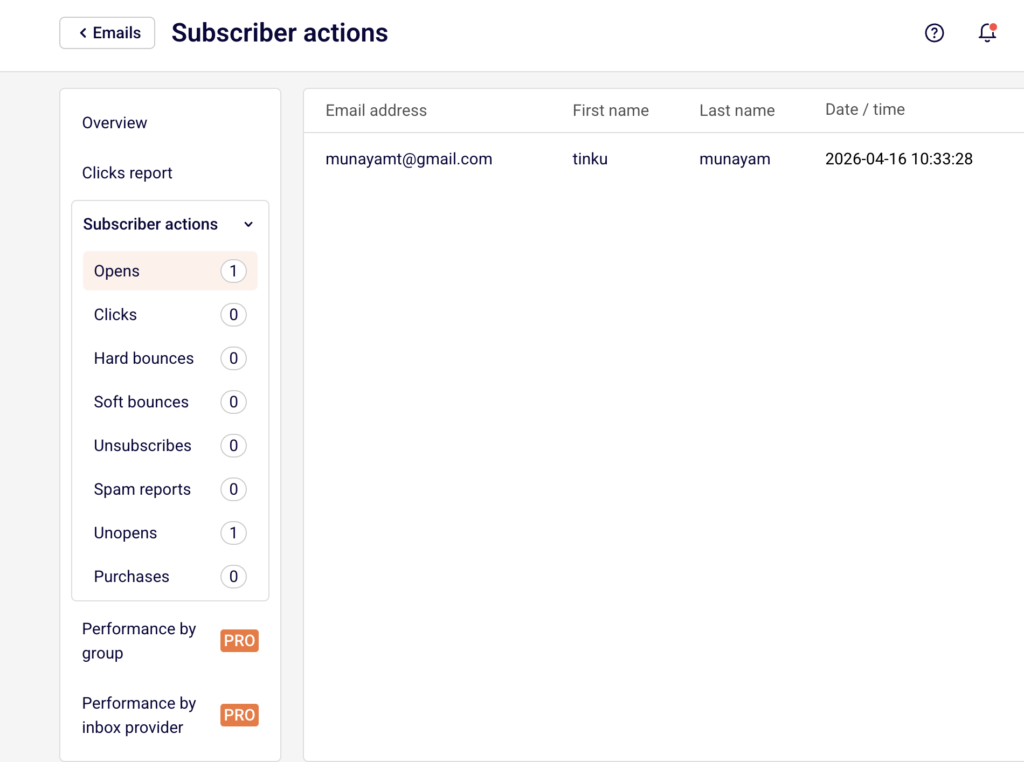
Expand Subscriber actions in the left sidebar to see detailed counts for Hard bounces, Soft bounces, Unsubscribes, and Spam reports. A warning icon appears on the campaign list if bounce rates are high.
Step 5 — Confirm Domain Authentication
Go to Account settings → Domains. The Domains page shows each domain with its Ownership confirmed and Authentication status.
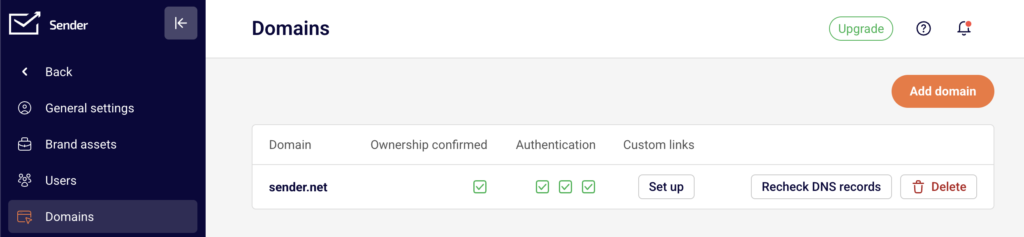
If your sending domain is not verified or authenticated, recipient email providers may reject or filter your messages. Ensure all checkmarks are green for both ownership and authentication before sending campaigns.
What Happens After You Check
After identifying the cause, you can take corrective action directly from the relevant page. Subscriber statuses can be reviewed in Subscribers → Email status filter. Group membership can be edited from the subscriber’s profile under Groups → Edit. Campaign recipient selections can be adjusted by editing the campaign’s Recipients step. Domain authentication issues are resolved in Account settings → Domains.
Common Issues
Subscriber has a Bounced status → The email address previously returned a hard bounce, and Sender automatically marked it as Bounced. It will be excluded from all future sends.
Subscriber has an Unsubscribed status → The subscriber opted out of emails. They will not receive campaigns until they re-subscribe.
Subscriber marked as Reported spam → The subscriber reported a previous campaign as spam. Sender excludes them from future sends.
Subscriber has a Non-subscribed status → The contact exists in your account but is not subscribed to email campaigns. They were likely added without email opt-in.
Subscriber is not in the selected group or segment → The campaign was sent to specific groups or segments, and the subscriber does not belong to any of them.
Subscriber was in an excluded group or segment → The Exclude groups/segments option was used during recipient selection, and the subscriber was part of an excluded audience.
Domain is not authenticated → Missing authentication on the Domains page can cause recipient providers to reject emails or route them to spam.
Soft bounce occurred → A temporary delivery failure (e.g., full inbox or server timeout) prevented the email from being delivered. Sender may retry, but the subscriber may still appear as not delivered.
FAQs
Can I resend a campaign to subscribers who didn’t receive it?
You can use the Auto resend toggle on the Settings step to automatically resend to subscribers who did not open. For bounced subscribers, the underlying issue (invalid address, full inbox) must be resolved first.
Does Sender automatically exclude bounced or unsubscribed contacts?
Yes. Sender only sends campaigns to subscribers with an Active email status. Contacts marked as Bounced, Unsubscribed, Reported spam, or Non-subscribed are excluded automatically.
Where can I see which subscribers were excluded from a specific campaign?
On the Campaign overview page, expand Subscriber actions in the sidebar to view lists for Hard bounces, Soft bounces, Unsubscribes, and Spam reports.
Why does the recipient count on the Recipients step differ from my group’s total subscribers?
The recipient count on the Recipients step only reflects Active subscribers. Subscribers with any non-active status within that group are not counted.
Can I change a subscriber’s status from Bounced back to Active?
You can view the subscriber’s profile and status, but re-activating a bounced contact depends on whether the bounce was a hard bounce (permanent) or soft bounce (temporary). Hard-bounced addresses typically cannot be re-activated without correcting the underlying email address issue.