

Email campaign sending behavior
This guide shows how to send or schedule an email campaign in Sender. It walks through what happens at the final stage of the campaign workflow, including your options for immediate sending, scheduling for later, and what to expect after delivery begins.
Where to find this feature
In the Sender dashboard, go to:
Email campaigns → select a draft campaign → Review and send
You reach the Review and schedule page after completing the Settings, Design, and Subscribers steps in the campaign workflow.
Steps to send or schedule a campaign
Step 1 — Review your campaign on the final step
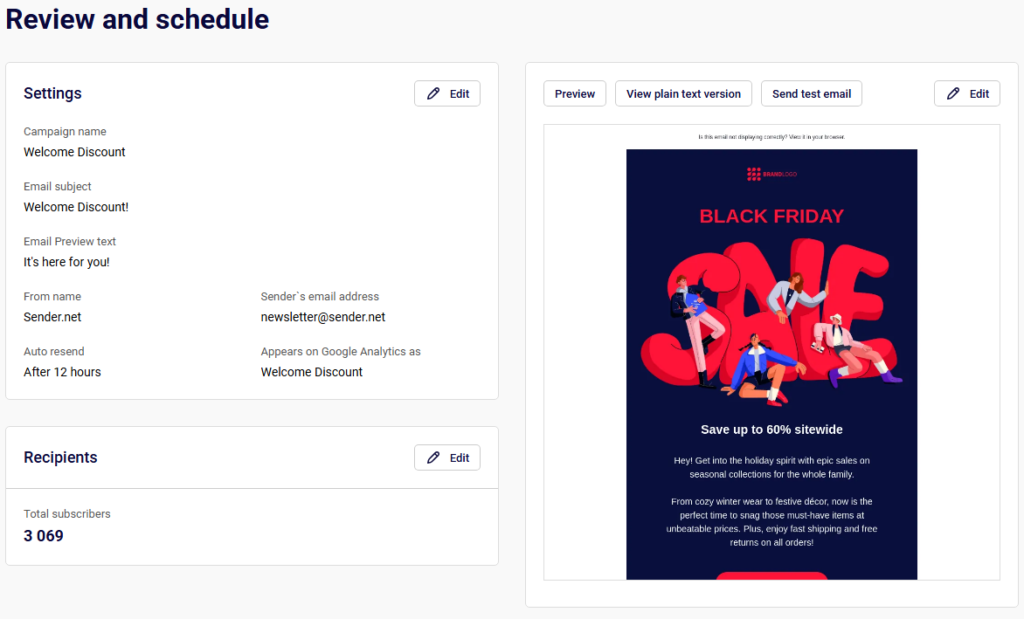
When you reach the Review and send step, the Review and schedule page displays a summary of your campaign. This includes your Settings (email subject, from name, sender’s email address, auto resend status, and Google Analytics name), your Recipients count, and a preview of the email on the right side.
If there are issues, a Tips & Suggestions panel appears at the top with recommendations. Click Resolve next to any suggestion to fix it before sending.
Step 2 — Send a test email (optional)
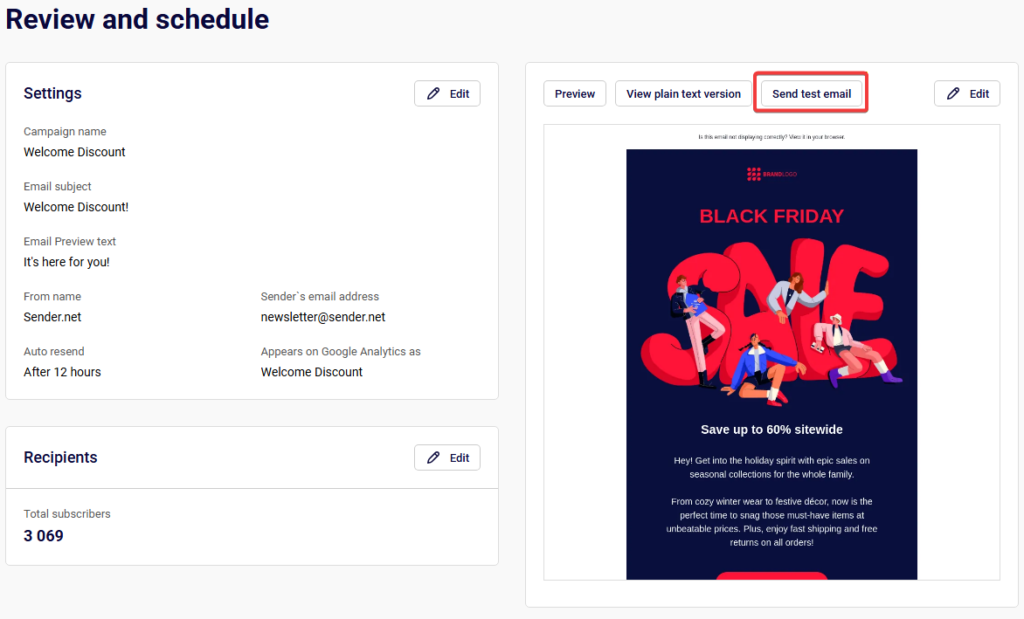
Click Send test email above the preview panel. A Send test email dialog opens asking where you want the test sent. Enter the email address and click Send. This lets you verify how the campaign looks in an inbox before sending it to your full list. Click Cancel to close the dialog without sending.
Step 3 — Send immediately or schedule for later
You have two sending options in the top-right corner of the page:
To send immediately, click Send now. The campaign begins delivering to your selected recipients right away.
To schedule for later, click Schedule. A Schedule campaign dialog opens with a calendar, a date field, and a time dropdown. Select your preferred date, choose a time from the dropdown (available in 15-minute intervals), and click Schedule. Use Jump to today to return to the current date if you’ve navigated away in the calendar.
If you’re not ready, click I’ll finish later to save the campaign as a draft and return to it at any time.

Step 4 — Understand auto resend behavior
If you enabled Auto resend during the Settings step, the campaign will automatically resend to subscribers who did not open the original email. The resend uses the Follow up email subject you configured and is sent after the Follow up email delay you selected (options range from 12 hours to 7 days). The auto resend status is visible in the settings summary on the Review and schedule page.
What happens after you send
After sending or scheduling, the campaign appears in the Email campaigns list with an updated status. Campaigns progress through these statuses: Draft, Scheduled, Sending, and Sent. You can filter the list by status using the Filter dropdown at the top of the page.
Once a campaign reaches Sent status, click the report icon next to it to open the Campaign overview page. This page shows delivery statistics including total emails sent, total emails delivered, opened rate, unique clicks, hard bounced, soft bounced, unsubscribed, and spam reports. Additional reporting is available through Clicks report, Subscriber actions, Performance by group, and Performance by inbox provider in the left sidebar.
Common issues
Schedule button not available → The campaign has unresolved issues in the Tips & Suggestions panel. Resolve them first.
Auto resend not triggering → Confirm the Auto resend toggle is enabled in the Settings step and that a Follow up email delay is selected.
Campaign stuck in Sending status → Large recipient lists take time to process. Allow time for delivery to complete before checking stats.
Time shown doesn’t match expectations → The schedule time picker uses your account’s time zone. Verify your time zone settings in Account settings before scheduling.
FAQs
Can I cancel a scheduled campaign?
Yes. A scheduled campaign can be edited or canceled from the Email campaigns list before the scheduled send time.
What time intervals are available for scheduling?
The time dropdown offers 15-minute intervals (e.g., 02:00 PM, 02:15 PM, 02:30 PM).
Can I edit a campaign after sending?
No. Once a campaign is sent, it cannot be edited. You can click Duplicate from the campaign’s action menu to create a copy and modify it.
What delay options are available for auto resend?
The Follow up email delay options are 12 hours, 24 hours, 2 days, 3 days, 4 days, 5 days, 6 days, and 7 days.
How do I save a campaign without sending it?
Click I’ll finish later at any point during the workflow. The campaign is saved with a Draft status and can be resumed from the Email campaigns list.