

Contact selection logic for email campaigns
This guide shows how to select contacts for email campaigns in Sender. It covers how to create, manage, and apply audience segments and groups for more targeted campaigns.
Where to Find This Feature
In the Sender dashboard, go to: Subscribers → Segments
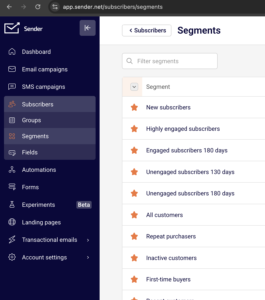
To select recipients for a specific campaign, open any draft campaign and navigate to the Recipients step in the campaign workflow.
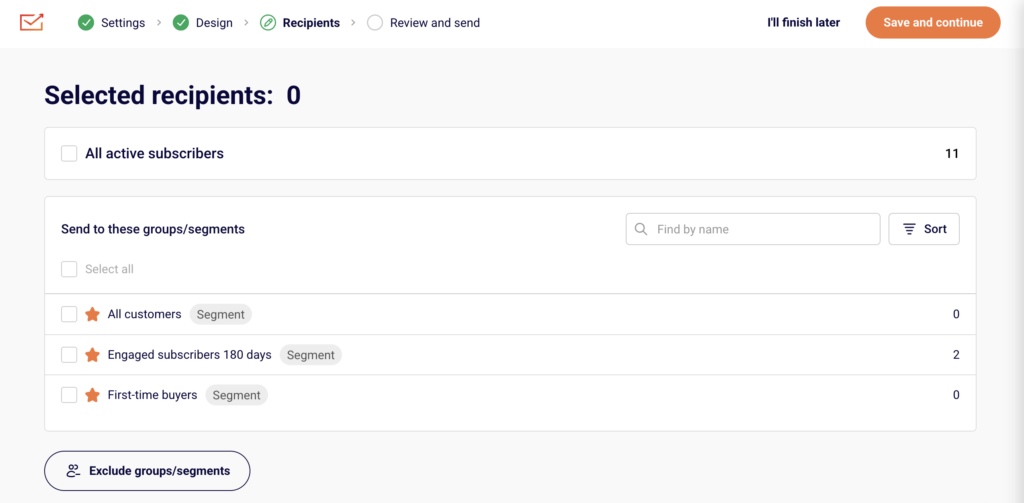
Steps to Select Contacts for an Email Campaign
Step 1 — Create a Segment
Go to Subscribers → Segments and click Create new segment. Enter a name in the Segment name field and click Save.
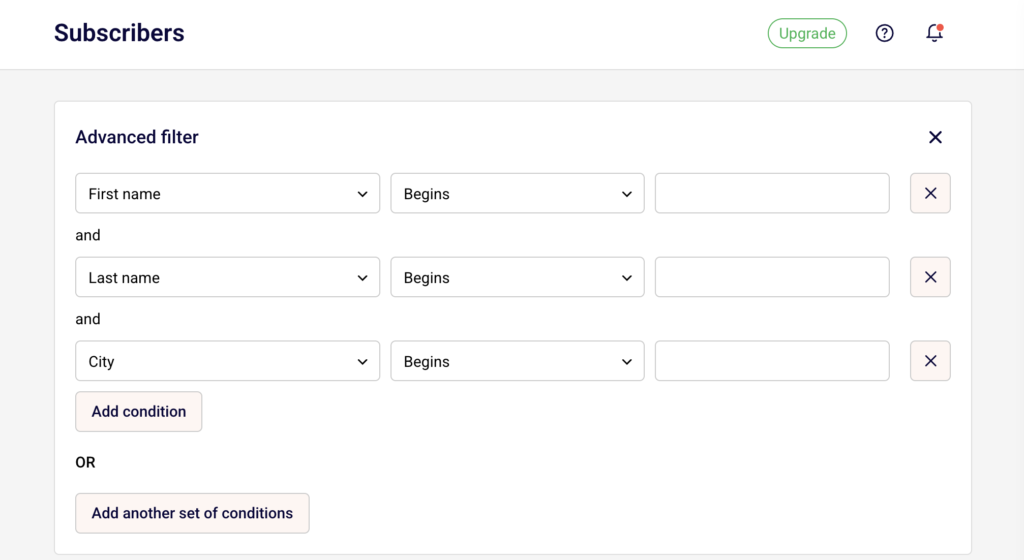
The Advanced filter panel opens on the Subscribers page, where you can define the rules that determine which contacts belong to this segment.
Step 2 — Define Filter Conditions
In the Advanced filter panel, build your segment rules using the condition dropdowns. Select a filter category from the first dropdown — options are grouped under Subscription Status, Subscriber Details, Campaign Activity, SMS Campaign Activity, and Fields. Then choose an operator and a value to complete the condition. Click Add condition to add more rules within the same group (AND logic), or click Add another set of conditions to create a separate rule group (OR logic). The subscriber list below updates to reflect matching contacts.
Step 3 — Choose Recipients in the Campaign
Open your email campaign and navigate to the Recipients step from the top navigation bar (Settings → Design → Recipients → Review and send).
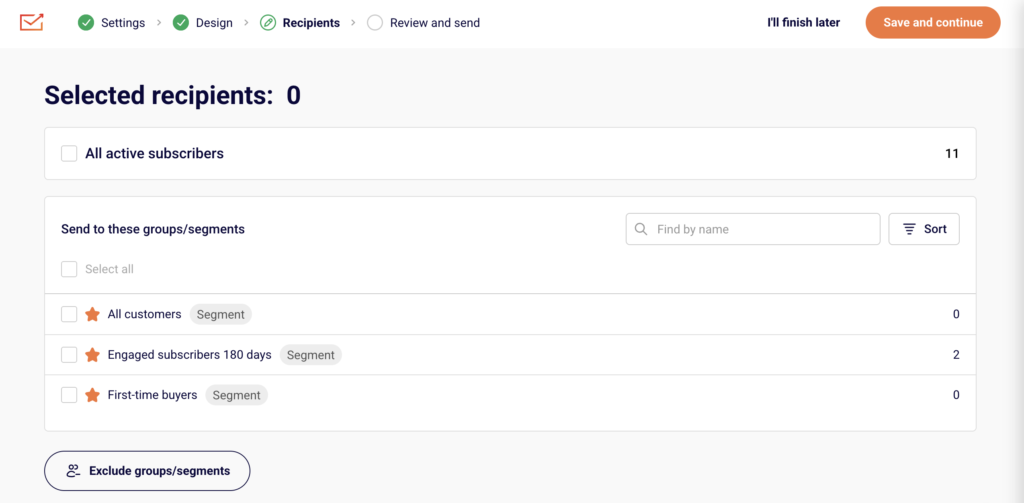
You will see All active subscribers at the top with a checkbox. Below that, the Send to these groups/segments section lists all your saved segments (tagged as Segment) and groups (tagged as Group) with subscriber counts. Check the ones you want to include. Use the Find by name search bar or Sort to locate specific entries.
Step 4 — Exclude Groups or Segments
On the same Recipients page, click Exclude groups/segments at the bottom. A second list appears with all available segments and groups. Check any you want to exclude from receiving the campaign. This is useful for suppressing contacts who appear in your selected audience but should not receive this particular send.
Step 5 — Save and Review
Click Save and continue to move to the Review and send step. This page displays a summary of your campaign settings, design preview, and recipients.
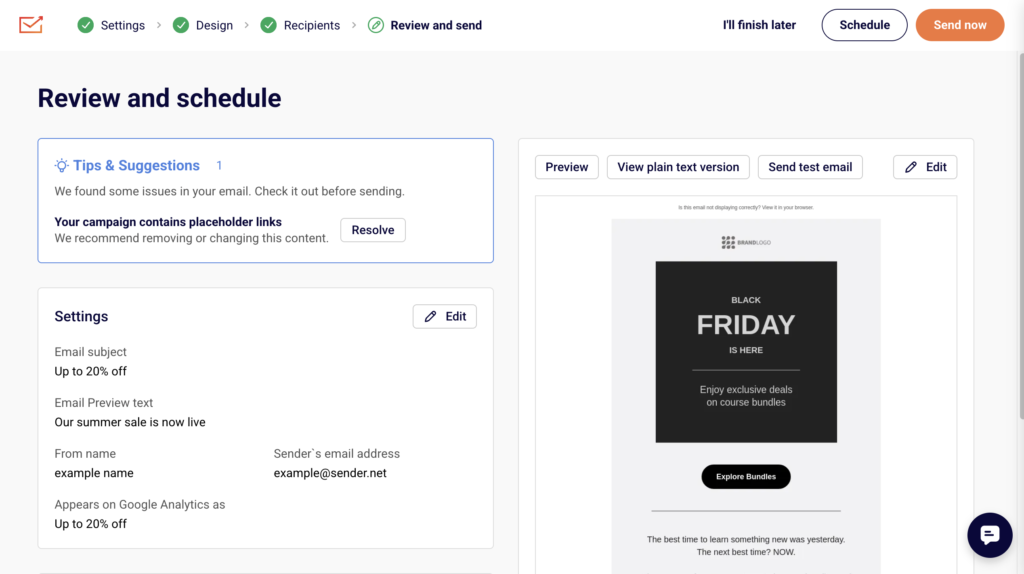
The Recipients section shows each selected group or segment, its type tag, and the recipient count. Confirm the Total subscribers count is correct, then proceed with Send now or Schedule.
What Happens After You Save
After saving your segment, it appears in the Subscribers → Segments list with columns for Active subscribers and Total subscribers. Segments are dynamic — subscriber counts update automatically as contacts meet or no longer meet the filter conditions. You can apply segments to any current or future email campaign from the Recipients step. To review or modify a segment’s rules, click View next to it on the Segments page to reopen the Advanced filter panel.
Common Issues
Segment shows 0 subscribers — The filter conditions are too narrow or no contacts match the defined rules. Adjust the conditions in the Advanced filter panel.
A group or segment does not appear on the Recipients page — The group or segment may have been deleted. Check the Subscribers → Segments or Subscribers → Groups pages to confirm it still exists.
Recipients count is lower than expected — Excluded groups or segments may be suppressing contacts. Review the Exclude groups/segments section on the Recipients step. Only active subscribers are counted — unsubscribed or bounced contacts are excluded automatically.
Cannot edit a segment’s filter rules directly — Open the segment by clicking View, adjust the conditions in the Advanced filter panel, then click Save as new segment to create an updated version. Use the dropdown menu (arrow icon) next to a segment to Rename or Delete it.
FAQs
What is the difference between a group and a segment?
Groups are static lists that contacts are manually added to or join through forms. Segments are dynamic and automatically include contacts who match the filter rules you define.
Can I select multiple groups and segments for one campaign?
Yes. On the Recipients step, check as many groups and segments as needed. Contacts appearing in more than one selection will only receive the campaign once.
Can I send to all subscribers without selecting a group or segment?
Yes. Check All active subscribers at the top of the Recipients page to include every active contact in your account.
What filter types are available for segments?
Filters include Subscription Status (Email, SMS), Subscriber Details (Group membership, Email address, Created date, Location), Campaign Activity (Sent, Opened, Clicked, Unsubscribed, Inactive), SMS Campaign Activity, and Fields (First name, Last name, Birthday).
How do AND and OR logic work in segment conditions?
Conditions added with Add condition within the same group use AND logic — all must be true. Conditions added with Add another set of conditions use OR logic — any group can be true for a contact to match.