

Resending to bounced recipients
This guide explains how to identify bounced recipients from a sent email campaign and resend the campaign to soft-bounced subscribers in Sender.
Where to Find This Setting
In the Sender dashboard, go to: Email campaigns → select a sent campaign → click the report icon (bar chart) in the Actions column → Subscriber actions → Soft bounces or Hard bounces.
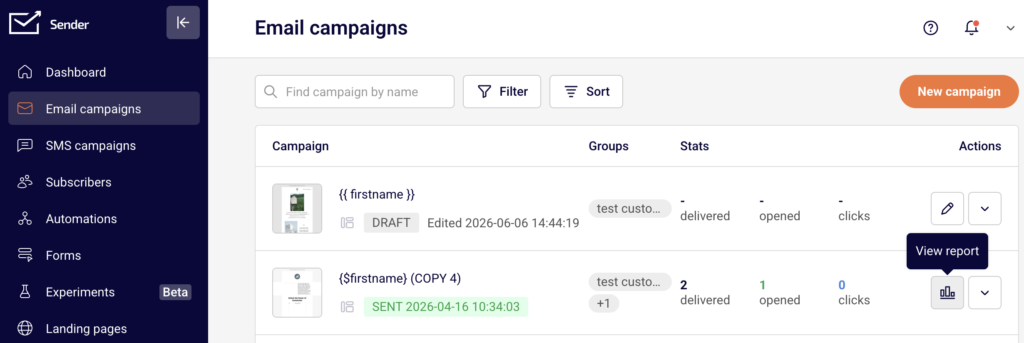
The bounce data is located in the Campaign overview report for any campaign with a Sent status. From the Subscriber actions sidebar, you can view individual bounced recipients, export the list, and decide whether to resend.

The Create a copy button on the Campaign overview page lets you duplicate the sent campaign into a new Draft for resending.
Steps to Resend to Bounced Recipients
Step 1 — Review bounced recipients in the campaign report
In the Email campaigns list, locate the sent campaign and click the report icon in the Actions column to open the Campaign overview. In the Statistics section, check the hard bounced and soft bounced counts.
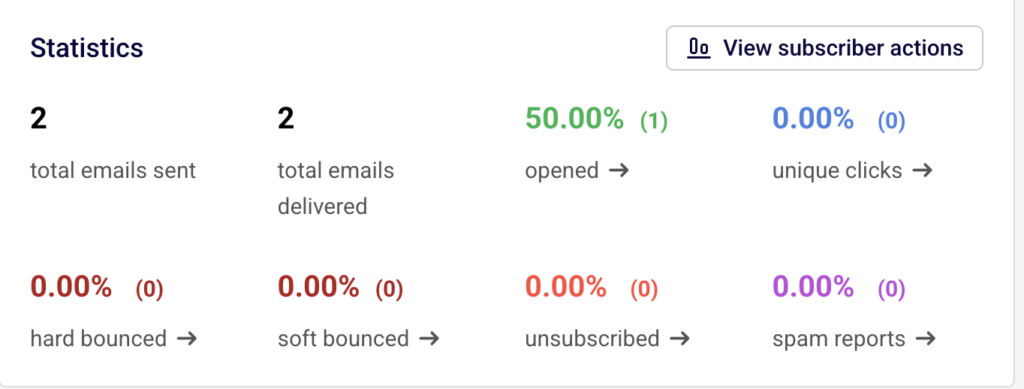
Click the arrow next to soft bounced → to open the Subscriber actions page filtered to the Soft bounces tab. Review the listed email addresses, bounce reasons, and timestamps. Only soft-bounced recipients are candidates for resending.
Step 2 — Export the soft-bounced recipient list
On the Subscriber actions page with the Soft bounces tab selected, click Export in the top-right corner. This downloads a file containing the email addresses of all soft-bounced recipients from that campaign. Save this file — you will use it to target these subscribers in the resend campaign. You can also use Print to create a printable version of the bounce report for reference.
Step 3 — Create a copy of the original campaign
Return to the Campaign overview page and click Create a copy in the top-right corner. Sender duplicates the campaign with all its settings and design intact, adding (COPY) to the campaign name.
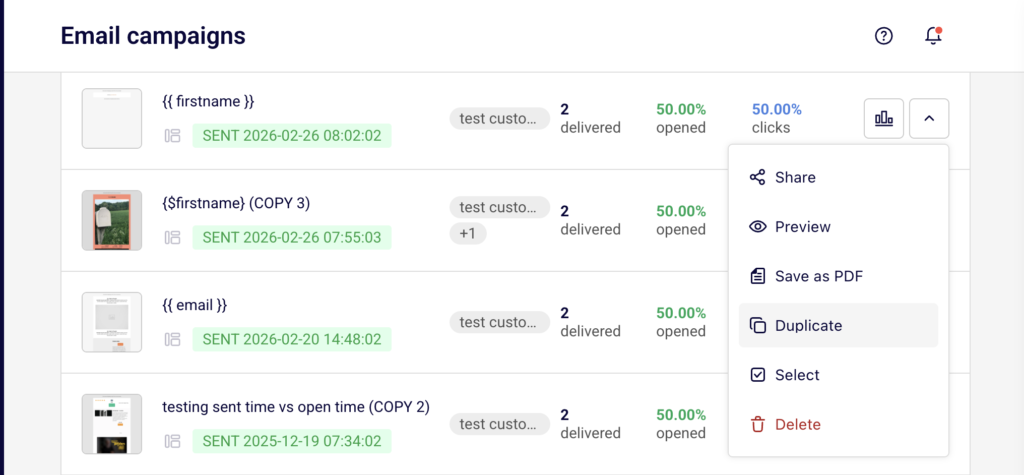
The new campaign appears at the top of your Email campaigns list with a Draft status. Click the edit icon to open the campaign workflow.
Step 4 — Update recipients and send
In the campaign workflow, navigate to the Recipients step. Remove the original recipient groups or segments, and select only the subscribers who soft-bounced.
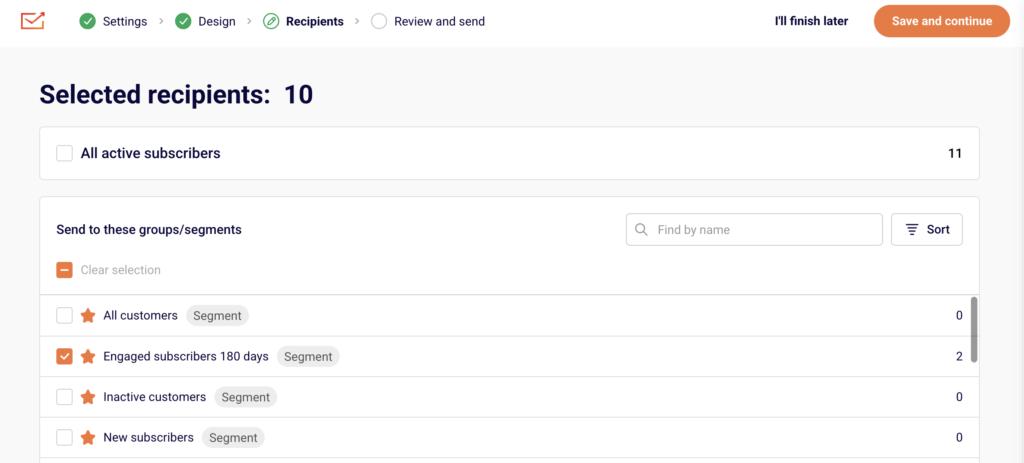
You can re-import the exported soft-bounce list as a new group, or manually select the relevant subscribers. Once the recipients are configured, proceed to the Review and send step. Click Send now to deliver immediately or Schedule to set a future date, time, and timezone for delivery.
Sending Behavior
Hard bounces vs. soft bounces — A hard bounce means the email address is permanently unreachable (e.g., the address does not exist). Sender automatically marks hard-bounced subscribers with a Bounced email status, and they are excluded from future sends. Soft bounces are temporary delivery failures (e.g., a full inbox) and these subscribers remain eligible for resending.
Bounced subscriber status — When a subscriber’s email status changes to Bounced, they are excluded from the All active subscribers recipient list and from any campaign targeting active subscribers. Only subscribers with an Active email status receive campaigns.
Create a copy behavior — Using Create a copy on a sent campaign duplicates the campaign settings, design, and subject line into a new Draft campaign. The recipient selection is not carried over from the original send — you must configure recipients manually in the copied campaign.
Campaign sending after resend — The resent campaign is tracked as a separate campaign in your Email campaigns list with its own statistics, including delivery, opens, clicks, and bounces. The original campaign report remains unchanged.
Sending Tips
Only resend to soft bounces — Hard-bounced addresses are permanently invalid. Resending to them will result in another bounce, waste your send quota, and may harm your sender reputation.
Wait before resending — Soft bounces are often caused by temporary issues such as a full inbox or a server outage. Wait at least 24–48 hours before resending to give the issue time to resolve.
Update the subject line — When creating a copy for resending, consider changing the subject line slightly to differentiate it from the original send and to reduce the chance of being filtered as a duplicate by inbox providers.
Check your send limits — Each resend campaign counts against your plan’s email send limit. Verify your remaining sends on the Billing page before sending.
Review bounce reasons — On the Hard bounces and Soft bounces tabs, each entry includes the bounce reason. Use this information to determine whether a resend is appropriate or whether the addresses need to be removed from your list.
Common Issues
Hard-bounced recipients cannot receive resends → Hard bounces indicate a permanent delivery failure. Sender marks these subscribers as Bounced, and they are automatically excluded from future sends. You cannot resend to hard-bounced addresses without first reactivating the subscriber, which is not recommended.
Exported bounce list does not match expected count → The export reflects the data at the time of download. If subscribers were removed or their status changed between sending and exporting, the count may differ from the campaign report.
Copied campaign sends to all subscribers instead of bounced ones → The Create a copy feature does not automatically target bounced recipients. You must manually update the recipient selection in the Recipients step to include only the soft-bounced subscribers.
Resend campaign shows new bounces → Some soft-bounced addresses may bounce again if the underlying issue has not been resolved. Monitor the resend campaign’s report and consider removing repeatedly bouncing addresses from your subscriber list.
FAQs
What is the difference between a hard bounce and a soft bounce? A hard bounce means the email address is permanently undeliverable — for example, the address does not exist or the domain is invalid. A soft bounce is a temporary failure, such as a full mailbox or a server timeout. Sender marks hard-bounced subscribers as Bounced and excludes them from future sends automatically.
Can I resend to hard-bounced recipients? No. Hard-bounced subscribers are marked with a Bounced email status and are excluded from active recipient lists. Resending to permanently invalid addresses harms your sender reputation and wastes your send quota. Focus resend efforts on soft-bounced recipients only.
How do I find bounced recipients for a specific campaign? Go to Email campaigns, find the sent campaign, click the report icon in the Actions column, then expand Subscriber actions in the sidebar. Click Hard bounces or Soft bounces to see the list of affected recipients, including bounce reasons and timestamps.
Can I export the list of bounced recipients? Yes. On the Subscriber actions page, select the Hard bounces or Soft bounces tab, then click Export in the top-right corner. The exported file contains the email addresses and bounce details for that campaign.
Does Sender automatically resend to bounced recipients? No. The Auto resend feature in Campaign settings automatically resends the campaign to subscribers who did not open the first send — it does not specifically target bounced recipients. To resend to soft-bounced subscribers, you must manually create a copy of the campaign and update the recipient list.
Will resending to soft-bounced recipients affect my sending limits? Yes. Each resend is a separate campaign that counts against your plan’s email send limit. Check your available sends on the Billing page before sending the copied campaign.