

Editing Scheduled Email Campaigns
This guide explains how to edit scheduled email campaigns in Sender using the email campaign feature. It shows where to find scheduled campaigns, how to modify their content and settings, and how to adjust or cancel their scheduled send time.
Where to Find This Feature
In the Sender dashboard, go to: Email campaigns (from the left sidebar)
To view only scheduled campaigns, click Filter and select Scheduled from the dropdown menu.
Steps to Edit a Scheduled Email Campaign
Step 1 — Cancel or Reschedule the Campaign
From the Email campaigns list, locate your scheduled campaign identified by the orange SCHEDULED ON badge showing the date and time. You have two options: click the clock icon to open the scheduling modal and pick a new date and time, or click the cancel icon to unschedule the campaign and return it to Draft status. Once unscheduled, the campaign becomes fully editable with a pencil icon appearing in the Actions column.

Step 2 — Access Campaign Settings
Click the pencil icon or navigate through the workflow stages at the top. On the Campaign settings page, you can modify the Campaign name, Email subject, and Email Preview text. The Sender details section lets you update the From name and Sender’s email address. An inbox preview on the right shows how your email will appear to recipients. Click Save and continue to proceed.

Step 3 — Modify the Email Design
On the Email campaign design page, click Edit design to open the drag and drop builder and make content changes. Use Send test email to preview how the email renders in actual inboxes, or click View plain text version to check the fallback format. When finished editing, click Next to continue to recipient selection.

Step 4 — Update Recipients
On the Recipients page, review and adjust your selected subscriber groups. The total count displays at the top showing how many subscribers will receive the campaign. Check or uncheck groups as needed, then click Save and continue to move to the final review stage.

Step 5 — Review and Reschedule
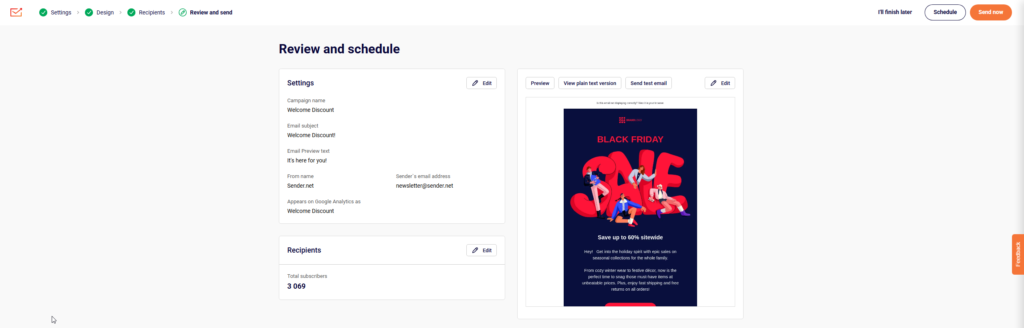
The Review and schedule page displays a summary of all campaign settings with Edit buttons for quick adjustments. Review the Tips & Suggestions section and click Resolve to address any issues. When ready, click Schedule to open the date and time picker, select your desired send date and time, then click Schedule to confirm. A confirmation message displays the scheduled time.
What Happens After You Save
After scheduling, the campaign appears in Email campaigns with a status of SCHEDULED showing the date and time. You can continue to reschedule by clicking the clock icon or cancel the schedule entirely using the cancel icon. Performance stats including delivered, opened, and clicks become available after the campaign sends.
Common Issues
Cannot find edit button for scheduled campaign → Scheduled campaigns show reschedule and cancel icons instead of the edit pencil. Cancel the schedule first to enable full editing.
Schedule button is disabled → Ensure all required fields are completed and any tips or warnings in the review page have been resolved.
Time zone confusion → The scheduling modal displays times in your local time zone as indicated by the “local time” label in the confirmation message.
FAQs
Can I edit a scheduled campaign without canceling it?
You can reschedule the send time by clicking the clock icon. To edit content or settings, you must first cancel the schedule using the cancel icon, make your changes, then reschedule.
What happens if I cancel a scheduled campaign?
The campaign returns to Draft status and will not send until you schedule or send it again. All your content and settings remain intact.
Can I duplicate a scheduled campaign?
Yes, click the dropdown arrow next to the action icons and select Duplicate to create a copy of the campaign that you can edit and schedule separately.