

Common Causes of Campaign Email Filtering or Blocking
If your campaign emails are not reaching subscriber inboxes, something in your sending setup, content, or list quality may be triggering spam filters or blocks. This guide walks you through how to identify and resolve the most common causes in Sender.
Where to Find This Feature
In the Sender dashboard, go to:
Email campaigns in the left sidebar to view campaign performance, or Account settings → Domains to check your domain authentication status.
Steps to Diagnose and Fix Email Filtering or Blocking
Step 1 — Check Your Domain Authentication
Go to Account settings → Domains. You will see your domain listed with columns for Ownership confirmed and Authentication. The Authentication column displays three indicators for SPF, DKIM, and DMARC — hover over each icon to confirm its type. All three must show a green checkmark. If any are missing or failing, your emails are far more likely to be filtered or blocked by inbox providers. Click Recheck DNS records to refresh the status after making changes in your DNS provider.

Step 2 — Review Campaign Bounce and Spam Metrics
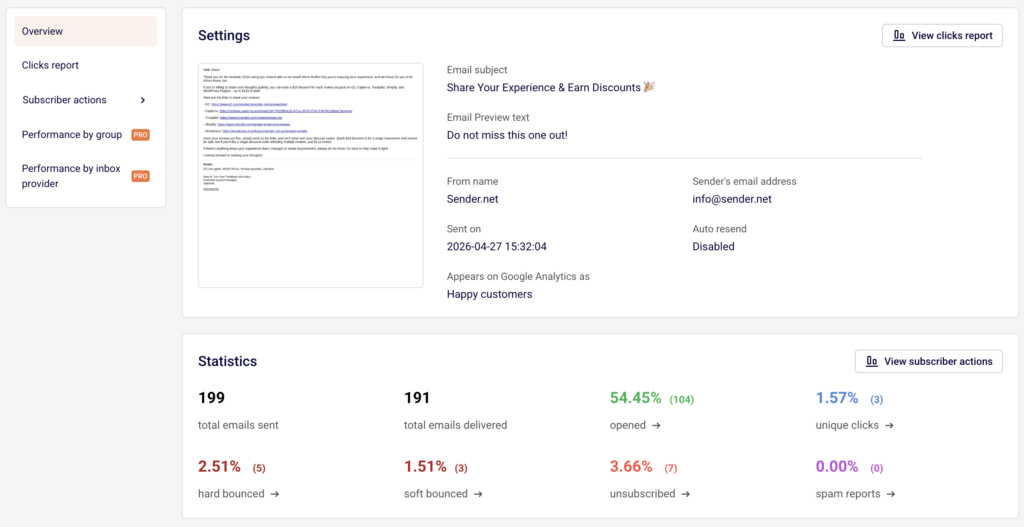
Open Email campaigns from the left sidebar and locate your sent campaign. Campaigns with delivery problems display a warning icon in the Actions column — hover over it to see a summary like “100% hard bounces.” Click the report icon to open the Campaign overview page. Under the Statistics section, review your hard bounced, soft bounced, and spam reports rates. High hard bounce rates indicate invalid addresses on your list. High spam report rates signal that recipients are marking your emails as unwanted, which damages sender reputation.
Step 3 — Clean Your Subscriber List
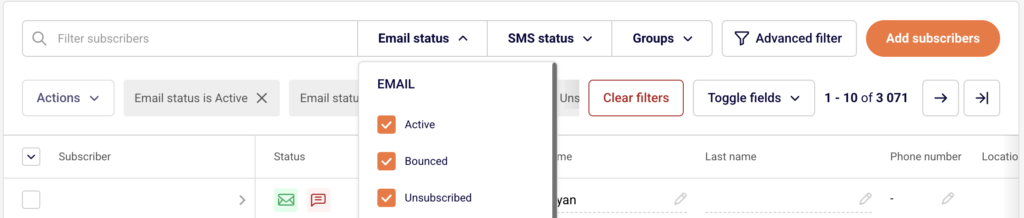
Go to Subscribers in the left sidebar. Use the Email status dropdown filter to identify subscribers with a status of Bounced, Unsubscribed, or Reported spam. Sending to addresses that have previously bounced or reported spam increases the chance that inbox providers will block or filter future campaigns. Remove or suppress these contacts before your next send. You can also use the Advanced filter option for more targeted list cleanup based on engagement.
Step 4 — Review Campaign Content and Sender Details
Open a campaign in draft status and click Settings in the top navigation bar. Confirm that your From name and Sender’s email address under Sender details match your authenticated domain. A mismatch between your sending address and your authenticated domain can trigger spam filters. Also review your Email subject and Email Preview text — avoid all-caps, excessive punctuation, or language commonly associated with spam. On the Design step, use Send test email to check how the email renders and whether it lands in your inbox or spam folder.
Step 5 — Monitor Performance by Subscriber Actions
From the Campaign overview page of a sent campaign, expand Subscriber actions in the left sidebar to view detailed breakdowns: Opens, Clicks, Hard bounces, Soft bounces, Unsubscribes, Spam reports, and Unopens. This helps you identify patterns. If a specific group or segment has a disproportionately high bounce or spam rate, that list source may be the problem. PRO plan users can also access Performance by inbox provider to see whether specific email providers (Gmail, Outlook, etc.) are filtering your campaigns.
What Happens After You Save
After making changes to your domain authentication, those updates take effect once DNS propagation completes — click Recheck DNS records on the Domains page to verify. After cleaning your subscriber list and adjusting your campaign content, send a new campaign and monitor its performance in the Campaign overview under Statistics. Improvements to your delivered, opened, and bounce rates will appear there after sending.
Common Issues
All emails hard bounced → Your subscriber list likely contains invalid or outdated email addresses. Filter by Bounced status under Subscribers and remove those contacts.
SPF, DKIM, or DMARC not verified → DNS records have not been added or have not propagated yet. Check your DNS provider settings and click Recheck DNS records on the Domains page.
High spam report rate → Recipients are marking your emails as spam. Review whether you have proper opt-in consent and whether your content matches what subscribers expect.
Emails landing in spam for Gmail or Outlook users → Specific inbox providers may filter based on sender reputation. Use Performance by inbox provider (PRO) to identify which provider is filtering, and focus on warming up your sending volume gradually.
From address does not match authenticated domain → The Sender’s email address in campaign Settings must use the same domain verified on the Domains page.
FAQs
Where do I check if my domain authentication is set up correctly?
Go to Account settings → Domains. All three indicators (SPF, DKIM, DMARC) should show green checkmarks.
How do I find out which emails bounced in a campaign?
Open the campaign report from Email campaigns, then expand Subscriber actions and click Hard bounces or Soft bounces.
Can I see which email provider is blocking my campaigns?
Yes, if you are on a PRO plan. In the Campaign overview, click Performance by inbox provider in the left sidebar.
What subscriber statuses should I avoid sending to?
Do not send to subscribers with a status of Bounced, Reported spam, or Unsubscribed. Filter these using the Email status dropdown on the Subscribers page.
Does Sender automatically stop sending to bounced addresses?
Sender marks hard-bounced addresses with a Bounced status. These addresses are excluded from future sends automatically, but reviewing and removing them helps keep your list healthy.