

Email campaign scheduling behavior
This guide shows how to send or schedule an email campaign in Sender. It walks through the final steps of the campaign workflow—from reviewing your settings to choosing when your campaign goes out—and what happens after you set it up.
Where to Find This Feature
In the Sender dashboard, go to:
Email campaigns (left sidebar) → select a campaign → navigate to the Review and send stage.
The campaign workflow follows four stages displayed in the top breadcrumb: Settings → Design → Recipients → Review and send. Sending and scheduling options appear only on the final stage.
Steps to Send or Schedule a Campaign
Step 1 — Review your campaign on the Review and send page
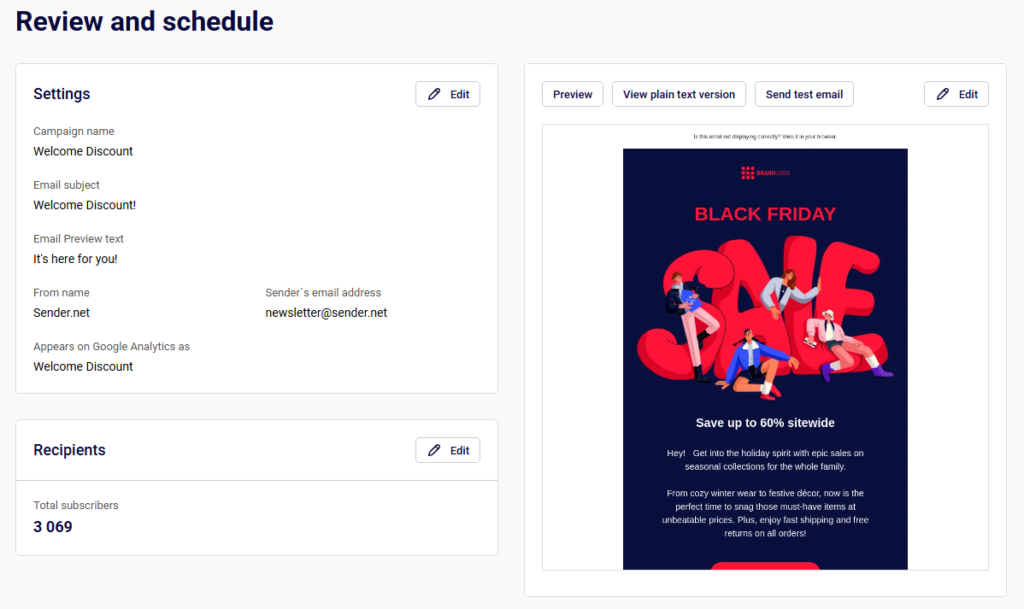
When you reach the Review and send stage, the page title reads Review and schedule. This page summarizes your campaign across three sections: Settings (email subject, from name, sender’s email address, auto resend status, and Google Analytics tracking), Recipients (total subscriber count), and Tips & Suggestions (flagged issues like a missing preview text). On the right side, you can click Preview, View plain text version, or Send test email to verify your content before sending.
Step 2 — Resolve any flagged issues
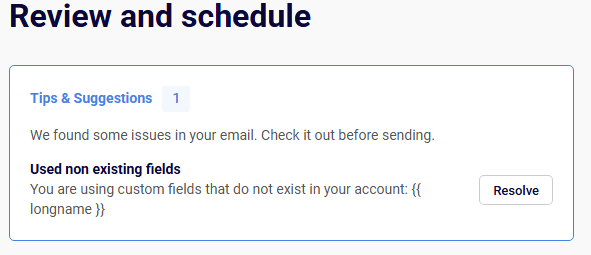
The Tips & Suggestions panel at the top highlights items to fix before sending. Each suggestion includes a Resolve button that takes you to the relevant setting. For example, if email preview text is missing, clicking Resolve lets you add it. You can also click the Edit button next to the Settings or Recipients sections to go back and make changes without losing your progress.
Step 3 — Choose Send now or Schedule
At the top right of the Review and schedule page, you see three options: I’ll finish later, Schedule, and Send now.
To send immediately, click Send now. A confirmation dialog titled Send campaign appears with the message “Are you sure? This action cannot be undone.” Click Yes to confirm, or Cancel to go back. Once confirmed, the campaign begins sending right away.

Step 4 — Schedule the campaign for later
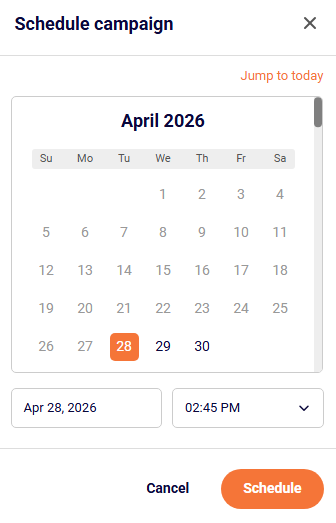
Click Schedule to open the Schedule campaign modal. Select a date using the calendar picker and choose a send time from the time dropdown, which offers 15-minute intervals (e.g., 02:00 PM, 02:15 PM, 02:30 PM). Use the Jump to today link to quickly return to the current date. Past dates are not selectable. Once your date and time are set, click Schedule to confirm. The campaign status changes to Scheduled on the Email campaigns list.
Step 5 — Configure Auto resend (optional)
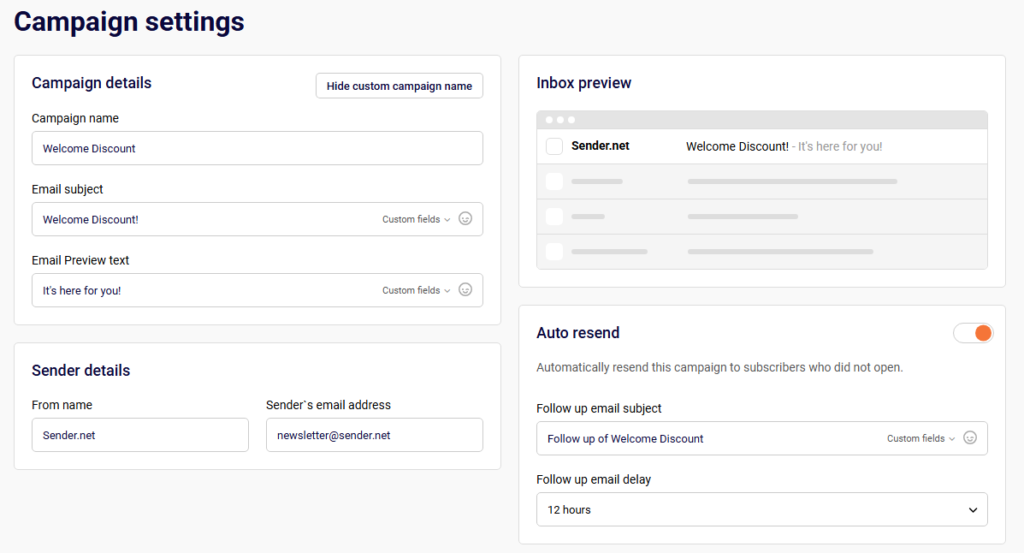
On the Campaign settings page (the Settings stage), toggle on Auto resend to automatically resend the campaign to subscribers who did not open it. When enabled, two additional fields appear: Follow up email subject (pre-filled with “Follow up of [your campaign name]”) and Follow up email delay, which offers options from 12 hours up to 7 days. The auto resend fires automatically after the selected delay once the original send completes.
What Happens After You Save
After sending or scheduling, the campaign appears in the Email campaigns list with one of these statuses: Draft, Scheduled, Sending, or Sent. You can filter the list by status using the Filter button.
A scheduled campaign remains editable until its scheduled send time. From the actions dropdown (chevron icon) on a campaign row, you can access options like Edit auto resend, Cancel auto resend, Preview, Save as PDF, Duplicate, or Delete.
Once a campaign has been sent, performance stats—delivered, opened, and clicks—appear directly in the campaign list. Click the stats icon (bar chart) on a sent campaign to view the full report.
Timezone Behavior
Scheduled send times use your account’s timezone setting. To verify or change it, go to Account settings → General settings and find the Time zone dropdown under Company info. Make sure this is set correctly before scheduling campaigns, as the selected time in the Schedule campaign modal reflects this timezone.
Common Issues
Campaign not sending at the expected time → The account timezone may be set incorrectly. Check Account settings → General settings → Time zone.
Cannot select a past date in the scheduler → The calendar only allows future dates and times. Use Send now if you need to send immediately.
Auto resend not appearing in the review summary → The Auto resend toggle must be enabled on the Settings stage before reaching the Review and send page.
Schedule button is unavailable → Ensure all required fields (subject line, recipients, design) are completed. Check Tips & Suggestions for unresolved issues.
FAQs
Can I edit a scheduled campaign?
Yes. A scheduled campaign can be edited until its scheduled send time. Open it from the Email campaigns list and make changes through any of the workflow stages.
Can I cancel a scheduled campaign?
Yes. Open the campaign and change or remove the schedule. The campaign reverts to Draft status.
What time format does the scheduler use?
The time dropdown uses a 12-hour format (AM/PM) with 15-minute intervals.
Does Send now require confirmation?
Yes. A confirmation dialog asks “Are you sure? This action cannot be undone.” You must click Yes to proceed.
How does Auto resend work with scheduled campaigns?
The auto resend delay begins after the initial campaign finishes sending. For example, if you schedule a campaign for 9:00 AM and set the follow-up delay to 12 hours, the resend goes out around 9:00 PM to subscribers who did not open the first email.
Where can I change my account timezone?
Go to Account settings → General settings and update the Time zone dropdown.