

Reply-to address configuration
This guide explains how to configure the reply-to address for an email campaign in Sender.
Where to Find This Feature
In the Sender dashboard, go to: Email campaigns → New campaign → Campaign settings
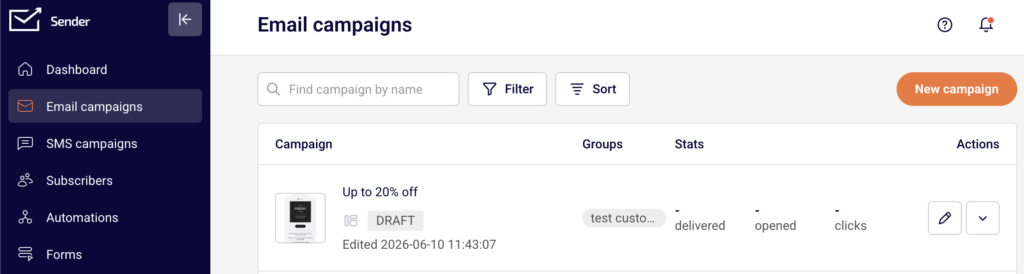
When you click New campaign, you are taken to the Campaign settings page — the first stage of the campaign creation workflow (Settings → Design → Subscribers → Review and send). The Sender details section on this page contains the Sender’s email address field, which controls where recipient replies are delivered.
Steps to Configure the Reply-to Address
Step 1 — Open the Campaign Settings page
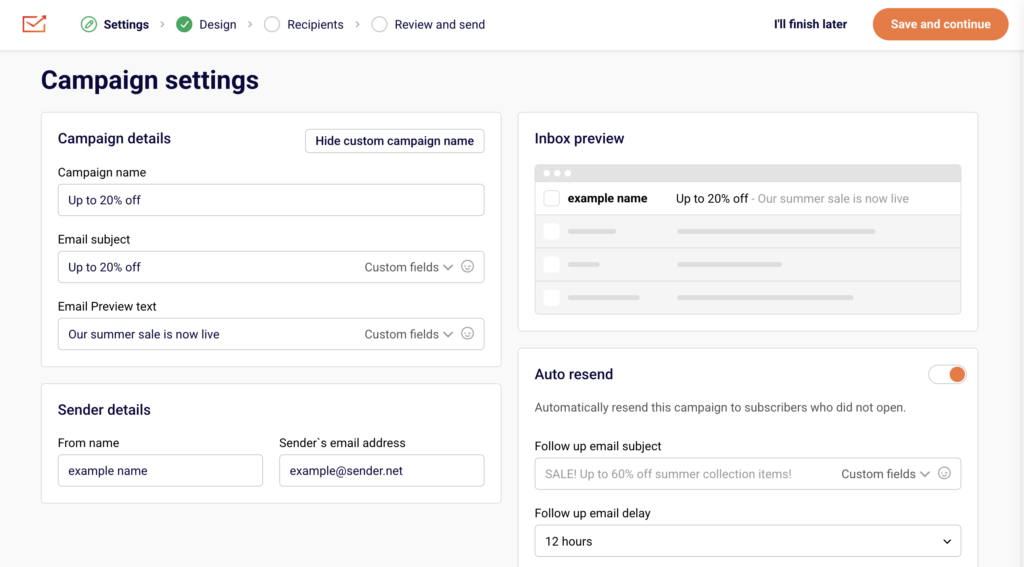
From the Sender dashboard sidebar, click Email campaigns. On the campaign list page, click New campaign in the upper-right corner. You are taken to the Campaign settings page with the Settings stage active in the workflow bar. You will see two main sections: Campaign details and Sender details.
Step 2 — Locate the Sender details section
Scroll to the Sender details section below Campaign details. This section contains two fields: From name and Sender’s email address. Both fields are pre-filled with your account defaults.
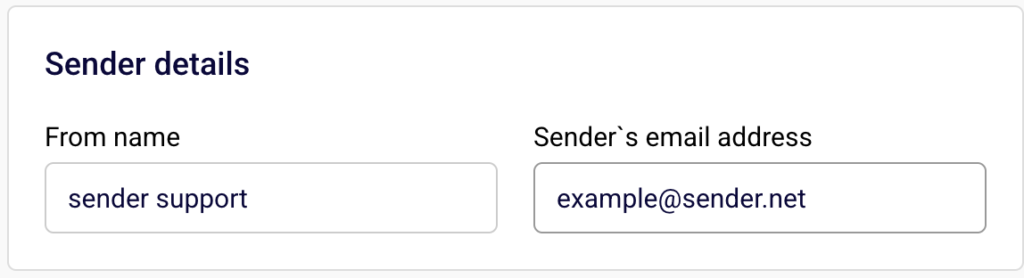
The Sender’s email address field determines the reply-to address for your campaign — when a recipient replies to your email, the response is sent to this address.
Step 3 — Enter or update the Sender’s email address
Click the Sender’s email address field and enter the email address where you want recipient replies delivered. This address must use a verified domain. The From name field controls the display name recipients see in their inbox, while the Sender’s email address serves as both the sending address and the reply-to address.
Step 4 — Verify your settings in the Inbox preview
After entering the address, check the Inbox preview panel on the right side of the page. It displays a simulated inbox row showing the From name, Email subject, and Email Preview text.
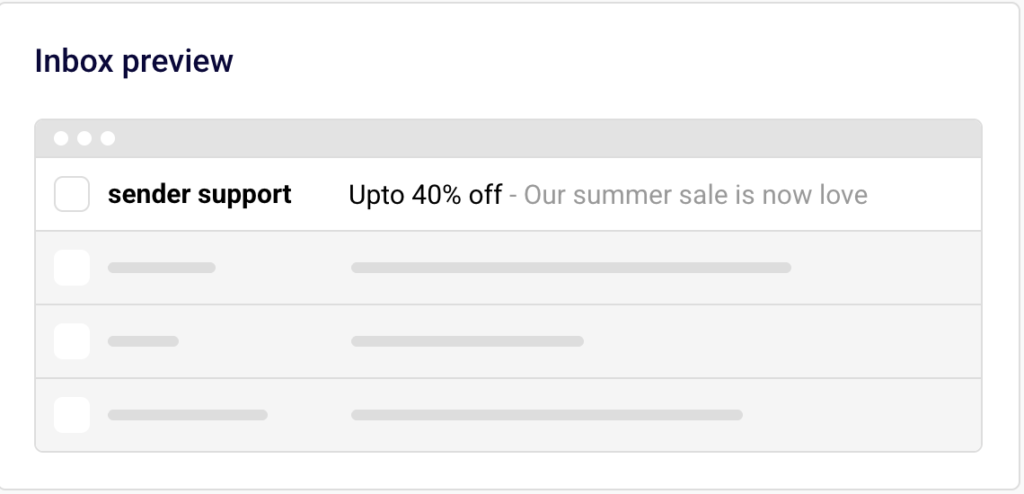
Confirm that the sender name appears as expected. When you are satisfied, click Save and continue to proceed to the Design stage.
Available Settings
From name — The display name recipients see in their inbox when they receive the campaign email. This can be your brand name, a personal name, or any identifiable sender name.
Sender’s email address — The email address used as both the “from” address and the reply-to address. When a recipient replies to your campaign, the response is delivered to this address. The address must use a verified domain configured under Account settings → Domains.
Email subject — The subject line of the campaign email. Supports personalization through the Custom fields dropdown.
Email Preview text — The preview snippet displayed alongside the subject line in the recipient’s inbox. Supports personalization through the Custom fields dropdown.
Set custom campaign name — An optional internal label for the campaign that does not appear to recipients. Click Set custom campaign name to reveal the Campaign name field.
Auto resend — A toggle that enables automatic resending of the campaign to subscribers who did not open the original email.
Setup Tips
Use a monitored inbox — Set the Sender’s email address to an email address that your team actively monitors, so recipient replies are seen and responded to promptly.
Verify your domain first — Before entering a sender email address, ensure the domain is verified under Account settings → Domains. An unverified domain will prevent you from sending the campaign.
Match sender identity to your brand — Set the From name to a recognizable name such as your company or brand name, so recipients can quickly identify who the email is from.
Keep the sender address consistent — Using the same Sender’s email address across campaigns helps build sender reputation and reduces the likelihood of your emails being marked as spam.
Use a professional email address — Avoid free email providers (e.g., Gmail, Yahoo) for the Sender’s email address. Use an address on your own verified domain for better deliverability and trust.
Common Issues
Replies are going to the wrong address → The reply-to address is determined by the Sender’s email address field. Open the campaign’s Settings stage and update the Sender’s email address to the correct address where you want replies delivered.
Cannot enter a sender email address → The domain portion of the email address must be verified. Go to Account settings → Domains and verify the domain before using it in the Sender’s email address field.
Sender’s email address field shows an unfamiliar address → The field is pre-filled with your account default. Click the field and replace it with the correct email address for this specific campaign.
Recipients see the wrong sender name → The inbox display name is controlled by the From name field, not the Sender’s email address field. Update the From name field in the Sender details section to change the name recipients see.
FAQs
Can I set a reply-to address that is different from the sender’s email address? In Sender, the Sender’s email address field serves as both the sending address and the reply-to address. There is no separate reply-to address field. To direct replies to a specific inbox, enter that email address in the Sender’s email address field during the Settings stage of campaign creation.
Where do replies go when a subscriber responds to my campaign? Replies are delivered to the email address entered in the Sender’s email address field under the Sender details section of the Campaign settings page.
Can I change the reply-to address after creating the campaign? Yes. Open the campaign from the Email campaigns list, navigate to the Settings stage, and update the Sender’s email address field. Save the changes by clicking Save and continue. Changes can be made at any time before the campaign is sent.
Does the Sender’s email address need to be on a verified domain? Yes. The email address must use a domain that has been verified under Account settings → Domains. An unverified domain will prevent you from sending the campaign.
What is the difference between From name and Sender’s email address? The From name is the display name recipients see in their inbox (e.g., “Acme Store”). The Sender’s email address is the actual email address used for sending and receiving replies (e.g., “hello@acme.com“). Both are configured in the Sender details section of the Settings stage.