

Image Display Behavior in Emails
This guide shows how to control image display behavior in Sender. It walks you through customizing how images appear, scale, and respond across devices in the drag-and-drop email builder, so your campaigns look great in every inbox.
Where to Find This Feature
In the Sender dashboard, go to:
Email campaigns → select a campaign → Design → Edit design
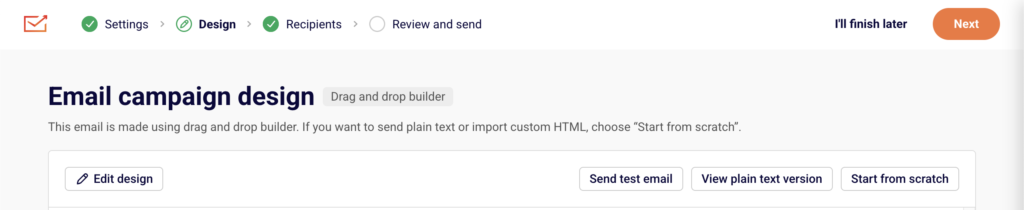
This opens the drag-and-drop builder where you can add and configure Image, Logo, and other visual blocks.
Steps to Configure Image Display
Step 1 — Add or Select an Image Block
In the builder, drag the Image block from the Building blocks panel on the left into your email layout. To edit an existing image, click directly on it in the canvas.
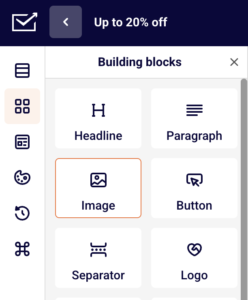
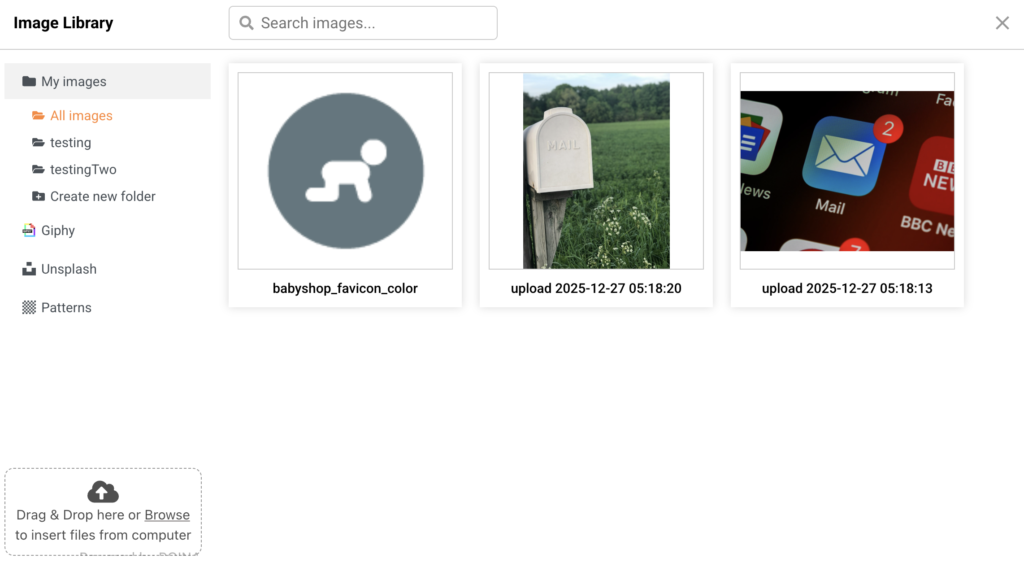
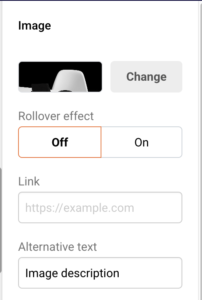
The image settings panel appears on the right side. Click Change to open the Image Library, where you can upload files via drag and drop or Browse, or choose from My images, Giphy, Unsplash, or Patterns.
Step 2 — Adjust Image Properties
With the image selected, configure display options in the right panel. Use the Alternative text field to add a description shown when images are blocked by email clients. Enter a URL in the Link field to make the image clickable.
Drag the Corner radius slider or enter a pixel value to round the image corners. To resize the image width, drag the orange handle on the right edge of the image in the canvas.
Step 3 — Configure the Rollover Effect
Toggle Rollover effect to On to display a second image when recipients hover over the original. Click Change next to Rollover image to upload the alternate image. Use the same dimensions as the original for the best result. Note: this feature works only in select email clients — Yahoo! Mail, AOL, Gmail, iCloud Mail, Outlook 2003, and MacOS Apple Mail. In unsupported clients, only the primary image displays.
Step 4 — Set Block and Column Display Options
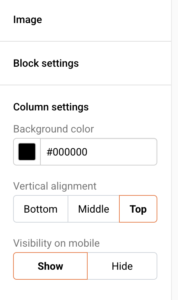
Expand Block settings to adjust Spacing values (Top, Bottom, Left, Right) and the block Background color. Expand Column settings to set Vertical alignment (Bottom, Middle, or Top), a column Background color, and Visibility on mobile — toggle between Show and Hide to control whether the image appears on mobile devices.
For Logo blocks specifically, you also get Alignment and Alignment on mobile options (left, center, or right).
Step 5 — Preview Across Devices and Modes
Click the preview icon (eye) in the top toolbar to see your email rendered side by side in desktop and mobile views. Images automatically scale down to fit the mobile container width.

Toggle Dark mode preview to check how your images appear against a dark background. The Email size indicator at the top left helps you monitor total weight — keep images optimized to avoid slow load times.
What Happens After You Save
After saving, your email design is stored as a draft on the Design step of your campaign. You can reopen the builder at any time by clicking Edit design. Use Send test email to verify image rendering in a real inbox before finalizing. Continue editing or click Next to proceed to Recipients.
Common Issues
Images appear broken in some inboxes — The recipient’s email client may block remote images by default. Always add descriptive Alternative text so context displays even when images are not loaded.
Rollover effect not working — The rollover feature is only supported in a limited number of email clients. In unsupported clients, recipients see only the primary image.
Image looks different on mobile — Images scale to fill the available container width on smaller screens. If Visibility on mobile is set to Hide under Column settings, the image will not display on mobile devices at all.
Image appears stretched or pixelated — Use source images that match or exceed the display width of the email content area. Resize using the drag handle in the editor rather than uploading undersized files.
FAQs
What image sources are available in the builder?
You can upload your own images, or pick from the built-in Giphy, Unsplash, and Patterns libraries directly inside the Image Library.
Can I hide an image on mobile only?
Yes. Select the image block, expand Column settings, and set Visibility on mobile to Hide.
Does the rollover effect work in all email clients?
No. It is supported in Yahoo! Mail, AOL, Gmail, iCloud Mail, Outlook 2003, and MacOS Apple Mail only. Other clients display the primary image.
How do I add alt text to an image?
Select the image block and enter your description in the Alternative text field in the right-side settings panel.
Can I add a link to an image?
Yes. Enter a destination URL in the Link field within the image settings panel to make the image clickable.