

Canceling Scheduled Email Campaigns
This guide explains how to cancel a scheduled email campaign in Sender using the Email campaigns feature. It shows where to find scheduled campaigns, how to cancel them, and what happens after cancellation.
Where to Find This Feature
In the Sender dashboard, go to:
Main Sidebar → Email campaigns
Steps to Cancel a Scheduled Campaign
Step 1 — Locate the Scheduled Campaign
Navigate to the Email campaigns page from the left sidebar. Scheduled campaigns display an orange SCHEDULED ON [date time] status badge beneath the campaign name. You can use the Filter dropdown and select Scheduled to view only campaigns awaiting delivery. The filter shows how many scheduled campaigns exist and makes them easier to find among your drafts and sent campaigns.

Step 2 — Click the Cancel Schedule Button
Each scheduled campaign row shows action icons on the right side. Look for the Cancel schedule icon (a stop symbol) located between the clock icon and the dropdown menu. Hover over it to confirm the tooltip reads “Cancel schedule.” Click this icon to begin the cancellation process.

Step 3 — Confirm the Cancellation
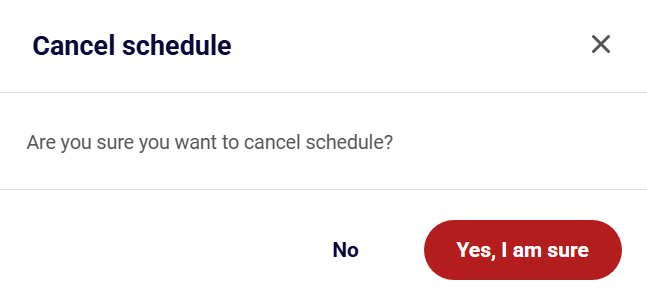
A confirmation dialog appears with the message “Are you sure you want to cancel schedule?” Review the prompt to ensure you’re canceling the correct campaign. Click Yes, I am sure to proceed with cancellation, or click No to keep the campaign scheduled. This step prevents accidental cancellations.
Step 4 — Verify the Status Change
After confirming, a green notification banner appears at the top of the screen displaying “Campaign schedule cancelled.” The campaign status changes from the orange scheduled badge to a gray DRAFT badge. The action buttons also update—the scheduling icons disappear and are replaced by an edit (pencil) icon, indicating the campaign is now editable.

What Happens After You Save
After canceling, the campaign appears in the Email campaigns list with a DRAFT status. You can continue editing the campaign content, settings, or recipients. When ready, you can reschedule it by clicking the edit icon, navigating to the Review and send step, and clicking Schedule to select a new date and time. The campaign remains in draft status until you reschedule or send it immediately.
Common Issues
Cannot find the cancel button → The Cancel schedule icon only appears for campaigns with a scheduled status. Draft or sent campaigns do not display this option.
Campaign still shows as scheduled → Refresh the page if the status doesn’t update immediately after cancellation.
Accidentally canceled the wrong campaign → Reschedule the campaign by clicking the edit icon, proceeding to the Review and send step, and setting a new schedule.
FAQs
Can I reschedule a campaign after canceling it?
Yes, canceled campaigns return to draft status and can be rescheduled at any time through the campaign editor.
Will canceling a scheduled campaign delete my content?
No, cancellation only removes the scheduled send time. All campaign content, settings, and recipient selections remain intact.
Can I cancel a campaign that is currently sending?
No, the Cancel schedule option is only available for campaigns in the scheduled state. Campaigns that are actively sending cannot be stopped.
How do I find all my scheduled campaigns quickly?
Use the Filter dropdown above the campaign list and select Scheduled to display only campaigns awaiting delivery.