

Campaign sending limits
This guide explains the email sending limits that apply to campaigns in Sender, how to check your remaining sends, and what happens when you reach your plan’s limit.
Where to find this setting
In the Sender dashboard, go to Account settings → Billing.
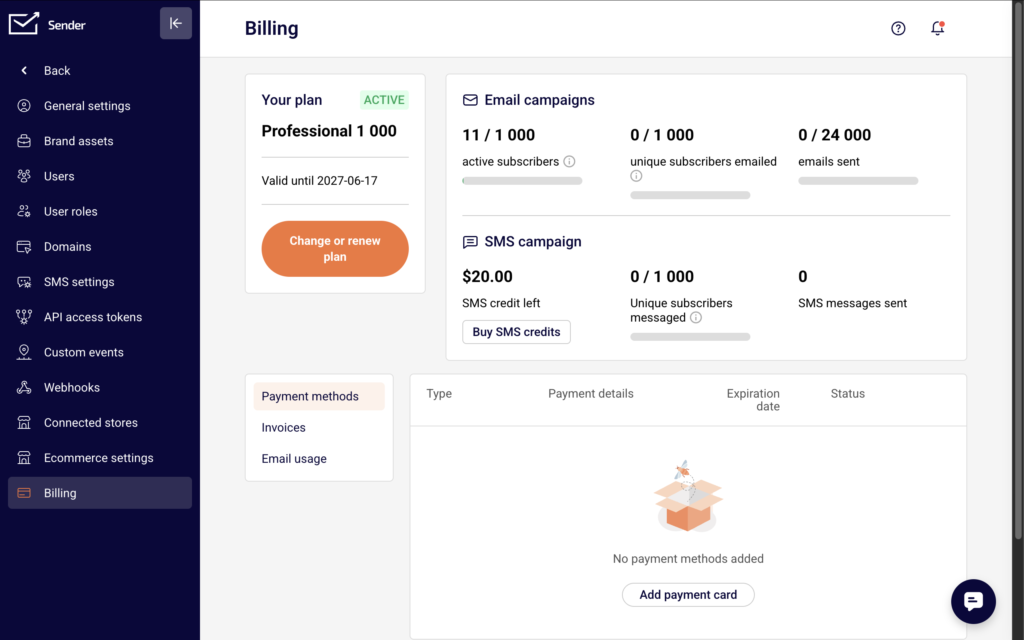
The Billing page displays your current plan name, status, and email campaign usage. At the top of the page, the Email campaigns section shows three counters: active subscribers, unique subscribers emailed, and emails sent. The emails sent counter displays your usage against your plan’s monthly allowance (for example, 0 / 24,000).
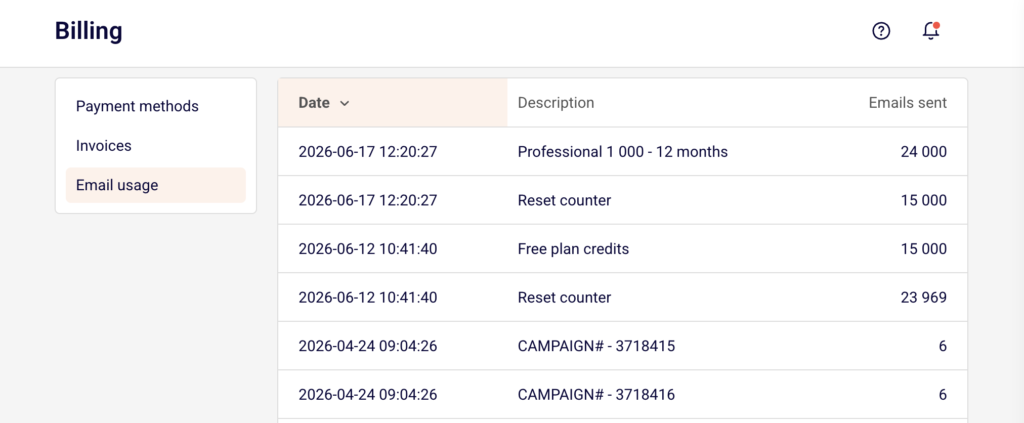
To view a detailed history of credit usage and resets, select the Email usage tab on the same page.
Steps to check and manage your sending limits
Step 1 — Review your current plan and email allowance
Go to Account settings → Billing. Your plan name and status appear in the Your plan card on the left. The Email campaigns section to the right shows your emails sent counter as a fraction of your total monthly allowance. Each plan has a different limit: the Free plan includes up to 15,000 emails per month, Standard includes up to 12,000, and Professional includes up to 24,000. Enterprise plans offer unlimited sends.
Step 2 — Check your remaining sends before sending a campaign
Before clicking Send now or Schedule on the Review and schedule stage of your campaign, compare the number of recipients (shown in the Recipients section as Total subscribers) against the remaining emails in your emails sent counter on the Billing page. If the campaign’s recipient count exceeds your remaining allowance, sending may be restricted or partially delivered.
Step 3 — Monitor email usage history
On the Billing page, select the Email usage tab to view a log of email credit changes. This log shows when your counter was reset, when plan credits were applied, and how many emails each campaign consumed. Use this log to track usage trends and anticipate when you may approach your limit during a billing cycle.
Step 4 — Upgrade your plan if needed
If you consistently reach your sending limit, click Change or renew plan on the Billing page. Select a plan with a higher email allowance. The new limit takes effect immediately after the upgrade is processed. Your emails sent counter on the Billing page will reflect the updated allowance.
Sending behavior
Monthly email allowance — Each Sender plan includes a fixed number of emails you can send per billing cycle. The Free plan allows up to 15,000 emails/month, Standard allows up to 12,000, Professional allows up to 24,000, and Enterprise offers unlimited sends. These limits apply to all email campaigns and auto-resends combined.
Counter reset — Your emails sent counter resets automatically at the start of each billing cycle. You can verify the exact reset dates in the Email usage tab on the Billing page, where each reset appears as a “Reset counter” entry.
Sending restriction when limit is reached — If your campaign’s recipient count exceeds the remaining sends available in your billing cycle, Sender may prevent the campaign from sending or restrict delivery. The campaign will not partially send to some recipients and skip others without notification.
Auto resend counts toward your limit — When Auto resend is enabled on the Campaign settings page, the follow-up delivery to non-openers counts as additional sends against your monthly allowance. Factor this into your remaining email balance before enabling the feature.
Subscriber limits — In addition to the email send limit, each plan has a maximum number of active subscribers. If your subscriber count exceeds your plan’s limit, you may need to upgrade before sending. The active subscribers counter is displayed on the Billing page.
Sending tips
Check your balance before large campaigns — Open the Billing page and review the emails sent counter before sending to a large list. This prevents unexpected delivery failures mid-campaign.
Account for auto resend in your budget — If you plan to enable Auto resend, remember that the follow-up send will consume additional emails from your monthly allowance. A campaign sent to 5,000 recipients with auto resend enabled could use up to 10,000 sends total.
Use the Email usage tab for planning — Review the Email usage log regularly to understand your sending patterns. This helps you predict whether you will have enough sends remaining for upcoming campaigns later in the billing cycle.
Upgrade before peak sending periods — If you anticipate a high-volume sending month (seasonal promotions, product launches), upgrade your plan in advance by clicking Change or renew plan on the Billing page.
Common issues
Campaign won’t send due to limit reached → Your emails sent counter has reached the plan’s maximum for the current billing cycle. Go to Account settings → Billing to verify your usage. Upgrade your plan or wait for the counter to reset at the start of the next billing cycle.
Emails sent counter seems incorrect → Auto resends, test emails, and all campaign sends count toward the total. Check the Email usage tab for a detailed breakdown of what consumed your credits.
Subscriber count exceeds plan limit → The active subscribers counter on the Billing page shows you have more subscribers than your plan allows. Remove inactive subscribers or upgrade to a plan with a higher subscriber allowance before sending.
Scheduled campaign failed to send at the scheduled time → If your email allowance was exhausted between the time you scheduled the campaign and the scheduled send time, delivery may be blocked. Check your emails sent counter on the Billing page and ensure sufficient credits are available before the scheduled send time.
FAQs
Is there a limit on how many emails I can send per campaign? There is no per-campaign limit. Campaign sending is subject to your plan’s monthly email allowance. If your campaign exceeds the remaining sends available in your billing cycle, sending may be restricted. Check your usage on the Billing page under Account settings.
Where can I see how many emails I have left this month? Go to Account settings → Billing. The emails sent counter in the Email campaigns section shows your current usage against your plan’s total monthly allowance (for example, 500 / 24,000).
When does my email send counter reset? The counter resets automatically at the start of each billing cycle. You can see the exact reset dates in the Email usage tab on the Billing page, where reset events are logged with the entry “Reset counter.”
Does auto resend count toward my sending limit? Yes. When Auto resend is enabled, the follow-up delivery to non-openers is counted as separate sends against your monthly email allowance. Plan your send volume accordingly.
What happens if I exceed my subscriber limit but not my email limit? Each plan includes both a subscriber limit and an email send limit. If your active subscribers count exceeds your plan’s maximum, you may need to upgrade your plan or reduce your subscriber list before you can send campaigns, even if you have emails remaining in your allowance.
Can I buy additional email credits without upgrading my plan? Check the Billing page for available options. If your current plan does not offer add-on email credits, upgrading to a higher