

Email campaign report update timing
This guide explains when and how email campaign report data updates in Sender, how to access your report, and what to expect as statistics populate after sending.
Where to Find This Feature
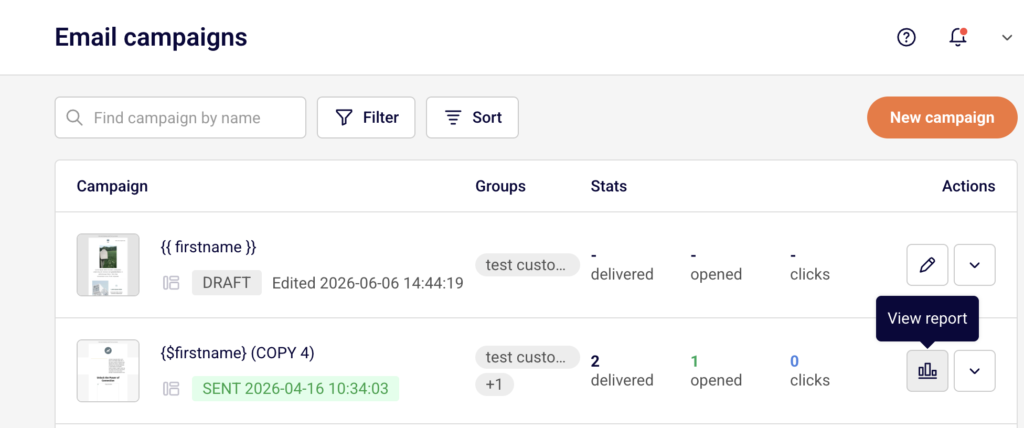
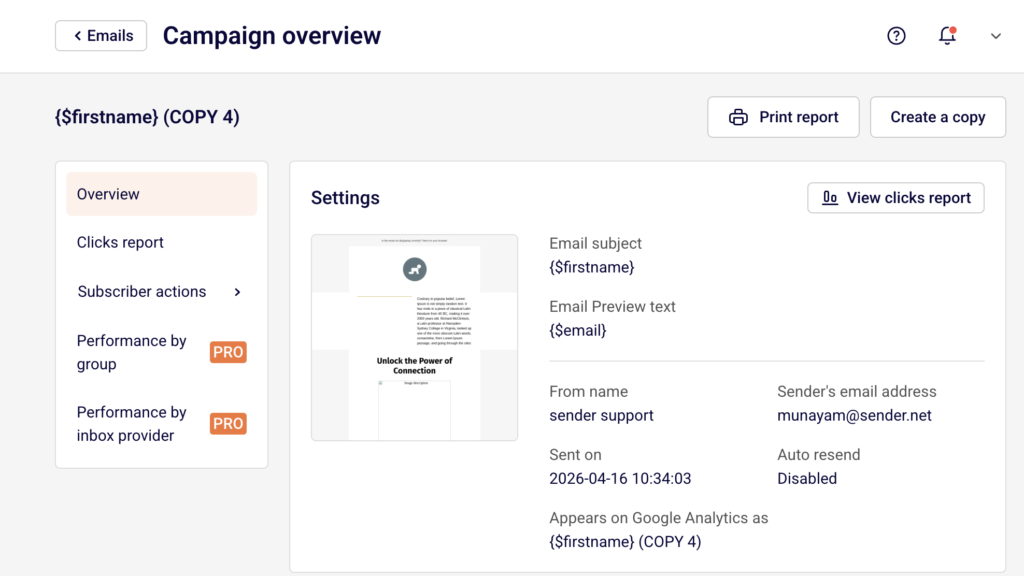
In the Sender dashboard, go to: Email campaigns → select a sent campaign → click the report icon (bar chart) → Campaign overview
Steps to Check Report Update Timing
Step 1 — Send the Campaign and Open the Report
After your campaign is sent, return to Email campaigns in the left sidebar. Sent campaigns display a green SENT badge with a timestamp. In the Stats column, you can see inline delivered, opened, and clicks values. Click the report icon next to the sent campaign to open the Campaign overview page.
Step 2 — Review the Statistics Section
On the Campaign overview page, scroll to the Statistics section. This displays eight tracked metrics: total emails sent, total emails delivered, opened, unique clicks, hard bounced, soft bounced, unsubscribed, and spam reports. Each metric is clickable and links to a detailed Subscriber actions view.
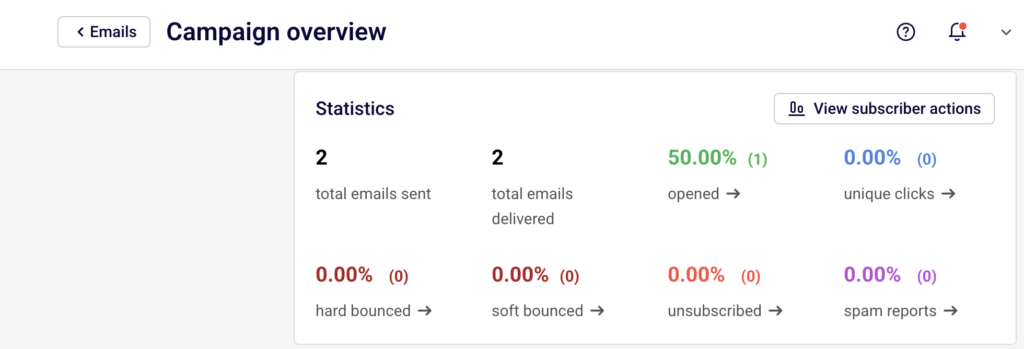
Report data updates automatically every few minutes after the campaign is sent — no manual refresh is needed.
Step 3 — Monitor Engagement Over Time
Scroll further to view the Opens and clicks by day and Opens and clicks by hour charts.
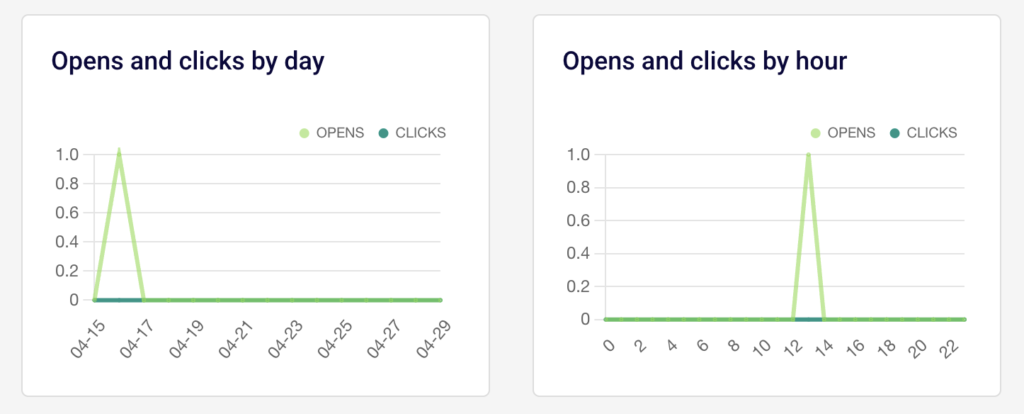
These charts update alongside the statistics and show how engagement trends develop over the hours and days following delivery. Use these to understand when your recipients are most active.
Step 4 — Explore Detailed Report Tabs
Use the left sidebar within the report to access additional views. Clicks report shows a visual click map of your email with per-link click data. Subscriber actions expands to show individual lists for Opens, Clicks, Hard bounces, Soft bounces, Unsubscribes, Spam reports, Unopens, and Purchases — each with subscriber-level detail and timestamps.
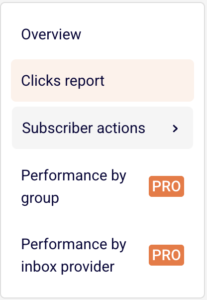
Performance by group and Performance by inbox provider are available on PRO plans.
Step 5 — Export or Print the Report
Click Print report in the top-right corner of the Campaign overview page to generate a printable version. On the Subscriber actions page, use the Export button to download subscriber-level data. You can also use the dropdown menu on the campaign list to select Save as PDF for an offline copy of the report.
What Happens After You Send
After sending, the campaign appears in Email campaigns with a SENT status badge and timestamp. Report data begins tracking immediately and updates every few minutes. The Statistics section on the Campaign overview page reflects delivery, open, click, bounce, unsubscribe, and spam report counts as they come in. The Ecommerce section (showing Total revenue, Number of orders, Revenue per customer, and ROI) also populates if a store integration is connected.
Common Issues
Stats show 0% after sending → Report data takes a few minutes to begin populating. Refresh the page or return shortly.
Opened and clicks remain at 0.00% → Recipients may not have engaged yet, or email clients may be blocking tracking pixels. Allow more time for data to accumulate.
Ecommerce data is empty → A store integration must be connected. Click Install integration and track your sales performance in the Ecommerce section to set one up.
Hard bounce count is high → Review the Hard bounces list under Subscriber actions to identify invalid email addresses. These addresses could not be reached.
FAQs
How often do campaign reports update?
Reports update automatically every few minutes after the campaign is sent.
Do I need to refresh the page to see updated stats?
Refreshing the page will show the latest data, but stats update on their own at regular intervals.
Can I export report data?
Yes. Use the Export button on the Subscriber actions page or choose Save as PDF from the campaign dropdown menu on the campaign list.
Where can I see which links were clicked?
Open the Clicks report tab in the left sidebar of the Campaign overview page. It shows a click map and per-link statistics.
What is the difference between opened and unique clicks?
Opened counts recipients who opened the email. Unique clicks counts recipients who clicked at least one link, regardless of how many times they clicked.