

Campaign Archiving or Deleting
This guide explains how to remove unwanted campaigns and keep your campaign list organized in Sender. Sender does not have a dedicated archive feature, so this article covers deleting campaigns, deleting in bulk, and alternative ways to clean up your campaign list.
Where to Find This Feature
In the Sender dashboard, go to: Email campaigns (left sidebar).
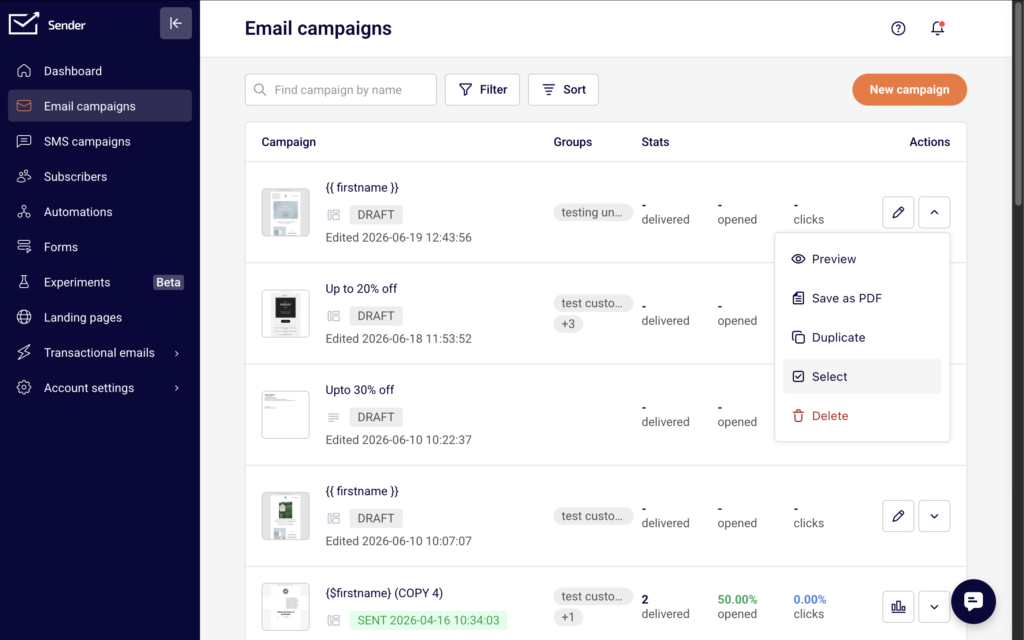
You will see a list of all your campaigns with their names, status labels (such as Draft or Sent), assigned groups, and delivery stats. Each campaign row includes an edit icon and an actions menu (downward arrow) on the right side. Above the list, you will find a Find campaign by name search bar, a Filter button, and a Sort button.
Steps to Clean Up and Delete Campaigns
Step 1 — Locate the campaign you want to remove
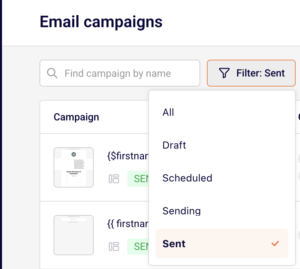
From the Email campaigns list, find the campaign you want to delete. Use the Find campaign by name search bar to search by name, or click Filter and select a status — Draft, Scheduled, Sending, or Sent — to narrow the list.
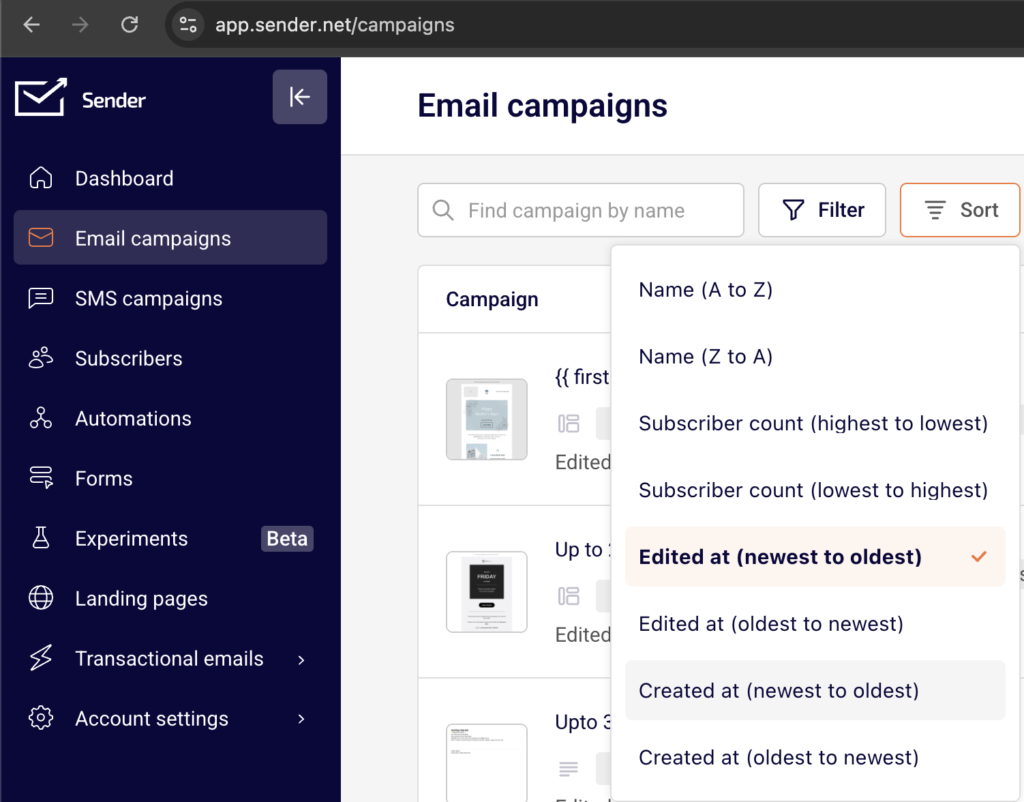
You can also click Sort to reorder campaigns by name, subscriber count, edited date, or created date.
Step 2 — Open the actions menu and select Delete
Click the actions menu (downward arrow icon) on the right side of the campaign row. From the dropdown, select Delete.
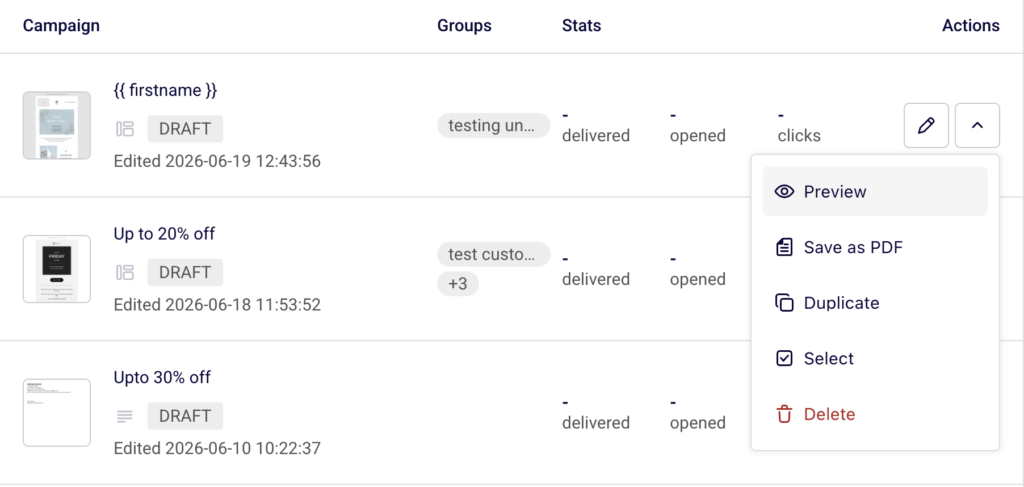
This option is available for campaigns in any status.
Step 3 — Confirm the deletion
A Delete campaign confirmation dialog appears, asking if you are sure you want to delete the campaign. Click Yes, I am sure to permanently remove the campaign. Click No, let’s keep it to cancel and return to the campaign list. Deletion is permanent and cannot be undone.
Step 4 — Delete multiple campaigns in bulk
To remove several campaigns at once, click the actions menu next to any campaign and select Select.
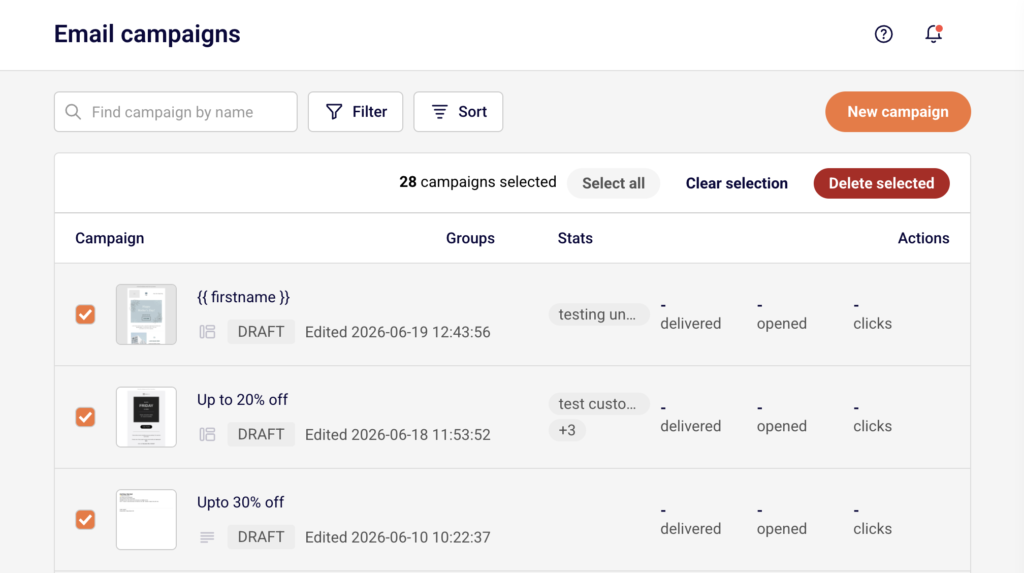
Checkboxes appear next to every campaign. Select the campaigns you want to delete, or click Select all to select all campaigns on the current page. Then click Delete selected to remove all selected campaigns. Click Clear selection to deselect without deleting.
Step 5 — Use alternatives to archiving
Since Sender does not offer a dedicated archive feature, use these approaches to keep your list manageable. Click Filter and select Sent to hide drafts and focus only on completed campaigns.
Before deleting a campaign you may need later, open the actions menu and select Duplicate to create a copy in Draft status, or select Save as PDF to download a local copy of the campaign content.
Campaign Status Reference
Draft — The campaign has been created but has not been scheduled or sent. All actions are available, including Preview, Save as PDF, Duplicate, Select, and Delete.
Scheduled — The campaign is set to send at a future date and time. You can delete a scheduled campaign to cancel it.
Sending — The campaign is currently being delivered to subscribers. The campaign is in progress and limited actions may be available.
Sent — The campaign has been delivered. All management actions are available, including Share, Preview, Save as PDF, Duplicate, Select, and Delete. Deleting a sent campaign removes it from your list but does not retract the delivered email.
Management Tips
Duplicate before you delete — If you want to preserve a campaign’s content or settings before removing it, select Duplicate from the actions menu first. This creates a copy in Draft status that you can keep or reuse.
Save a PDF copy for your records — Select Save as PDF from the actions menu to download a local copy of the campaign. This is useful for record-keeping before deleting old campaigns.
Use filters to focus your view — Click Filter and select a specific status to reduce clutter in the campaign list without deleting anything. This helps you focus on only the campaigns that need attention.
Clean up in bulk — Use the Select option followed by Select all and Delete selected to remove multiple campaigns at once, rather than deleting them one by one.
Sort to find old campaigns — Click Sort and choose Created at (oldest to newest) or Edited at (oldest to newest) to surface the oldest campaigns first, making it easier to identify which ones to remove.
Common Issues
Deleted campaign cannot be recovered → Deletion in Sender is permanent. There is no trash folder or undo option. Always duplicate or save a PDF copy before deleting if you may need the campaign later.
Campaign still appears after deleting → Refresh the page if the deleted campaign is still visible in the list. If the campaign persists, check that you confirmed the deletion by clicking Yes, I am sure in the confirmation dialog.
Cannot find a specific campaign to delete → Use the Find campaign by name search bar or apply a status filter using the Filter button. The campaign may be on another page if your list spans multiple pages.
Delete option not responding → Make sure you are clicking Delete from the actions menu dropdown and not the edit icon. If the dropdown does not open, try refreshing the page.
FAQs
Can I archive a campaign in Sender? No. Sender does not currently offer a dedicated archive feature. To clean up your campaign list, you can delete campaigns you no longer need. Before deleting, consider duplicating the campaign or saving it as a PDF to preserve its content.
Does deleting a campaign remove subscriber data? No. Deleting a campaign removes only the campaign itself from your list. Subscriber data, engagement history, and group assignments are not affected.
Can I recover a deleted campaign? No. Deleted campaigns are permanently removed and cannot be restored. If you need to preserve a campaign before deleting, duplicate it first or download it as a PDF using Save as PDF from the actions menu.
Does deleting a sent campaign retract the email from subscribers? No. Deleting a sent campaign removes it from your campaign list, but the email that was already delivered to subscribers is not affected.
How do I delete multiple campaigns at once? Open the actions menu next to any campaign and select Select. Checkboxes appear next to all campaigns. Select the campaigns you want to remove, then click Delete selected at the top of the list.
How do I filter my campaign list to find specific campaigns? Click Filter at the top of the Email campaigns list and select a status — Draft, Scheduled, Sending, or Sent — to show only campaigns with that status. You can also use the Find campaign by name search bar to search by name.