

Scheduling vs Sending Immediately
This guide shows how to schedule an email campaign for later or send it immediately in Sender. It walks through the final step of the campaign workflow where you choose your delivery method, and what happens after.
Where to Find This Feature
In the Sender dashboard, go to: Email campaigns → select a campaign → complete Settings, Design, and Recipients → Review and send
The sending and scheduling options appear only on the final step of the campaign creation workflow.
Steps to Schedule or Send Your Campaign
Step 1 — Complete the Campaign Workflow
Before you can send or schedule, you must complete the first three steps of the campaign editor: Settings, Design, and Recipients. Each step shows a green checkmark when finished. Once all three are complete, click Save and continue on the Recipients step to reach the Review and send page.

Step 2 — Review Your Campaign on the Review and Schedule Page
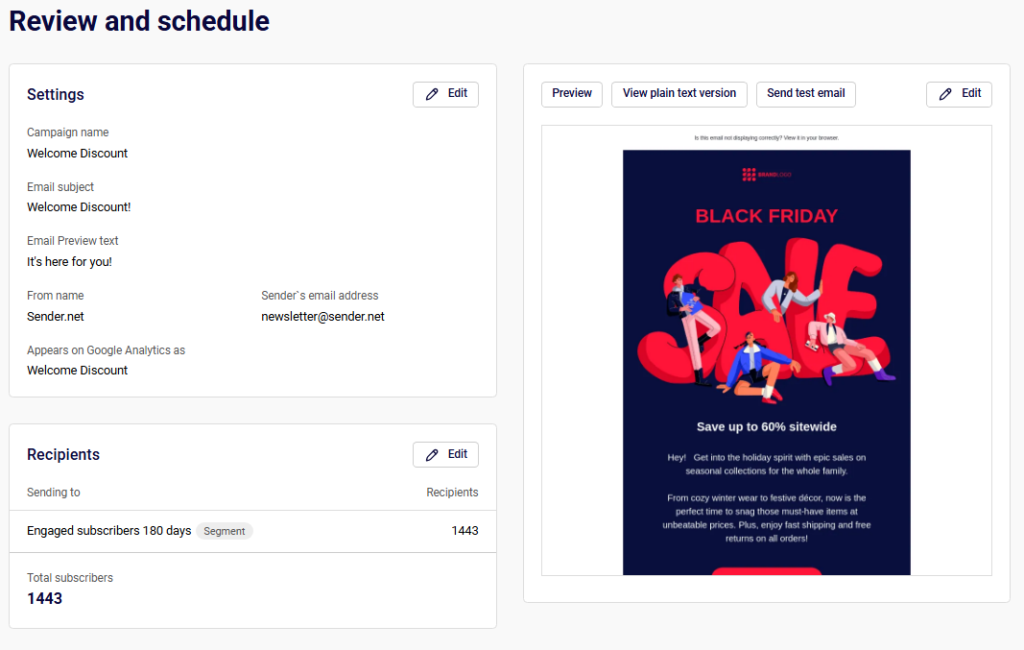
On the Review and schedule page, you’ll see a summary of your campaign broken into three sections: Tips & Suggestions, Settings, and Recipients. The right side shows a preview of your email with options to Preview, View plain text version, or Send test email. Review everything before choosing a delivery method. Each section has an Edit button if you need to make changes.
Step 3 — Choose Send Now or Schedule
At the top and bottom of the page, you’ll see two buttons: Send now and Schedule.
To send immediately, click Send now. A confirmation dialog titled Send campaign appears with the message “Are you sure? This action cannot be undone.” Click Yes to confirm, or Cancel to go back.
To schedule for later, click Schedule to open the Schedule campaign dialog.

Step 4 — Set the Schedule Date and Time
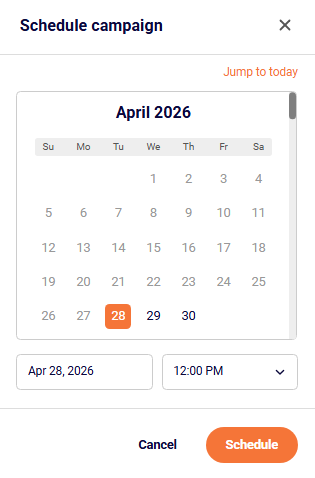
In the Schedule campaign dialog, a calendar displays the current month. Select a future date by clicking on it, or use Jump to today to return to the current date. Below the calendar, choose a send time from the time dropdown, which offers 15-minute intervals. The date and time follow your account’s timezone. Click Schedule to confirm, or Cancel to go back.
Your account timezone is set under Account settings → General settings → Time zone. Make sure the timezone is set correctly before scheduling.
What Happens After You Save
After clicking Send now, a confirmation screen appears with the message “Good job! Your campaign is being sent.” From there, you can click View campaign statistics or Create a new campaign.
After clicking Schedule, a confirmation screen appears with the message “Your campaign is scheduled” and notes that the campaign is scheduled at your local time. You can then click Back to campaigns or Create a new campaign. The campaign appears in the Email campaigns list with its scheduled delivery date and time.
Common Issues
Schedule button is not available — You haven’t completed all required steps. Make sure Settings, Design, and Recipients each show a green checkmark before proceeding.
Campaign sends at the wrong time — Your account timezone may be incorrect. Go to Account settings → General settings and verify the Time zone dropdown matches your intended timezone.
Save and continue is greyed out on the Recipients step — No active subscribers are selected. Make sure at least one group or segment with active subscribers is checked.
FAQs
Can I edit a scheduled campaign?
Yes. To change the scheduled time, go to Email campaigns and click Edit schedule. To edit any other part of the campaign (subject, content, recipients), cancel the schedule first, then edit the campaign as a draft.
What timezone does the schedule use?
The schedule follows your account’s timezone, which is set under Account settings → General settings → Time zone.
Can I cancel a scheduled campaign?
Yes. Go to Email campaigns, find the scheduled campaign, and cancel the schedule. The campaign returns to draft status so you can reschedule or edit it.
Can I send a test email before sending or scheduling?
Yes. On the Review and send page, click Send test email above the preview, enter a recipient address, and click Send.